
Live Streaming Software for Teaching and Training

Twitch grew from 2.3 million UK adult visitors in January 2020 to 4.2 million in April 2020, an increase of approximately 83%, according to Ofcom's report on UK internet use during lockdown. That jump matters for teaching because your learners now expect live video to work on a phone, at home, and again on replay. If your seminar buffers, mumbles, or has no captions, they'll compare it with the smooth streams they watch every day.
What Live Streaming Software Does for a Class
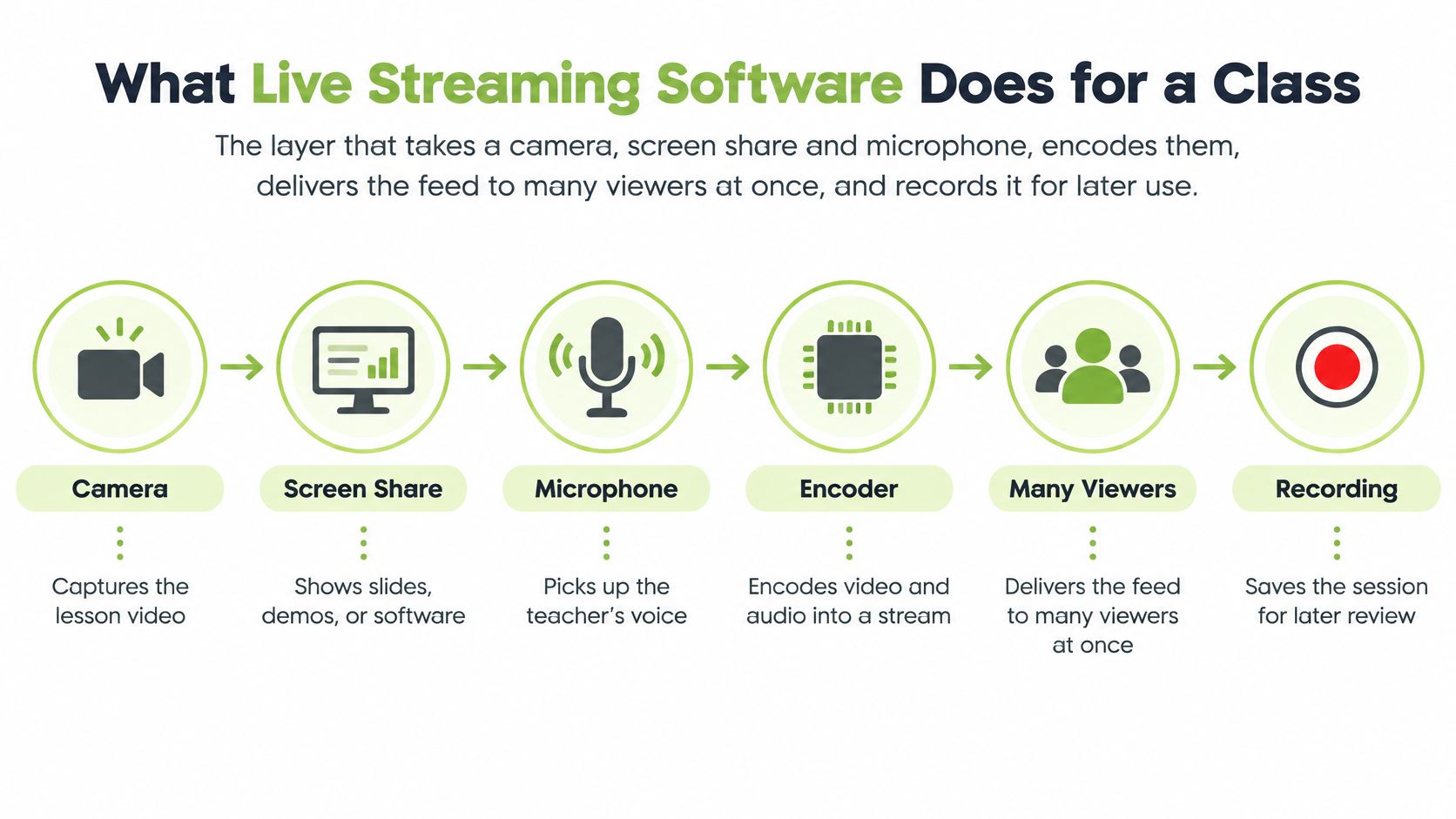
Live streaming software is the layer that takes a camera, screen share and microphone, encodes them, delivers the feed to many viewers at once, and records it for later. That's the short definition. In a class, it's the difference between a lecturer talking to a room and a lecturer broadcasting to people who aren't in it.
Say you've got one presenter and 40 remote students in a seminar, and the group needs a replay the same day for revision. A consumer app can send that picture to a public audience, but it won't reliably check who's allowed in, carry your institution's branding, or put the recording back into Moodle, Canvas, Blackboard or Brightspace. Institutional live streaming software has to do all three.
A Room Is Now a Broadcast
Think of a lecture or a compliance session as a broadcast that must survive home Wi-Fi, not a room with a projector. The projector only had to work for people sitting in front of it. Your stream has to reach a student on a train, a trainee in a noisy office, and a learner who'll watch tonight with captions on.
That's also why some teams look beyond teaching tools when they run larger events. If you're comparing event platforms alongside classroom software, you can explore Planion Events Live from Planstone as a reference point for how scheduled live events are packaged for attendees.
What follows is practical and in order: a bitrate ladder, a feature map, a hosting choice, privacy and caption rules, then a buyer's checklist you can score against your own module.
How Adaptive Delivery Keeps Sessions Watchable
Start with the ladder, because it decides whether anyone can watch at all. Adaptive bitrate means the player doesn't force one quality on everybody. It publishes several versions of the same stream and switches between them as each viewer's connection rises and falls.
Connection | Streams without interruption | Share below 10 Mbit/s | Rendition to publish |
|---|---|---|---|
5G | 98.2% | 8% | 5-8 Mbit/s plus a 1-2 Mbit/s rung |
4G | 96.6% | 28% | 1-2 Mbit/s fallback ready |
3G | 88.3% | 88% | 1-2 Mbit/s as the primary rung |
Those interruption and speed figures come from Ofcom's 2025 Mobile Matters measurements, which found 98.2% of 30-second video streams completed without interruption on 5G, compared with 96.6% on 4G and 88.3% on 3G. In the same measurements, 8% of 5G connections, 28% of 4G connections, and 88% of 3G connections recorded average download speeds below 10 Mbit/s. Read that as a design brief, not trivia. A noticeable share of your mobile viewers can't sustain a high bitrate, even on 4G.
The Path From Camera to Player
The chain runs in a fixed order. You capture camera, screen and microphone, encode them into a stream, and send that stream to an ingest point. The platform then packages it into short segments, pushes those segments through a CDN, and the player on each device picks the rendition it can play.
Short segments matter because the player can react quickly. If a student's train enters a busy cell, the player should drop to the 1-2 Mbit/s rung within a segment or two, keep the audio intelligible, and climb back to 5-8 Mbit/s when conditions improve. A slow switch looks like freezing. A fast switch looks like a briefly softer picture, and teaching continues.
We've built our delivery around that behaviour. We convert source content to multi-bitrate playback for mobile devices and desktops, and we deliver content using the Wowza Streaming Engine, so the ladder is how the platform behaves rather than a manual export you have to remember. If you want the technical detail behind that approach, our guide to adaptive bitrate streaming walks through rendition switching in more depth.
One Failure That Explains the Whole Idea
Say a lecturer on campus Wi-Fi sends a single 8 Mbit/s stream because it looks sharp on the preview monitor. A student watching on a busy 4G connection can't sustain it, the buffer empties, and the player stalls right through the worked example. The lecturer did nothing wrong at the podium. The design failed because presenter upload and audience playback were treated as the same problem.
Practical rule: Keep presenter upload separate from audience playback, and always keep a local or edge recording running so an upload failure still leaves you a file.
After the session, check four numbers, split between mobile and fixed viewers: rebuffer ratio, startup delay, how often the rendition changes, and CDN edge performance. If rebuffering clusters on mobile, your low rung is too high or switching is too slow. Pick that low rung before you spend money on better cameras.
Core Features That Shape a Teaching Session
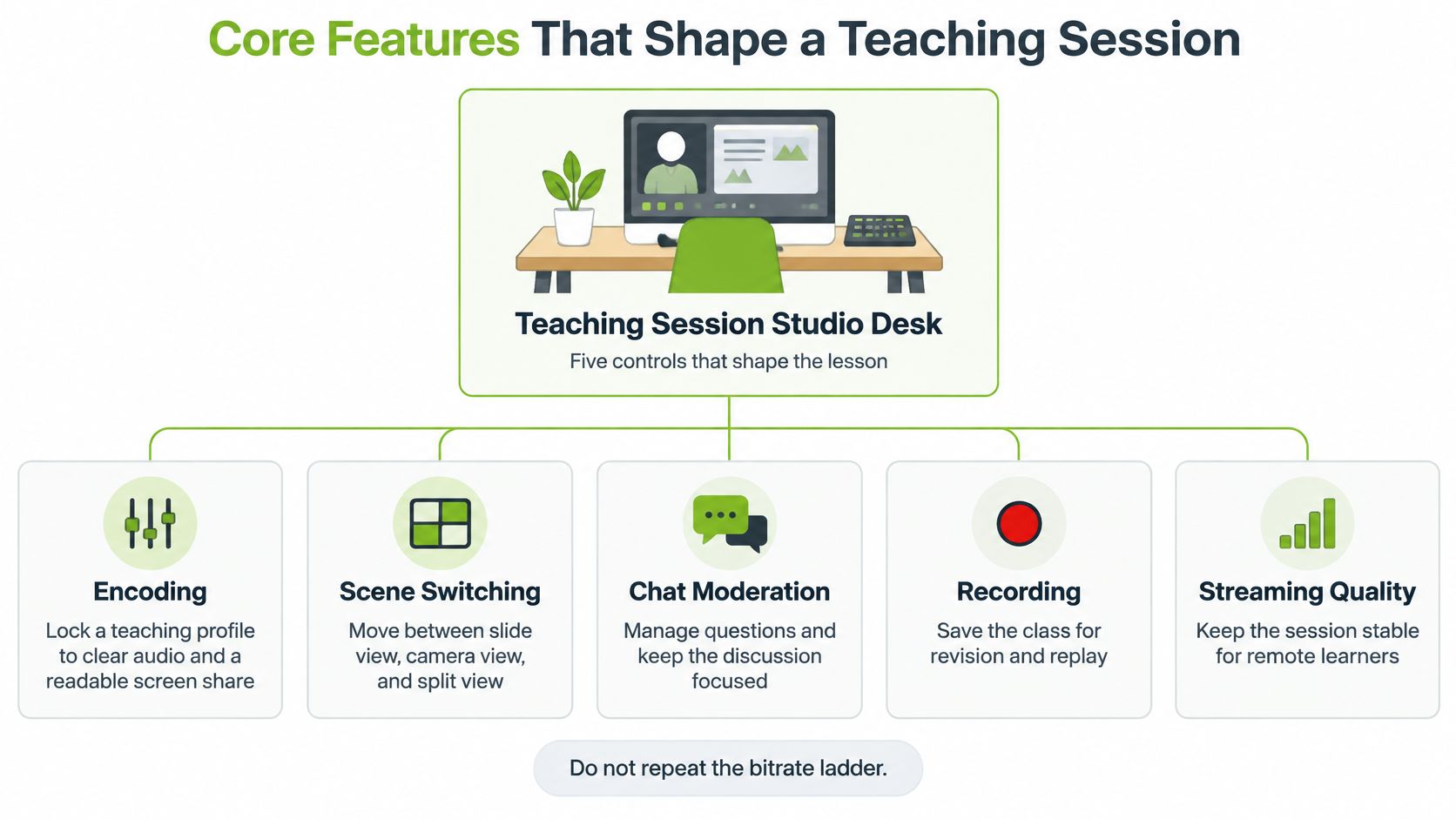
Treat live streaming software as a studio desk with five controls. You don't need every knob turned up. You need each one set deliberately before learners arrive.
Encoding, Recording and Scheduling
Encoding comes first. Lock a teaching profile that favours clear audio and a readable screen share over cinematic 4K. A compliance clip with a sharp picture and muffled narration still fails, because the learner can't follow the instruction. Put a lavalier microphone close to the speaker, set levels so speech sits comfortably loud without clipping, and make slide text large enough to read on a phone.
Recording is your safety net. Start a local or platform recording before you go live, so a dropped uplink still leaves a file you can publish. Our MEDIALive workflow lets users live stream video and audio content to users around the world, and schedule, record and brand live video workflows, which means the recording isn't an afterthought bolted onto a broadcast tool.
Scheduling removes the last-minute scramble. Publish the start time and the embed or portal link the day before, not five minutes before the session. We include Scheduled Live Publishing and Embed Codes as sharing options, so the LMS page holds a stable link that students can find, bookmark and test in advance.
Branding and Security
Branding sounds cosmetic until a student can't tell a genuine session from a forwarded link. Apply the institution name, logo and a custom viewing page so the destination looks like yours. Our player integrates JWPlayer, which supports multi-speed playback, VR, 3D and full HD video playback. In plain teaching terms, a trainee can rewatch a procedure at 1.5x speed to revise, or slow it down to follow a sequence of steps.
Security is a default, not a setting you hunt for mid-session. Keep attendee cameras and microphones off by default, show only the presenter and shared materials, and keep the viewing page behind a login or a strong password. Chat stays open for questions, but contributions are text unless you invite someone to speak.
The 10-Minute Dry Run
Before a real cohort arrives, run this once:
Schedule it: Create the session and publish the link where learners will find it.
Brand it: Confirm the viewing page carries your name and logo.
Record 60 seconds: Speak, share a slide, then stop and play it back at a different speed.
Test access: Ask a second person to open the link without the right login or password, and confirm they're blocked.
If any step fails, fix it now. It's much cheaper than apologising to forty people.
Connecting Live Sessions to the LMS
A live link is easier to find when it sits beside the course materials and deadlines learners already use. The University of Edinburgh's guidance on making lectures accessible describes sharing a stream link before a lecture, letting remote students watch through the learning platform, then using the processed recording's transcript to create captions.
Five Steps, One Owner
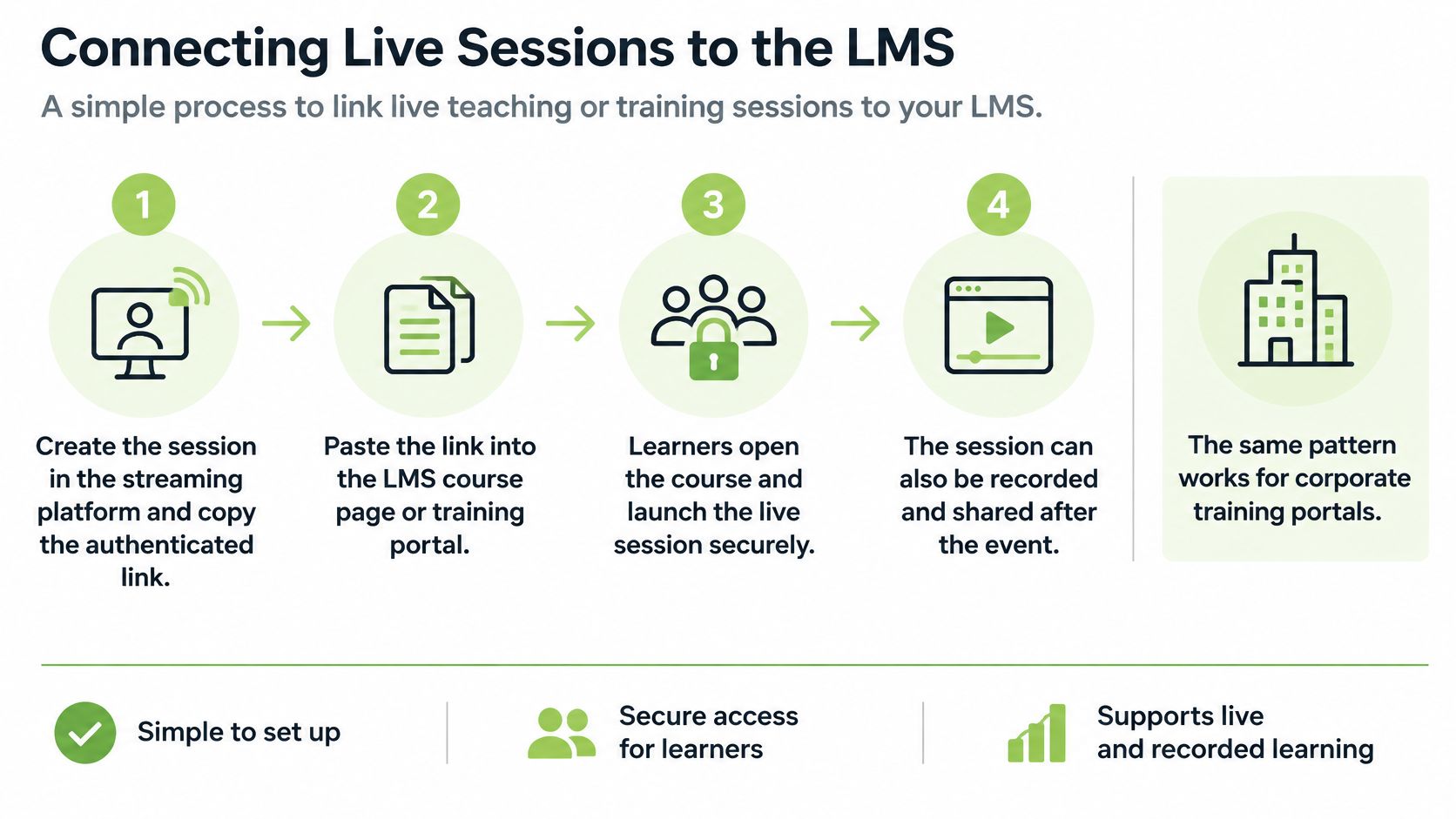
Create the session in the streaming platform and copy its authenticated link.
Add the link to the relevant Moodle, Blackboard, Canvas or D2L Brightspace activity before the lecture. Tell students where to find it.
Run the live class so remote learners can watch in a browser while the in-room class continues.
Add the recording to that same activity after processing. Use its transcript to prepare captions, then review them for errors.
Bring in external recordings. If the presenter records in Zoom or Microsoft Teams, export the file and upload it to the media library. Keep access and captions manageable rather than leaving the recording in a personal cloud folder.
MEDIAL integrates with Moodle, Blackboard, Canvas and D2L Brightspace. Teachers and students can also record video and create or respond to video assignments within those systems. A short video response in the course can give learners a follow-up activity without requiring another live meeting. For the setup sequence, see this guide to hosting a live stream event in an LMS.
Why the Replay Sits in the Same Place
Captions and transcripts can help students follow material when their connection is poor or their surroundings are noisy, as the Edinburgh accessibility guidance explains. Keeping the stream, recording, captions and transcript together in one LMS activity makes the material easier to locate and use.
The same arrangement works for workplace training. Put a required session in the training portal, then make the replay and checked captions available there too. Staff who are on shift during the broadcast can complete the material later, and everyone uses the same controlled copy. A live-only session gives absent learners no replay to follow.
Audio quality and reliable playback matter more than chasing 4K. Adaptive bitrate helps keep a stream watchable as connections change, while reviewed captions and an authenticated replay give learners practical ways to keep up. A live session without these supports can be less inclusive than a recording that has been checked.
Name one person to publish the link before the session. If it is missing when learners arrive, a named owner can act; a general team mailbox cannot.
Cloud Hosting or On-Premises Control
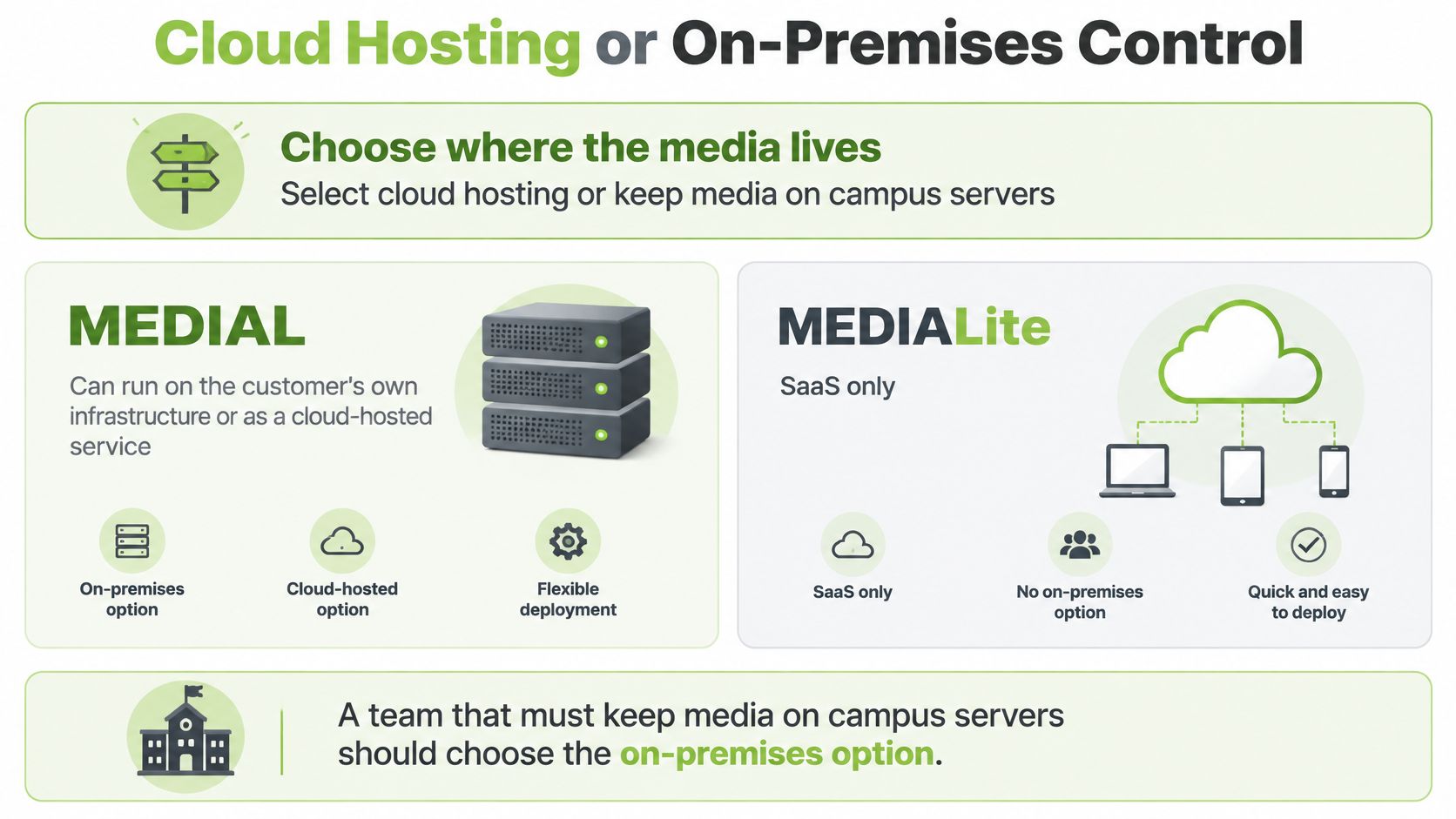
Decide where the media lives before you compare features. Our secure video platform software can be hosted by the customer on its own infrastructure or used as a cloud hosted service. MEDIALite is available only as a SaaS service, so a team that must keep media on campus servers shouldn't treat the lighter product as the same choice with a smaller price.
Option | Who hosts it | Choose it when | Main watch-out |
|---|---|---|---|
MEDIAL cloud | Provider-hosted service | You need a fast start and no server team | Confirm data residency and exit |
MEDIAL on-premises | Customer infrastructure | Video must stay on campus or corporate servers | You scale ingest, storage and updates |
MEDIALite | SaaS only | You want lighter LMS upload and webcam capture | It is not an on-premises substitute |
Plan for Peaks, Not Averages
Hosting fails at peaks, not on quiet Tuesdays. UK government infrastructure analysis in its stakeholder forum papers on IPTV ecosystem readiness reports that major live-streaming events typically create traffic surges lasting approximately 2-3 hours, with peak volumes reaching up to five times typical evening usage. A university all-hands or a company town hall planned on average bandwidth will hit exactly that wall.
Do the sum with your own numbers. 200 concurrent viewers watching at 3 Mbit/s is about 600 Mbit/s of egress before protocol overhead, redundancy and a safety margin. Now imagine five departments starting sessions at 10 a.m. Each class looks small on a timetable. Together they imitate an event spike, and your origin server feels all of it at once.
Capacity follows concurrent viewers multiplied by bitrate. If that number isn't written into the order, you're comparing licence prices for a system you haven't sized.
What Breaks First
The parts that fail first are rarely the player. Watch the origin, encoder distribution points, the sign-in service and the LMS integration endpoint. A fivefold surge can overload authentication while the video itself is healthy, so learners see a login error and assume the stream is down.
The practical response is unglamorous and effective: CDN distribution, origin shielding, pre-scaled ingest and application infrastructure, and load testing at several multiples of your expected audience. Set alerts on encoder health, ingest latency, CDN cache efficiency, dropped frames and viewer rebuffering so you hear about trouble before learners do.
Write the concurrent-viewer number into the order before you compare prices. Hosting cost follows that peak, not your daily average, and a cheap deployment that collapses during enrolment week isn't cheap.
Privacy Rules Before Every Live Session
A live image of an identifiable person is personal-data processing, even when nobody records it. The Information Commissioner's Office says in its guidance on complying with data protection principles for surveillance systems that collecting or viewing identifiable images in real time counts as processing. Broadcasting them online to an indefinite audience remains subject to the UK GDPR and the Data Protection Act 2018. A live-only session still needs a privacy plan.
The Pre-Event Checklist
Decide who needs to be on camera before the session. For many lessons, that means the presenter and slides, not the students.
Keep attendee cameras and microphones off by default. Show the presenter and shared materials unless there is a clear reason to include participants.
Define the audience and restrict access with institutional authentication or a strong password.
Record the purpose of any recording and its intended use. Do not reuse it for an incompatible purpose without justification.
An open website or social channel may make a seminar easier to access, but it can also expose identifiable students to an indefinite audience. Choose access controls to match the intended viewers. This guide to secure video streaming explains how authenticated delivery can keep access within a defined audience.
Notices, Withdrawal and Children
Tell guest speakers, students or employees about recording before the session, rather than burying the notice in general terms. The ICO's guidance on obtaining, recording and managing consent says consent must be specific and informed. The request should identify the organisation and any other controllers, explain why the data is wanted and how it will be processed, and state that consent can be withdrawn at any time. Keep the submitted consent data and a timestamp linked to the version of the form used.
Say whether the session will be streamed, recorded, captioned or shared afterwards, and retain the timestamped response. Withdrawal should be as easy as giving consent. Offer a practical alternative, such as joining audio-only, keeping the camera off or receiving the material later. Where consent is the lawful basis for an online service aimed at children, parental consent is needed for children under 13, so check the age of every participant before relying on consent.
Name the person responsible for approving this checklist before publishing the session link. Without sign-off, do not publish it.
Accessible Captions and Replay Gates
Captions and replay access shape whether a live class is usable for every learner. Ofcom's access services report for January to December 2025 found that 88.9% of responding providers offered subtitles in 2025, down from 95.5% in 2024. Audio description was available from 40.0%, and signing from 28.6%. These figures concern regulated services, but the lesson for teaching is practical: plan accessibility into the workflow rather than treating it as a final checkbox.
The Caption Gate
The University of York's Panopto captions guidance says pre-recorded videos need accurate captions to meet accessibility standards. It notes that automatic captions often need manual checking, refers to WCAG 2.2 AA for university digital resources, and recommends keeping captions to one or two lines for readability. Use those principles to set a release gate:
Generate the draft. Create a caption file from the recording.
Assign a reviewer. A named person checks names, technical terms, punctuation and timing.
Keep captions readable. Limit each caption to one or two lines so it does not obscure the slide.
Hold the replay. Publish only after the reviewer signs off.
For a recorded compliance webcast, for example, the reviewer can correct a product name or regulation number before the recording reaches the LMS. Automatic captions can misrecognise both. Teams making short follow-up explainers may use a training video generator to draft clips, but generated videos still need human caption review before learners rely on them.
When Live Is the Barrier
Put the recording and transcript in the same LMS activity as the live link. That gives students who cannot use the live stream an equivalent route to the material. Restricting recordings to streaming can negatively affect students with disabilities, for whom lecture capture can support inclusive learning. Consider that trade-off before disabling downloads or making streaming the only way to access a session.
For high-stakes teaching, such as induction, assessment briefings or safety training, request audio description or signing where available and record the request. Dependable audio, adaptive bitrate, reviewed captions and authenticated replay matter more than chasing 4K. A live session without those provisions can be less inclusive than a checked recording. Live isn't automatically the accessible option.
Decide with a Buyer's Checklist
Score live streaming software only after you've written down your own answers on access, captions, bitrate and hosting. Then use this table as a pass or fail verdict. A fail on audience access or captions is a stop, even if the demo picture looks sharper than everything else you tested.
Decision | A pass looks like | A fail looks like |
|---|---|---|
Audience access | LMS login or a strong password | A public or social link to the class |
Replay | Recording plus reviewed captions | Live only, with no fallback file |
Mobile playback | A 1-2 Mbit/s rung as well as a higher one | One high bitrate for every viewer |
Peak load | A test at several times expected viewers | Plans based on an average evening |
Captions | A named owner and a release gate | Automatic captions published unchecked |
Deployment | Cloud or on-premises matches data rules | Hosting chosen on price alone |
How We Measure Against That List
We're software for streaming and managing media, and we help hundreds of educational institutions and businesses in more than 20 countries publish, manage, protect and share their live and on-demand streaming content. That fit is strongest if you already teach in Moodle, Canvas, Blackboard or Brightspace and want scheduled, branded sessions with authenticated replay, on cloud or on-premises hosting. If you mainly need a public channel for marketing content, a consumer platform will suit you better and cost less effort.
Notice what's not on the checklist: maximum resolution. Dependable audio, a low bitrate rung, reviewed captions and a recording learners can open will teach more people than a 4K badge. Buyers who lead with picture quality usually end up fixing access and captions afterwards, under pressure, mid-term.
run One Real Module First
We offer a free trial and the option to schedule a demo, so make the trial do real work. Take one genuine module, stream a 15-minute session to five remote colleagues on mixed connections, then check four things: the low-bitrate playback on a phone, the LMS link, the caption review, and who can open the recording afterwards.
If any of those four fail, don't roll the tool out to a whole faculty or training cohort. Fix it with five friendly testers, or walk away while walking away is still cheap.
If you're setting up live teaching or training that has to survive real UK connections, protect your learners' data, and land back in the LMS with captions people can trust, MEDIAL brings scheduled and branded live streaming, multi-bitrate delivery, and cloud or on-premises hosting into one platform built for Moodle, Canvas, Blackboard and Brightspace. Start with the free trial or book a demo, run one real module through it, and check the playback, the LMS link and the caption gate before you commit a whole cohort.
Comments