
What Are Codecs and How Do They Run Our Digital World?
- MEDIAL

- Dec 17, 2025
- 14 min read
A codec is the unsung hero of the digital world, the invisible engine that makes every video you watch possible. Think of it as a highly specialised translator that takes massive, raw video files and shrinks them into sizes we can actually store and stream.
The name itself, Coder-Decoder, tells you exactly what it does. It compresses media for delivery (the encoding part) and then uncompresses it for playback (the decoding part). Without this clever technology, modern digital media simply wouldn't exist.
The Unseen Engine Behind Every Stream and Video Call
Imagine trying to send an entire encyclopedia through a tiny letterbox. It's just not going to happen. Raw, uncompressed video and audio files are a lot like that encyclopedia—far too big to travel efficiently across the internet or even fit on your phone. This is where the magic of codecs comes into play.
A codec is a piece of software (or sometimes hardware) that works like a powerful compression machine. It takes that enormous encyclopedia and intelligently shrinks it down into a slim pamphlet that can be sent with ease. That’s the encoding process.
Once the pamphlet arrives, the codec on the other end perfectly rebuilds it back into the full book so you can read it. We call that decoding.
From Gigabytes to Megabytes: A Real-World Example
To really get a feel for what codecs do, let's look at a practical scenario. A single 10-minute video clip filmed in 4K resolution on a professional camera can easily be over 100 gigabytes (GB) in its raw, uncompressed form. Trying to upload or stream something that huge would take days on a typical home internet connection.
But, when you pass that file through a modern video codec before uploading, it can be squeezed down to just a few hundred megabytes (MB), all while keeping the visual quality looking fantastic. It’s this incredible drop in file size that lets services like Netflix stream films to millions of people and allows you to upload high-quality videos to a platform like MEDIAL without waiting for hours on end.
A codec’s main job is to find the most efficient way to throw away data that the human eye or ear is least likely to notice, striking a delicate balance between file size and how good it looks and sounds.
Codecs in Your Everyday Devices
This technology is hiding inside nearly every digital device you own. Your smartphone, for instance, uses a specific hardware codec to record video in real-time, compressing the massive sensor data into a manageable MP4 file on the fly. Without it, your phone's storage would be full after just a few minutes of recording.
The way hardware audio codecs have been adopted in the UK consumer electronics market tells a story of innovation meeting everyday needs. Hardware codecs now hold over 60% of the market share, a trend pushed by the high number of smart TVs and soundbars in our homes, all of which use codecs for features like Dolby Atmos.
On top of that, UK headphone and wearable shipments have hit 15 million units, driven by codecs that enable high-resolution audio. This seamless integration of codecs into our daily lives is what makes modern communication, such as live webcasting, work so well.
If you're curious, you can check out our guide on what is webcasting for a deeper dive into this. To truly appreciate this engine, it's also helpful to understand the network infrastructure that provides the digital motorways for all this compressed data to travel. Without codecs, the digital world as we know it would grind to a halt.
Understanding Codecs Versus Containers
If you’ve ever stared at a video file wondering why it won’t play properly, you’ve probably run into the classic mix-up between a codec and a container. Getting your head around this is the single best way to solve countless playback headaches.
Let’s break it down with an analogy.
Think of a codec as the language a story is written in—say, English or Spanish. It’s the specific method used to compress all that video and audio data into a manageable size. Now, think of the container as the physical book itself: the cover, the binding, the pages that hold the story.
The container is the file you actually see on your computer, like a .MP4, .MOV, or .MKV file. Its job is simply to hold all the different parts together in one neat package.
A container file is like a parcel. Inside, you have separate items ready for delivery: the video stream (written in one codec's language), the audio stream (written in another), and maybe some subtitles. The container just holds them all in one place.
This distinction explains one of the most frustrating problems in video: you open a file, the picture looks perfect, but there's absolutely no sound. What’s going on? Your media player can open the "book" (it recognises the MP4 container), and it understands the video's language (like the very common H.264 codec). But it doesn’t speak the language the audio was written in, which might be an obscure or licensed codec it doesn't support.
How to See What’s Inside Your Video File
The good news is you don’t have to guess what’s causing these issues. You can easily peek inside a file to see both its container format and the specific codecs used for its video and audio tracks. This is the first, most empowering step in troubleshooting.
Here’s a practical way to check any file's properties:
Use VLC Media Player: This free tool is the Swiss Army knife of media players. Open your video in VLC, then go to Window > Media Information (or press Command+I on Mac, Ctrl+I on Windows).
Check the Codec Details Tab: This screen lays it all out. You'll see the container format right at the top, followed by details for each "stream" inside. Stream 0 is usually your video codec (e.g., H264 - MPEG-4 AVC), and Stream 1 will be your audio codec (e.g., MPEG AAC Audio).
Once you know the specific codecs, a quick online search will tell you if your device or software supports them. A mysterious problem suddenly becomes a solvable one.
Understanding containers, which we often just call file types, is crucial for anyone working with digital media. You can dive deeper into this in our simple guide to video file types for educators. By knowing both the container and what’s inside it, you gain complete control over your media.
A Practical Guide to Common Video Codecs
Now that we’ve sorted out the difference between a codec and a container, we can dive into the specific video codecs you’ll actually run into. Instead of getting bogged down in technical jargon, let’s focus on the practical reasons you’d pick one over another. Knowing your codecs is all about understanding their real-world trade-offs and making the right call for your project.
Think of it this way: the codec is the language used to write the story, while the container is the book that holds it.
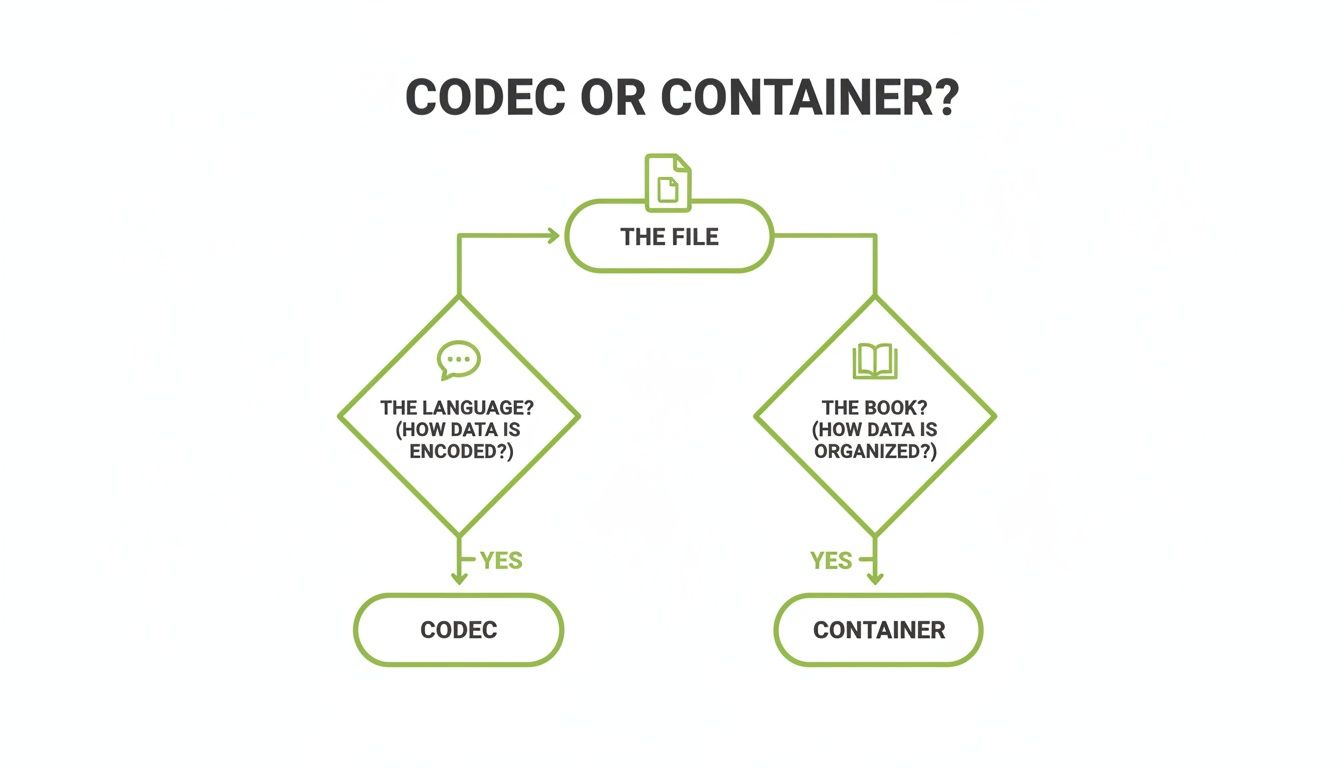
This simple distinction is the key to troubleshooting why a video file might play with picture but no sound. It’s a language barrier, not a problem with the book itself.
To help you navigate the options, here’s a look at the most common codecs you’ll encounter and what makes each one tick.
Comparing Popular Video Codecs
This table gives a quick side-by-side comparison of the heavy hitters in the video codec world, highlighting their key differences.
Codec | Primary Use Case | Efficiency (vs. H.264) | Compatibility | Licensing |
|---|---|---|---|---|
H.264 (AVC) | Universal web video, streaming, Blu-ray | Baseline | Excellent (near-universal) | Managed through hardware |
H.265 (HEVC) | 4K/UHD streaming, high-resolution content | ~50% more efficient | Good, but not universal | Complex & royalty-bearing |
VP9 | High-quality web streaming (especially YouTube) | ~50% more efficient | Very good (modern browsers & Android) | Royalty-free |
AV1 | Next-gen streaming (4K/8K), real-time video | ~30% more efficient than HEVC/VP9 | Growing (major platforms & new hardware) | Royalty-free |
As you can see, the choice often boils down to balancing file size, playback support, and potential costs.
H.264 (AVC): The Universal Workhorse
H.264, also known as Advanced Video Coding (AVC), is the undisputed champion of compatibility. For nearly two decades, it’s been the default standard for everything from Blu-ray discs to web video and broadcasting. You really can’t go wrong with it.
Its greatest strength is its sheer ubiquity. H.264 is supported by virtually every device, browser, and operating system on the planet. This makes it an incredibly safe and reliable choice when your top priority is making sure everyone can watch your video without a single hiccup.
For instance, if you're creating a corporate training video for your MEDIAL library, exporting with H.264 guarantees that staff can view it on their work laptops, personal tablets, or mobile phones without needing special software or hitting playback errors.
H.265 (HEVC): The Efficient Successor
H.265, or High Efficiency Video Coding (HEVC), is the direct successor to H.264. Its main claim to fame is its incredible compression. HEVC can deliver the same visual quality as H.264 at roughly half the bitrate, which means the file size is about 50% smaller.
This efficiency is precisely why HEVC became the standard for 4K Ultra HD content. Streaming giants like Netflix and Disney+ rely on it to deliver crisp 4K streams without demanding a huge amount of bandwidth from the viewer. For example, a movie that would require a 25 Mbps connection with H.264 can be streamed smoothly at the same quality with just a 12-15 Mbps connection using HEVC.
But there’s a catch. HEVC is more computationally demanding to encode and decode. Plus, it’s subject to some complex licensing fees, which has slowed its universal adoption compared to H.264. It’s a powerful choice for high-resolution content, but it might be overkill for standard HD videos where broad compatibility is more important.
Choosing a codec often comes down to a simple trade-off between compatibility, efficiency, and cost. H.264 prioritises compatibility, while HEVC and AV1 prioritise efficiency.
VP9: The Royalty-Free Powerhouse
VP9 is Google's open and royalty-free answer to HEVC. It was developed to be a powerful and efficient codec, offering compression performance that’s right on par with H.265. This makes it a fantastic alternative for high-quality streaming, but without the licensing headaches.
As you might expect, VP9 is the primary codec that drives YouTube. Every time you watch a high-definition video on the platform, there’s a very good chance it's a VP9 stream. It's also widely supported in modern browsers like Chrome, Firefox, and Edge, as well as on all Android devices.
The real benefit of VP9 is its blend of high efficiency and open access. This has made it a favourite for web-based video platforms that need to serve huge amounts of content without racking up royalty costs.
AV1: The Future of Streaming
The newest codec on the block is AV1 (AOMedia Video 1), and it really does represent the future of video compression. It was developed by the Alliance for Open Media, a consortium of tech giants including Google, Apple, Microsoft, Amazon, and Netflix.
AV1 offers a major leap in efficiency, achieving around 30% better compression than both HEVC and VP9. This means it can deliver the same quality video using even less data, or provide noticeably better quality at the same bitrate. Just like VP9, it’s completely open and royalty-free.
Its adoption is growing fast. Major platforms are already using AV1 to stream 4K and even 8K content, as it makes these ultra-high resolutions more accessible to people with average internet speeds. For example, using AV1 allows YouTube to stream 8K video on smart TVs that might have struggled with the bandwidth required for an older codec. While it still requires more processing power to encode, modern hardware is quickly adding dedicated support, ensuring AV1 will become the new standard for next-generation streaming.
Navigating the World of Audio Codecs
Just as video needs a codec to shrink it down, the audio that goes along with it needs its own special treatment. Getting your head around the different audio codecs is vital for delivering everything from crystal-clear dialogue in an online course to rich, immersive sound in a streamed performance.
Each audio codec plays a delicate balancing act between sound quality, file size, and the processing power needed to play it back. Pick the right one, and you can give your listeners the best possible experience, whether they’re using top-of-the-line headphones or just their laptop speakers.
MP3: The Enduring Classic
Even after all these years, MP3 (MPEG-1 Audio Layer III) is still a household name. Why? Simple: it just works, everywhere. It was one of the first codecs that made digital music truly portable, and its long history means you’d be hard-pressed to find a device that can’t play an MP3 file.
But its age shows. The compression methods it uses are pretty dated compared to modern alternatives. While it’s a super-safe bet if you need maximum compatibility (like for a podcast download), you often have to sacrifice a noticeable amount of audio quality to get a small file. For high-fidelity audio today, it's probably not your best choice.
AAC: The Modern Standard for Streaming
Say hello to Advanced Audio Coding (AAC), the successor to MP3 and the current king of the streaming world. It's the powerhouse behind platforms like Apple Music and YouTube, and for good reason: it delivers much better sound quality than MP3 at the exact same bitrate.
This efficiency makes AAC a fantastic, reliable choice for the audio track in your online course videos or any other pre-recorded content. It gives learners a great listening experience without bloating the file size, which means smooth, buffer-free playback. If you're exporting a video, choosing AAC for the audio is almost always the right call for web delivery.
Think of AAC as the H.264 of the audio world. It offers a fantastic combination of high quality and broad compatibility, making it the go-to codec for most general-purpose video and audio delivery.
Opus: The Champion of Real-Time Communication
When it comes to live, back-and-forth audio, Opus is the undisputed champion. It's an open-source, royalty-free codec built from the ground up for real-time communication over the internet. Its superpower? Incredibly low latency, which kills that annoying delay between someone speaking and everyone else hearing them.
That’s why your voice sounds so crisp and immediate on platforms like Zoom, Microsoft Teams, and during live-streamed webinars. Opus is also smart; it can adjust its quality on the fly depending on network conditions, keeping the conversation stable even if your internet connection is a bit wobbly. To really see why this matters, understanding how VoIP phone works and turns voice into digital data is a great place to start.
FLAC: The Choice for Perfect Fidelity
Finally, for the audiophiles who refuse to lose a single bit of the original recording, there are lossless codecs like FLAC (Free Lossless Audio Codec). Unlike the 'lossy' codecs we’ve covered so far (MP3, AAC, Opus), which strategically throw away some data to shrink files, lossless codecs compress audio without sacrificing a shred of quality.
When you play a FLAC file, it’s a perfect, bit-for-bit reconstruction of the original master audio. The catch? The file sizes are massive—way larger than their AAC or MP3 cousins. This makes FLAC the perfect choice for archiving music or for professional audio production, but it’s just not practical for everyday streaming.
How Codecs Make Modern Streaming Possible
Knowing what codecs are is one thing, but seeing how they work behind the scenes to deliver a perfect, buffer-free stream is where their true power becomes clear. Modern streaming isn't as simple as sending one compressed file from a server to your screen; it’s a dynamic, intelligent process that adapts in real-time to your unique viewing conditions.
This is the magic that ensures your film night or online lecture isn’t interrupted by that dreaded spinning wheel of doom, no matter how good—or bad—your internet connection is at that moment.
The Secret Behind Buffer-Free Viewing
When you press play, you aren't downloading a single, massive file. Instead, you're interacting with sophisticated streaming protocols like HLS (HTTP Live Streaming) or MPEG-DASH. These aren't codecs themselves, but rather clever delivery systems that work with them.
Here’s a quick look at how they pull it off:
Chopping Up the Video: The original video file is sliced into small, bite-sized chunks, usually just a few seconds long.
Creating Multiple Versions: Each of these little chunks is then encoded using a codec (like H.264) at several different quality levels—think 480p, 720p, and 1080p versions for every single segment.
Smart Switching: Your video player is constantly monitoring your internet speed. If your connection is solid, it requests the high-quality 1080p chunks. If your Wi-Fi suddenly takes a nosedive, it seamlessly switches to requesting the 720p or 480p chunks to keep the video playing without a pause.
This whole process is called adaptive bitrate streaming. It’s the reason a video might look a little fuzzy for a second before snapping back into sharp focus—the system is intelligently prioritising a continuous experience over perfect quality.
The Crucial Role of Transcoding
For adaptive streaming to work, a platform has to create all those different quality versions from the single file you upload. This essential background process is called transcoding. Put simply, it’s the act of converting a media file from one format to another by changing its codec, container, bitrate, or resolution.
Transcoding is the invisible workhorse of any video platform. It takes a single master file and automatically creates a whole family of optimised versions, ensuring every viewer gets the best possible stream for their specific device and network.
When you upload a video to a platform like MEDIAL, it immediately gets to work transcoding your file into all the necessary formats for HLS or DASH delivery. This is precisely why you should always upload the highest-quality file you have.
By providing a pristine master file, you give the transcoding engine the best possible source material to work with. The result? Cleaner, sharper, and more professional-looking streams for everyone. Trying to manually compress a file before uploading can actually damage the final quality. If you want to dig deeper, our guide has some great tips on how to reduce video file size without losing quality.
A Few Common Questions About Codecs
Let's put all this theory into practice. These are some of the most common, real-world questions people have when they start wrestling with codecs. Think of this as your quick-reference guide for solving those head-scratching video problems.
What Is the Best Codec for Video Editing?
When you’re editing, you need what’s called an intermediate or mezzanine codec. Good examples are Apple ProRes or Avid DNxHD. These are a completely different beast to the delivery codecs like H.264 that we’ve been talking about.
They use much less compression, which means they hold onto far more image detail. More importantly, they put way less strain on your computer's processor during the edit. The files are massive, sure, but the performance boost you get in your editing software is a night-and-day difference. It's like working with a high-resolution master copy before you shrink it down for everyone else to see.
Why Does My Video Have No Sound on Some Devices?
This is a classic codec compatibility problem, and it happens all the time. Nine times out of ten, it means the video was encoded with a codec almost everything can play (like H.264), but the audio track used a codec your device doesn't recognise (like AC3 or DTS).
Essentially, your player understands the video's language but is completely stumped by the audio's. The easiest fix is to run the file through a conversion tool and just re-encode the audio track to something universal, like AAC. You can often fix the problem in a couple of minutes without having to re-render the whole video from scratch.
Is a Higher Bitrate Always Better?
Not at all. While a higher bitrate packs more data into the file and generally boosts quality, you quickly hit a point of diminishing returns. Once you find the ‘sweet spot’ for a certain codec and resolution, cranking the bitrate any higher just bloats the file size without making the video look any better to the human eye.
Modern codecs like HEVC or AV1 are so clever because they're designed to deliver the same visual quality as old workhorses like H.264, but at a dramatically lower bitrate. That's the secret sauce behind smooth, high-quality streaming that doesn't demand a super-fast internet connection.
Can I Change a File’s Codec Without Losing Quality?
Sadly, no—not when you’re moving between 'lossy' codecs like H.264, HEVC, VP9, or AAC, which is what you'll be doing most of the time. The process is called transcoding, and it works by decompressing the original file and then re-compressing it with the new codec. Every time you re-compress, you throw away a little more data, leading to a small but permanent drop in quality.
You can minimise the damage by exporting at a very high quality setting, but a tiny bit of loss is unavoidable. The only time you can convert without any quality loss is when you’re going from one lossless codec to another, like turning a FLAC audio file into an ALAC file.
Empower your institution with a secure, integrated video platform built for education. MEDIAL makes it easy to manage, stream, and create engaging multimedia content directly within your LMS. Schedule your free demo today to see how we can simplify your video workflow.
Comments