
A Simple Guide to Video File Types for Educators

Ever had that sinking feeling? You’ve spent ages creating the perfect video lecture, it plays flawlessly on your computer, but the moment you upload it to your learning management system (LMS), all you get is an error message. It’s a frustratingly common problem, and the culprit is usually a simple misunderstanding of what video file types really are.
This confusion doesn't just waste time; it can lead to massive files that clog up your storage and create playback headaches for students. A 1-hour lecture saved in the wrong format could be 10GB instead of 1GB, making it impossible for a student on a slow connection to watch.
So, Why Are Video Files So Complicated?
Let's break it down with a simple analogy. Think of any video file—whether it's an .MP4 or a .MOV—as a lunchbox. The outside of the lunchbox tells you what kind of container it is, but it doesn't actually tell you what’s for lunch inside.
That box is the container format. It's the part you see in the file name, like or . The container’s main job is to hold all the different pieces of the video—the moving pictures, the sound, the captions—together in one neat package.
What's Packed Inside the Container?
Inside this digital lunchbox, you have the actual "food": the video and audio data. To make video files small enough to stream online or save on a hard drive, this data is compressed using a technology called a codec (which is short for coder-decoder).
Here’s where most playback problems start. A device or platform might recognise the lunchbox (the container), but if it doesn't have the right tools to unpack what's inside (the codec), the video simply won't play. This is exactly why a file straight from a faculty member's iPhone might fail to upload to a Windows-based LMS. The system recognises the container, but it can't decode the specific Apple codec used to create the video.
The Key Takeaway: A video file isn't one single thing. It's a container (like MP4 or MOV) holding data compressed by a codec (like H.264). For a video to play, a system needs to understand both.
Getting your head around this is the first real step to mastering your video workflow. It gives you the power to troubleshoot playback errors, make smarter choices when you export your content, and make sure every student can watch your videos without a single technical glitch.
By choosing the right container and codec from the start, you can lock in some major wins for your educational content:
Universal Compatibility: Ensure your videos play back reliably on any browser, mobile device, or LMS platform like Moodle or Canvas.
Optimised File Sizes: Keep file sizes manageable for quicker uploads and less strain on storage, which is a huge help for students on slower internet connections.
A Simpler Workflow: Save yourself the headache of having to re-export and re-upload videos that didn’t work the first time.
The Difference Between Containers and Codecs
To really get to the bottom of video playback problems, we need to look inside the file itself. Think of it like a lunchbox. Every video file has two distinct parts working together: a container and a codec. Grasping how these two relate is the secret to creating video that works flawlessly anywhere, from a Moodle course page to a student's smartphone.
Let’s start with the container. This is the box, the wrapper—the file extension you see, like .mp4, .mov, or .avi. The container’s job is simple but essential: it holds all the different bits and pieces together in one organised package. This includes the video track, one or more audio tracks, and even things like subtitles or chapter markers.
The codec, on the other hand, is the clever tech inside the container that handles compression. Short for coder-decoder, a codec’s whole purpose is to shrink massive raw video and audio files into a manageable size for streaming and storage, and then decompress them for playback. Without codecs, a 10-minute HD video could be several gigabytes, making it completely impractical for online learning.
This diagram helps visualise the relationship: the media files go into the container, which is then handled by the codec.
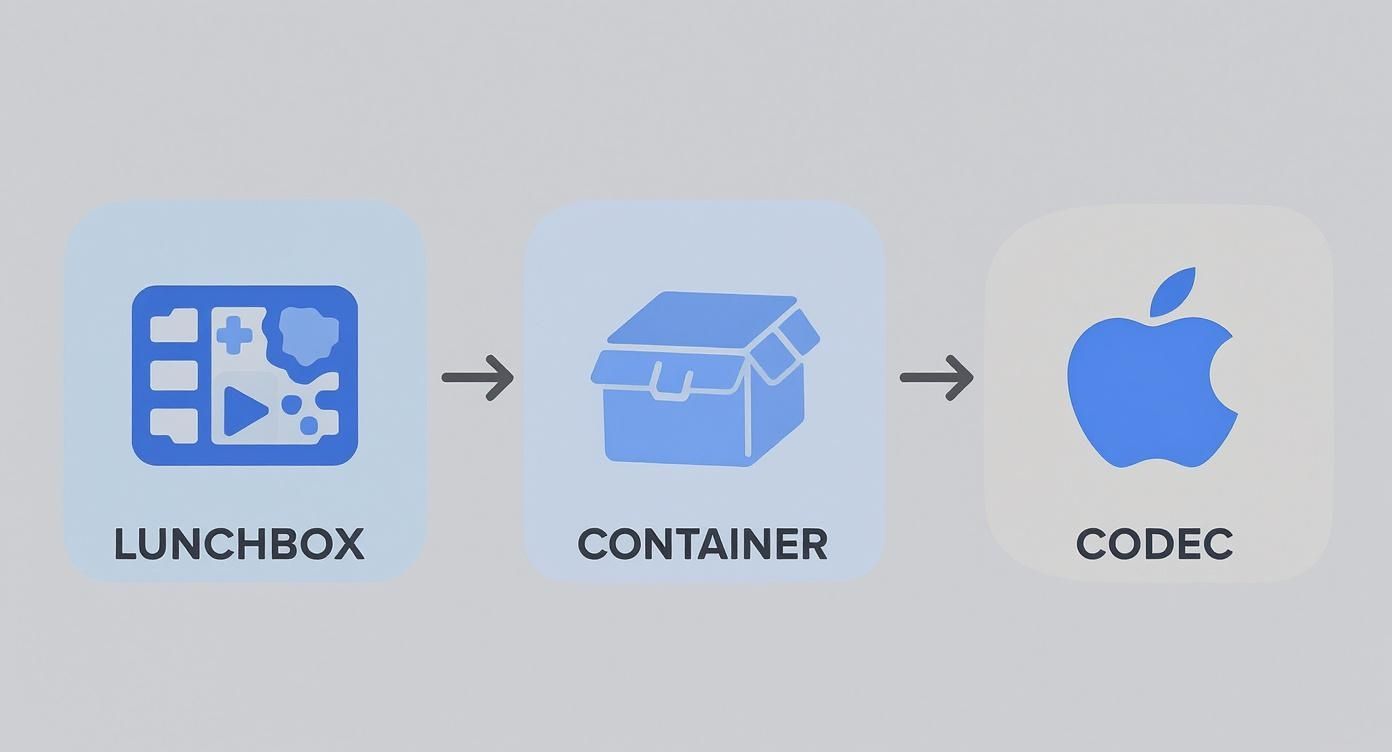
As you can see, the container (the box) is totally separate from the codec (the tech that processes what's inside). This is exactly why you can't judge a video's compatibility just by its file extension.
Why This Distinction Matters in Education
This separation between container and codec is the most common source of video headaches for educators. A platform like Canvas might recognise the .mov container, but if it doesn’t support the specific Apple ProRes codec used to compress the video inside, the file simply won’t play. It’s a classic case of the right box, but the wrong stuff inside.
Here’s a practical example to illustrate the point:
You can have a .mp4 file, a .mov file, and an .mkv file.
All three of these different containers could hold video compressed with the exact same codec, such as the widely supported H.264.
Conversely, you could have three different .mp4 files, each containing video compressed with a different codec (e.g., H.264, H.265/HEVC, or AV1).
This flexibility is powerful, but it can also be a real source of confusion. Your success hinges on choosing a combination that your intended platform—be it your university website, LMS, or video portal like MEDIAL—fully supports.
The golden rule for maximum compatibility in education is pairing an MP4 container with an H.264 video codec and an AAC audio codec. This trio is the universal standard. It plays back on nearly every modern browser and device without needing special software or plugins.
The Rise of Standardised Video File Types
The move towards highly compatible formats isn’t just an educational trend; it reflects a much broader industry shift. The evolution of video file types in the UK mirrors the growth of our video production market, which generated around £4.7 billion in revenue in 2023. Formats like MP4 and MOV became industry standards because they hit that sweet spot between quality and file size. As digital content creation boomed, the demand shifted to file types that support high-definition content without the enormous file sizes, making them easier to store, edit, and share. You can read more about these market trends and their impact on video production.
Ultimately, understanding this fundamental difference puts you in control. Instead of being frustrated by a "video unavailable" error, you can start to diagnose the problem. You'll know to ask, "Is the issue with the container or the codec?" and can then take the right steps—like transcoding the file to a more compatible format—to ensure every single student can access your valuable content.
Choosing The Right Video Format for Your Course
Now that we've demystified containers and codecs, you're in a much better position to make smart choices. Choosing the right video file type isn't about finding one format to rule them all; it's about picking the right tool for the job. The best format for a high-quality editing project is rarely the best one for smooth playback in your LMS.
Let’s walk through the most common video file types you’ll bump into in education, breaking down their practical strengths and weaknesses. This will help you pick the perfect format for any situation, whether you're uploading a lecture or sharing raw footage with a colleague.
MP4 (MPEG-4 Part 14): The Universal Standard
If you only remember one video file type, make it MP4. This container format is the undisputed champion of compatibility. It’s designed to just work on virtually any modern device, browser, or learning management system without needing special plugins or software.
An MP4 file almost always uses the H.264 video codec and the AAC audio codec. This combination is the secret to its success, offering a fantastic balance between great-looking video and manageable file sizes. This makes it absolutely perfect for streaming, which is a must-have for students on varying internet connections.
Practical Use Case for Educators:This is your go-to format for almost all finished video content. Use MP4 for:
Uploading lecture recordings and tutorials to your LMS (Moodle, Canvas, Blackboard).
Embedding videos directly onto course web pages or your university's website.
Sharing videos with students, as you can be confident they can open and play the file on any device, from a laptop to a smartphone.
MOV (QuickTime File Format): The Editing Powerhouse
Developed by Apple, the MOV container is often the default format for videos shot on iPhones and edited in software like Final Cut Pro. MOV files are brilliant at storing very high-quality video and audio, often with minimal compression, which is why they're a firm favourite among video editors.
While MOV files can use the same H.264 codec as MP4s, they are also frequently used with professional-grade codecs like Apple ProRes. These codecs preserve a massive amount of detail, making them ideal for the editing process but totally unsuitable for direct web delivery due to their huge file sizes.
Practical Use Case for Educators:
During Production: Use MOV as your "master" or "archive" format when editing, especially on a Mac. It preserves the highest possible quality while you're working.
Before Distribution: Always export (or transcode) your final, edited MOV file to an MP4 before uploading it to an LMS or sharing it with students. This will ensure compatibility and much faster streaming.
WebM (Web Media): The Open-Source Optimiser
WebM is a completely open-source video file type sponsored by Google. It was designed from the ground up for the web, aiming to provide high-quality video streaming with a tiny file footprint. WebM typically uses the VP8 or VP9 video codecs, which are extremely efficient at compression.
Its main advantage is performance, particularly on platforms that prioritise open standards, like Mozilla Firefox and Google Chrome. However, its support isn't quite as universal as MP4, especially on older devices or within certain enterprise environments.
Practical Use Case for Educators:
If your institution's website is heavily optimised for modern browsers and you need to embed lots of short, high-traffic videos (like welcome messages), WebM can offer excellent performance. For core course content, though, MP4 is still the safer bet for maximum compatibility.
AVI (Audio Video Interleave): The Legacy Format
Created by Microsoft way back in the early 1990s, AVI is one of the oldest video file types still hanging around. It's a simple container that was once the standard, but it lacks many modern features we now take for granted. For instance, AVI files use older compression methods, resulting in very large file sizes for decent quality, and they don't support streaming well at all.
You might still encounter AVI files from older camera equipment or archived video libraries. While most computers can play them, they really aren't a good fit for online learning platforms.
An Actionable Tip: If you have essential teaching material saved as an AVI file, you should absolutely convert it to an MP4 (H.264/AAC) before trying to use it in your courses. You can use free software like HandBrake to do this. This will drastically shrink the file size and make it playable for everyone.
To give you a clearer picture, here's a quick-reference table that summarises these common containers and where they fit best in an educational setting.
Comparison of Common Video File Containers
File Type | Primary Use Case | Key Advantage | Common Limitation | Best For |
|---|---|---|---|---|
MP4 | Web streaming & distribution | Universal compatibility | Can lose quality with heavy re-compression | Finished videos for LMS, websites, and sharing directly with students. |
MOV | Video editing & production | Preserves extremely high quality | Massive file sizes, limited native support | Master files during the editing process, especially in Apple environments. |
WebM | Web-embedded video | Excellent compression for web use | Not as universally supported as MP4 | Short, high-traffic videos embedded directly on modern websites. |
AVI | Legacy/Archival | Simple, widely recognised format (historically) | Huge files, poor for streaming, outdated | Archiving old footage. Should be converted to MP4 for any modern use. |
This table should help you quickly decide which container to reach for depending on your specific need.
Choosing the right format is a key part of your workflow, but it’s just one piece of the puzzle. The platform where you host and manage these videos is equally important for ensuring a smooth experience for your students. For those exploring their options, you can find a helpful guide on choosing your video platform for education that covers what to look for in a system designed for learning. This will ensure your carefully chosen video file types are delivered effectively.
How to Optimise Videos for Web and LMS Platforms

Creating a brilliant video is one thing, but making sure it plays flawlessly for every single student? That's what really counts. We've all been there – staring at a buffering wheel or dealing with a file so huge it’s useless for anyone on a shaky internet connection.
This is where understanding a bit about encoding and compression becomes your secret weapon.
Think of it like this: encoding is the process of packaging your raw video into a specific format, and compression makes that package smaller. It's like saving a massive document as a universally accepted PDF and zipping it up before you send it. For video, this means choosing the right settings to strike that perfect balance between visual quality and smooth delivery on the web or in your Learning Management System (LMS).
The goal is to produce a video that looks fantastic without hogging bandwidth. This ensures every student has the same great learning experience, no matter what device they're using.
Ideal Settings for Flawless Playback
When you're ready to export your video from software like Camtasia, Adobe Premiere, or iMovie, you’ll be faced with a handful of important choices. Getting these right is the key to creating files perfectly suited for online learning. Here are the settings we recommend for maximum compatibility and performance.
Resolution (1080p vs 720p): While 1080p (1920x1080 pixels) gives you that crisp, high-definition picture, it's not always necessary. For a lecture where the main focus is just the speaker, 720p (1280x720 pixels) provides more than enough clarity at a much smaller file size. You'll want to save 1080p for content where the tiny details matter, like intricate diagrams or software demos.
Bitrate (Quality vs Size): Bitrate is simply the amount of data used to create one second of video. A higher bitrate looks better but results in a larger file. For streaming online, a variable bitrate (VBR) is your best bet. A good target for 1080p video is between 3,000 and 6,000 kbps, while 720p plays nicely in the 1,500 to 4,000 kbps range. This keeps the video clear without causing frustrating buffering.
Audio Codec (The Unsung Hero): This one's easy. For audio, just use the AAC (Advanced Audio Coding) codec. It delivers excellent sound quality at a low bitrate and is supported everywhere, making it the perfect partner for your H.264 video.
A Simple Workflow Rule: The Master File
If you want to avoid future headaches, adopt this one simple rule: always save a high-quality master file. Once you’ve finished editing, export your project in a high-quality format, like a MOV with a ProRes codec or a high-bitrate MP4. This file is your digital archive.
From this master, you can then create all the different optimised versions you need. This process is called transcoding. You might make one version for your LMS, another for a social media preview, and an even smaller one for email. This approach means you never have to go back to your original editing project just to make a small format change. Our guide has more practical tips on how to reduce video file size without wrecking the quality.
A "master and transcode" workflow is the most efficient way to manage educational video. It saves you from the quality loss that happens when you re-compress an already compressed file, making sure your content always looks its best.
This strategic approach is especially important as on-demand viewing continues to grow. Efficient formats like MP4 (H.264) are favoured because they deliver quality video reliably across the huge range of devices people use today.
Ultimately, getting your video seen is about more than just technical settings. It also depends on smart distribution, like following tips for optimizing YouTube video uploads. By combining the right technical recipe with a solid workflow, you can ensure your educational videos aren't just watched, but are experienced exactly as you intended.
Video Formats for Live Streaming and Accessibility

Modern education isn't just about pre-recorded lectures anymore. With the boom in live virtual classrooms and online events, a whole different breed of video format has stepped into the spotlight, all built for real-time delivery. When you’re planning any kind of live video, it's crucial to consider the bandwidth requirements for video conferencing to ensure a smooth, frustration-free experience for everyone.
These live streams are powered by some clever tech that works behind the scenes to give every student the best possible view. Instead of trying to send one massive video file over the internet, streaming protocols chop the video up into small, manageable chunks.
This approach is what makes something called adaptive bitrate streaming possible. The video player on a student's device can automatically detect their internet speed and request the right-sized video chunk. So, a student with a super-fast fibre connection sees a crystal-clear HD stream, while someone on a dodgy mobile signal gets a slightly lower-quality version that plays without that dreaded buffering wheel.
The Technology Behind Smooth Streaming
Two main protocols are the heavyweights in the world of adaptive streaming, and both do their magic over standard web connections (HTTP).
HLS (HTTP Live Streaming): Originally an Apple invention, HLS is now one of the most widely supported streaming formats out there. It’s known for being incredibly reliable and compatible with just about everything—from iPhones and Androids to desktop browsers.
DASH (Dynamic Adaptive Streaming over HTTP): You can think of DASH as the open-standard alternative to HLS. It delivers fantastic performance and is a bit more flexible, happily working with all sorts of different encoding formats.
This kind of streaming technology is the backbone of the modern digital learning experience. It's a massive industry; in 2024, the UK video streaming market hit a value of nearly £11 billion, with live video making up over 76% of that. Streaming platforms rely entirely on adaptive formats like HLS and DASH to get content out to the UK's 19 million households with streaming subscriptions.
Making Your Content Accessible with Captions
Beyond the tech of live streaming, there's another set of files that are absolutely critical for making your educational content inclusive. Caption and subtitle files are essentially simple text files that are paired with your video, providing a synchronised script of all spoken words and important sounds. They aren’t just for learners with hearing impairments—they genuinely improve comprehension and engagement for everybody.
Adding captions is one of the most impactful steps you can take to make your educational videos accessible. Studies have shown a significant portion of students, regardless of hearing ability, use captions to improve focus and retain information.
You'll mainly come across two caption formats:
SRT (.srt): The SubRip Text format is the most common and widely supported type of caption file. It’s just a sequence of numbers, timecodes, and the caption text, which makes it super easy to create or edit yourself in any text editor.
VTT (.vtt): The Web Video Text Tracks format is the more modern standard, built specifically for HTML5 video. It does everything SRT does but adds support for text formatting like colours and positioning, giving you richer display options.
For most teaching purposes, either SRT or VTT will get the job done perfectly. The most important thing is to make sure your video platform or LMS—like MEDIAL—lets you upload these "sidecar" files alongside your video. And always, always give your captions a quick proofread for accuracy before you publish. It ensures they’re a genuine learning aid for all your students.
A Simple Video Workflow for Educators
Putting all these technical concepts into practice shouldn't feel like a chore. In fact, creating a simple, repeatable process for every video you make is the secret to getting things done without the stress.
By following a straightforward workflow from recording to delivery, you can take the guesswork out of video production. The result? High-quality, compatible, and accessible videos that just work, every single time. Think of this as your go-to checklist.
Your Step-by-Step Video Checklist
Start with the Right Settings: Before you even hit record, take a moment to check your camera or software settings. Are you filming a talking-head lecture? 720p is often perfectly fine. Capturing a detailed science experiment? You’ll probably want 1080p. Matching the resolution to your needs from the very beginning stops you from creating enormous files that are a headache to manage later.
Export a High-Quality Master File: Once you’ve finished editing, your first export should always be a high-quality "master" file. This is your pristine, original version. A MOV (ProRes) or a high-bitrate MP4 (H.264) is ideal for this. Think of it as your digital negative—keep it safe in your archive and never upload this beast of a file directly to your LMS or the web.
Create Optimised Versions for Delivery: Now, using that master file, you can create the versions your students will actually see. This is where you transcode (or convert) your video for its final destination. For almost any LMS, website, or MEDIAL portal, this is your magic recipe: an MP4 container with an H.264 video codec and an AAC audio codec. Stick to that, and you’ll avoid a world of playback problems.
A consistent workflow isn't about adding more work; it's about removing friction. By making these steps a habit, you spend less time troubleshooting technical issues and more time focusing on what you do best—teaching your students.
Always Add Captions: The last step before you hit publish is all about accessibility. Create and attach a caption file, usually in SRT or VTT format. It’s a small action, but it makes a massive difference for inclusive learning, helping every student engage with and understand your content.
Following this simple four-step process will help you build a reliable library of educational videos that looks professional, works everywhere, and is frustration-free for every learner.
To see how these principles apply inside a specific learning platform, you might find our guide to optimize your video workflow in Moodle helpful.
Frequently Asked Questions
When it comes to the world of video files, a lot of practical questions can pop up, especially when you're trying to get them working smoothly in an educational setting. Let's tackle some of the most common queries we hear from educators and admins managing video for their courses.
What’s the Best Video File Type for an LMS?
This is a question we get all the time. While there’s no single "best" format that fits every single situation, the most universally compatible and highly recommended choice is an MP4 container using the H.264 video codec and AAC audio codec.
This combination hits the sweet spot between high visual quality, manageable file sizes, and rock-solid playback support. It just works—across almost all modern browsers, mobile devices, and learning management systems. It's the safest and most effective bet for delivering your course content without any playback headaches.
Why Does My Video Play on My Computer but Not on Our Website?
Ah, the classic compatibility problem! This usually boils down to the difference between containers and codecs. Your personal computer probably has a huge library of codecs installed, so it can play less common video files like AVI or MKV without breaking a sweat.
Web browsers, on the other hand, are a bit pickier. They support a much smaller set of codecs, with H.264 inside an MP4 container being the clear favourite. The fix is simple: you just need to transcode (or convert) your video into a web-friendly format like MP4 (H.264/AAC) before you upload it. That one step ensures it will play correctly for everyone, right in their browser.
Should I Use H.265 Instead of H.264 to Save Space?
It's a tempting thought. The H.265 codec, also known as HEVC, is definitely more efficient. It offers pretty much the same quality as H.264 but at roughly half the file size, which is a massive plus for archiving large video libraries.
However, its support in web browsers and on older student devices just isn't as widespread as H.264 yet. For maximum compatibility and to make sure every student can watch your videos, H.264 is still the safer choice for delivery. A good workflow is to use H.265 for your master archive files and then create H.264 versions specifically for sharing online.
What's the Difference Between MOV and MP4?
The MOV format was originally developed by Apple, which is why it's often the default for videos shot on iPhones or edited in Mac software. MP4 was actually based on the MOV format but was designed from the ground up to be an international standard.
Today, both containers are very similar and can even use the same codecs, like H.264. The real difference is that MP4 has much broader support across non-Apple devices and web platforms. That makes it the more reliable choice for sharing and online distribution in pretty much any educational environment.
MEDIAL takes the technical guesswork out of your entire educational video workflow. By automatically transcoding uploads into web-friendly formats, offering deep LMS integrations, and providing powerful accessibility tools, we let you get back to what you do best: teaching. Find out how our platform can support your institution at https://medial.com.
Comments