
Live Stream Requirements for UK Education and Training

71% of children aged 8 to 17 in the UK have watched a livestream, and 28% have broadcast one of their own, according to Ofcom's research into children's use of livestreaming. The same study splits the behaviour that most planning meetings treat as one thing: 49% watched a livestream in real time, while 34% watched recorded livestream content.
Those are two different products with two different obligations. The live event carries duties that only exist while the broadcast is running: moderation, latency, access control, someone watching chat. The recording carries duties that start when the session ends: captions, transcripts, retention, rights. Run them as a single job and the second one misses its deadline, weeks after everyone stopped paying attention.
Live Stream Requirements at a Glance
Six figures cover most of the planning for a UK education or training live stream. Five govern the session while it runs; the recording row is a second job with its own owner and deadline. Answer for each one before a session is approved, not after the first failure.
Requirement | Threshold or standard | Why it matters |
|---|---|---|
Download speed for a decent connection | 10 Mbps minimum | Sufficient for standard-definition viewing and a single HD stream |
Multiple reliable HD streams | Comfortably above the 10 Mbps single-stream figure | Needed when several users or sessions share the connection |
Average live caption delay | 2 to 4 seconds; Ofcom ceiling 4.5 seconds | Longer delays harm comprehension and conversation |
Recorded session captions | Synchronised and corrected before the recording is published | Recordings are treated as pre-recorded content once published |
Moderation cover | Named moderator and backup for every session | Incidents move faster than normal academic support |
Music licence check | Every track documented before the stream | Online music needs its own licence, separate from the platform |
Bandwidth fails first and fails hardest. The UK Government's Future of TV Distribution papers on internet access and speeds published the 10 Mbps figure in 2026 as sufficient for standard-definition viewing and a single HD stream. That figure describes a household connection. A seminar room with 25 learners on one access point, or a tutor presenting from a shared building at 7pm, passes that test on paper and fails it in practice. Shared teaching connections need real headroom above the baseline, which is what the second row is for.
Caption delay is judged as harshly as caption accuracy. Research cited in BATOD's guidance on live captioning in education identifies roughly 2 to 4 seconds as an acceptable average delay, and cites Ofcom's current recommendation of no more than 4.5 seconds average. Past that point, a viewer stops reading the captions and starts waiting for them, which makes a fast seminar exchange unusable for the person who depends on them most.
The deadline nobody watches: the recording row falls due after the room empties and the session is already marked as done.
The moderation and music rows get delegated and then forgotten. Moderation looks like someone else's job until a link appears in chat mid-session. Music looks free until a rights holder asks why a recessional track is sitting on a public page for three years. Each row maps to a different owner: network or IT for bandwidth, the accessibility lead for captions, the academic lead for moderation, the faculty office for music clearance. Naming those four people, and giving the recording row a named owner with a date attached, is the actual planning work.
Requirements by Session Type
The wrong question is whether a UK education livestream needs the same controls as a public social-media broadcast. The useful question is which of four session types yours is, because the controls diverge sharply.
Session type | Live captions | Moderation | Recording publication |
|---|---|---|---|
Closed lecture for authenticated learners | Live captions where possible | Named moderator; chat limited to enrolled learners | Captions synchronised and corrected before publication; 14 days is the outer limit |
Public lecture, open day or town hall | Professional captioner or BSL interpreter | Named and backup moderator with visible reporting route | Captions corrected before the recording is published |
Internal corporate webinar | Automatic captions with human correction | Host moderates chat and Q&A | Transcript and captions attached before sharing |
Open or guest-led stream | Professional captioning | Moderator plus pre-session safety briefing for guests | Recording reviewed before publication |
The closed lecture earns lighter treatment for a specific reason. UK government proposals announced in 2026 would restrict under-16s from creating livestreams and switch livestreaming off by default for 16- and 17-year-olds, while stating that educational services should be exempt from the social-media restrictions, as set out in the archived 2026 proposals on new rules to protect children online. To stand behind that exemption, you have to be able to show the session is educational. In practice that means authenticated entry, a controlled guest list, moderated chat, recorded consent and invites that can't be reshared.
A Year 10 cohort joining a closed session through the school's learning platform is a different risk profile from an open day stream that any child can find and join. The first can rely on authentication. The second needs the full moderation set, a visible reporting route and someone watching throughout.
Switching interaction off is the lazy version of safety. Disabling chat and Q&A protects the platform and damages the teaching: no questions, no peer discussion, no way for a learner to flag that they can't hear. The better design keeps the interaction and adds the controls around it, which costs a moderator's time and nothing else.
Before your next session, name its type from the table. If it sits between two rows, treat it as the stricter one.
How to Test Your Connection Before Going Live
Test three to five days out, then again on the day. The long test finds problems you can still fix; the short check catches what changed overnight.
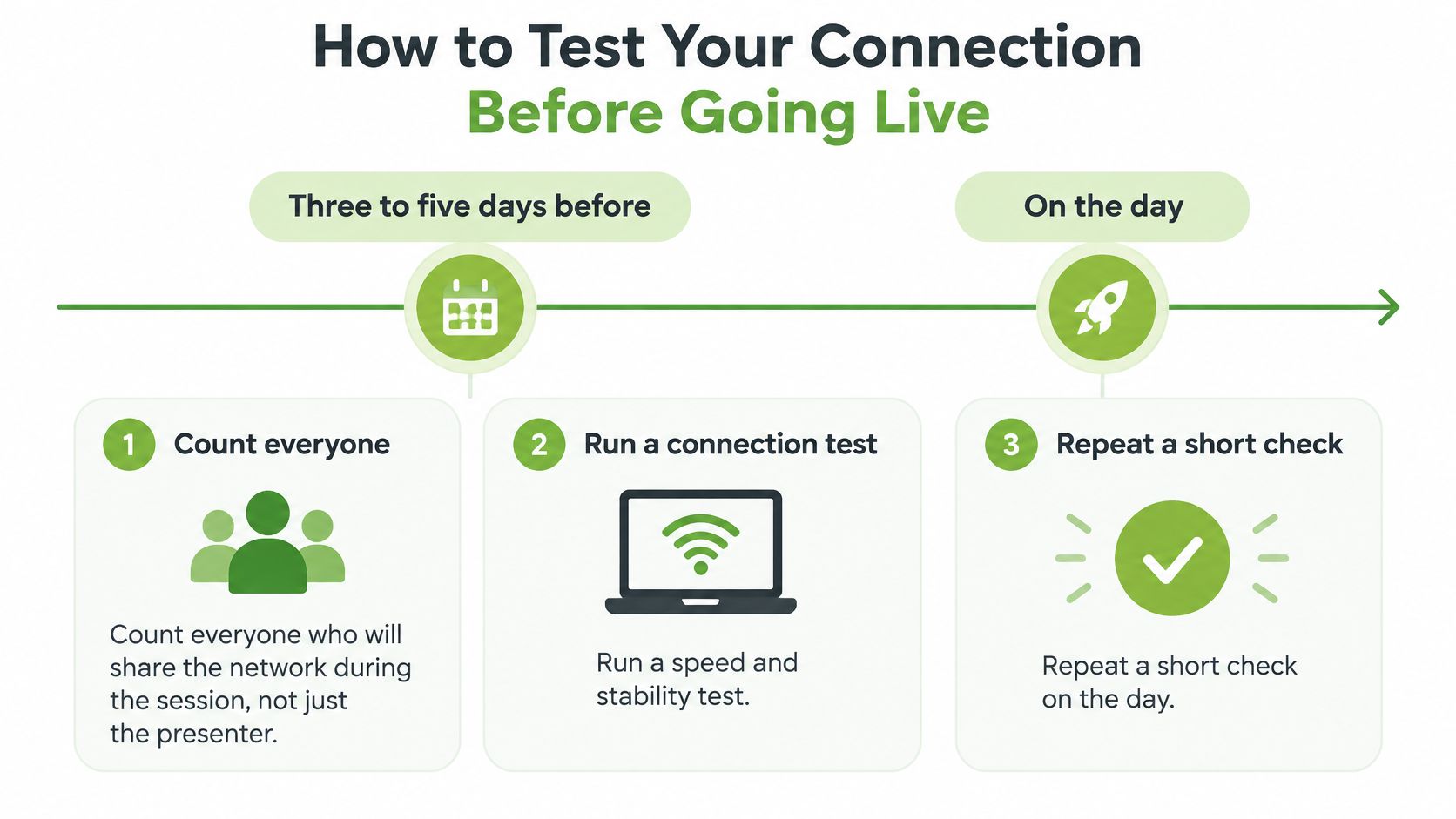
Count everyone on the network. Include the tutor, the co-host, learners in the room and anyone streaming video in the same building, because a speed test run on an empty network measures a connection nobody is using.
Run the test in the room, at the hour of the session. Compare the result with the connection speed a stream actually needs rather than the headline on your contract, and aim for the 30 Mbps the UK Government reports as its threshold for multiple reliable HD streams, against the 10 Mbps statutory minimum (Future of TV Distribution audience impacts paper).
Measure upload separately. The stream leaves your site on the upload path, and a healthy download figure can sit on top of an upload link that won't carry 1080p.
Wire the presenter's device where you can. Ethernet removes a variable you can't see; if a cable isn't possible, move the access point or change the channel instead of hoping.
Send a 15-minute test broadcast to a small group. Include one viewer on a phone and one on a laptop, because a desktop-only test hides the bitrate and player problems your actual audience will hit.
Time the captions during the test. Measure from spoken word to rendered text, and record the worst case as well as the average, since the worst case is what a deaf learner experiences during a fast exchange.
Write the result down and name the fallback. A second connection, a phone hotspot with an agreed data allowance, or a lower resolution preset, decided before the session rather than improvised during it.
A passing test shows stable audio for the full quarter hour, no buffering, caption delay inside target and a fallback someone can switch on without leaving the room. Sort out support access in advance too: customers must give Streaming Ltd access to their premises or computer systems as necessary and promptly provide the information requested in the Streaming Documentation, so if you want provider support during a live session, that access needs agreeing before the day.
If you'd rather watch the setup than read it, this walkthrough covers the same ground on screen.
When the stream drops mid-session, work in this order. Switch to the fallback or the lower resolution preset named in step 7 immediately, because the audience is already refreshing. Post a holding message in chat with a realistic time for the stream to return, since silence pushes learners towards alternative links. Restart captions on the recording from the moment the stream resumes, and log the outage time for the post-event review.
Captions for Live Sessions and Their Recordings
A live stream and its recording are two accessibility jobs with two deadlines, and the second one is the one that slips.
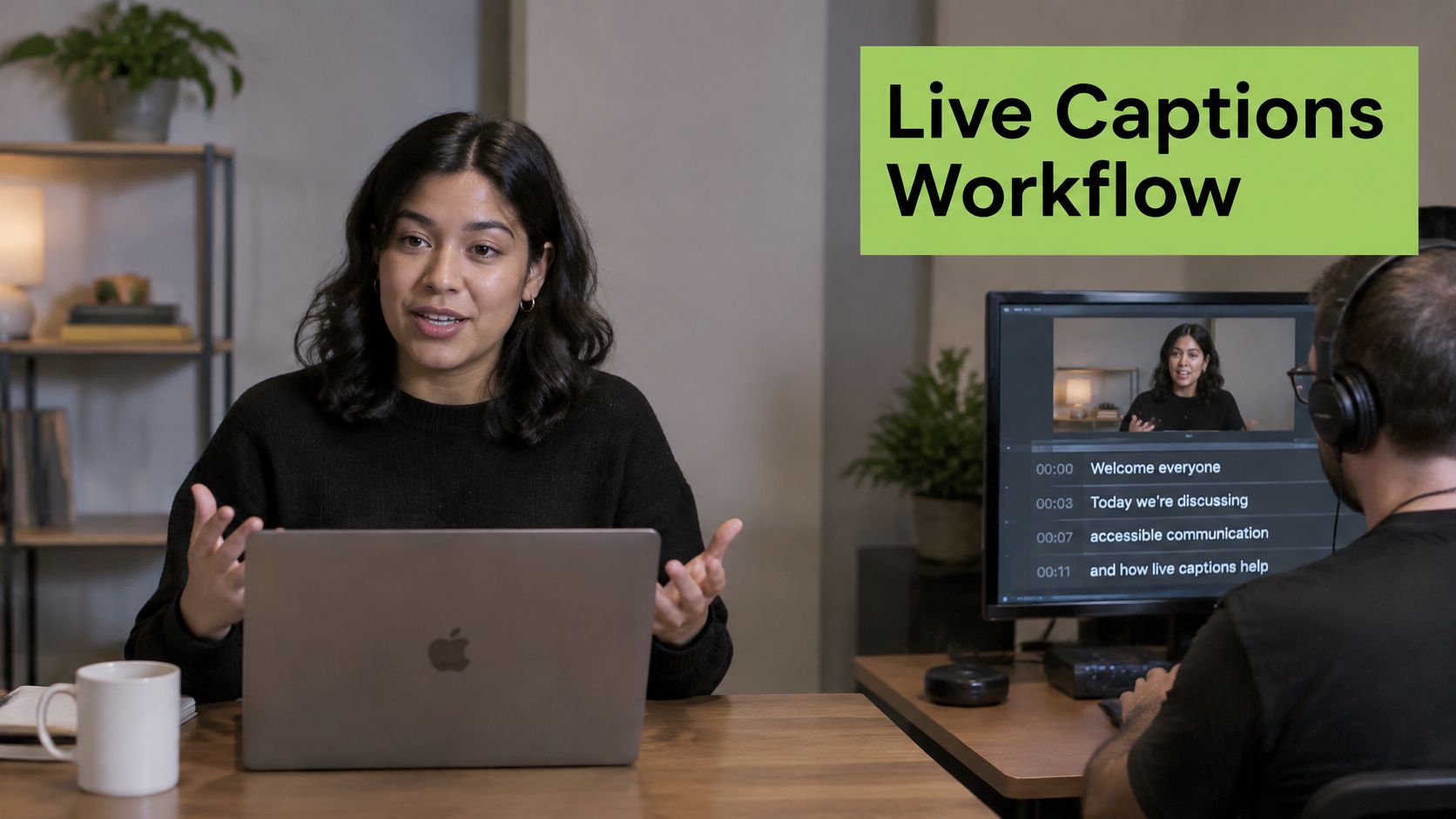
Under the UK Public Sector Bodies Accessibility Regulations, live video is generally excluded from the immediate captioning requirement, but the recording becomes pre-recorded content once published. Jisc's guidance on video captioning and accessibility regulations notes captions may be added within 14 days of publication, while WCAG-based practice still expects them to accurately convey the meaning of the audio.
Stage one, during the event
Automatic speech recognition is the right tool for low delay, and the wrong final layer. Turn it on, expose it as viewer-controlled closed captions, and accept that it will mangle surnames, module codes and technical vocabulary. Build for graceful degradation: if the caption service drops, video and audio must continue, and a caption-status indicator should tell viewers what happened rather than leaving them to guess.
Test with the conditions that break recognition: a specialist term list, two speakers overlapping, questions from participants and a screen-shared slide with text on it. A single-speaker rehearsal passes almost every time and proves very little.
Stage two, the recording
Keep the original file, generate machine captions within hours, then put a person on the correction pass for names, technical terms and instructional meaning. Publish closed captions rather than burned-in text wherever the player supports them, so they can be edited against the closed captioning requirements that apply once the file is public.
Worked example: a 60-minute lecture recorded on Monday gets machine captions by Monday evening, a corrected file by Thursday covering one module code and two student names, and publication on Friday, four days inside the outer limit.
For large public events such as open days or town halls, book a professional captioner or a British Sign Language interpreter rather than leaning on recognition alone.
Three conditions must be true before publication: the captions are synchronised with the speech, a human has corrected them, and they're attached to the same file students will open.
Staffing and Moderation for Live Sessions
Three jobs need covering in every live session, and in most departments two people cover all of them.
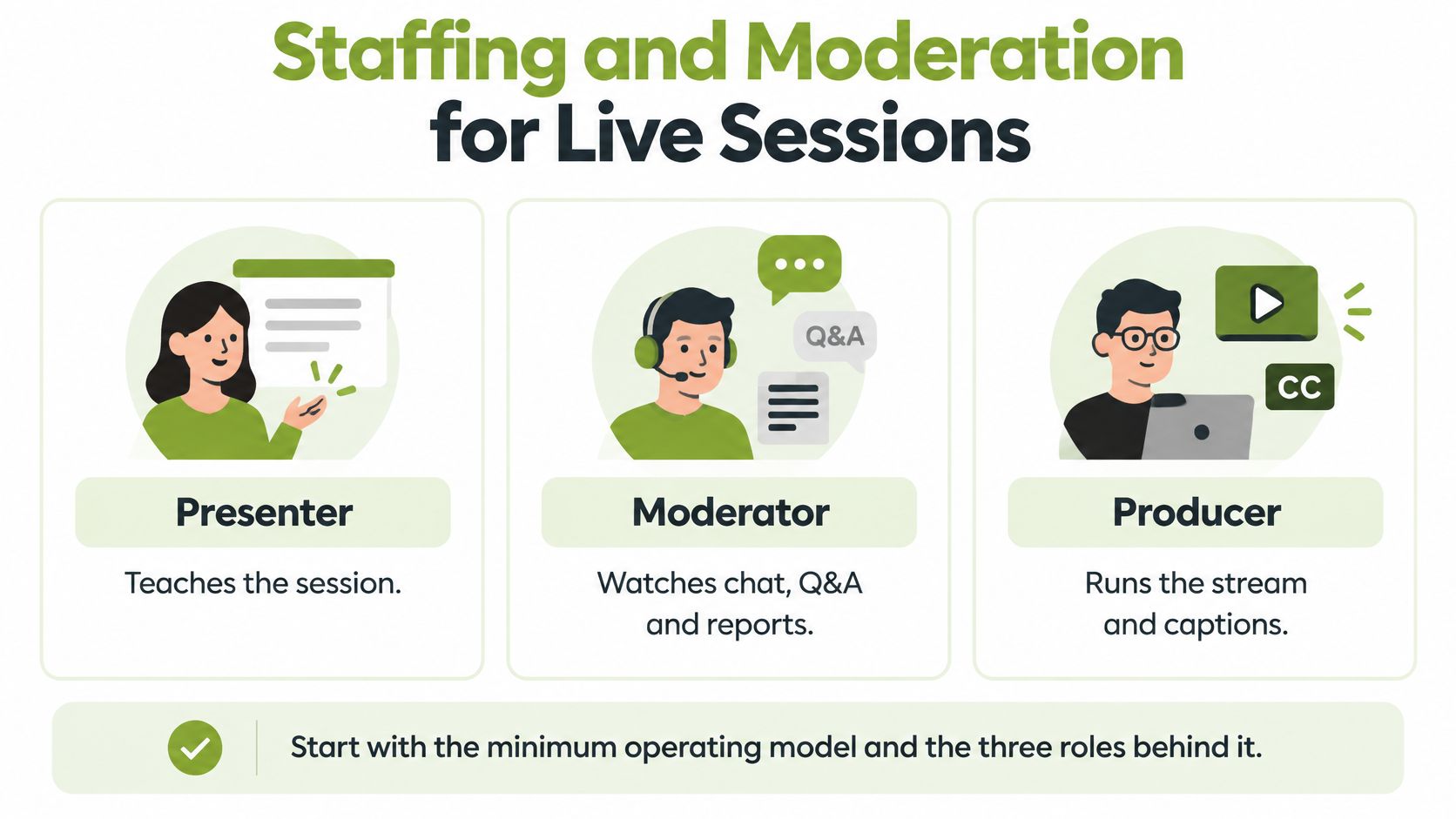
The presenter teaches. The moderator watches chat, the Q&A panel and the reporting channel, and does nothing else during the session. The producer runs the stream, the captions and the recording. A team of two works if the presenter pairs with a moderator and the moderator holds the producer's role as backup, which is why step 7 in any connection plan belongs to a named person.
The minimum operating model is short enough to fit on one page:
Named moderator for every session, written into the timetable rather than volunteered on the day
Backup moderator who knows the session exists and can step in if the first drops out
Pre-session safety briefing for presenters and external guests covering what gets removed and what gets escalated
Visible reporting route that a learner can find without leaving the player
Moderation log recording time, action and outcome
Emergency escalation contact, a person rather than a mailbox
Post-event review within a week, while the detail is still fresh
Ofcom's 2025 proposals said services that permit livestreaming should provide a clear mechanism for reporting imminent physical harm and have human moderators available at all times to review and act on reports in real time, as set out in Ofcom's update on pushing platforms to go further. That expectation is aimed at in-scope public services, not every internal webinar. A closed session doesn't escape the operational logic, though: incidents still move faster than a ticket queue.
Where services include project management, the customer and Streaming Ltd must each name an authorised representative as Project Manager before services start. Do that early, because someone needs to be accountable for the session rather than for the platform.
One incident, start to finish: a learner posts a link to an external site during a 40-person webinar with a guest speaker. The moderator removes the link, pauses chat, logs the time and action, and escalates to the safeguarding lead inside the same session. The review the following week decides whether guest access or chat permissions change.
Music, Copyright and Recording Rights
A graduation stream with a recessional track is a licensing event, and the platform subscription doesn't cover it.
Stream case | Licence to check | Action before going live |
|---|---|---|
Free stream on your own website | Live Online Music Licence (PRS, PPL or VPL) | Confirm the licence covers every track played |
Free stream on an unlicensed third-party service | Live Online Music Licence | Check the host platform's terms and record the platform name |
Paid access to the stream | Online Live Concert licence | Confirm paid access before selling tickets or codes |
Recording kept for later viewing | Mechanical reproduction right for the digital copy | Confirm rights cover post-event availability before publishing |
Making Music's guidance on live music online identifies three rights that matter for live or as-live content: communication to the public, mechanical reproduction in a digital format, and licensing tied to charging viewers. It separates paid from free. Paid access may need an Online Live Concert licence; free content, including streams that accept voluntary donations, may need a Live Online Music Licence when hosted on your own site or an unlicensed third-party service. Businesses using copyright music online may need licences from PRS for Music, PPL or VPL, including for music-streaming websites.
The pre-stream check is five lines in a document:
Every track listed by title and artist, including walk-on and walk-off music
Rights status confirmed for each one, or the track removed
Host platform named, since the licence depends on where it plays
Paid or free access recorded, including donation buttons
Post-event availability decided, because a recording that stays online is a separate question from the stream
Take a graduation ceremony that plays a recessional track on a free video platform as the example. The free-stream licence gets checked before the event, and the recording needs its own answer if families can watch it afterwards. The way you share a video decides who can reach that recording, which feeds straight back into the rights question.
If a track can't be documented, remove it or replace it before going live. There's no version of that conversation that ends well after the event.
Go or No-Go Check Before Your Next Session
Run this on the session you're planning this week, using the opening table as the checklist.
Name the session type from the comparison table, so the right controls apply.
Confirm the connection passed the test, with a fallback in place and measured caption delay inside the target window.
Confirm the caption plan covers both jobs, live and recording, with a named person booked to correct the file before publication.
Confirm a named moderator and a backup are on the rota, with the escalation contact logged.
Confirm every music track is documented with its licence status, and the recording rights have been checked.
If every row can be answered yes, the session is ready. If any answer is unknown or no, delay the session rather than going live with a gap, and log the reason so the next review closes it. Tools take some of the load here: MEDIALive schedules, records and brands a live workflow, which is where the recording-side checks land once the broadcast stops.
If your team hasn't streamed before, run this check against a small pilot session first.
MEDIAL gives UK education and training teams one workflow for the live session and the recording that follows it, with scheduling, recording, branding and AI-assisted closed caption generation sitting inside Moodle, Blackboard, Canvas or D2L Brightspace. You can deploy it on your own infrastructure or as a hosted service, keep access tied to your directory, and hand learners captions they can switch on rather than text burned into the picture. If your next term includes public lectures, open days or compliance-heavy training, book a MEDIAL demo and bring the six-row table with you.
Comments