
How Do I Share a Video Securely? a UK Step-by-Step Guide

It's Thursday afternoon. You've just finished recording twelve minutes of feedback for a seminar group, the file is sitting on your desktop, and the session is tomorrow morning. The question in front of you is the one every teacher and trainer eventually asks: how do I share a video so the right people can watch it, nobody else can, and it plays on whatever device they happen to open it on.
Sending the link is the easy part. Choosing the audience is where the work sits, and it's where nearly every failure starts: a recording that goes to the whole course instead of one group, a feedback clip that ends up publicly indexed, a 3 GB file that dies at 90% on a home connection at eleven at night.
People asking how do I share a video usually have one of three jobs in front of them. They need a link for enrolled students, a link for an audience outside the institution, or a way to move a file that refuses to attach to an email. Each job has a different answer, and picking the wrong one is what creates the privacy problem, the copyright question, and the support ticket that says the video won't open.
Pick the Right Route Before You Share
A lecturer has a 12-minute feedback video for one seminar group and wants it watched before Friday. Four routes could deliver it. The course page reaches exactly the eighteen students in that group. An institutional storage link works if the permissions are set correctly. An unlisted YouTube link plays anywhere and can be forwarded to anyone. An email attachment bounces once the file passes the mail server's ceiling, which a twelve-minute screen recording usually does.
Which one you pick depends on the audience, not on the file.
UK viewers are numerous and completely at home with the format. Ofcom's Adults' Media Use and Attitudes report 2024 found that 91% of adult internet users watched videos or clips through at least one video-sharing platform, with YouTube the leading destination at 78%, followed by Facebook at 47%, Instagram at 43% and TikTok at 37%. The same research notes that only a small minority of those users publish content of their own.
That gap is the thing to design around. Your audience knows how to watch and mostly doesn't know how to configure privacy, permissions or embed settings, so the route has to be right before the link leaves your outbox.
Default to the smallest audience that does the job. Widening access later is one click. Recalling a link that's already been forwarded isn't.
The routes compared
Route | Best for | Who can view | Main watch-out |
|---|---|---|---|
LMS course page (Moodle, Canvas, Blackboard, D2L) | Lessons and assignments for enrolled students | Enrolled users only | Set availability dates, or the video stays open permanently |
Institutional cloud storage link | Files too large for the LMS | Named users or sign-in required | Set an expiry date and diarise the review |
YouTube unlisted or private | Wider public lessons without personal data | Anyone with an unlisted link, or invited accounts if private | Unlisted isn't secure for student work |
Microsoft Teams recording in the LMS | Recorded meetings and seminars | Course members | Confirm the recording reached the LMS account |
Vimeo private link | Polished training clips | Password or domain-restricted viewers | The free plan's weekly upload allowance is tight |
Email attachment | A short clip to one named person | Recipient only | Large files are blocked, and personal data shouldn't travel this way |
The rule I'd apply
Start with one question: who should see this? Enrolled students means the LMS course page. A wider public audience with no personal data in the footage may suit an unlisted link. Anything containing identifiable students, assessment content or staff voices stays restricted, full stop, because a link is a distribution decision whether or not it feels like one.
For the lecturer with the Friday deadline, that's the course page, restricted to the seminar group, with an end date set to the last teaching week. Reach was never the goal. Recognition was.
How to Share a Video Through Your LMS
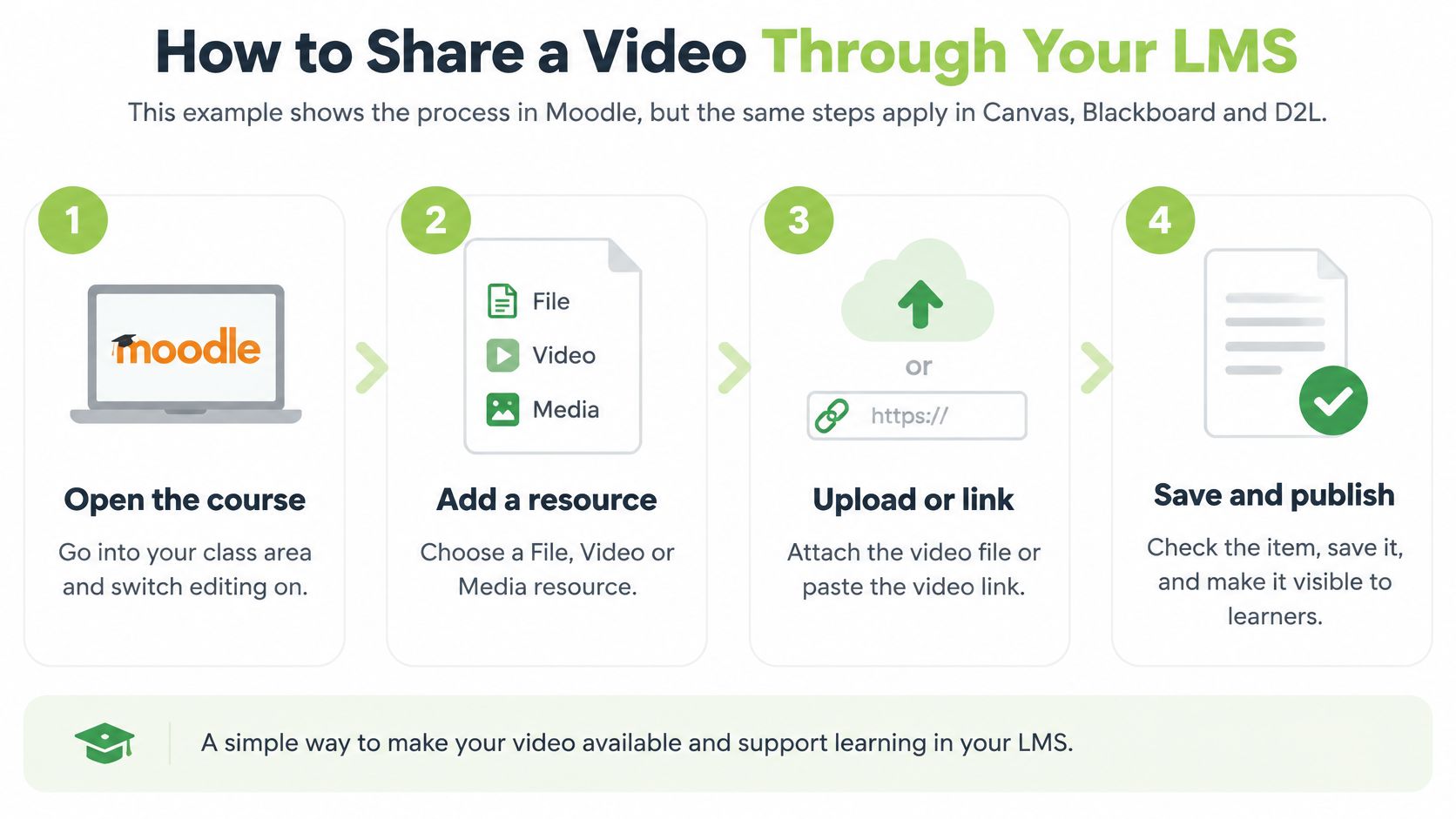
Your Moodle, Canvas, Blackboard or D2L course already knows who's enrolled. That makes the course page the cheapest secure route available: you aren't building a permission list, you're reusing one the registry already built and the timetabling system already keeps current.
The workflow is the same in all four systems, with different names for the same ideas.
Six steps that work
Open the course and switch editing on. Moodle has an Edit mode toggle top right, Canvas needs the module published, Blackboard has Edit Mode, D2L keeps it under Course Admin. Nothing can be added until the page is editable.
Add the resource rather than a page. Use a File or media resource in Moodle, a Module item in Canvas, a content item with a video block in Blackboard, a Content item in D2L. A plain text page with a pasted URL often loses the player and the captions with it.
Upload the MP4 or paste the approved link. Wait for the processing indicator to finish before navigating away. Closing the tab mid-transcode is the most reliable way to end up with an asset that looks listed but plays nothing.
Set availability and audience. A start date, an end date, and the group or section that should see it. This is the step people skip, and it's the one that decides who the video is for.
Write the description and attach a transcript. Two sentences on what to watch and what to do afterwards, plus a transcript file for anything longer than a few minutes.
Save, then open the course as a student. Use the role-switch or a test account. If you can't see it from there, neither can they. If your Moodle install caps upload size, break free from Moodle video limits with secure, accessible, AI-powered learning covers the routes that keep the file inside the course instead of pushing it to a public platform.
The step that catches people out
Step four gets skipped because a saved item is usually visible by default. Moodle handles it through Restrict access with a group condition. Canvas handles it by assigning the item to a section rather than to everyone. Blackboard calls the same thing adaptive release, and D2L calls it release conditions. The mechanism changes, the test doesn't.
Open the item as a student in the target group and as a student outside it. One should play, the other should see nothing.
That two-account check takes about ninety seconds and catches the mistake that turns a private feedback video into a course-wide broadcast. Match the group list to the seminar list, not to the module enrolment, then leave it alone.
How to Share from Teams, YouTube and Social Platforms
Take a 45-minute training recording exported at 3 GB. Two facts about that file decide your route before you've opened a single platform: how long it runs and how much it weighs. Adobe's UK guidance on compressing video lists the current ceilings, and this file fails two of them immediately.
Platform | Length limit | File size limit |
|---|---|---|
YouTube standard account | 15 minutes | 2 GB |
Vimeo Basic | No fixed length limit | 500 MB per week |
Instagram (mobile) | 10 minutes | 650 MB |
Instagram (web) | 60 minutes | 3.6 GB |
240 minutes | 10 GB |
Where a 3 GB recording actually fits
It exceeds the standard YouTube ceiling and the mobile Instagram ceiling, so uploading it as-is wastes an evening. It technically fits the web Instagram and Facebook limits, but neither is a sensible home for training material with identifiable participants in the frame.
A 45-minute session exported at 3 GB doesn't fit the two routes most people reach for first.
The practical answers are to compress it to a leaner export, to upload through an approved web route, or to put it in institutional storage or the LMS and share a controlled link. Checking duration and file size before you start saves the failed transfer, the re-encode and the apology email. If you're deciding how long the clip should be in the first place, short-form video length and reach is a useful reality check on what audiences finish.
What happens to the Teams recording
After a recorded meeting, the file is placed in your LMS account automatically, so you add it to a course page with a few clicks rather than downloading it and uploading it again. That matters because the download-and-reupload habit is where quality drops and where the wrong copy ends up on a personal drive.
Choosing unlisted or private
Upload in Studio, set visibility to Unlisted for a link-only audience or Private for invited accounts, and copy the link only after you've confirmed the setting stuck. Unlisted is not access control. Anyone who receives it can pass it on, and search engines can still surface it. Never use it for student work, feedback or anything containing an assessment.
Privacy, Consent and Copyright Checks Before You Send
A link feels harmless because it doesn't travel with a warning label. It should. The moment a recording leaves your account, the question stops being "did it send" and becomes "who can open this, what can they see, and were they entitled to see it".
The five-minute check
Name the purpose and the audience first. The ICO's data-sharing advice is blunt about this: share only what's necessary, send it securely to the correct person, and consider a data protection impact assessment for sharing operations.
Test the link from a non-owner account. Your own browser is the worst possible test environment, because you're always authorised.
Strip what isn't needed. Names on slides, other students' faces, a chat pane in the corner, a voice asking a question from the back of the room.
Review captions and thumbnails. Auto-captions pick up first names, and thumbnails freeze whatever frame the player chose, including a whiteboard of marks.
Get consent or document another lawful basis. The University of Derby's social media guidance tells students to post images or video of someone else only with that person's knowledge and consent, and to stay within the institution's data protection policy.
Set an expiry or review date. Then revoke the stale permissions on it.
On copyright, share the original
Educational exceptions do real work, but they're narrower than is often assumed. UK government guidance on the exceptions to copyright sets the conditions: the use illustrates instruction, is non-commercial, is fair, is properly acknowledged, and the audience is limited to people directly connected with the institution. A recorded lecture clip shared inside the LMS with an enrolled cohort sits comfortably inside that. The same clip on a public channel or in a paid corporate course usually doesn't.
Share the authorised original link rather than a downloaded copy where you can, credit the creator, and don't redistribute captures. If people appear or perform in the recording, their likeness is a separate question, and using someone's likeness sets out how far that extends once a clip travels past the classroom.
Say a student records a presentation that includes a group's slides. Share it through the LMS with enrolled users, crop out classmates' names, and keep the link inside the unit. If those conditions can't be met, that's the signal to pick a different route rather than a different excuse. For the technical controls behind this, video content security covers the settings worth configuring before your first upload.
Make Your Shared Video Accessible to Every Viewer
A video can upload cleanly, play instantly, look excellent in the preview pane and still be unusable for a deaf student, a learner with processing difficulties, or someone watching on a train with the sound off. That's the part of sharing most guides leave out, and it's the part that decides whether the task got done.
The demand is real and probably undercounted. A 2025 UK university student digital experience report found that students use accessibility and productivity features including captions and transcripts to support their studies, though its survey response rate was 0.9%, which suggests the headline numbers behind commonly cited demand may underrepresent the learners who need these features most.
A share that works is one a learner who cannot hear the audio can still complete the task from.
Five checks before you send
Generate captions, then read them. Check names, technical terms and numbers against the audio. Auto-captioning mangles module codes and surnames consistently, and an uncorrected track is worse than no track because it looks finished.
Add a transcript or summary file in the same item. It gives a searchable version and a fallback when playback fails entirely.
Describe what's only on screen. A diagram, a code sample, a marked-up spreadsheet. One sentence in the description covers it.
Test keyboard navigation and link text. Tab to the player and play it without a mouse, then make sure the link text says what the video is rather than "click here".
Offer a lighter alternative. A 480p file or an audio-only version for constrained connections.
What separates these from optional platform features is obligation. Accessibility requirements in UK education sit alongside the video, not inside the "enable captions" checkbox, so an automatically generated track is a starting point rather than compliance. The wider standards are worth knowing, and accessibility standards for video sets out what to aim for. Then run the test: a learner who can't hear the audio should still be able to complete the task.
Fix Problems and Test the Link Before Sending
The most common failure isn't the platform. It's the connection at the sending end. An upload that crawls to 80% and stalls usually means unstable Wi-Fi or upload bandwidth that can't carry the file, and the fix is unglamorous: plug in an ethernet cable or move next to the access point, then confirm the transfer has fully completed rather than watching the progress bar disappear.
The numbers back that up. Ofcom measured median UK residential broadband at 69.4 Mbit/s download and 18.4 Mbit/s upload in March 2023, per its home broadband performance report. Upload matters when you're the one sending or when students submit recordings. Download matters for the people watching. Neither is a guarantee at the individual address.
Encode for the viewer, not for the master
Don't ship a single high-bitrate master to everybody. Export an H.264/AAC version in an MP4 container, keep the original as your master, and provide renditions: 1080p for strong connections, 720p for general use, 480p for constrained networks. Keep the source frame rate, skip unnecessary 4K for ordinary LMS lessons, and listen to the audio before you export. Intelligible speech beats resolution every time.
Symptom | Likely cause | Fix |
|---|---|---|
Upload stalls or fails | Slow upload speed or unstable Wi-Fi | Upload over wired or strong Wi-Fi and confirm the transfer finished |
Video buffers for students | One high-bitrate file for every viewer | Provide 720p and 480p renditions alongside the master |
Students see access denied | Wrong group or availability date | Check the group, the dates and that each user is enrolled |
Audio is hard to hear | Low microphone level or background noise | Inspect and clean the audio before export |
Plays on laptop, not phone | Unsupported codec or container | Re-export as H.264/AAC in an MP4 container |
Link works only for the owner | Account-level privacy setting | Test the link from a non-owner account before sending |
The two-minute test before you send
Open the link from a non-owner account, on a phone, in a second browser, on campus and on home broadband. Confirm the video plays from the student view and that the group list matches the seminar. If you've moved a video and the old link now points somewhere else, test redirect status codes across URLs in bulk rather than clicking each one, because a stale redirect on a course page is invisible to you and infuriating to a student.
Then send it to one colleague or one student. Wait for confirmation that it opened. Only then widen it to the group.
Check from a stranger's account. Admin rights make you the one person who can never reproduce the problem.
Most of this collapses into fewer decisions when the sharing lives inside the LMS you already use. MEDIAL publishes content to a browser-based viewing page that's easy to share, or to an internal portal viewing page for restricted audiences, and its sharing options include Scheduled Live Publishing and Embed Codes for sessions that run in real time. The platform integrates with Moodle, Blackboard, Canvas and D2L Brightspace, so the permission set you're relying on is the enrolment you already maintain.
MEDIAL gives you that controlled share without standing up a second platform: uploads, webcam recordings and Teams captures sit inside your course page, with in-browser trimming, closed captions and viewing analytics attached to each item. If you're planning a term's worth of video and want the sharing settings settled before the first link goes out, book a walkthrough at MEDIAL and bring a real recording with you.
Comments