
Closed Captioning Requirements for UK Training Videos

You've just dropped last week's seminar into Moodle. The automatic captions are switched on, the file says "captions available", and the module goes live before your next class. A deaf student opens it, hits a module code rendered as nonsense, and a safety point that never appears because the mic picked up two people at once. The file exists. It still doesn't teach the lesson.
Closed captioning requirements in UK education and training aren't one percentage you hit and forget. The duty follows the video: who watches it, whether it's published, and whether the speech carries something a learner must know. A caption track that merely exists is a different question from a track a learner can use in practice.
Caption Requirements by Type of Video
There's no single quota for a university lecture, a school revision clip, or a staff induction. Broadcast percentages belong to regulated television. Your course video is judged by the audience and by whether the words matter.
Read the table left to right: video type, caption requirement, duty, then the test you run before release.
Video type | Caption requirement | Standard or duty | Practical test |
|---|---|---|---|
Pre-recorded lesson or training video with speech | Captions synchronised to speech, with speaker identity and meaningful sound | WCAG 2.2 Level AA for public-sector content; Equality Act 2010 for education providers | Captions reviewed against the full audio before release |
Live lecture or webinar not recorded | Live captions where feasible; automatic live captions may not suffice where errors block meaning | Equality Act 2010 reasonable adjustment | Captioning confirmed for the session in advance |
Recording of a live session published for later viewing | Accurate, edited captions required | WCAG 2.2 Level AA; Equality Act 2010 | Full edit of the recording against its audio |
Required assessment briefing or orientation video | Captions or an accurate transcript for essential speech | Equality Act 2010, higher and further education duty | A deaf student would receive the same instructions |
School revision or homework explanation video | Captions as an auxiliary aid where spoken explanation is essential | Equality Act 2010, schools reasonable adjustments | A pupil can follow the explanation without sound |
Internal corporate training video staff must watch | Captions as a reasonable adjustment and good practice | Equality Act 2010 duty to make reasonable adjustments in employment | Captions cover all required content and are corrected on request |
Decorative or duplicated background media | Caption only if it carries information | Reasonable adjustment judged case by case | Confirm it adds no essential content |
How to use your row
Find the row that matches the file you're about to publish, then write the duty and the reviewer into the course or training record. A pre-recorded lesson with speech needs captions that follow every essential sentence, name the speaker, and note a sound that changes the meaning. A live webinar that nobody will rewatch is a different job: arrange captioning before people join, and don't treat a rough live pass as finished access.
A recording you upload a week later is a new resource. It needs an edited track, not the live file left as it landed. Assessment briefings, orientation, and homework explanations fail the test if a deaf learner would miss instructions everyone else heard. A looping background clip with no information can stay uncaptioned, but only after you've checked it adds nothing.
Before you upload: If you can't name the duty and the person who will check the track, the video isn't ready.
How the UK Rules Layer Together
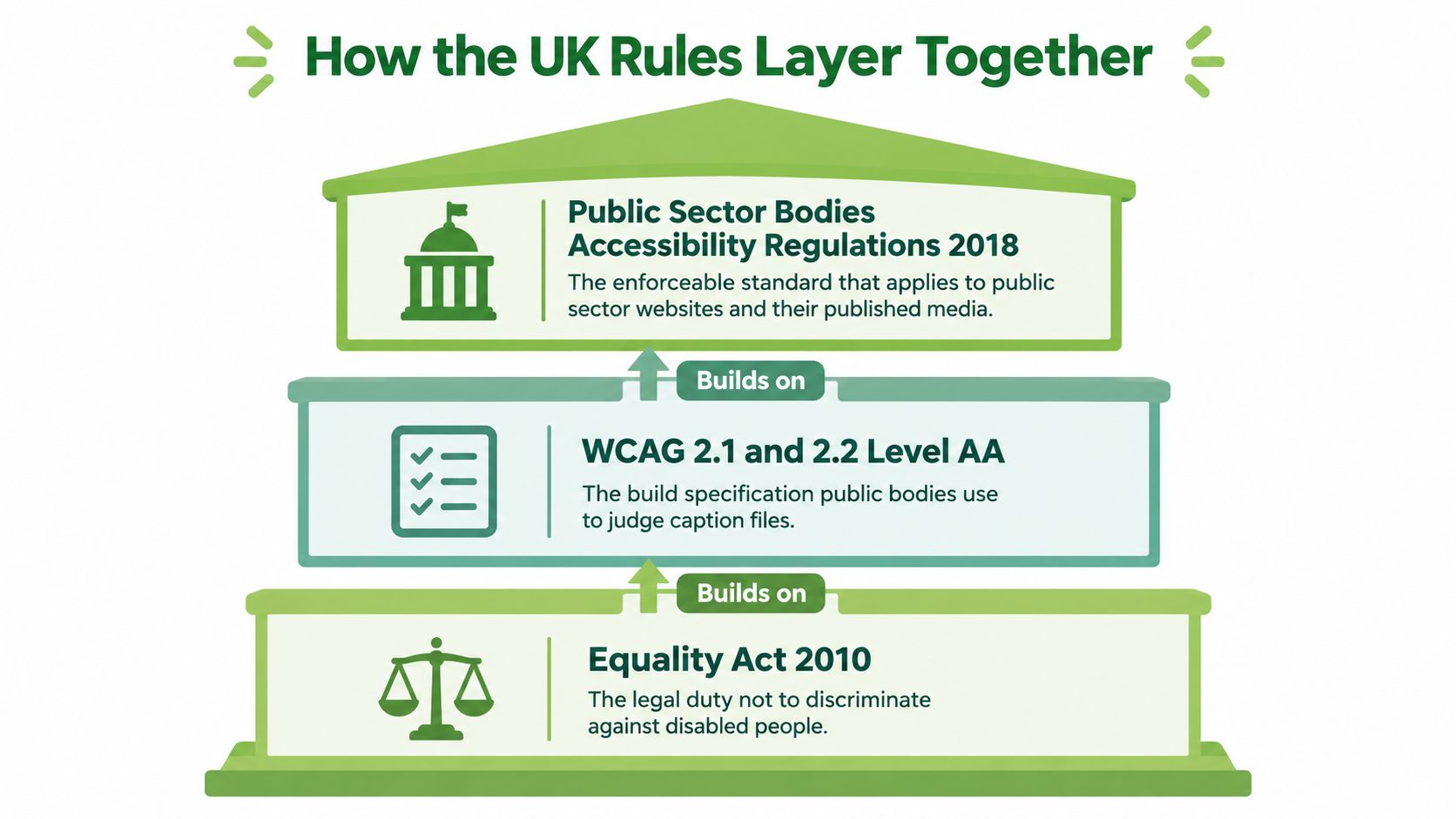
Think of the rules as a building with three storeys, not one flat rulebook. Mix the floors and you'll either over-apply television quotas to a Canvas course or under-apply a duty that already covers your learners.
The foundation
The ground floor is the Equality Act 2010. Education providers must take reasonable steps when a policy, practice, or provision puts a disabled person at a substantial disadvantage, and information has to be supplied in an accessible format. A recorded lecture that teaches through speech may need captions or an equivalent transcript when a deaf or hard-of-hearing student would otherwise miss it. The practical step is to caption recorded lectures, webinars, and required video as you publish them, rather than waiting for each request. The Act doesn't say every clip must be captioned in every case. Reasonableness depends on the disadvantage, the information, and the adjustment.
The specification
The middle floor is the build specification public bodies use to judge the file. GOV.UK video guidance asks for captions synchronised to speech, correct spelling, speaker identification, and descriptions of meaningful non-speech audio, with an HTML transcript published alongside the video. That's a production standard, not a slogan. For a wider pass over what "accessible" means for teaching media, Tutorial AI's guide to accessible videos is a useful companion, and teams comparing platform duties can use these accessibility standards for video.
A different building
Ofcom access-service quotas, and US FCC caption rules, regulate broadcasters and certain on-demand programme services. They don't set a percentage for your LMS or your internal training portal. There's no fixed accuracy percentage and no universal deadline in the Equality Act. The legal test is what adjustment is reasonable for that video.
Ask three questions of any file. Who is the audience? Is it published? Does it carry essential speech or sound? If the answers are learners, yes, and yes, the foundation and the specification both apply. Record that decision so a later complaint doesn't rely on memory.
What Schools, Universities and Employers Owe Learners
The same Act lands differently in a classroom, a faculty, and a workplace. Each setting below has one concrete job, a reasonable step, a note you keep, and a way someone reports a bad track.
A school science demo
Say a teacher plays a ten-minute science demonstration. The narration walks through each step, and a spoken warning tells pupils when the mixture gets hot. Without sound, a deaf pupil misses both the method and the warning. Synchronised captions for the speech and the warning are the reasonable adjustment. The teacher, or the person who manages media, checks the track before the class receives it. The same logic covers revision videos, recorded assemblies, and homework explanations that are part of the lesson. If a pupil spots an error, they tell that named adult the same day, and the correction goes out before the next use. The outcome is simple: the pupil can follow the explanation and the warning without relying on sound.
A university briefing
Under the Equality Act 2010 higher and further education duty, institutions take reasonable steps in admissions, education, access to benefits and services, and the conferring of qualifications. The statutory explanatory notes include stopping practices that place disabled students at a substantial disadvantage and providing reasonable auxiliary aids. There is no single UK-wide numeric captioning threshold.
An orientation video states attendance rules. A recorded seminar carries the week's argument. An assessed video explains the marking rubric only through speech. Captions, or an accurate transcript, put that information in front of a deaf student on the same terms as everyone else. Review the track before publication, keep a short note of the decision, and give students an escalation route when captions are missing or wrong. Live teaching is planned separately from the recording you release afterwards.
A workplace induction
A manufacturer requires every new starter to watch a safety induction. A deaf employee who can't follow the spoken instructions doesn't get the same briefing as colleagues. Captions on that required video are the reasonable adjustment. HR records who checked it and the date. Staff report a gap to a named contact, and that person corrects the file rather than telling people to "just ask a colleague".
Separate essential content from decorative or duplicated media. Caption what someone must know, and keep a one-line reason for each choice so the team isn't captioning everything blindly.
Live Sessions Versus Published Recordings
A lecturer streams a seminar with automatic live captions, then uploads the recording a week later without opening the file. Learners treat that upload as the version they will revise from. The live hour and the published recording carry different obligations.

What changes when you press publish
UK Government Commercial Agency guidance separates the two states. Prerecorded video with important audio should have captions. Live video can be treated differently under public-sector accessibility guidance. Once you publish the recording for on-demand use, accurate captions are required. Automatic live captions are not treated as enough for WCAG where errors stop someone receiving equivalent information.
The legal duty is to give the learner equivalent access. The production standard decides whether the captions in fact provide it. Live captions work like a temporary ramp: useful during the event, but not automatically suitable as the permanent route into the recorded lesson.
Readability is an engineering job. The same guidance recommends clear typography, sensible line breaks, adequate contrast, and a reading speed a learner can comfortably follow. A line that flashes past, or sits on a busy slide with poor contrast, can fail a learner even when the wording is accurate.
A sequence you can run
Capture live captions: Turn them on where the platform allows, so people in the session are not waiting for a later file.
Keep the recording: Store it with the live track as a draft until the captions have passed review.
Edit and verify: Play the audio against the text, correct the wording and timing, fix drift, and check the pace stays readable.
Release: Publish only after that pass. Speech and meaningful audio belong in the captions. Important pictures that words cannot carry belong in a transcript or audio description.
A short walkthrough of checking a track in a browser editor makes the edit step concrete:
For a training provider, that means planning two pieces of work. Arrange captioning for each live webinar before the calendar invite goes out. Then allow review time for every recording you keep. Skipping the second stage turns a useful live aid into a poor on-demand resource.
What Makes a Caption File Usable
A green tick next to "captions" doesn't mean a disabled learner can study from them. Presence and usefulness have split apart in UK higher education.
In the 2025 Access Insights Report, 77% of disabled students reported receiving accessible lecture recordings in 2025, yet only 41% said that the vast majority of recordings included useful captions. That gap sits between two separate tests. The legal duty asks whether a learner can reach the information. The production standard asks whether the file actually carries it. A track can pass the first and fail the second, the way a map can show every street and still mislabel half of them.
Broadcast guidance treats synchronisation as part of that second test: subtitles should stay timed to the audio and reflect speech closely, and live subtitles are allowed to lag behind the words because they are produced as people speak. For teaching, matching the words still isn't the whole job. Learners need to know who is speaking and what a sound means, or the file gives them text without context.
Quality checks
Criterion | What to check | Benchmark or test |
|---|---|---|
Synchronisation | Captions appear with the speech they match | Aligned across the whole video, with no drift; live subtitles may lag behind the speech because they are produced in real time |
Reading speed | Words on screen per minute | A pace a learner can read before the next line |
Speaker identification | Changes of speaker and off-screen voices | Marked wherever more than one person speaks |
Non-speech sound | Alarms, music, applause or laughter that changes meaning | Described in brackets where it carries information |
Terminology and names | Module codes, technical terms, names and figures | Checked against slides or the course glossary |
Line breaks and contrast | Segmentation and on-screen legibility | Sensible line breaks and adequate contrast |
Transcript | HTML transcript published with the video | Available alongside the video, with visual information described |
How to sample without watching everything twice
Pull five minutes from the start, the middle, and the end. Log each error with its time code: a wrong name, a drifted line, a missing alarm, a speaker who isn't labelled. Fix those patterns in the template, not only in that one file.
Prioritise high-stakes items first. An assessment briefing and a safety induction outrank an optional demo. AI captioning cuts the time to a first draft. It doesn't remove human review, especially with accents, specialist language, group discussion, and live teaching where people talk over each other.
If the sample from the middle is worse than the opening minute, the draft wasn't checked. Don't publish on the strength of the first thirty seconds.
How to Produce Compliant Captions
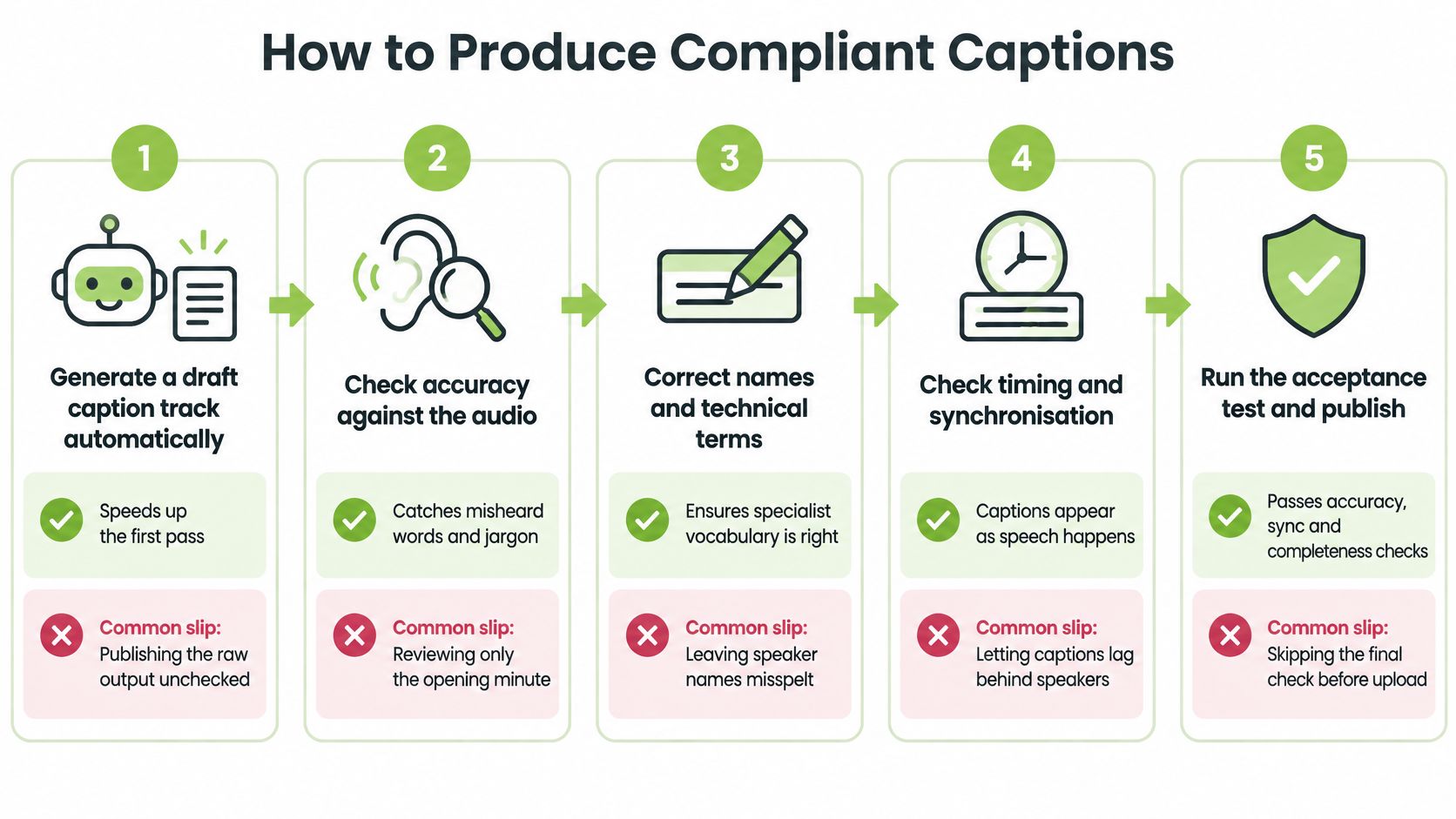
Treat the quality checks as the acceptance test. The UK Government Commercial Agency's guidance on subtitles, transcripts and captions treats automatic captions as insufficient on their own where errors stop someone receiving equivalent information, so an unchecked machine track does not meet the WCAG requirement. Nobody should publish an AI-generated file without a person listening against the audio.
A file can exist and still fail the learner who relies on it.
The pass, in order
Generate a draft where the lesson lives. An automatic first pass saves time. In a browser editor such as MEDIAL, you can request AI-assisted captions on media that's already in the LMS workflow, then correct them before learners see the file. Hosted editors and external caption vendors work the same way: draft first, review second. The slip is exporting the raw track and calling it done. A closer look at an AI caption generator for videos shows why the draft is only step one.
Review the whole recording against the audio. Timing drifts on long lectures. A check that stops at the opening minute hides the drift at minute forty.
Correct terminology, names, punctuation, and speaker changes. The common slip is fixing vocabulary while leaving every speaker labelled as the first person who talked.
Add meaningful non-speech sound. An alarm, a music sting, or laughter that changes the point belongs in brackets. Dialogue-only output misses it.
Export a timed file and test it in the player and the LMS. Some platforms drop line breaks or speaker labels on upload. If it looks wrong in Moodle, Canvas, or Teams, it isn't finished.
Publish an HTML transcript, and describe visuals the speech doesn't cover. A diagram explained only by a pointer needs that description.
Log the corrections and name a contact. Learners need a route for a missing or defective track, and that person needs to reply.
The question that decides publication is simple: can a learner follow the same instruction as a hearing classmate? Until the answer is yes, the AI file is a draft, not output.
Audit Your Video Library Before the Next Intake
Don't try to perfect every file the week before teaching starts. Triage by risk. Three factors sort the library: audience (enrolled learners, staff, or the public), publication status (live only, recorded, or on-demand), and whether the speech is essential, including safety and assessment, or only supplementary.
Band | Video examples | Action first |
|---|---|---|
Essential and published | Recorded lectures, assessment briefings, mandatory safety inductions | Sample ten recordings and correct captions now |
Essential and live only | Live seminars and webinars carrying required content | Confirm live captioning before each session |
Supplementary | Background demonstrations and duplicated clips | Caption if information is carried; record the decision |
Start with the essential and published band. That's where the duty is clearest and a bad track does the most harm. For each video, record the decision, the reviewer, the date, and the reasonable step, so you can show your reasoning if a complaint arrives. A sensible place to keep that log is alongside the media record itself. These digital asset management practices are one way teams stop the note living in someone's inbox.
Pick ten recordings from the top band and run the sampling check. If the same errors show up, fix the process before you touch the rest of the library.
MEDIAL lets instructors and trainers generate, edit, and publish closed captions on video that already sits in Moodle, Canvas, Blackboard, Brightspace, Zoom, or Teams, including live sessions you later release as recordings. If your next intake still has essential videos with unchecked automatic tracks, visit MEDIAL to see how caption editing fits the workflow you already use.
Comments