
How to Create an Interactive Video: A Complete Guide

Creating an interactive video requires five stages: script, record or stream, add interactive layers, ensure accessibility compliance, and embed into your LMS. For UK learning teams, the practical baseline includes WCAG 2.2 AA, accurate captions, transcripts, keyboard access, and a player that works inside Moodle, Canvas, Blackboard, or D2L Brightspace.
You may already have a recorded lecture, onboarding module, or software demonstration sitting in your media library. Students can open it, watch the first section, and disappear before the explanation reaches its useful part. The problem isn't always the subject matter. A passive player gives learners no reason to make a decision, check understanding, or connect the content with the task waiting in the LMS.
Interactive video changes that workflow. Instead of uploading a finished file and hoping students complete it, you design moments where they respond, move through content, practise, and receive direction. The strongest result isn't the video with the most buttons. It's the one learners can access, understand, complete, and revisit.
Why Interactive Video Changes Engagement
A static lecture upload treats every learner as if they need the same explanation at the same pace. A practical interactive video accepts that learners arrive with different confidence levels, prior knowledge, and reasons for watching. One student may need a quick recap, while another needs a worked example before attempting the assessment.
The participation challenge is wider than a single course. The Learning and Work Institute reported that adult participation in learning in the UK fell from 52% to 42% over the previous year, while 21% of adults were currently engaged in learning and 21% of people in work were currently learning at work, as reported in its 2025 adult participation survey. An interactive layer can't solve every reason someone drops out, but it can turn a long viewing task into a sequence of manageable actions.
From viewing to doing
Consider a software training video showing how to approve a purchase request. In a conventional recording, the instructor explains the process from start to finish. In an interactive version, the video pauses after the request appears and asks the learner which field should be checked first. A correct response continues the demonstration. An incorrect response opens a short explanation and returns the learner to the decision.
That small interruption creates useful evidence. The teacher can see whether learners understood the decision, rather than inferring comprehension from a play count.
Practical rule: Every interaction should answer a learning question, not merely decorate the timeline.
Moodle, Canvas, Blackboard, and D2L Brightspace can host the resulting activity within a familiar course structure. The design still needs a clear outcome, a sensible completion condition, and an assessment route. A branching scenario that entertains but produces no usable record may create more administration than value.
Start with one meaningful action. Ask learners to identify a hazard, select a procedure, explain a choice, or find a relevant section. Then make the video respond to that action. This approach creates a tracked learning event without forcing students into a separate application or a complicated navigation system.
Scripting for Interactivity and Flow
The script should contain the interaction before the camera starts recording. If you film a complete lecture first, you may discover that the pauses are too short, the answer options don't match the spoken explanation, or the branch requires footage you never captured.
Begin with one outcome and one audience. For a clinical safety briefing, the outcome might be recognising the correct response when a contamination risk appears. Write the learner's decision before writing the presenter's words.
Build the decision map
A simple storyboard can use five columns:
Scene: What the learner sees and hears.
Learning purpose: What the scene teaches.
Decision point: What the learner must choose or identify.
Response: What happens after each answer.
Evidence: What the LMS or platform should record.
For example, a nurse notices that a sterile item has touched an unclean surface. The video pauses and offers three actions. One route continues to the correct procedure. The other routes explain the error and send the learner to a short remedial clip before returning to the main scenario.
Keep the branches short enough to maintain a coherent narrative. A learner shouldn't need to remember an earlier scene to understand why the next clip matters. Record neutral transitions for every route, including incorrect answers, because abrupt cuts make the experience feel like a quiz bolted onto a lecture.
Write for pause and recovery
Mark the exact point where the player should stop. Give the presenter a sentence that frames the decision, then leave space for the learner to act. Don't hide essential instructions in spoken audio alone. Put the task on screen in concise text, and make sure the same information is available through accessible alternatives.
For a software module, record the common path first, then capture a separate explanation for the likely mistake. This takes longer than recording one uninterrupted demonstration, but it avoids forcing every learner through remedial content they don't need.
Use a production table to identify missing assets before filming. If a branch needs a screen recording, close-up, diagram, or alternate narration, list it explicitly. A blueprint that survives every learner path is cheaper than re-recording after the interactive logic has been built.
Recording, Live Streaming, and Editing Assets
Choose between pre-recorded production and live delivery based on the learning task, not on novelty. Pre-recorded video gives you control over edits, captions, branching, and pacing. Live streaming supports discussion, demonstrations, and immediate questions, but it introduces timing, connectivity, moderation, and recording risks.
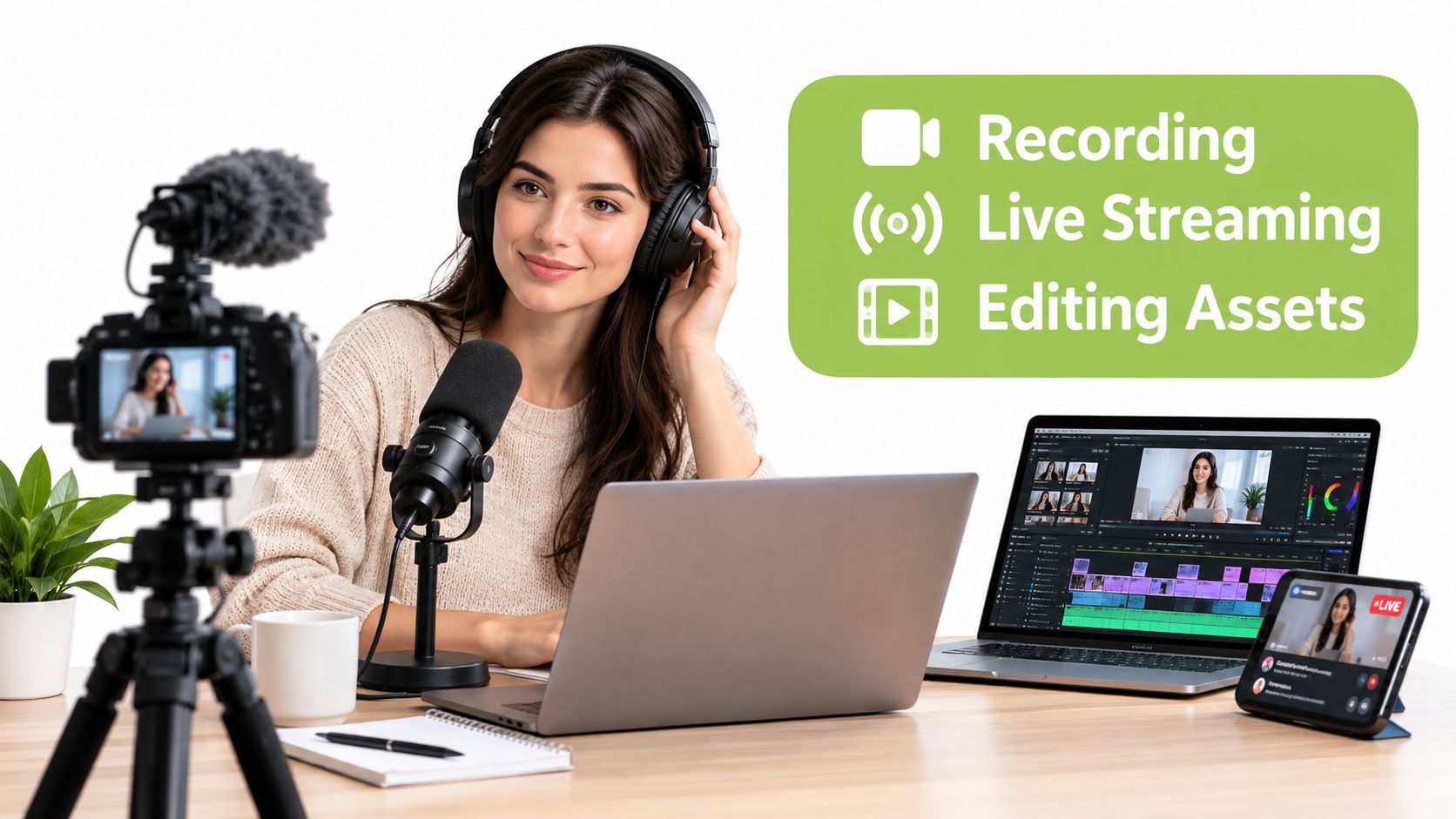
Start with audio. A clear microphone placed close to the speaker usually improves comprehension more than an expensive camera improves image quality. Record a short test with the intended background, then check speech, screen audio, room noise, and transitions before committing to the full session.
For pre-recorded content, capture clean sections rather than trying to deliver a flawless hour-long performance. Short, purposeful scenes are easier to edit and make better pause points. Browser-based tools such as MEDIAL's editor can support trimming, branding, and organising video and audio assets without requiring a complex desktop workflow. Export a clean master before adding interactions, so you can revise the layers without damaging the original media.
Live interaction has a timing cost
Live polling and Q&A work only when the response arrives while the question still feels current. Ofcom's live access-service guidance gives providers a benchmark of a mean latency of no more than 4.5 seconds across live programming, as described in its accessibility best-practice guidance. Lower delay helps a presenter respond naturally, although it doesn't remove the need for a backup plan.
Test the stream from the learner's network, not only from the production desk. Prepare a visible prompt for questions, appoint someone to moderate responses, and decide what happens if the stream fails. A recorded fallback or downloadable transcript protects the learning activity from becoming dependent on one live connection.
If visual style is part of the lesson, a pro AI music video guide can provide useful creative context for planning rhythm, sequencing, and supporting media. Keep those choices subordinate to the instructional purpose. Fast cuts and elaborate overlays can make a lesson harder to follow, particularly when learners also need to read captions or operate controls.
A short demonstration of the finished media workflow can help your team compare recording, editing, and playback decisions:
Adding Quizzes, Hotspots, and Branching
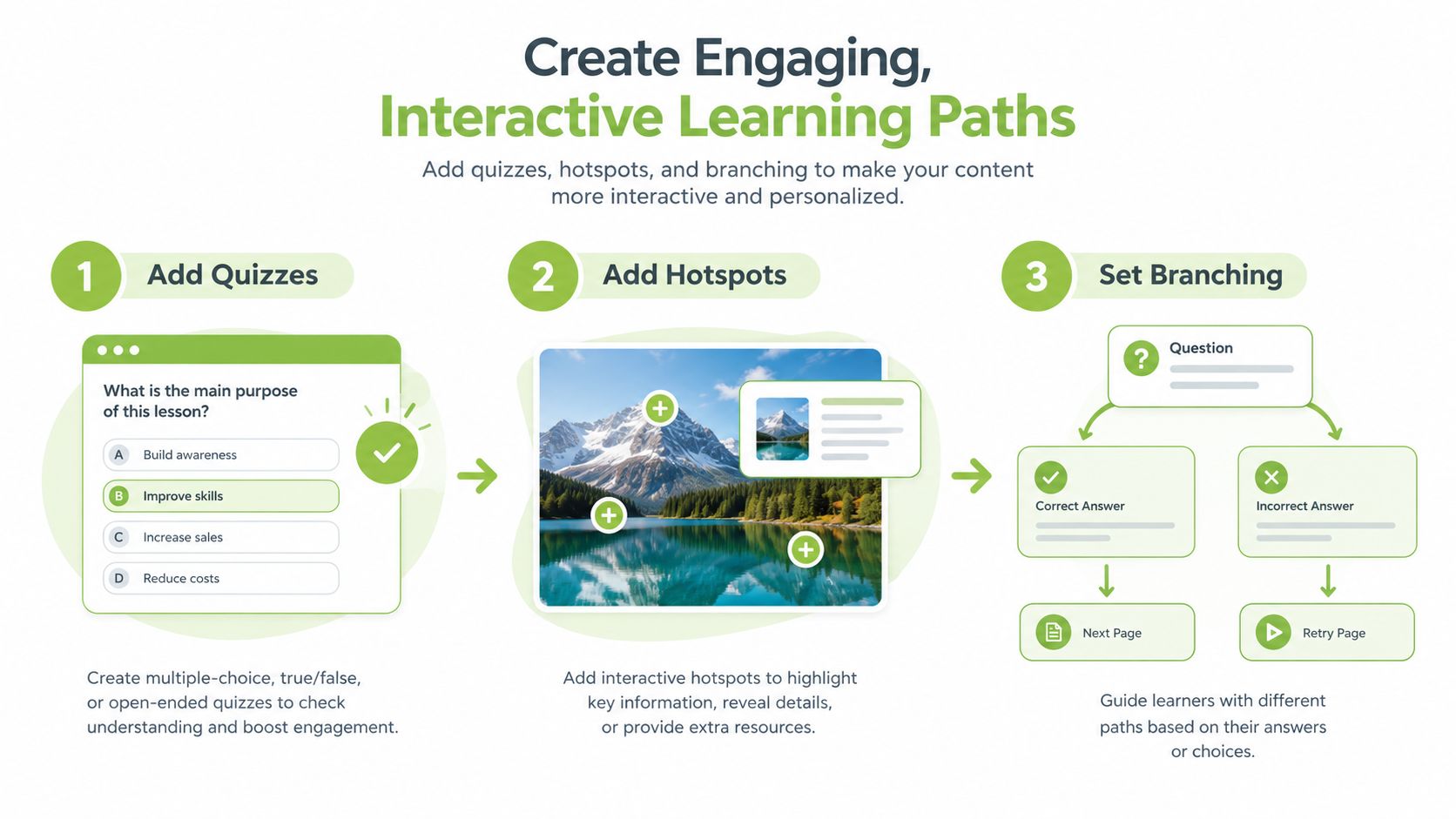
Interactive elements work when they appear at the moment a learner needs to use the knowledge. A quiz immediately after a complex explanation checks recall while the concept is still active. A hotspot on a machine component can reveal a safety note without forcing the learner to leave the video. Branching becomes valuable when different choices deserve different explanations.
Match the interaction to the evidence
Use a multiple-choice question when you need to test a discrete decision. Use a hotspot when the learner must inspect a location, object, or detail. Use branching when the consequence of a choice forms part of the learning outcome.
For example, a customer-service module can show an upset customer and present three possible responses. Each answer should lead to a distinct explanation, not just a green or red label. The learner sees why one response protects the conversation and why another escalates it. The platform can then pass the response or completion record into the course workflow, subject to the integration and grading settings you configure.
Moodle and Canvas users should decide what counts as completion before authoring. Is it reaching the end, answering every question, achieving a pass condition, or submitting a reflection? If the answer isn't defined, the teacher may receive engagement data without a reliable basis for marking.
Keep the interaction visible and limited
Use short labels, strong contrast, and enough time for learners to read and act. Don't place several hotspots over the same visual area. A crowded screen creates friction on mobile devices and can make keyboard navigation confusing.
Incorrect routes should provide recovery, not punishment. Send the learner to a concise explanation, then offer a clear return to the main path. The best branching structure feels like guided practice. It doesn't trap a learner in an elaborate maze.
Ensuring Accessibility and Compliance
Accessibility belongs in the script, not at the end of production. For UK public-sector and education workflows, the operational baseline is WCAG 2.2 AA. The UK Government accessibility guidance states that interactive players must be keyboard-operable, video requires captions, audio and video require transcripts, and described audio is needed where essential information is communicated visually.
UK public-sector video published on or after 23 September 2020 must meet accessibility requirements under the Public Sector Bodies Accessibility Regulations. Prerecorded audio and video must include captions, while live video made available after an event has a 14-day window for captioning, according to the University of Glasgow video accessibility guidance. Captions must be accurate and verified. Auto-generated text is a starting point, not proof of compliance.
Design the accessible version first
The NHS and education guidance on accessible video supports a practical sequence:
Write visual-only information into the script.
Generate captions from the final edit.
Produce a full transcript, including necessary sound and visual cues.
Test play, pause, timeline scrubbing, buttons, and focus order with a keyboard.
Check the described-audio version against the main programme.
NHS guidance specifies that most new or updated public-sector videos published after the relevant date must include three kinds of alternative content, and that a separate audio-description track must match the main video audio in length. If a diagram contains information the presenter never speaks, captions alone won't make that information available to someone who can't see it.
Test the player, not only the file
Cambridgeshire's accessible video and audio playbook says live synchronised content requires captions, flashing must not exceed three times per second, and background sound should sit at least 20 dB below foreground speech, apart from brief sounds. Those requirements matter when quizzes, callouts, and audio cues appear over moving footage.
Don't autoplay video or audio. Make captions closed and synchronised, provide visible controls, and place alternative content where learners can find it inside the player or LMS. The UK audience need is substantial, with estimates of around 5.8 million people with hearing impairments, 930,000 people with visual impairments, and 87,000 people with both hearing and sight impairments, according to the UK on-demand accessibility impact assessment.
Exporting and Embedding in Your LMS
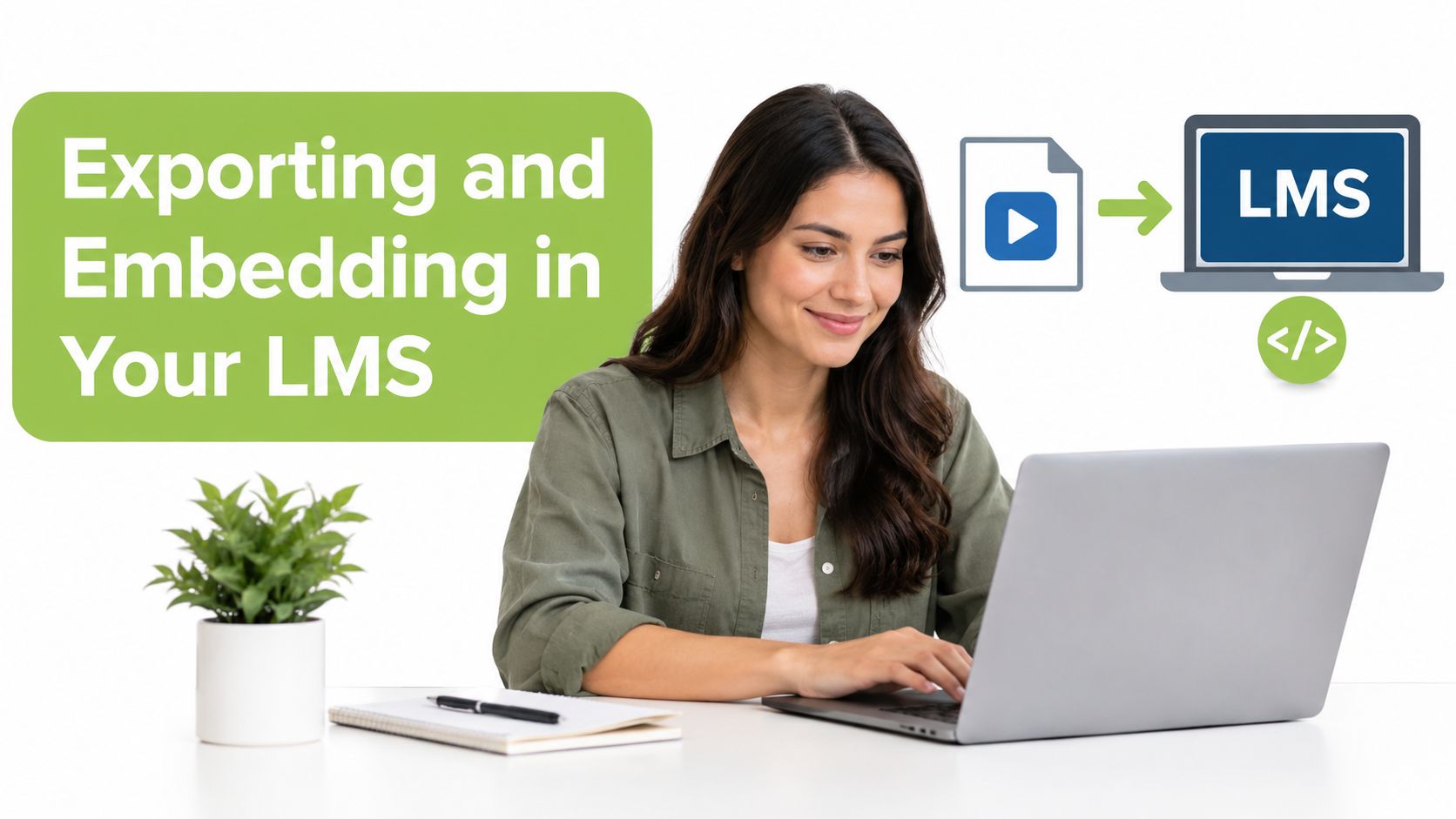
Exporting isn't a clerical final step. It determines whether the learner sees the interactive player, whether responses are recorded, and whether the teacher can locate the resulting evidence. Keep the interactive project in its native format when possible, rather than flattening it into a standard video file that removes questions, branches, and hotspots.
Prepare the course activity
Create the destination activity in Moodle, Canvas, Blackboard, or D2L Brightspace before publishing. Decide whether the item belongs in a module, assignment, discussion, or formative practice area. Configure access rules and completion settings after confirming what the player can report.
Then embed the player through the platform's supported integration or embed workflow. MEDIAL provides tools for placing video in course modules, assignment briefs, and discussion boards, while its LMS integrations support video assignments and related engagement workflows. For implementation details, use this guide to embedding video with code.
Run a learner-path test
Don't test only as an administrator. Create a learner account and complete every route.
Check the first load: Confirm the player opens inside the course and doesn't require an unexpected login.
Follow every branch: Submit correct and incorrect answers, open each hotspot, and verify that the next scene appears.
Compare devices: Test desktop, tablet, and mobile layouts, including portrait orientation where relevant.
Verify the record: Check completion, scores, attempts, and any grade passback available through your integration.
Try the keyboard: Move through controls and interactions without a mouse.
A video can look perfect in preview and fail once embedded because of blocked scripts, altered dimensions, authentication rules, or a grading setting that wasn't enabled. Resolve those issues before students encounter them.
Measuring Impact and Iterating
Analytics should lead to a production decision. A high number of starts with weak completion may indicate a long opening, unclear instructions, or a player problem. A quiz with repeated wrong answers may reveal a teaching gap, a misleading option, or a question that tests memory rather than application.
Review the path in three layers. First, check whether learners reached each interaction. Second, inspect the choices and scores. Third, compare those results with submissions, discussion responses, or observed performance. A hotspot that receives few clicks isn't automatically a failure. Learners may have understood the content without needing it, or the hotspot may have been difficult to notice.
Useful distinction: Engagement data tells you what learners did. Assessment evidence helps you decide what to change.
Make one deliberate revision at a time. Shorten an overlong explanation, rewrite an ambiguous option, move a prompt earlier, or improve the transcript cue. Then ask a small group of learners to complete the revised path and report where they hesitated.
Access features often remain hidden when designers bury them. A Communications Consumer Panel report found that only 8% of the UK population had used any access service, with subtitle use at 7%, while signing and audio description were each at 1%; its report is available as Time to catch up. Place captions, transcripts, audio alternatives, and player controls where learners can see them.
Durable interactive video is less about adding every possible feature and more about creating a reliable loop: clear objective, purposeful decision, accessible response, LMS evidence, and measured revision. That workflow survives a semester because it respects both the learner and the teacher's time.
MEDIAL supports interactive video learning workflows with LMS integrations, in-browser media editing, caption generation, live streaming, and video assignments. If you want to build accessible quizzes and learner pathways inside Moodle, Canvas, Blackboard, or D2L Brightspace, visit MEDIAL to explore the platform and arrange a demonstration.
Comments