
Accessibility Standards for Video: A Practical Guide

Dr Khan is preparing next week's revision session when a student asks for captions on her recorded lectures. She opens the LMS and discovers that the videos contain no caption track, no transcript, and several diagrams that are never described aloud. The recording worked perfectly for her, but it doesn't yet work for every learner.
That situation is common in universities, schools, and corporate training teams. A D/deaf learner may need synchronised captions, a student with ADHD may rely on a transcript to search for a specific explanation, and a neurodivergent learner may need to pause or replay information without losing their place. An international cohort watching in a noisy hall may also depend on captions, even when no disability has been disclosed.
Accessibility standards for video turn those needs into practical responsibilities. In the UK, public-sector guidance treats captions, transcripts, audio description, and usable controls as connected parts of an accessible experience, not as cosmetic additions. Educators who build these requirements into an LMS workflow protect access to teaching while improving the quality and reliability of their media practice. Resources on effective learning frameworks can also help teams connect accessibility with lesson planning rather than adding it after production.
Why Video Accessibility Matters in Education and Training
Dr Khan has several options. She could tell the student to read the lecture slides, provide a rushed transcript, or postpone the revision session while someone repairs the recording. None of those responses restores the original learning experience immediately. The better approach is to treat the video itself as teaching material that must be planned, checked, and maintained like a handout or assessment.
A missing caption track can prevent a learner from following a lecture, but the problem is often wider than missing words. Captions need to identify meaningful sounds and distinguish speakers. A transcript needs to include information that matters for understanding. If a lecturer points to a diagram and says, “this area here”, a text alternative or audio description may be needed because the spoken words alone don't communicate the visual meaning.
Accessibility affects more learners than the accommodation request
Students use alternatives to audio and video for many reasons:
D/deaf and hard-of-hearing learners need access to spoken content and meaningful sound.
Learners with attention or processing differences may use captions and transcripts to review difficult sections at their own pace.
Neurodivergent learners can benefit from predictable controls, searchable text, and the ability to pause or replay without penalty.
International cohorts may use captions to follow unfamiliar accents, specialist terminology, or recordings watched in noisy spaces.
Blind and low-vision learners may need audio description when visual information carries the lesson.
An accessible recording also helps a student revise without replaying an entire lecture to find one definition. A transcript can be searched, copied into personal notes, and read with assistive technology. That makes accessibility part of sound teaching design, not a separate service offered only after a learner asks.
Practical rule: If a learner needs an alternative to understand the lesson, provide that alternative before the video enters the course.
The UK framework makes this responsibility particularly clear for public-sector education and training. The Public Sector Bodies Accessibility Regulations require audio and video recordings made available from 23 September 2020 to meet accessibility standards, which are primarily defined by WCAG 2.2 Level AA. Jisc's guidance on video captioning and accessibility regulations notes that organisations have up to 14 days after publication to add captions to a video. That may help a team organise a workflow, but it shouldn't become a reason to publish teaching that learners can't access in the meantime.
The practical pathway is straightforward: identify what the recording communicates, add the right alternatives, test the player, publish the evidence, and revisit the assets when the video changes. The rest of the process is about making that routine manageable across an LMS rather than relying on one lecturer to remember every detail.
WCAG 2.2 Essentials for Video Content
WCAG 2.2 gives educators a useful way to translate accessibility into observable checks. Level A contains the baseline requirements, while Level AA adds requirements commonly used for institutional accessibility targets. A recorded lecture that passes at a practical Level AA standard should offer captions, appropriate alternatives for visual information, and a player that works with keyboards and assistive technology.
The perceivable requirements
The success criteria below focus on whether learners can perceive the information in the recording. The wording is technical in the standard, but the LMS test can be simple: can a learner obtain the same teaching content without depending on one sense or one input method?
WCAG Criterion | Plain-English Requirement | Level |
|---|---|---|
1.2.1 Audio-only and Video-only, pre-recorded | Give audio-only content a text alternative. Give video-only content a descriptive text alternative. | A |
1.2.2 Captions, pre-recorded | Provide synchronised captions for pre-recorded video with audio. | A |
1.2.3 Audio Description or Media Alternative, pre-recorded | Provide audio description or a complete text alternative for pre-recorded synchronised media. | A |
1.2.4 Captions, live | Provide captions for live synchronised media. | AA |
1.2.5 Audio Description, pre-recorded | Provide audio description for important visual information in pre-recorded video. | AA |
2.1.1 Keyboard | Make every player function available from a keyboard. | A |
2.2.2 Pause, Stop, Hide | Let users pause, stop, or hide moving or auto-updating content where required. | A |
4.1.2 Name, Role, Value | Expose the name, role, and state of player controls to assistive technology. | A |
Think of captions as a subtitles track that a student can turn on or off. Think of audio description as a quiet narrator filling the gaps when a lecturer's words don't explain what appears on screen. A transcript is the searchable essay version of the lecture, useful for revision and screen-reader access.
For a typical recorded lecture, passing means more than uploading an automatic text file. The captions must match the audio, appear at the right time, and represent meaningful sound. The player must let a learner start, pause, seek, adjust volume, enable captions, and enter fullscreen without a mouse. If a control looks usable but a screen reader announces only “button”, the interface still needs work.
Make the success criteria visible in your LMS
Open a recording as a learner, not as its owner. Turn on captions, control with the keyboard, pause the video, and find the transcript link. Then ask whether a student who cannot hear the audio or see the slide receives equivalent information.
WCAG doesn't require educators to make every recording identical. It requires teams to identify the information that matters and provide an accessible way to perceive and operate it. A talking-head explanation may need captions but little audio description. A screen demonstration, laboratory procedure, or graph-led lecture may need both captions and a description of the visual changes.
Comparing ADA, EN 301 549, and UK Regulations
Educators often ask which law applies, but the answer depends on where the institution operates, who funds it, and which service it provides. ADA and Section 508 shape expectations in the United States, EN 301 549 provides a European accessibility framework for information and communication technology, and the UK combines public-sector web rules, equality law, and broadcast or on-demand requirements.
The three approaches overlap in their practical outcome. A video platform should provide captions where speech matters, audio description or an equivalent alternative where visuals carry meaning, and controls that work with keyboards and assistive technology. They differ in scope, enforcement routes, and the documentation an organisation may need to show.
The frameworks side by side
In the US, ADA Title III is commonly applied to education and training services, while the Section 508 refresh incorporates WCAG 2.0 AA for covered federal content and technology. A US university or supplier may therefore be asked to demonstrate WCAG-based conformance even when a complaint names a broader ADA obligation.
EN 301 549 is a harmonised European standard covering accessible ICT, including websites, applications, documents, and video platforms. Public-sector bodies reference it through the Web Accessibility Directive. An LMS team working with European public institutions may need evidence about the platform, uploaded media, documents, and procurement controls rather than captions alone.
In the UK, the Public Sector Bodies Accessibility Regulations apply to public-sector websites and mobile applications. The Equality Act 2010 adds a wider non-discrimination context, while Ofcom regulates access services for broadcast and video-on-demand environments. Ofcom treats subtitling, audio description, and signing as core access services, and government announcements for enhanced video-on-demand regulation set catalogue benchmarks of 80% subtitled, 10% audio-described, and 5% signed content. These figures apply to the relevant regulated services, not automatically to every university LMS. Ofcom's accessibility guidance explains the broadcast and on-demand context.
Aspect | US ADA / Section 508 | EU EN 301 549 | UK PSBAR / Equality Act |
|---|---|---|---|
Main focus | Equal access and WCAG-based federal ICT requirements | Harmonised accessibility requirements for ICT | Public-sector digital access, equality duties, and regulated media access |
Video expectation | Captions, alternatives, and usable controls where applicable | Accessible media and technology conformance | Captions, synchronised media, alternatives, and accessible digital services |
Typical evidence | Accessibility conformance records, testing, remediation | Technical mapping, procurement evidence, testing | Accessibility statement, testing records, remediation ownership |
Scope | Depends on institution, service, and procurement context | Broad ICT and public-sector contexts | Public-sector websites and apps, equality duties, and regulated media |
LMS implication | Test the platform and each published asset | Map platform and content requirements together | Maintain an ongoing workflow, not just a compliant upload |
For an LMS team, the safest evidence set includes a media inventory, caption and transcript status, player test results, known exceptions, assigned owners, and dates for remediation. A voluntary product accessibility template can help structure supplier questions, especially when procurement asks how an embedded player behaves for keyboard and screen-reader users.
Captions, Subtitles, Transcripts, and Audio Description
These terms are often treated as interchangeable, but each asset solves a different access problem. Choosing the wrong one can leave a learner with text that looks complete while important information remains unavailable.
Captions are synchronised text for speech and meaningful sound. They should identify who is speaking when that isn't obvious and represent relevant sounds such as a warning tone, applause, or a change in the environment. For a recorded lecture with audio, captions map directly to WCAG 1.2.2.
Subtitles usually translate spoken dialogue into another language. They can be valuable for international cohorts, but translation alone doesn't necessarily include meaningful non-speech sound. A translated dialogue track and an accessibility caption track may therefore serve different audiences.
Transcripts provide a text version that learners can search, read, annotate, or use with a screen reader. A strong transcript includes the spoken content and relevant visual information. UK guidance states that audio-only content needs a transcript, while video-only content needs either a descriptive transcript or audio description. The University of Bath's accessible video guidance sets out those distinctions and explains when visual information requires audio description.
Audio description narrates important visual information during natural pauses. In a statistics lecture, it might describe the axes, the trend being highlighted, and the change the lecturer points towards. A complex diagram may need extended description, where the presentation pauses or the information is supplied in a fuller alternative.
Asset | Primary WCAG Criterion | Who It Helps | Practical Use in LMS |
|---|---|---|---|
Captions | 1.2.2 | D/deaf and hard-of-hearing learners, language learners, anyone in noisy settings | A viewer-controlled track in the player |
Subtitles | Related to language access, but not a replacement for captions | Learners working in another language | Optional translated track |
Transcript | 1.2.1 or 1.2.3, depending on the media type | Screen-reader users, revising learners, search users | A visible link beside the video |
Audio description | 1.2.5 | Blind and low-vision learners | An alternate audio track or described version |
Captions should be reviewed for names, technical vocabulary, equations, speaker changes, and timing. Automatic generation can provide a draft, but a human should check it before publication. This explanation of closed captioning is useful when a team needs to distinguish viewer-controlled captions from text permanently embedded in the picture.
Accessible Video Players and LMS Integration
A correctly captioned file can still fail if the player prevents a learner from using it. Audit the player as an interface, not just as a frame around the video.
Start with the controls. A keyboard user should be able to reach play, pause, seek, volume, captions, audio description, and fullscreen. Each control needs a visible focus indicator, a logical tab order, and an accessible name that describes its purpose. A screen reader should announce whether captions are on or off, rather than exposing an unlabeled icon.
A worked LMS audit
Take one lecture in Panopto, Kaltura, YuJa, or H5P and work through this sequence:
Open the recording as a student. Confirm that the caption track appears and that the transcript is linked next to the player, not hidden in a secondary menu.
Use the keyboard only. Press Tab to move through every control, activate buttons with Enter or Space, and check that focus never disappears.
Check the tracks. Turn captions on and off, select audio description if available, and confirm that the text remains synchronised after seeking.
Test the visual interface. Check contrast, readable controls, focus visibility, and whether autoplay begins unexpectedly.
Use assistive technology. Ask a colleague to test the player with NVDA or VoiceOver and report whether control names and states make sense.
A common remediation list might read: add a reviewed WebVTT caption file, expose the transcript beside the video, repair the unlabeled seek control, increase focus visibility, and configure the audio description track. The list is more useful than a vague instruction to “make the video accessible” because each task has an owner and a retest condition.
The HTML5 element and WebVTT sidecar files are generally a dependable pattern for captions and timed text, but the LMS integration still needs testing after configuration changes. A platform upgrade can hide the transcript link, reset captions to off, change the player tab order, or replace a labelled button with a custom control that assistive technology cannot identify.
A player passes only when a learner can operate it, understand its state, and obtain every meaningful part of the lesson.
Testing and Remediation Workflows
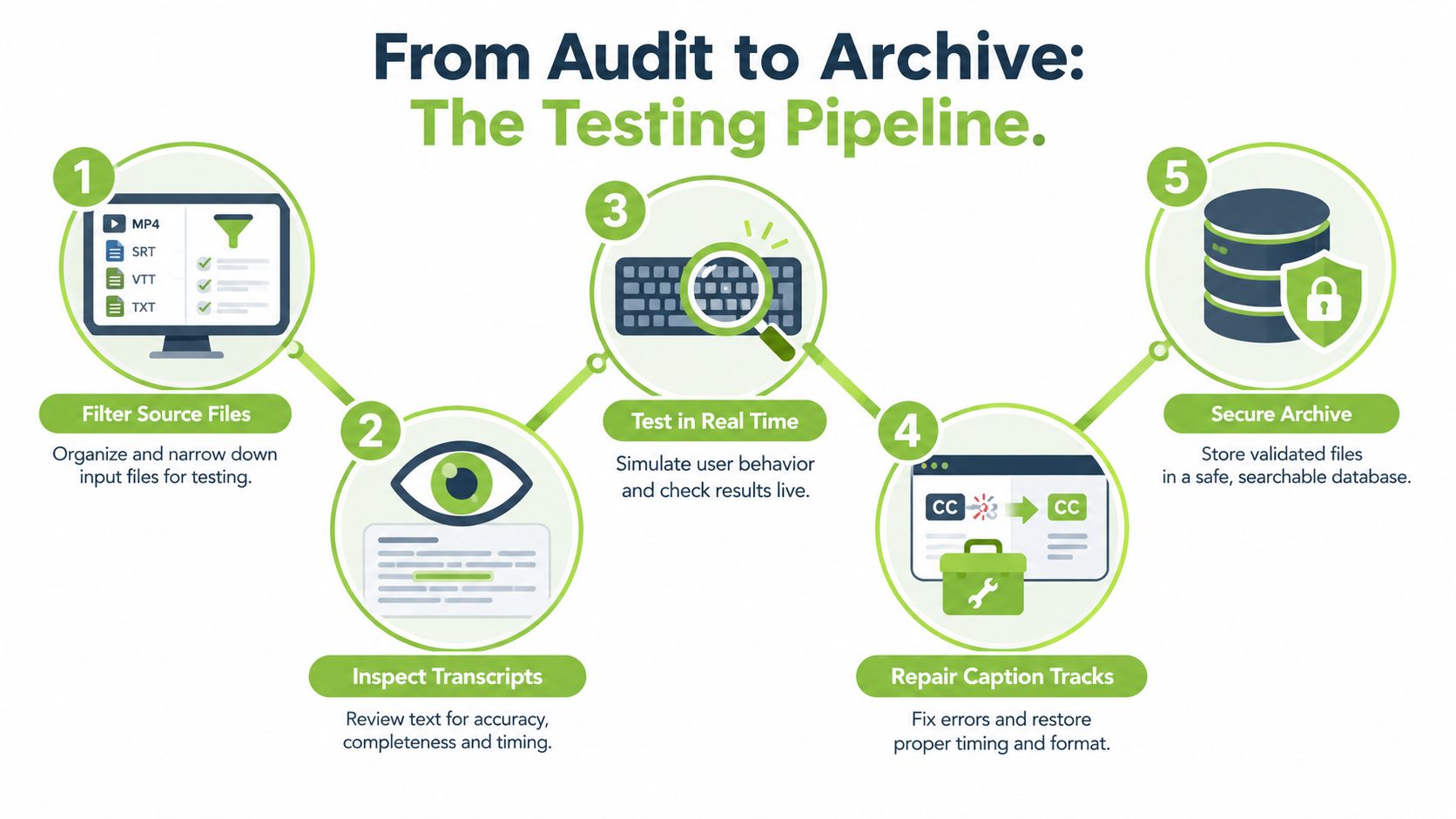
Accessibility becomes sustainable when the team tests a repeatable process rather than inspecting videos randomly. The workflow should begin before upload, continue through publication, and leave a record that another person can understand later.
Build a pipeline around risk
Before uploading, check whether the source has captions, whether a transcript exists, and whether visual information needs description. During upload, confirm that the LMS accepts the required tracks and keeps the transcript visible. After publication, test the learner view, record defects, assign remediation, and retest the corrected version.
Automated tools such as axe, Lighthouse, and the WebAIM Contrast Checker can identify issues in the surrounding page and player interface. They won't judge whether a caption says the correct technical term, whether a speaker's name is clear, or whether a graph has been described accurately. Manual review remains essential.
Combine automated and human checks
A practical review uses several perspectives:
Automated scan: Find missing labels, keyboard traps, contrast problems, and structural issues around the embed.
Keyboard pass: Operate the complete player without a mouse and confirm visible focus.
Screen-reader pass: Test announcements with NVDA and VoiceOver, including captions, menus, buttons, and transcript links.
Caption review: Compare the text with the recording for accuracy, speaker identification, meaningful sound, and synchronisation.
Playback review: Check seeking, pausing, captions, and description at normal and faster playback speeds.
The 99% caption accuracy target sometimes used by organisations is a quality target, not a universal WCAG requirement. The research distinction matters: WCAG requires captions, but it doesn't prescribe a numeric accuracy percentage or exact timing tolerance. If an institution adopts a target, it should define how staff sample captions, what errors count, and who approves exceptions.
A caption correction needs version control. Keep the corrected file, note the change, record the reviewer, and link the published version to the original recording. For a large library, triage first by learner impact, course importance, and frequency of use. A required exam revision video should normally outrank an obsolete optional recording.
Teams that need to compare manual work with automated transcription services should still define the human review stage before choosing a tool. Automation can accelerate drafting, but governance decides whether the final asset is accurate, synchronised, discoverable, and suitable for the lesson.
Compliance Checklist and Recommended Tooling
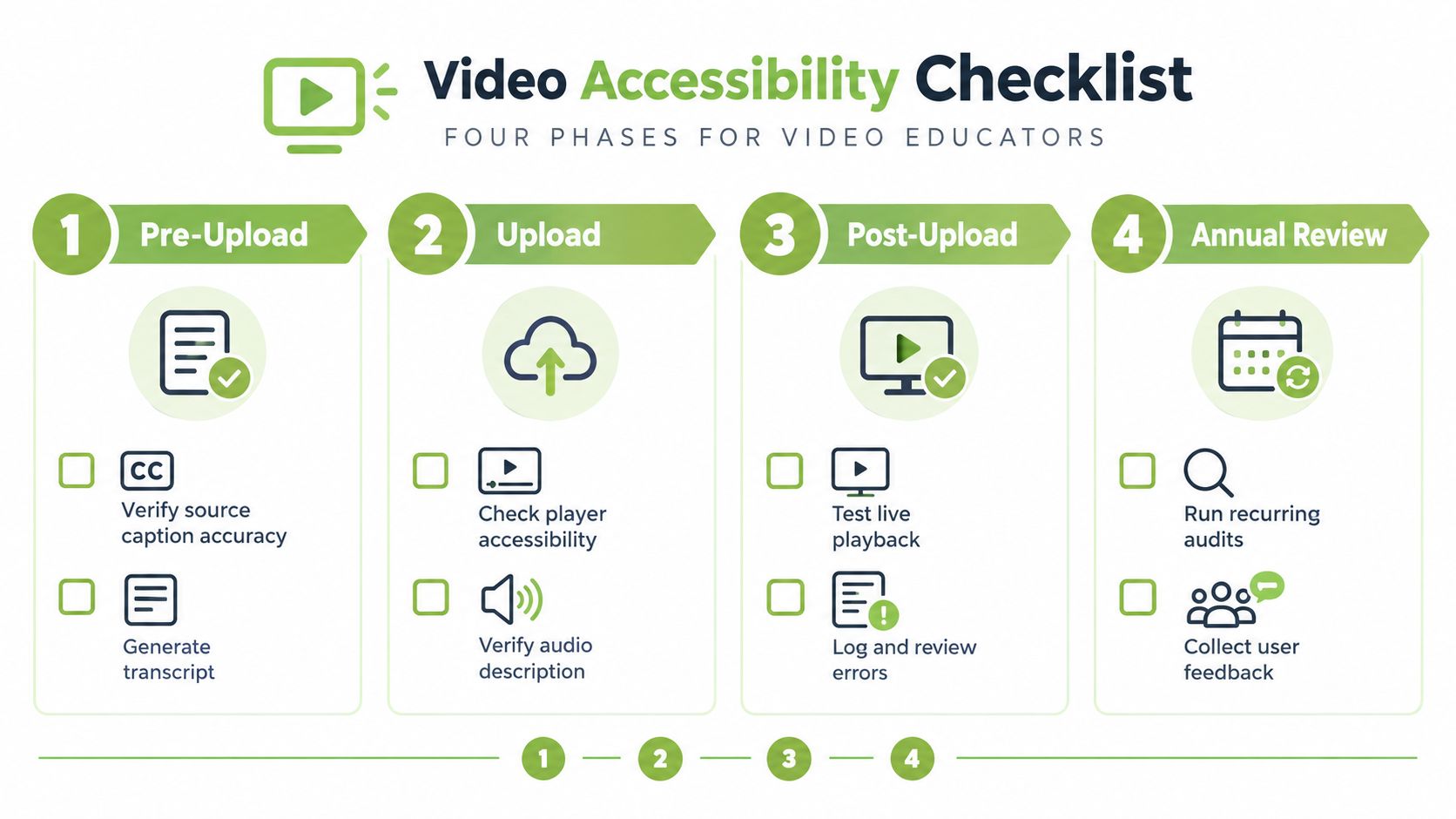
Use the checklist as a handoff document between the educator, media editor, LMS administrator, and accessibility lead. It works best when each item has an owner and a clear pass or remediation note.
Pre-upload
Define the alternatives: Decide whether the recording needs captions, a transcript, audio description, or more than one.
Prepare the source: Provide speaker names, technical vocabulary, slide text, and descriptions of essential visual demonstrations.
Review the draft: Check automatic captions for terminology, speaker changes, meaningful sound, and timing.
Set the quality rule: If your institution uses an accuracy benchmark, document it as an internal acceptance criterion rather than presenting it as a WCAG number.
Upload
Select a usable player: Confirm keyboard access, visible focus, labelled controls, readable contrast, and screen-reader announcements.
Add viewer-controlled captions: UK guidance prefers closed captions, which learners can switch on or off. Government accessibility standards state that captions should be synchronised and that open captions are an alternative only when closed captions aren't possible.
Place the transcript visibly: Put it beside the player so learners don't have to search through hidden settings.
Add description where needed: If important information appears only visually, provide audio description or a suitable descriptive alternative.
Post-upload
Test as a learner: Use the keyboard, a screen reader, and the normal course navigation route.
Check the complete lesson: Confirm that links, quiz prompts, downloadable slides, and embedded media provide consistent information.
Log defects: Record the issue, responsible owner, priority, correction date, and retest result.
Retest after changes: A platform upgrade or replacement caption file can create a new failure.
Annual review
Audit high-use content: Recheck recordings used in core teaching, assessment preparation, induction, and compliance training.
Collect learner feedback: Provide a simple route for reporting missing captions, unclear descriptions, or unusable controls.
Review suppliers: Ask Panopto, EchoVideo, Able Player, 3Play Media, or other vendors for current accessibility evidence rather than relying on an old product statement.
Keep an evidence pack: Maintain the inventory, test notes, caption versions, accessibility statement, known limitations, and remediation plan.
Tooling can be layered. YouTube Studio may help with caption drafts, WebAIM can support contrast checks, and axe DevTools or Accessibility Insights can identify interface defects. LMS-native platforms such as Panopto and EchoVideo can reduce manual handling, while specialist providers such as 3Play Media may support higher-volume caption workflows. MEDIAL provides browser-based media management, caption generation, recording, editing, and LMS integrations for platforms including Moodle, Canvas, Blackboard, and D2L Brightspace, so teams can include accessibility assets within their existing teaching workflow.
A one-page governance summary for senior managers should state the scope of the video library, the responsible roles, the required assets, the player test method, the exception process, and the review schedule. It should also show how the institution will respond when a learner reports a barrier, because accessibility is measured by the learner's ability to participate, not by the existence of a policy document.
MEDIAL helps educators and training teams manage, edit, caption, publish, and test video within LMS workflows, including Moodle, Canvas, Blackboard, and D2L Brightspace. Visit MEDIAL to explore a free trial or arrange a demonstration focused on accessible captions, transcripts, and media delivery.
Comments