
How to Embed a Video in LMS, Websites and Presentations

You've recorded the lesson, tidied the slides and pasted the player into your course page. Then the messages arrive. One learner sees a blank frame on a phone, another can't turn captions on, and a third asks where the transcript went. To embed a video well, you need more than a working play button. You need the right source, permissions, accessible alternatives, responsive placement and a fallback that keeps learning moving when the player doesn't load.
Why Video Embeds Fail in Practice
A teacher uploads a lesson recording, pastes the player into Moodle and checks it on a desktop. It plays. On a learner's phone, the frame stays blocked, captions sit behind a control they can't reach by keyboard, and the transcript is buried in a separate folder. The embed technically succeeded, but the learning resource failed.
Playback Is Only One Pathway
Learners don't all use video the same way. In a Government Digital Service accessibility study with 87 respondents, 28% watched video without reading the transcript, while 25% read the transcript without watching the video. If you publish only the player, you remove a route many people actively choose.
That difference matters in daily teaching. A student revising on a train may scan text with sound off. A staff member completing compliance training may search a transcript for one procedure. Another learner may need captions, slower playback, or a direct link because a consent banner blocked the third-party frame.
A successful embed gives learners a visible way to watch, read, listen, or recover access without hunting through the course.
Treat every embed as a small component, not a pasted box. Before publishing, confirm the source format, host permissions, player behaviour, captions, transcript, surrounding instructions and fallback link. Run those checks in the same environment learners use, including the LMS app or a mobile browser. That's where most practical failures appear, and they're far easier to fix before release than after support tickets arrive.
Prepare the Video and Choose an Embedding Route
Start before you touch the embed code. Name the file clearly, trim dead air at the start and end, check audio levels, and write a title that tells learners what they'll get. Add one sentence of context for the page, such as the task they'll complete after watching. Prepare captions or a clean script, decide who can view or download, and store a direct fallback location you can link if the player fails.
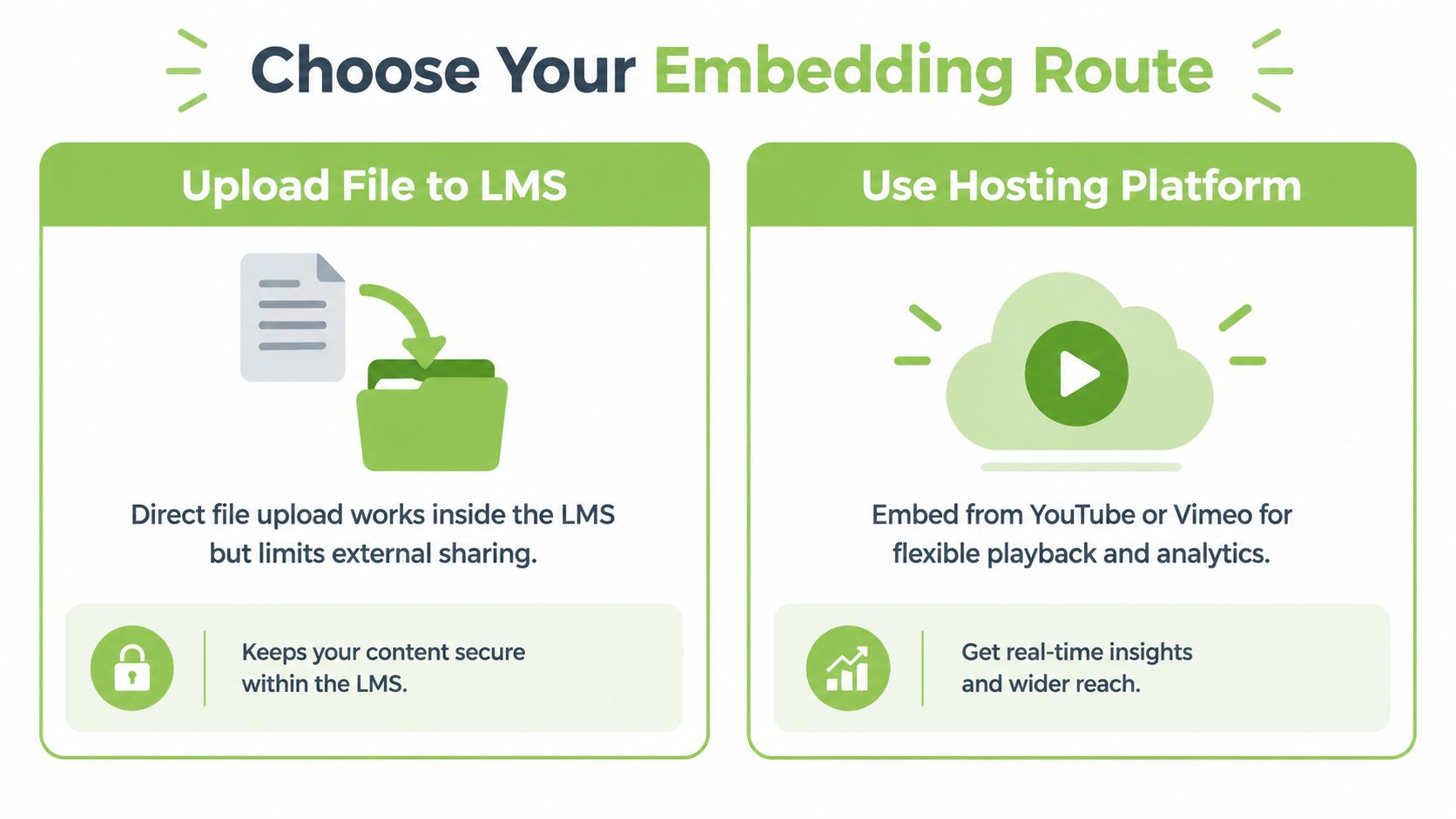
The comparison below sets out the two routes you'll choose between most often.
Match the Route to the Job
Uploading a file straight into an LMS is simple for a short onboarding clip used by one cohort. You keep it inside the course, but you may get limited editing, captioning, analytics and reuse outside that space. A longer recorded lecture usually needs more control. That's where a managed host helps, because MEDIAL supports video and audio management in an LMS context, including in-browser trimming, exporting, AI-assisted closed-caption generation, live streaming and integrations with learning management systems.
A platform video block or supported integration sits between those options. You insert media through the LMS editor or activity picker, and the destination handles sizing and playback more consistently. An iframe from a host gives you flexible placement on websites and in some LMS pages, but it adds dependencies on host permissions, cookies and external availability.
Use this preparation sequence every time.
Confirm the destination: Check whether your LMS, website editor, or presentation tool accepts uploads, media blocks, oEmbed links, or iframe code.
Set access first: Choose the audience, download option and expiry approach before you copy any link.
Prepare text alternatives: Have reviewed captions and a transcript ready, not promised for later.
Add learner context: Write the title, purpose, expected action and fallback link you'll place around the player.
If you can't explain who it's for, how they'll access it and what they'll do next, the video isn't ready to embed.
Embed the Video in the Right Destination
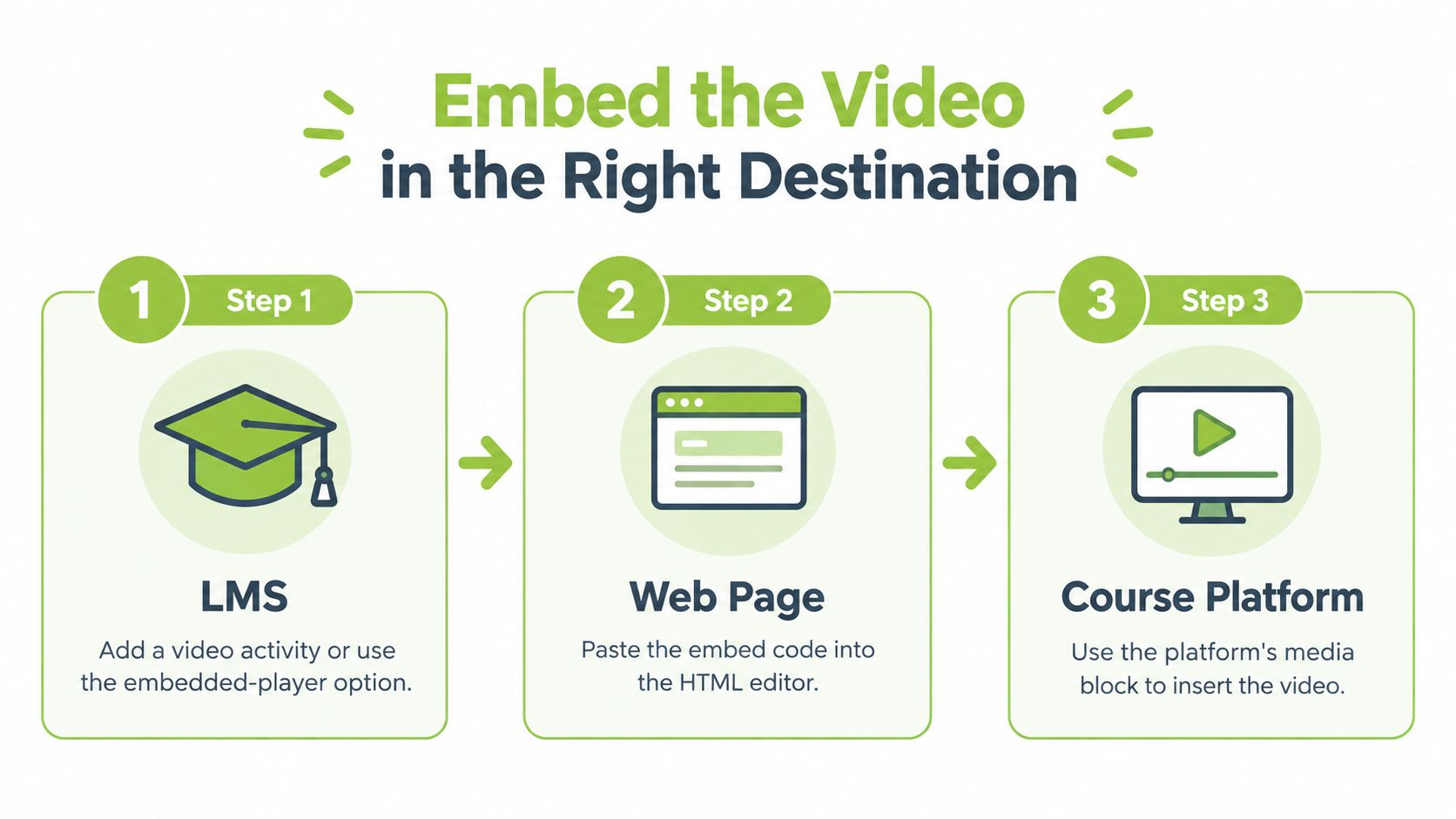
Placement changes what you can control. In an LMS, use the supported video activity, media block, or embedded-player option where one exists. Put the learning purpose above the player, the transcript below it, and any questions or assignment link immediately after. Then check the course permissions, because the page may be visible while the hosted media remains restricted, or the reverse.
The three destination routes below show where the work differs.
LMS, Website and Presentation Workflows
For Canvas specifically, follow the supported route in this guide to embedding video directly within a Canvas course page rather than forcing raw code into an editor that strips it. Test as a student, not as the teacher who owns the media. Owner accounts often bypass the very permission problem learners will hit.
On a website, paste the embed into the relevant content area, use a responsive container that preserves aspect ratio, and keep a descriptive fallback link under the frame. Place the video where it supports the surrounding copy, not as decoration at the top by default. If discoverability matters for a public page, a video SEO playbook for B2B teams can help you align titles, descriptions and page intent before you publish.
In a presentation, test whether the room, device and software will load an online player. Conference Wi-Fi, blocked domains and presenter mode can all break a live embed. Carry an offline alternative, such as a locally stored copy you're permitted to use, plus a slide with the key point and a link for later viewing.
Destination | Best control to check |
|---|---|
LMS course | Student permissions and activity completion |
Website page | Responsive sizing and consent behaviour |
Presentation | Network access and offline backup |
Whichever route you use to embed a video, preview the published version in a clean browser. Don't trust the editor preview alone.
Control Permissions, Privacy and Retention
An iframe isn't automatically private. A learner may copy a source link, open the host page, download a file, view captions, or share a thumbnail outside the course. Decide the audience before publishing, then set the host, LMS and page permissions to match. If any layer disagrees, the weakest setting usually defines the exposure.
Who Can Watch, Change, Download, or Keep It
A private course lesson should require authentication and sit inside the correct cohort or group. A public information page can use open playback, but you still need control over comments, suggested content and reuse. Internal corporate training may need single sign-on, no downloads and an owner who can withdraw outdated guidance quickly. Reusable course media needs version control, because replacing a file can alter every page where it's embedded.
The same care applies to sharing routes outside the course. This guide to sharing a YouTube video through links and embeds is useful when staff need to understand the difference between sending a watch link and placing a player on a page. Make that distinction explicit in your own workflow.
Identifiable footage creates a governance task, not just a technical one. UK government guidance says organisations need a valid lawful basis before taking, using or sharing identifiable footage of pupils, students or staff, and should document consent where consent is relied upon. This isn't legal advice, but it does shape practical questions.
Audience: Who is authorised to watch, and who can see names, faces, questions, captions, or transcripts?
Purpose: Is the recording for this class only, future cohorts, marketing, or staff training?
Opt-out and withdrawal: How will you respond if someone objects or consent is withdrawn?
Retention: What removal date applies, who deletes the source, and what happens to copies and transcripts?
Bystanders: Did the recording capture people who weren't the intended speakers?
Apply the same access and retention rules to captions, transcripts, thumbnails and downloadable files. A restricted video with a public transcript is still exposed. Set a review date when you publish, and delete or archive on schedule rather than waiting for someone to complain.
Make Embedded Video Accessible to Every Learner
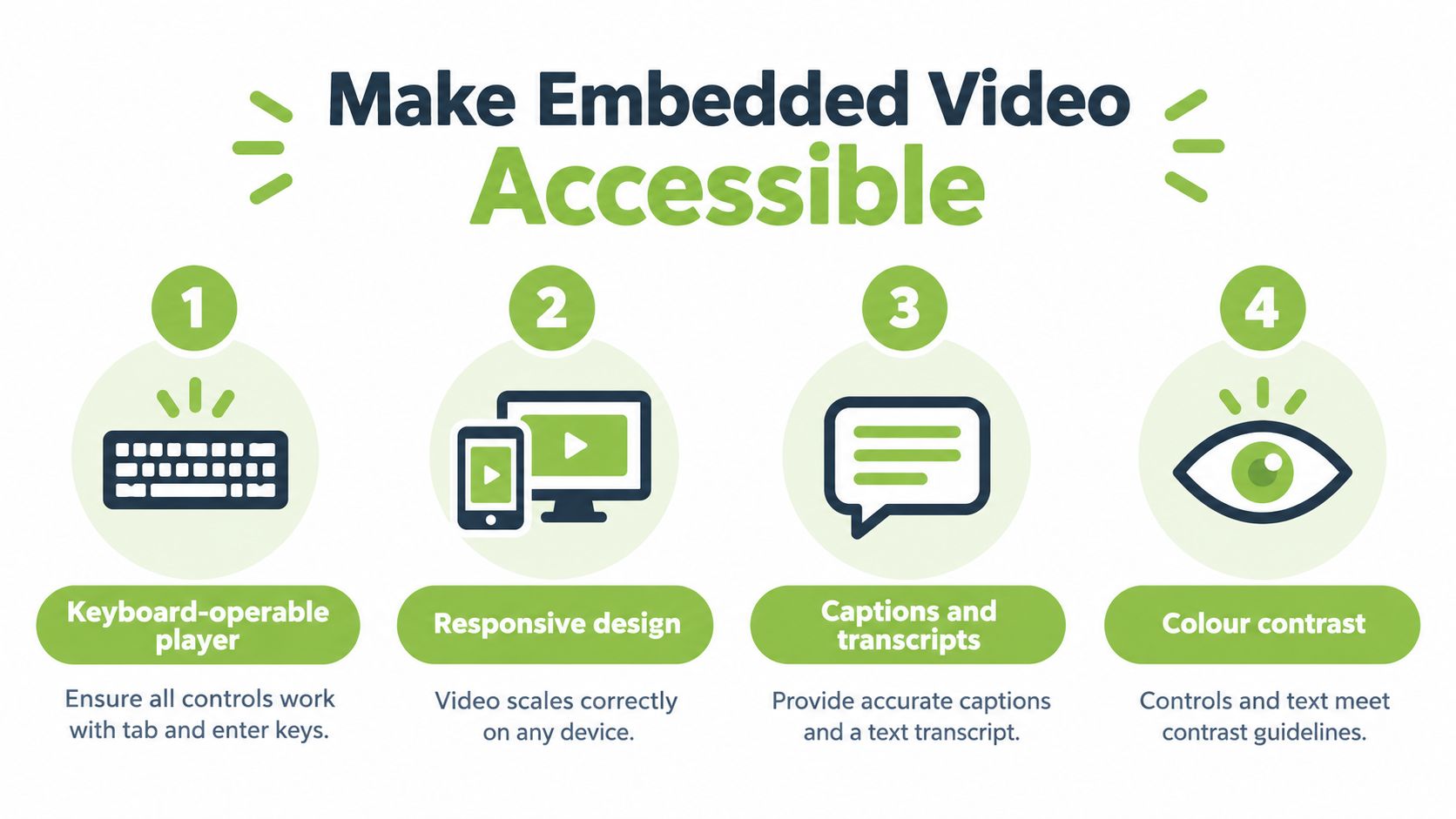
Don't treat accessibility as a caption file you attach at the end. Build it into the publishing routine. Use a responsive, keyboard-operable player, let viewers control captions, place the transcript where learners can find it without opening three menus, and describe important visuals that aren't spoken.
The checklist below covers the learner-facing controls to verify before release.
Build the Text and Description Layer
UK accessibility guidance recommends viewer-controlled closed captions, synchronised captions, an HTML transcript and audio description when important information is communicated visually. In practice, that means captions shouldn't be burned into the image. Learners need to switch them on or off, resize text where the player allows it, and read them without logos or lower-third graphics covering the words.
Review automatic captions before publishing. Correct specialist terminology, names, punctuation, timing and speaker changes, and include meaningful non-speech sounds where they affect understanding. In a statistics lesson, a caption error can change a variable name. In a panel recording, missing speaker labels can make an argument impossible to follow.
Add description where the picture carries the lesson. Narrate diagrams, demonstrations and on-screen controls as you record, or provide audio description afterwards. A software walkthrough that says "click here" gives a blind learner nothing useful. Say the menu name, the button label and the result.
If you're commissioning content rather than fixing it in-house, comparing training video production companies can help you ask suppliers about caption review, transcripts and described visuals before filming. Retrofitting those elements later costs more staff time. For the standards behind your own checks, keep this reference on accessibility standards for educational video beside your publishing workflow.
Test the Full Learner Journey
Tab through the page and operate play, pause, volume, captions and full screen without a mouse. Confirm focus is visible and doesn't get trapped inside the iframe. Turn captions on, open the transcript, resize the browser, and repeat the task on a phone. Check caption contrast in bright and dark scenes, playback speed controls and whether overlays obscure text.
A video that loads isn't the same as a resource that works. Publish only when a learner can start it, control it, read it and find an alternative route with confidence.
Test Playback and Choose the Right Delivery Settings
Choose delivery settings for the viewing situation, not by habit. Short on-demand clips suit just-in-time revision and software steps because learners can replay one section. Longer recorded sessions need chaptering, searchable text, or clear signposting so learners don't scrub blindly. Live or scheduled sessions add interaction, but they also add joining links, recording controls, moderation and a plan for people who can't attend.
This editing workspace image is a reminder to test the published asset, not just the timeline you exported.
Test the Conditions Learners Actually Face
Open the page in a clean browser, reject optional cookies, and try again on mobile. GOV.UK guidance states that users may see a video embed only after accepting the 'communications and marketing' cookie, so a direct fallback link is important when an embed is blocked. Your institution's consent setup may differ, but the lesson doesn't. Never assume a third-party frame loads for everyone.
Use the demonstration below as a playback check for sizing, controls and fallback thinking in your own page tests.
Measure more than starts. Track load, play, completion, caption activation, transcript opening and fallback use as separate events where your tools allow it. A transcript open isn't failed engagement. It's evidence that a learner used a legitimate alternative route, and it can show you where text needs better structure or where the player may be causing friction.
Compare options by failure point. A direct upload reduces external dependencies but may limit reuse. A hosted iframe improves management but can be blocked by consent or network rules. A live session supports questions but depends on scheduling and attendance. Pick the setting that matches your audience, then document the fallback in the page copy so learners aren't left guessing.
Run a Final Embedding Checklist
Use one sign-off routine for every course, page and slide deck. It takes minutes, and it catches the faults learners notice first.
Source and fallback: The correct version plays, and a direct link works if the frame is blocked.
Placement: Title, purpose and next task sit around the player, with responsive sizing on mobile.
Permissions: A test learner account can access the media, captions and transcript, and nobody outside the audience can.
Accessibility: Captions are reviewed, the transcript is discoverable, keyboard controls work and focus remains visible.
Consent and retention: Cookie behaviour is tested, lawful basis decisions are recorded, and a removal date is set.
Learning context: Slides, questions, discussion, or another explanation support the video rather than leaving it alone.
Diagnose by symptom. If the player is missing, check the embed route, host permission and consent state. If it loads but can't be operated, test keyboard focus inside the iframe. If learners find the video but miss the text alternative, move the transcript closer and label it in plain language.
That wider context matters because video shouldn't automatically replace teaching. Research involving UK higher-education students found that 45% of Sheffield Hallam students and 65% of Glasgow students considered lectures and videos at least somewhat effective for learning statistics, but only 18% and 23% respectively considered videos more effective than on-campus lectures.pdf). Pair the recording with retrieval questions, slides, or live discussion.
Publishing rule: A successful embed keeps the content, the access controls and the learning purpose in view together.
When you embed a video with those three elements aligned, learners spend less time fighting the page and more time learning from it.
If you're embedding lesson recordings, training clips, or live sessions across Moodle, Canvas, Blackboard, or Brightspace, MEDIAL gives you in-browser trimming, AI-assisted captions, controlled sharing and LMS integrations in one workflow. Visit the site to explore a free trial or book a personalised demo for your team.
Comments