
Digital Asset Management Best Practices for LMS Teams

A lecturer asks for last semester's recording. You remember the session was captured, but the file is somewhere between a personal drive, an old Teams folder and an LMS course shell that has already been archived. The colleague who recorded it has moved on, the filename says only “Week 6 final”, and nobody knows whether the footage includes copyrighted slides or students who didn't agree to public reuse.
This is the daily reality of learning media without a management system. Digital asset management best practices turn scattered files into dependable teaching infrastructure. The work isn't limited to folders and search. It includes named ownership, useful metadata, controlled access, rights notices, caption governance, preservation and a publishing workflow that fits the LMS.
You don't need to rebuild your entire library before making progress. Each practice below includes something a lecturer, L&D manager or administrator can do this week.
Why Your Media Library Needs Real Management
A faculty team can have excellent teaching content and still fail to reuse it. A recorded lecture may be technically perfect, yet effectively lost because nobody knows its location, owner, audience or review date. Storage preserves bytes. Management preserves meaning and responsibility.
The wider UK business environment makes this more than an IT housekeeping concern. Around 83% of UK businesses handle some form of digital data, and 72% of those businesses analyse it, according to the UK government's Business Data Use and Productivity Study. For education and workplace learning teams, media is part of that operational information. A video in an LMS can support induction, assessment, compliance training or a whole module.
The practical test is simple. Can a new member of staff find the right version, understand who may use it, confirm whether it's accessible, and publish it without chasing three former colleagues? If the answer is no, the library is creating work rather than removing it.
Practical rule: Every important asset should answer five questions without a meeting: what is it, who owns it, who can use it, how long is it valid, and where does it belong?
This applies to more than lecture recordings. A post-event photo collection system, such as this post-event photo collection system, offers a useful comparison. The value lies not just in gathering files. It comes from making them identifiable, shareable and usable by the right people after the event.
Start this week by choosing one course or training programme. List its videos, audio files, slide decks, transcripts, graphics and downloadable resources. Don't worry about perfect tagging yet. Record what exists, where it sits and who can make decisions about it. A managed library is infrastructure, not storage.
Understanding Digital Asset Management in Education
Think of a good school librarian. They know which books the school owns, where each book sits, who may borrow it, which edition is current and when an outdated copy should leave the collection. Digital asset management, or DAM, applies the same discipline to videos, images, audio, documents and learning materials.
In an LMS context, DAM connects the media library with the place where learning happens. A university department might keep lecture recordings, laboratory demonstrations, diagrams and student exemplars in one managed collection, then place approved versions into Moodle or Canvas. A corporate L&D team might manage onboarding videos, policy explainers and facilitator resources while publishing selected assets into an employee learning pathway.
Cloud storage alone usually answers one question: where is the file? DAM answers a wider set of operational questions.
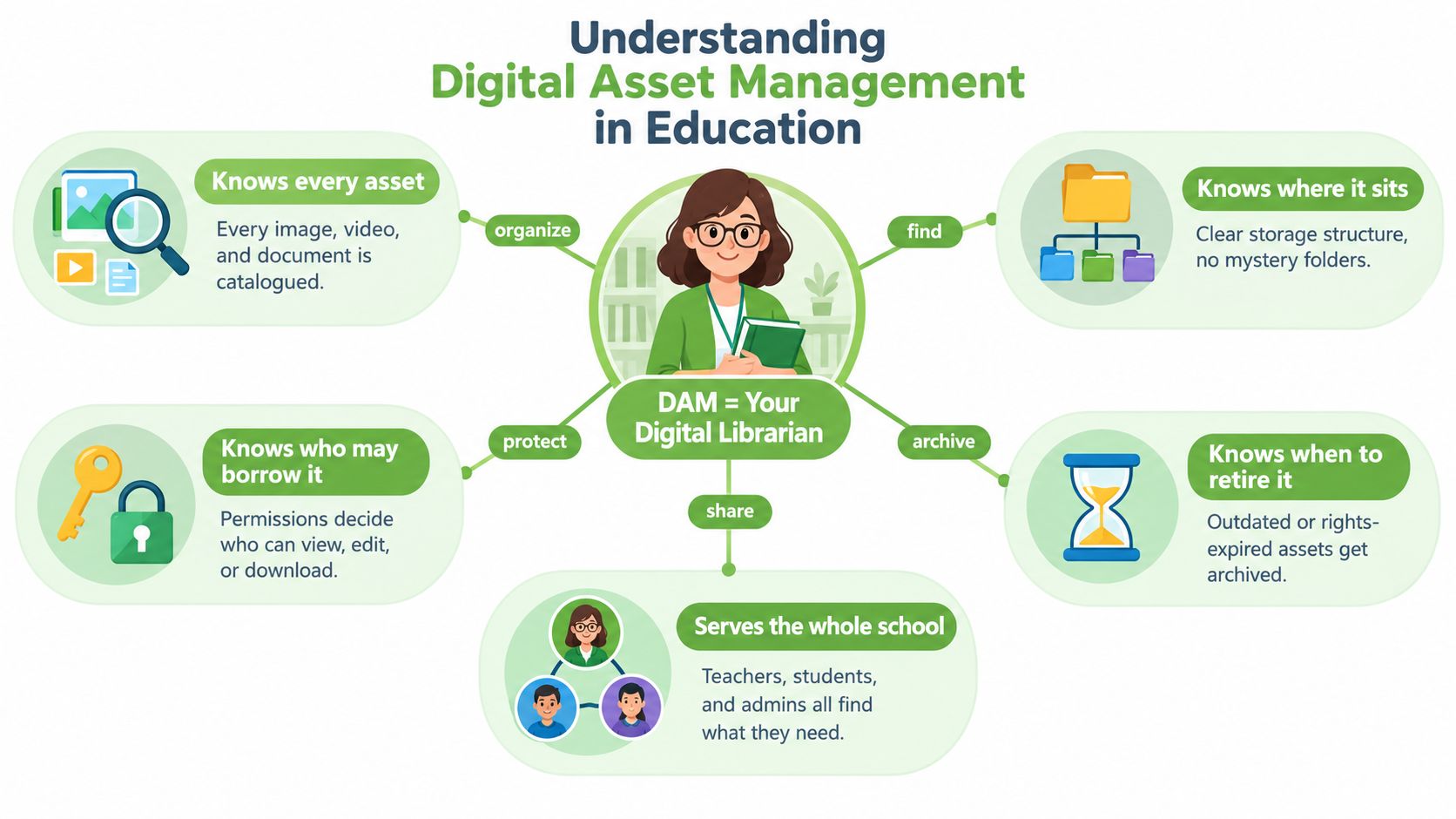
Five disciplines for a learning media library
Know what exists. Create a catalogue of every relevant asset, including masters, edited versions, captions, transcripts and downloadable alternatives. A recording titled “Week 4” isn't enough. Add the course, topic and teaching period.
Know where it sits. Use a predictable structure rather than personal folders. A useful pattern might be , with a separate area for masters and delivery copies.
Know who may borrow it. Permissions should distinguish between viewing, editing, downloading, approving and deleting. Students may watch a video in an LMS course without being allowed to download a high-resolution master.
Know when to retire it. A learning resource can become inaccurate, inaccessible or restricted by an expired licence. Give it a review date and an outcome, such as retain, replace, archive or remove.
Serve the whole school. The library should support teachers, students, learning designers, administrators and IT teams without requiring each group to maintain a separate unofficial archive.
The UK National Cyber Security Centre's asset-management guidance says asset management should cover physical, virtual and cloud resources, as well as an organisation's internet presence, and should align with risk management. The guidance dates back to 2016, which underlines that ownership and visibility are established security principles, not fashionable additions to DAM.
For a closer look at how a managed media collection can support learning workflows, see this media asset management system. The important question isn't whether your team has another repository. It's whether your repository gives people a reliable route from creation to learning use.
Assigning Ownership and Accountability for Every Asset
Taxonomy can't rescue an ownerless library. You might tag a video with its course, topic and year, but the information will decay if nobody reviews the recording, updates its captions, checks its rights or decides whether it should remain available.
UK government policy requires every identified data asset to have a named data owner. The associated policy also says critical data assets need accurate metadata naming the responsible owner and steward(s), as set out in the UK government data asset management policy.
A practical model separates authority from day-to-day care. The owner is accountable for the asset's purpose, access, retention and risk. The steward maintains metadata, checks versions, coordinates reviews and raises issues. One person may hold both roles in a small team, but the responsibilities should still be written down.
For a university recording, the module leader might own the academic accuracy and reuse decision. A learning technologist might steward the metadata, caption review and LMS publication. For corporate onboarding, the HR or compliance lead might own the policy content, while an L&D administrator manages the workflow and review reminders.
Common Governance Failures and Their Fixes
Failure Mode | What Goes Wrong | Governance Fix |
|---|---|---|
Orphaned assets | Staff leave and nobody can confirm what a file is for or whether it remains approved. | Name an owner and steward in the asset register, with a team backup. |
No review cycle | Old guidance remains in the LMS beside current material. | Add a review date, review outcome and escalation route. |
Unclear rights | A team reuses a third-party image, clip or recording without knowing the permitted audience. | Store licence details, restrictions and expiry information with the asset. |
Conflicting versions | Tutors publish different copies of the same resource. | Mark one approved delivery version and retain version history. |
Uncontrolled downloads | Sensitive footage spreads beyond the intended course or cohort. | Apply role-based permissions and limit download rights. |
Use roles that reflect real decisions, not impressive job titles. An owner should be able to answer, “Should this still be used?” A steward should be able to answer, “Is the record complete and is the published copy current?” A publisher should be able to answer, “Has it passed the required checks?”
Access should follow those responsibilities. A role-based access model helps teams separate permissions for administrators, content managers, reviewers, instructors and learners rather than giving everyone the same broad access.
Your one-week task is straightforward. Create an asset register for one programme and add a named owner to every item. Include the asset title, location, owner, steward, status, audience, rights position, accessibility status and next review date. If you can't name an owner, mark the asset as a governance risk instead of pretending the gap doesn't exist.
Building a Metadata Strategy That Actually Works
Metadata is often introduced as a search aid. In a learning library, it's more useful to treat metadata as a management control. The right fields tell a colleague what an asset is, whether it can be reused, which version is safe to publish and who must approve a change.
Take a recorded lecture called “Introduction to Cell Signalling”. Its metadata should do more than repeat the title. It should carry enough context for a colleague to make a safe decision after the original lecturer has left.
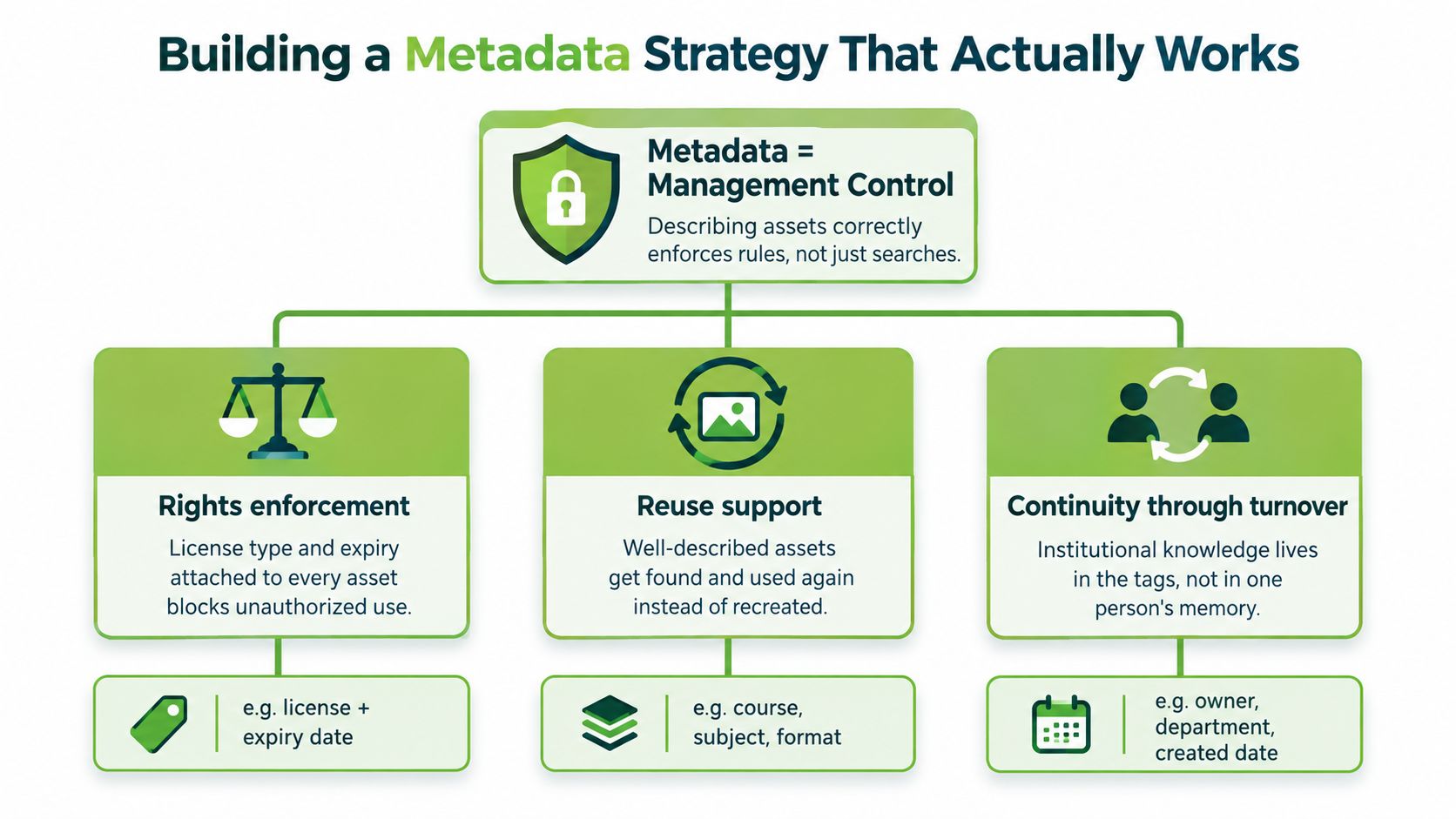
Six classes with one worked example
Collections-sector guidance recommends six metadata classes, alongside controlled vocabularies and standards such as Dublin Core, XMP/IPTC and EXIF, in its DAM guidance for collections.
Administrative metadata records who created the lecture, which department owns it, its status and its review date.
Descriptive metadata explains the subject, module, keywords, learning outcome and intended audience.
Technical metadata records the file format, audio arrangement, dimensions and other properties needed to play or process the file.
Rights metadata identifies copyright ownership, licence terms, permitted audiences and any expiry.
Preservation metadata records the master file, integrity checks, migration history and preservation actions.
Structural metadata connects the lecture to its captions, transcript, slides, chapters, clips and related activities.
Controlled vocabulary means choosing approved terms instead of letting everyone invent their own. Decide whether the subject is always “Cell Biology” rather than a mixture of “cell bio”, “biology cells” and “cellular science”. Keep the vocabulary short enough that tutors will use it, then review it when courses or departments change.
A starter template
Copy this into a register or DAM form:
Asset title: Introduction to Cell Signalling
Asset type: Lecture video
Course and module: Approved course name and module code
Creator: Lecturer or production team
Owner and steward: Named people and roles
Status: Draft, under review, approved, archived or withdrawn
Rights: Copyright owner, licence, audience and expiry
Accessibility: Captions, transcript, audio description and review status
Technical details: Master format and delivery format
Related assets: Slides, transcript, chapters and LMS activity
Created and reviewed: Dates recorded in the register
Folder names still matter. Use a stable convention, keep master files separate from delivery copies, and update the digital asset register whenever an asset is added, replaced or archived. A folder tree gives orientation, but the register provides the intellectual control that a folder alone can't deliver.
Securing Assets and Controlling Access the Right Way
A tutor needs to share a video quickly. The easiest route may be an email link or an open upload folder. That route also makes it difficult to control who can view the file, whether someone can download it, and what happens when the course ends.
Controlled access starts by matching permissions to the learning situation. A public promotional video has a different risk profile from a seminar recording containing student contributions. A staff-only compliance module differs from a student assessment submission. Treating every file as equally open or equally restricted creates avoidable problems.
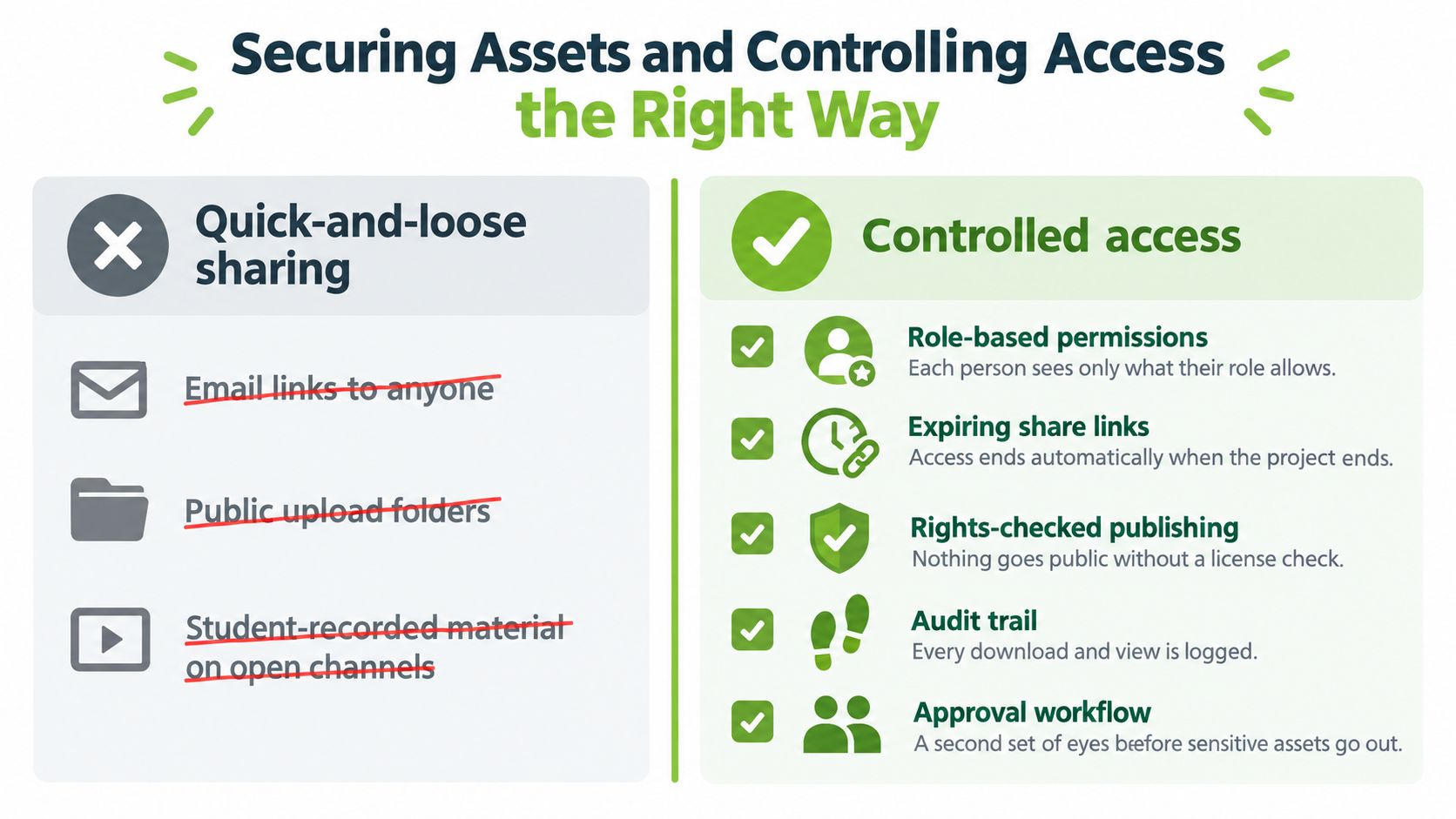
Compare the two sharing cultures
Quick-and-loose sharing relies on convenience. Email links get forwarded, public folders remain discoverable, and student-recorded material can move to channels that the institution doesn't control. The original sender may not know whether the content contains personal data, licensed material or an outdated version.
Controlled sharing uses roles, approval and clear rights information. The system limits what each person can view, edit, download or publish. An audit trail helps the team understand what happened, while an expiry rule prevents an old project link from becoming a permanent doorway.
Encryption protects assets while they move and while they're stored. It can't decide who should have access. That decision comes from governance, accurate permissions and an owner who reviews whether access remains appropriate.
The National Archives guidance on copyright and re-use statements says government publications in print or digital form should include appropriate statements identifying copyright ownership and supporting re-use. Apply the same principle to exported learning assets. Add a visible rights notice or attach rights metadata before a file leaves the managed environment.
A small-team access model
Use four straightforward tiers:
Learner: Can view approved assets in the relevant LMS course.
Instructor: Can use approved assets in teaching and request or create updates.
Reviewer: Can check accuracy, accessibility and rights before publication.
Administrator: Can manage permissions, retention, deletion and audit records.
Add a separate rule for sensitive assets. Recordings involving identifiable students, assessments or confidential workplace information should default to restricted access. A second person should approve external sharing, and download permissions should be narrower than viewing permissions.
Running Compliant Video Workflows Inside Your LMS
A weekly lecture recording becomes manageable when the team treats publication as a sequence of checks rather than a single upload. The lecturer records, the system receives the file, captions are generated, a human checks them, metadata is attached and only then does the approved video appear in the LMS.
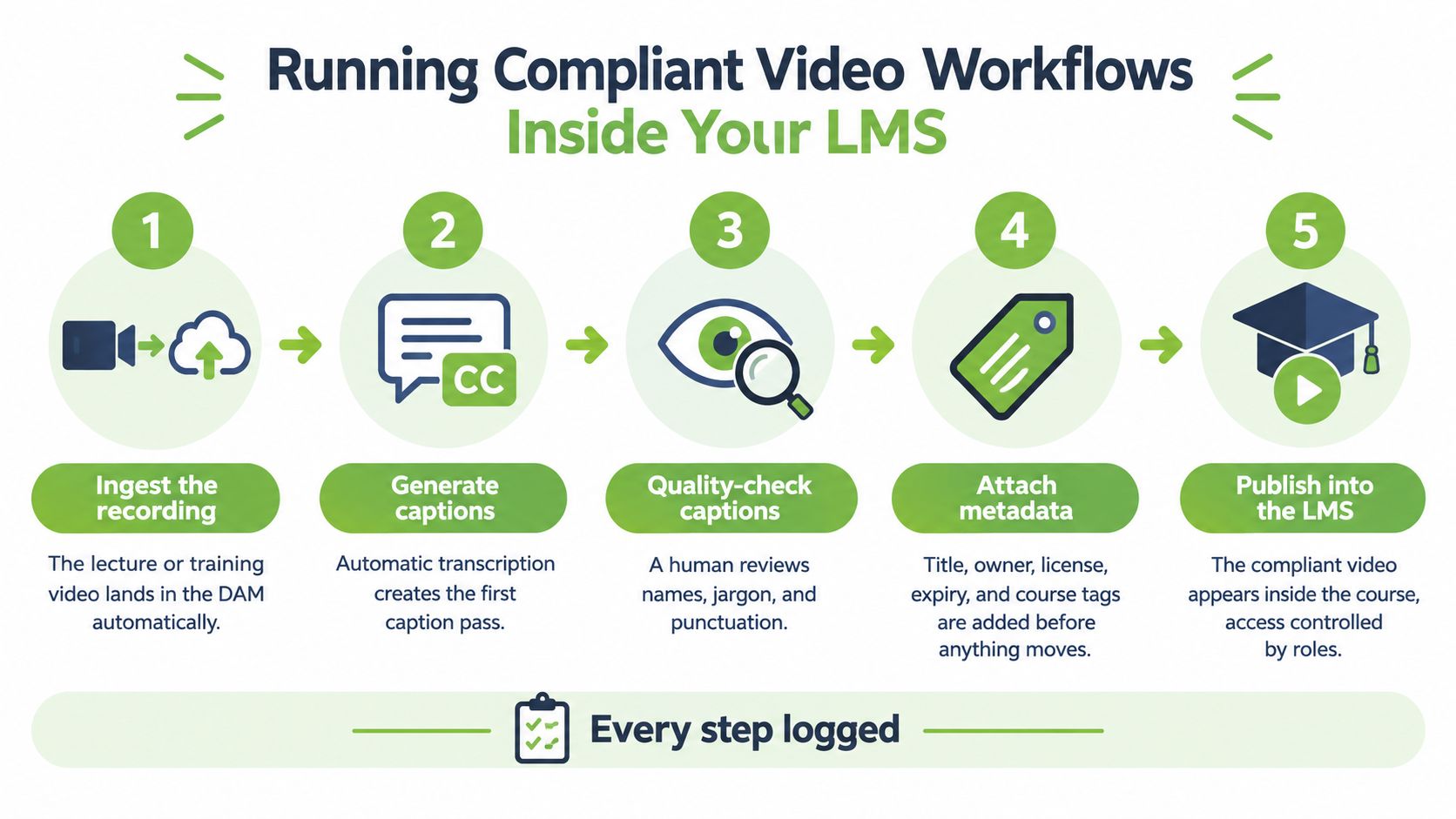
The five-step publishing routine
Ingest the recording. Place the original in the managed media library, not in a personal folder. Give it a temporary status such as “awaiting checks” so nobody mistakes it for an approved version.
Generate captions. Use automatic transcription to create a first pass, then retain the relationship between the video, caption file and transcript. Automation saves time, but it doesn't understand every name, technical term or speaker change.
Quality-check the captions. A reviewer should listen and correct names, jargon, punctuation, timing and missing words. Check the opening and closing sections especially carefully, because poor captions there can make the resource appear incomplete.
Attach metadata. Add the title, module, owner, format, rights position, accessibility status, review date and audience before publication. Link the transcript, slides and chapters so future users don't have to reconstruct the package.
Publish into the LMS. Embed or link the approved delivery copy in the correct course activity. Apply the learner role, confirm the player works, and record the publication event in the asset history.
This workflow needs prioritisation. Caption the video that will be used widely or supports a high-risk activity before a rarely accessed internal clip. If a recording is already scheduled for publication, start the caption process during ingest rather than waiting for a learner to report a problem.
Captions aren't a finishing touch. They're part of the publishing decision.
Jisc notes that UK public-sector accessibility rules apply to pre-recorded video published after 23 September 2020, captions can be added within 14 days, and live video is covered by WCAG 2.2 AA, rather than by the UK regulation itself, in its guidance on video captioning and accessibility regulations. Check your institution's policy and build the relevant deadline into the workflow.
A lecturer publishing a weekly module video can use a simple hand-off. The lecturer confirms the academic content. The learning technologist checks captions and metadata. The module owner confirms rights and audience. The LMS administrator verifies access. Each person completes a named task, and the record shows whether the video is ready, blocked or returned for correction.
Keeping Assets Usable Over Time
A file that opens today may become difficult to read, play or edit later. Long-term management begins by separating the master file from the delivery copy. The master is the preserved source. The delivery copy is the version prepared for an LMS player, download or particular audience.
Keep the metadata beside the content or linked to it. Preserve the audit trail when a caption file is corrected, a lecture is replaced or a rights restriction changes. Version history should make it obvious which copy is current without destroying the earlier record.
The University of Sheffield's Digital Preservation Policy states that metadata must be preserved alongside digital content, integrity must be checked periodically, and migration to new file formats should be used when needed to maintain readability, as described in its Digital Preservation Policy.
A practical lifecycle checklist
At ingest: Store the master, delivery copy and related metadata together.
At publication: Record the approved version, LMS location and responsible owner.
During review: Check that the file opens, plays and remains connected to its captions and transcript.
When content changes: Create a new version and explain what changed. Don't overwrite the master.
When a format ages: Plan a controlled migration, then verify that the migrated copy remains readable and accessible.
At retirement: Remove it from active LMS locations, preserve the record where required and document the decision.
Make the schedule fit your teaching calendar. A termly integrity check can cover the assets used in current courses. An annual format review can identify files that depend on obsolete software or formats. High-risk content may need more frequent attention, particularly when it contains regulatory, safety or assessment information.
A retention decision should be explicit. “Keep everything” creates clutter and may preserve material that shouldn't remain available. “Delete old files” can remove valuable teaching history. Use the owner to decide whether an asset is retained, replaced, archived or withdrawn, then record the reasoning.
For a deeper operational framework, use this guidance on an effective video content retention strategy. The point is not to turn every educator into an archivist. It's to make preservation a repeatable part of ordinary media housekeeping.
Your 30-Day Plan for Better Asset Management
You can make a meaningful start without cataloguing every file in your organisation. Choose one course, faculty collection or onboarding programme, then work in a fixed sequence.
Week one
Build the register. List the videos, documents, images, audio files, captions and transcripts that support the chosen learning experience. Name an owner and steward for each item, then mark anything with unknown rights, unclear purpose or no current review date.
Week two
Set the language of the library. Agree the folder structure, filename pattern and required metadata fields. Choose controlled terms for course, subject, asset type, status and audience. Test the template on real lecture recordings rather than designing it entirely in a meeting.
Week three
Tighten access. Create the learner, instructor, reviewer and administrator tiers. Check who can view, edit, download, approve and publish. Add a rights or re-use statement to approved exports, and restrict assets that contain personal, confidential or licensed material.
Week four
Embed the video workflow. Make ingest, caption generation, human caption review, metadata completion and LMS publication visible steps. Assign each check to a role, record the outcome and set a review date for the published asset.
Perfection isn't the target. A maintained, owned and findable library is already a substantial improvement over scattered folders and institutional memory. Once the workflow works for one programme, extend the same fields and decisions to the next collection. Your LMS and media library can grow together without allowing governance to become an afterthought.
MEDIAL helps educators and L&D teams manage, edit, caption, secure and publish video and audio within LMS-connected learning workflows. Visit MEDIAL to explore how its media management tools can support a more organised, accessible and accountable learning library.
Comments