
Why Videos Are Slow in Your LMS and How to Fix It

When a video stutters and buffers, it’s a surefire way to kill the momentum of any lesson. The usual suspects? It almost always boils down to the user's local network connection, the video file's size and format, or the server's ability to actually push the content out efficiently.
Think about it: a massive, unoptimised video file trying to squeeze through a weak Wi-Fi signal is the perfect recipe for a frustrating, buffer-filled experience. A 2GB raw video file for a 10-minute lecture is simply never going to stream smoothly for a student on a shared family internet connection.
Diagnosing the Root Cause of Slow Video Playback
When a student or colleague reports that "the videos are slow," it's tempting to jump to conclusions. But trust me, taking a deep breath and using a systematic approach will get you to the solution much faster.
The problem could be hiding anywhere along the path from the server to the viewer's screen. Instead of just guessing, it's far better to trace that path methodically. For example, instead of immediately blaming the LMS, ask the user: "Can you try watching the video on your phone using mobile data instead of Wi-Fi?" If it works, you've instantly narrowed the problem down to their local network. A proper diagnosis saves time and stops you from applying fixes that don’t address the real problem.
The Three Core Checkpoints
When I start troubleshooting, I always focus my investigation on these three key areas first. It helps narrow things down quickly.
The User's Environment: This is ground zero. I'm talking about their device (is it an ancient laptop struggling to keep up?), their browser (are there a dozen extensions interfering?), and their local internet connection. For instance, a student trying to watch a 1080p video on a 10-year-old tablet in a café with spotty Wi-Fi is a very common scenario.
The Network Path: Next, how is the video getting from your server to the user? This includes your own institution's network, but more importantly, are you using a Content Delivery Network (CDN)? A CDN is critical for bringing content physically closer to learners, like a student in London accessing content from a server in Manchester. Without it, the data travels further, increasing the chance of slowdowns.
The Video File Itself: Is the source file just too big? A raw 4K video file straight from a camera has no business being streamed on the web. A practical example is a 30-minute lecture recorded in 4K, which could easily be over 10GB. Proper encoding can shrink this to under 500MB without a noticeable loss in quality for web viewing.
This flowchart really helps to visualise the diagnostic process, starting with the user and working your way back to the server.
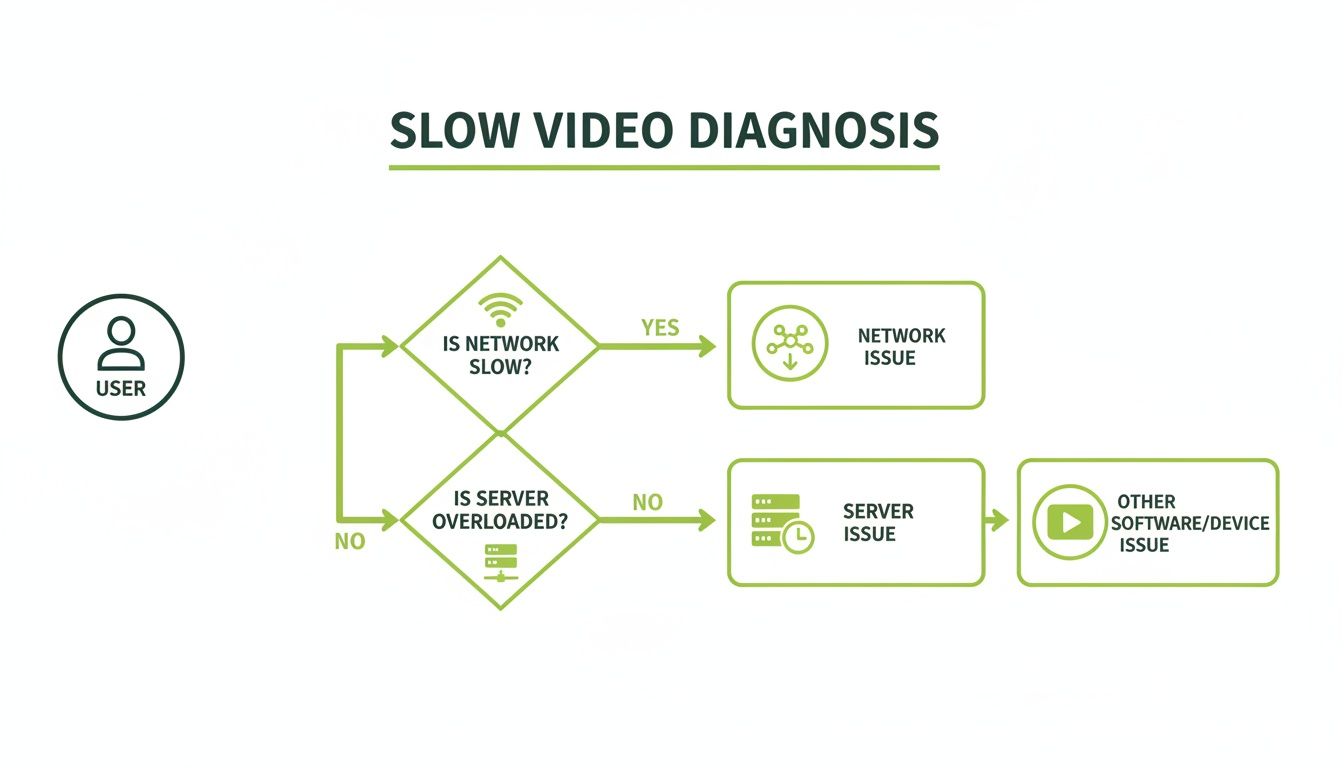
The main takeaway here is to work from the outside in. Always start with the user's local setup before you dive into more complex server configurations.
From my experience, it’s a classic mistake to immediately blame the platform or server. In reality, over 50% of streaming issues can be traced right back to the viewer's local network or device limitations. For example, the student's sibling might be downloading a large video game in the next room, hogging all the bandwidth. Ruling that out first is simply the most efficient way to troubleshoot.
This diagnostic mindset is fundamental. Of course, this is just one piece of the puzzle; for a broader look at getting everything running smoothly, it's worth exploring general website performance optimization techniques as well.
By systematically checking each component—user, network, and file—you can pinpoint the exact cause of the slow video playback and, as we'll explore next, implement the right solution.
Checking Local Network and Device Performance
When a user complains that "videos are slow," the first instinct is often to look at the server or the MEDIAL platform itself. But after years of troubleshooting these issues, I can tell you that the real culprit is usually much closer to home—right there on the user's desk. Before you dive into complex server-side diagnostics, a quick look at the local environment can solve a surprising number of playback problems.
This first line of defence means checking three things: the user’s internet connection, their web browser, and the device they're using. An actionable tip is to create a simple troubleshooting checklist for users with these steps. This can quickly rule out the most common causes of that dreaded buffering wheel.
What Does "Good" Internet Speed Really Mean for Video?
Everyone says they have "fast internet," but what does that actually mean? For streaming video, a stable connection is far more important than a fast one. A quick speed test gives us objective data that tells the real story of what that connection can handle. A practical action is to ask the user to visit a site like or and share a screenshot of the results.
Here’s a look at the kind of results you'd get from a typical speed test tool.
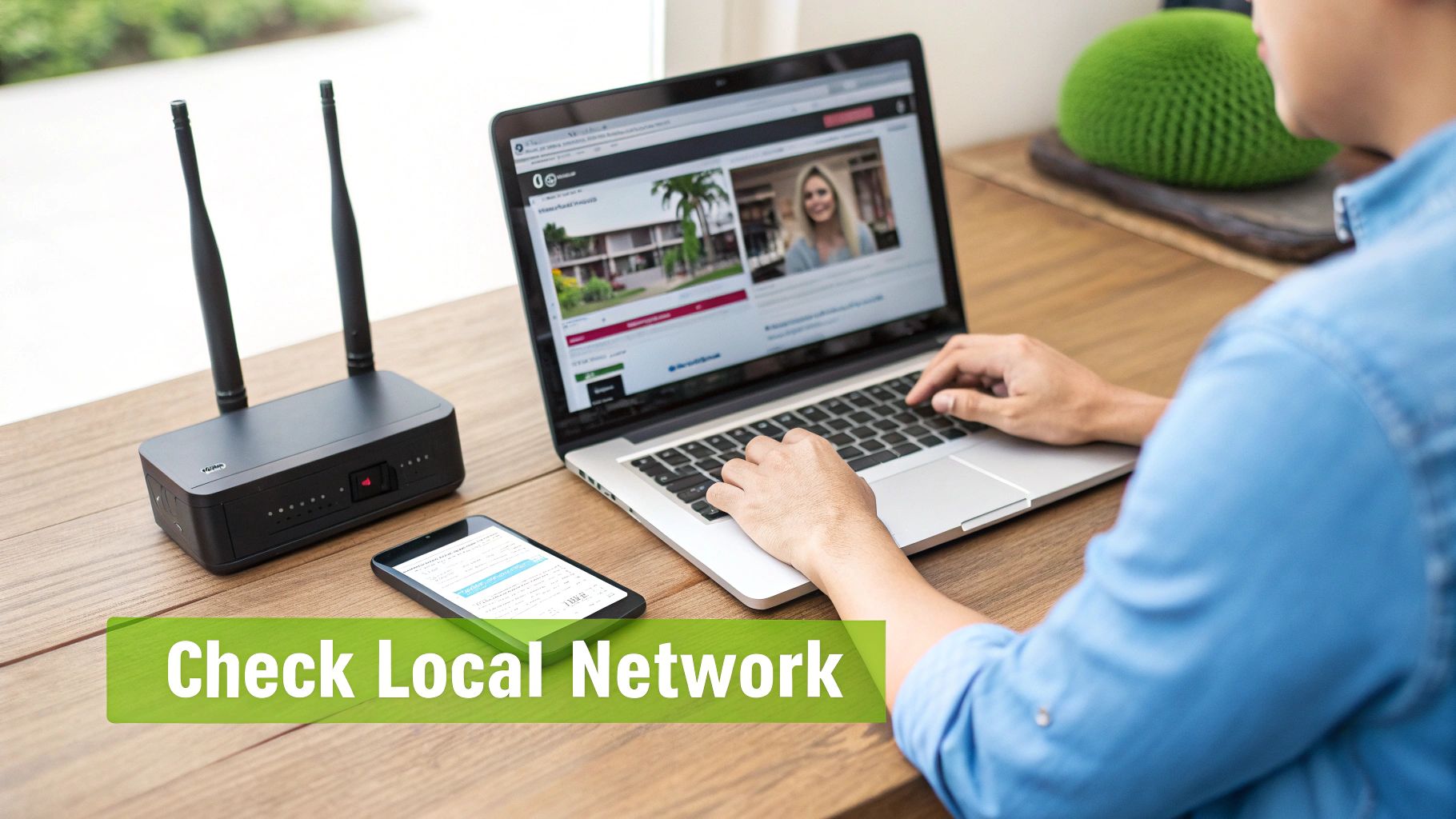
The download speed (Mbps) is the number that matters most for watching video. It tells you how quickly data can be pulled down to the device. A bigger number is obviously better, but consistency is king.
This is particularly true in the UK, where broadband performance can be a real postcode lottery. National averages might look healthy, ranging from 104 to 157 Mbps in 2025, but those figures hide massive regional differences. Most streaming platforms recommend a minimum of 5–25 Mbps for reliable HD playback. A student in central London might have a flawless experience, while another in rural Wales could struggle if their speed drops below 10 Mbps during peak evening hours.
If you're interested in the details, you can explore more about UK broadband statistics and see just how much location can impact streaming quality.
Key Takeaway: Don't just ask if the internet is "fast." Get them to run a speed test. If the download speed is consistently below 25 Mbps, that’s a huge red flag for high-definition educational content, especially if other people are sharing the same network. A practical insight is that multiple HD streams (e.g., Netflix, YouTube) on the same network can easily saturate a 25 Mbps connection.
Browser Health Checks for Smoother Playback
Think of the web browser as the stage where your video performs. If that stage is cluttered and messy, the performance is going to suffer. Over time, browsers build up a huge amount of data and run extensions that can get in the way of smooth playback.
When videos start to lag, running through a few simple browser checks is a non-negotiable step. It helps you figure out if the problem is the browser's setup or something bigger.
Practical Browser Troubleshooting Steps
Clear the Cache and Cookies: It’s the oldest trick in the book for a reason. In Chrome, you can do this by going to . This forces the browser to grab a fresh copy of everything.
Disable Browser Extensions: Ad blockers, privacy tools, and even well-meaning productivity extensions can mistakenly interfere with a video stream. A great tactic is to disable all extensions temporarily and see if the video plays properly. If it does, re-enable them one by one to find the culprit.
Try an Incognito or Private Window: This is a fantastic diagnostic tool. An incognito window loads without most extensions or cached data, giving you a clean slate. If the video works perfectly here, the problem is almost certainly an extension or a setting in the user's main browser profile.
Update the Browser: It sounds obvious, but an outdated browser might not support the latest streaming technologies, leading to poor performance. A quick check for updates (e.g., in Chrome's section) can solve a lot of mysterious glitches.
These simple steps empower users to fix common issues themselves, which cuts down on support tickets and gets them back to their learning faster.
The Impact of an Overloaded Device
Finally, let's not forget the device itself. An older laptop or a phone with dozens of apps running in the background can struggle to decode and display HD video, even with a lightning-fast internet connection.
A practical example is trying to watch a lecture while also having 30 browser tabs open, along with Spotify and Microsoft Teams running in the background. The device's CPU and RAM are maxed out, leaving no resources for smooth video decoding. This usually shows up as choppy playback, frozen frames, or audio that's completely out of sync with the video.
Encourage your users to close unnecessary applications and browser tabs to free up precious system resources. A simple reboot is often the most effective fix. If someone consistently has problems on one specific device but not on others, you can be pretty sure that device's performance is the bottleneck.
Optimising Video Files for Smooth Streaming
Even with a flawless network, a massive, unoptimised video file will bring any stream to a grinding halt. If you’ve ever tried to upload raw video straight from a camera or smartphone, you’ve probably experienced this first-hand. This is where MEDIAL’s encoding and transcoding processes become your most powerful ally against slow video playback.
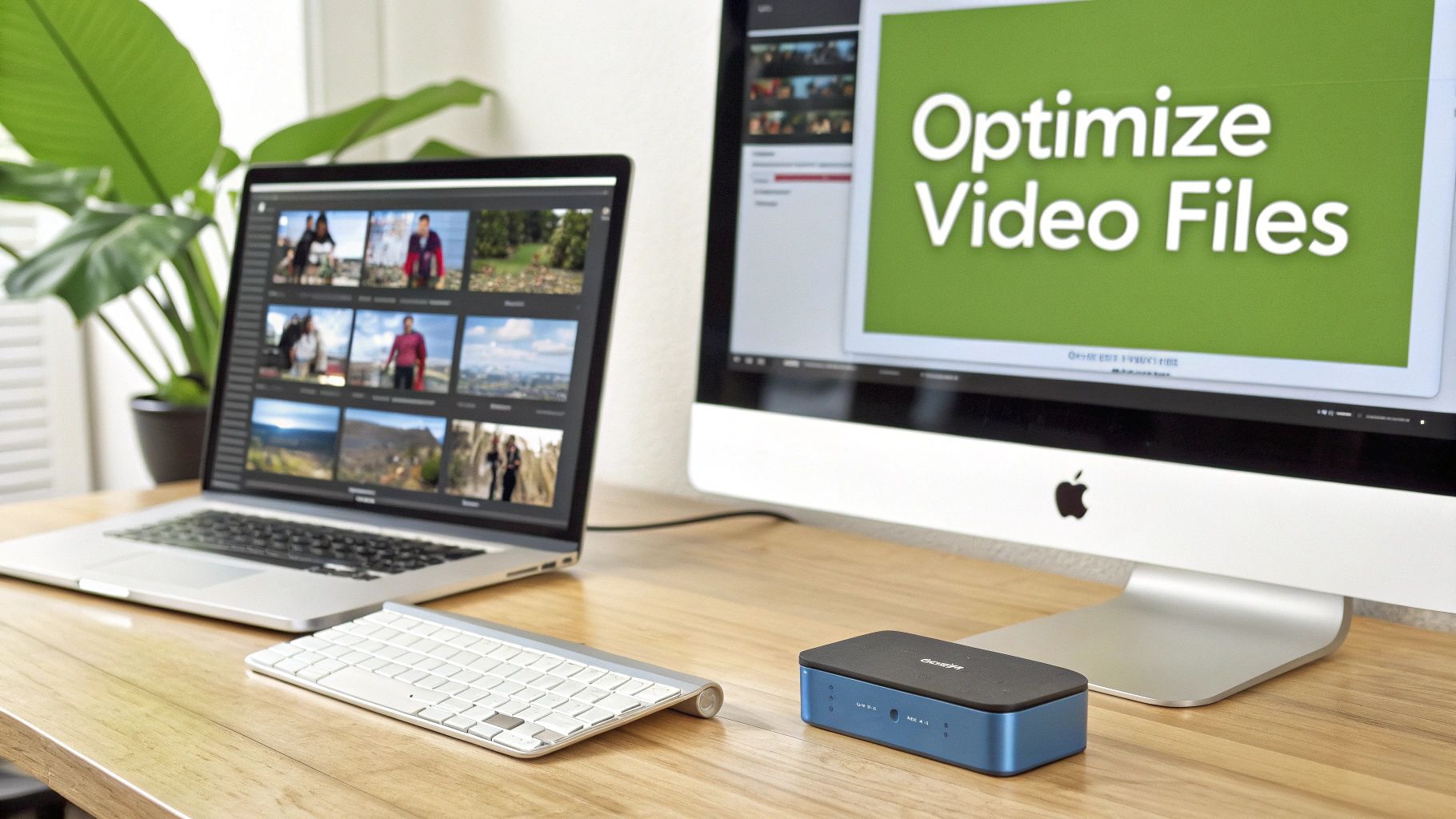
When you upload a video, MEDIAL doesn’t just store it; it intelligently transforms it. This process, called transcoding, creates multiple versions of your original file, each one perfectly tailored for smooth delivery over the web. It's the digital equivalent of turning a heavy hardback book into a lightweight paperback, an e-book, and an audiobook—all from the same source material.
Choosing the Right Encoding Presets
Not all educational content is the same, and your encoding settings shouldn't be either. A static, talking-head lecture has completely different visual demands than a detailed science experiment with fast motion and intricate details. Choosing the right preset is always a balancing act between visual quality and file size.
For instance, you can compress a simple screen recording of a PowerPoint presentation significantly without any noticeable drop in quality. But if you apply that same heavy compression to a high-motion video of a chemistry lab experiment, you'll end up with a blurry, pixelated mess. A practical tip is to create a simple guide for your content creators on which preset to use for which type of video.
MEDIAL helps by providing pre-configured encoding profiles designed for common educational scenarios. Here’s a quick guide to help you choose:
For Lectures and Presentations: Stick with a standard definition (SD) or 720p HD profile. These prioritise clarity for text and faces without creating unnecessarily large files.
For Detailed Demonstrations: Select a 1080p Full HD profile. This ensures that fine details—like lines of code on a screen or small components in an engineering demo—remain sharp and legible.
For High-Motion Content: If you have content with a lot of movement, like sports or performance arts, a profile with a higher bitrate is essential to avoid motion blur and artefacts.
I once worked with a department that uploaded all their raw 4K lecture recordings directly. They couldn't understand why students were complaining about constant buffering. By simply switching to a 1080p transcoding profile within MEDIAL, they reduced file sizes by over 75% and eliminated nearly all playback complaints overnight. This is a real-world, actionable fix that took minutes to implement.
To make this even clearer, here are some recommended starting points for different types of educational content you might be creating.
Encoding Presets for Common Educational Content
This table provides recommended MEDIAL encoding settings for different types of educational videos to balance quality and streaming performance.
Content Type | Recommended Resolution | Target Bitrate Range (Mbps) | Key Benefit |
|---|---|---|---|
Talking Head Lectures | 720p (1280x720) | 1.5 - 2.5 | Excellent clarity for faces and slides with a small file size. |
Software Demos/Screencasts | 1080p (1920x1080) | 2.5 - 4.0 | Keeps on-screen text and UI elements crisp and readable. |
Lab Experiments/Practical Demos | 1080p (1920x1080) | 4.0 - 6.0 | Captures fine details and moderate motion without pixelation. |
High-Motion Content (e.g., Sports) | 1080p (1920x1080) | 6.0 - 8.0 | Prevents motion blur and artefacts during fast-paced scenes. |
These are just guidelines, of course. The key is to test and find what works best for your specific content and audience. An actionable step is to create a short test video and encode it using different profiles, then watch it on various devices and network conditions to see the real-world difference.
The Magic of Adaptive Bitrate Streaming
This is the single most important technology for solving the "videos are slow" problem for a diverse audience. Adaptive Bitrate Streaming (ABS) is the clever process that allows the video player to intelligently select the best quality stream for a viewer's connection in real time.
When MEDIAL transcodes your video, it creates several versions at different bitrates—think of them as small, medium, and large files (e.g., 480p, 720p, 1080p). The video player starts by delivering a lower-quality version for a fast start-up. If it detects a strong, stable connection, it seamlessly switches up to a higher-quality stream.
Conversely, if the viewer's Wi-Fi signal suddenly weakens (e.g., they walk to another room), the player automatically drops to a lower-quality stream to prevent buffering. The viewer might notice a brief dip in visual quality, but the video keeps playing. That's a far better experience than staring at a spinning circle. This dynamic adjustment is the key to providing a smooth experience for every single user. If you're looking to dive deeper, there are excellent resources covering how to reduce video file size effectively.
Balancing Quality and Performance
Ultimately, optimisation is all about finding that sweet spot. The goal is to deliver the highest possible quality that a user's connection can reliably support. To prevent buffering and ensure smooth playback, it's essential to implement techniques to reduce MP4 file size without losing quality, balancing visual fidelity with streaming efficiency.
By taking a moment to choose the right encoding profile and letting MEDIAL’s adaptive streaming technology do the heavy lifting, you can ensure your video content is accessible and watchable for everyone. This file-level optimisation is a proactive step that solves playback issues before they even start.
Using a CDN to Improve Global Playback Speed
If your learners are scattered across different cities, countries, or even just opposite ends of a large campus, relying on a single server to deliver video is a recipe for lag. It’s a classic problem: when videos are slow for users far from your server's physical location, the issue often isn't the video file or their local network—it's distance. Data simply takes time to travel, and this delay, known as latency, is a major cause of painful start times and buffering.
This is where a Content Delivery Network (CDN) becomes an essential part of your toolkit. Think of a CDN as a global network of mini-servers (called edge servers) that store copies of your video content. When a student in New York clicks play on a video hosted on your London server, the CDN delivers it from a local server in New York instead of sending it across the Atlantic.
This simple change dramatically reduces the distance the data has to travel. The result is significantly faster loading times and a much smoother playback experience for everyone, no matter where they are.
How a CDN Solves the Distance Problem
Let’s look at a real-world scenario. You have a student on campus in Birmingham, just a stone's throw from your university's main server, and another student on a study abroad programme in Singapore.
The On-Campus Student: When they watch a lecture, the video data travels a very short distance. Playback is almost instant, with no buffering in sight.
The International Student: Without a CDN, their request has to travel over 6,000 miles to your main server and all the way back. You know what that means: a long initial wait time and a high chance of buffering as the connection struggles over such a long distance.
With a CDN enabled in MEDIAL, the international student's experience is completely different. The video is served from an edge server located in Singapore, making the experience just as fast and reliable as it is for the student sitting on campus. This setup is crucial for any institution supporting remote or international learning. If you want to dive deeper into the technical side, our guide on Moodle video streaming servers offers more detail.
Expert Tip: It's a common misconception that CDNs are only for massive global corporations. A practical insight is that even a university with students spread across the UK (e.g., from Aberdeen to Cornwall) will see a tangible improvement in video performance and a welcome reduction in support tickets related to slow playback.
Verifying Your CDN Is Working Correctly
Once your CDN is configured within MEDIAL, you’ll want to make sure it's actually doing its job. The good news is you don't need complex network tools to get a good idea of whether your content is being properly distributed.
A simple, actionable way to check is to use a web-based tool like or , which can test a website's speed from different global locations. If your CDN is working, you should see fast load times from test locations far from your primary server. If the load times are consistently slow everywhere except near your server, it might point to a configuration issue where the CDN isn't correctly caching your video assets.
This verification is especially important for reaching users on less reliable connections. In the UK, for instance, mobile video performance can make users feel like videos are slow, as median download speeds vary widely by operator and geography. With average mobile speeds ranging from the mid-40s to low-70s Mbps, and much lower speeds in rural areas, a CDN ensures the video data has the shortest and most efficient path to these devices. Find out more about how UK network speeds impact user experience and see why this matters.
Monitoring Performance With MEDIAL Analytics
Waiting for a flood of support tickets is a pretty stressful way to discover your videos are playing slowly. A far better approach is to get ahead of the problem. When you shift from being reactive to proactive, you can spot and fix issues before they ever ruin a learner's experience. This is exactly where MEDIAL's built-in analytics become your most valuable tool.
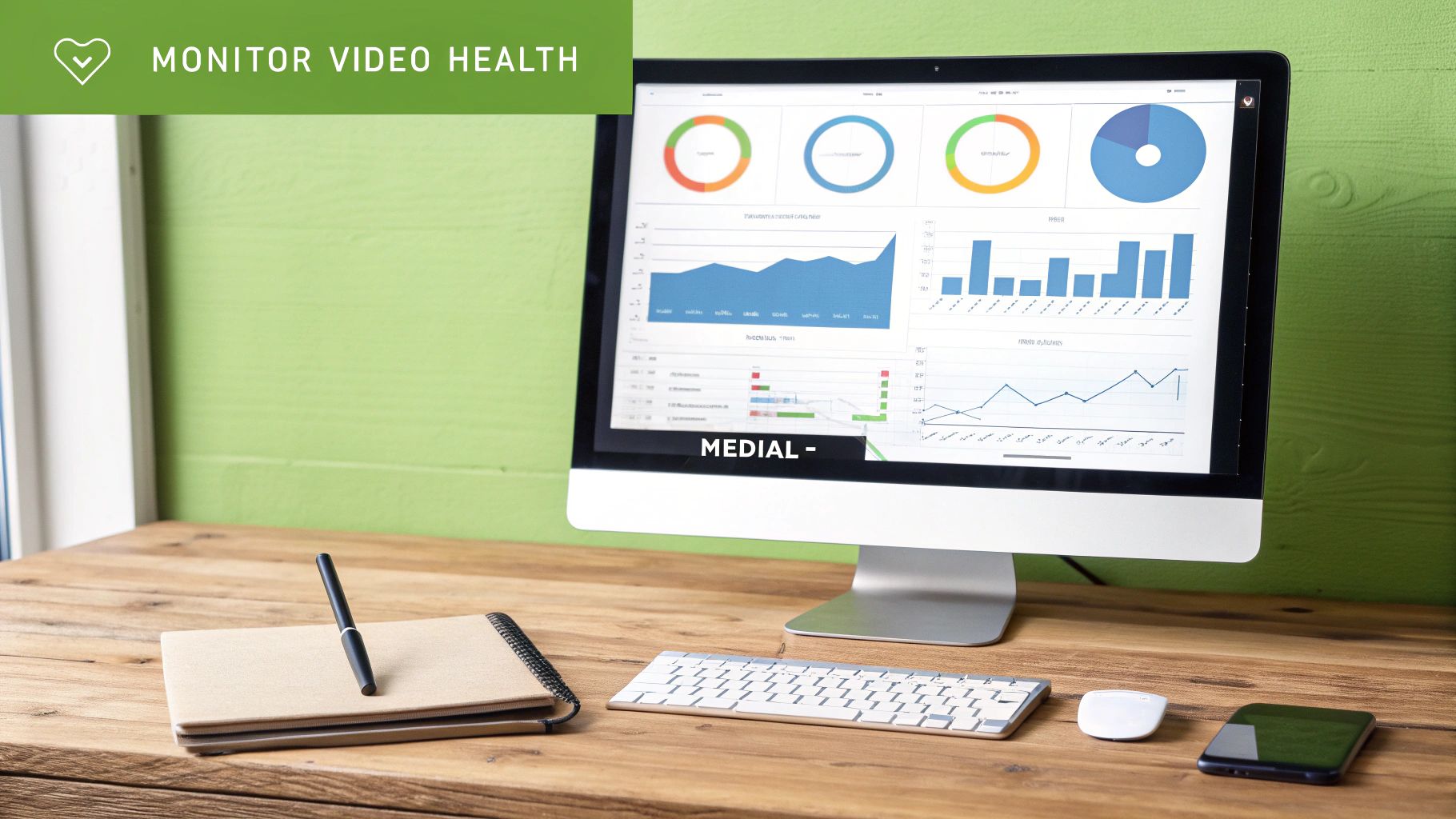
By keeping a regular eye on a few key video health metrics, you can move from firefighter to architect, building a consistently smooth viewing experience. For example, a quick weekly check of the analytics dashboard can help you spot a problematic video that is causing issues for many students, allowing you to fix it before it becomes a major complaint.
Key Metrics To Watch For Slow Videos
Diving into analytics can feel a bit overwhelming, but you only need to focus on a few key numbers to get a clear picture of playback health. Think of these data points as your early warning system, flagging potential trouble before it escalates.
Here are the essential metrics you should be tracking within MEDIAL:
Buffering Ratio: This is your most direct indicator of a poor viewing experience. It measures the percentage of time a viewer spent waiting for the video to buffer versus actually watching it. A consistently high buffering ratio (e.g., above 2%) is a major red flag.
Video Startup Time: How long does it take for a video to start playing after a user hits the play button? A long startup time (e.g., over 5 seconds) is often the first sign of trouble and can lead to learners abandoning the content before it even begins.
Bitrate Distribution: This metric shows you which quality levels (e.g., 1080p, 720p, 480p) your audience is actually watching. If you see a large chunk of viewers are stuck on lower bitrates despite having high-quality options, it often points to widespread network limitations on their end.
Monitoring these helps you build a baseline for what's normal. When you see a sudden spike in buffering or startup times, you'll know immediately that something has changed and needs a closer look. You can also explore how MEDIAL's analytics tie directly into understanding student engagement and performance in our related article.
Interpreting The Data And Taking Action
Gathering data is only half the battle; the real value comes from making sense of it and taking decisive action. For example, if you notice that videos in the science department consistently have high buffering ratios, it might indicate that their raw video files are just too big. The actionable insight here is to reach out to that department and review their video creation workflow, guiding them to use a more web-friendly recording format or a better transcoding profile.
This is where you can create smart, automated workflows. By setting up specific transcoding profiles for different departments or content types, you can ensure every video is automatically optimised for streaming the moment it's uploaded. The arts department might get a profile favouring high visual fidelity, while the language department gets one focused on crystal-clear audio and smaller file sizes.
A common scenario we see is high buffering rates cropping up in a specific geographic region. This insight allows you to investigate whether your CDN is performing correctly in that area or if there's a broader regional network issue at play, letting you inform affected students proactively. For instance, you could post an announcement: "We're aware of slow video performance for users in the Manchester area and are investigating."
This level of granular control helps maintain consistent quality and performance across your entire institution, which significantly reduces the strain on your IT support team.
By using MEDIAL analytics, you gain the visibility needed to diagnose these problems accurately and provide a superior learning experience for everyone, regardless of their connection speed.
Frequently Asked Questions About Slow Video
Even after tweaking every possible setting, you might still run into questions about why videos are lagging in specific situations. Let's walk through some of the most common scenarios we see and give you clear, practical answers to get your content streaming smoothly again.
These are the kinds of queries we hear all the time from both system administrators and frustrated end-users. Answering them helps everyone understand the finer points of video delivery. More often than not, what looks like a massive platform-wide failure is actually a simple, localised problem you can fix in minutes.
Why Is Only One Specific Video Slow For Everyone?
When a single video is the problem child while everything else works fine, the culprit is almost always the file itself. This is a classic case of one bad apple. It's a strong signal that your network and user devices are perfectly healthy, pointing the investigation squarely at the source media.
The most likely cause? The video was either uploaded in a ridiculously high resolution (like raw 4K footage straight from a camera) or it simply failed to transcode properly within MEDIAL. What's happening is that your users are trying to stream a massive, unoptimised file that was never properly prepared for the web.
The actionable fix is to locate that video in MEDIAL, delete it, and re-upload the original source file. This time, watch the processing queue to ensure it successfully transcodes into multiple versions. If it fails again, the source file itself might be corrupted, and you should try re-exporting it from your video editing software.
Can My Web Browser Make Videos Slow?
Oh, absolutely. Your web browser is the stage where the video performs, and a poorly maintained stage can lead to a terrible show. An outdated browser, a cluttered cache, or conflicting extensions are incredibly common causes of playback issues that make it seem like all your videos are slow.
Think of it like this: over time, your browser just accumulates digital clutter and add-ons that can start interfering with how it processes video.
Here’s a quick troubleshooting checklist to run through:
Update Your Browser: First things first, make sure you're running the latest version of Chrome, Firefox, or Edge.
Clear Your Cache and Cookies: This simple step forces the browser to fetch a fresh version of the video player and can solve a surprising number of odd glitches.
Try an Incognito Window: This is my favourite trick. It disables most extensions by default. If the video plays smoothly here, an extension is almost certainly the problem.
Test in a Different Browser: A quick way to confirm if the issue is isolated to your primary browser's setup.
A practical example: I've seen cases where a single, seemingly unrelated extension, like a grammar checker or an ad blocker, was the hidden reason behind constant video buffering. Disabling it instantly solved the problem for the user.
Does Video Quality Matter For Playback Speed?
Video quality has a direct and massive impact on playback speed. It's the difference between moving a few boxes and moving an entire house. A 4K video file contains vastly more data per second than a 720p video, which means it needs a much faster and more stable internet connection to stream without constantly stopping to buffer.
This is exactly what MEDIAL’s Adaptive Bitrate Streaming is designed to handle. It automatically creates multiple versions of your video at different quality levels. The player is smart enough to then serve the best possible version that a user's connection can handle at that moment without buffering. For a practical example, a user on a fast campus Wi-Fi will get the crisp 1080p stream, while another user on their phone on a train will seamlessly switch down to a 480p stream to avoid interruption.
But here’s the catch: this brilliant system only works if those multiple versions actually exist. If a video wasn't properly encoded into various bitrates, the player might only have one option to serve up: the huge, high-quality original file. When a user with a shaky connection tries to watch, they are forced to download a file that is way too big for their network, leading to that frustrating, stuttering playback experience.
Ready to eliminate slow video playback for good? MEDIAL integrates seamlessly with your LMS to provide a powerful, AI-driven platform that optimises, manages, and delivers your educational content flawlessly. Schedule your free demo today!
Comments