
Recording of Lectures: A UK Guide to Workflows and Formats

At 11pm, a student emails to ask how to catch up on last Tuesday's lecture. You know a recording might help, but you're not sure whether your institution allows it, who can access it, or whether the captions need checking before you share it. That late message points to a wider question: recording lectures is no longer just a matter of pressing a button. It's a set of teaching, accessibility and governance decisions.
Why Recording of Lectures Became Routine in UK Universities
In the early 2010s, lecture capture was still emerging across UK universities. A survey found that 31% of institutions, 34 of 108, had some form of provision, policy or development plan in 2011–2012. By 2014–2015, that had risen to 75%, or 100 of 133 institutions (UK lecture-capture adoption timeline). Recording had become mainstream before emergency online teaching during the COVID-19 pandemic.
The change wasn't just that universities installed more recording equipment. Institutions also had to decide who could record, which teaching activities were appropriate, how copyright would be handled and how students could access recordings. A lecturer might be happy to capture a slide explanation but need a different approach for a seminar involving personal contributions or a guest speaker.
That's why the student's late-night email can be difficult to answer without a clear local process. A recording may be a useful catch-up resource, but its existence doesn't automatically settle how it should be made available or what students are expected to attend.
Practical rule: Treat recording as part of course design and institutional policy, not as an informal extra.
Before recording, decide what the student needs to see and hear. Then plan the workflow, make the content accessible, settle privacy and copyright, and make sure the finished recording has a clear home in the learning management system (LMS). Each choice affects what students can use and what staff must maintain.
What Gets Captured in a Lecture Recording
A lecture recording has three possible layers: soundtrack, set and performers. Audio captures the lecturer's voice, screen capture records slides or demonstrations, and room video shows the lecturer and potentially other people present. These layers can be captured separately or combined. The right mix depends on what students need to revisit and what the session contains.
A 2017 survey of UK universities found that 90% of respondents captured audio by default, 83% captured the computer screen, and 23% captured video by default. It also reported that 63% planned lecture capture in 75–100% of their lecture theatres. This pattern reflects a practical choice: students often need to hear an explanation and see the material being discussed, while the lecturer's image may not add much to every subject.
Audio paired with screen capture can preserve the teaching without recording everyone in the room. That may limit unnecessary exposure of students and keep the recording simpler. File size also varies with format and settings, so consider how video file formats affect your workflow when choosing how to store and distribute recordings.
Room video earns its place when movement is part of the lesson. A lecturer demonstrating a clinical technique, modelling spoken language or showing a practical procedure may need to be visible. For a session built around slides and spoken explanation, a fixed image of the lecturer may add little.
Start with the learning task. If students need to follow slides while listening to a worked explanation, audio and screen capture may be enough. If they need to review a gesture, sequence or demonstration, include video deliberately. Check whose image or contribution it may capture, since each added layer changes what is recorded and who may appear.
Building a Recording Workflow from Booking to Publishing
A dependable workflow begins before the room fills. Check that the room has capture hardware and that the system records the intended audio and screen content. Run a short microphone level test, display the recording notice, and confirm which module will host the finished file. Small checks at this point can prevent a recording that looks complete but has no usable sound.
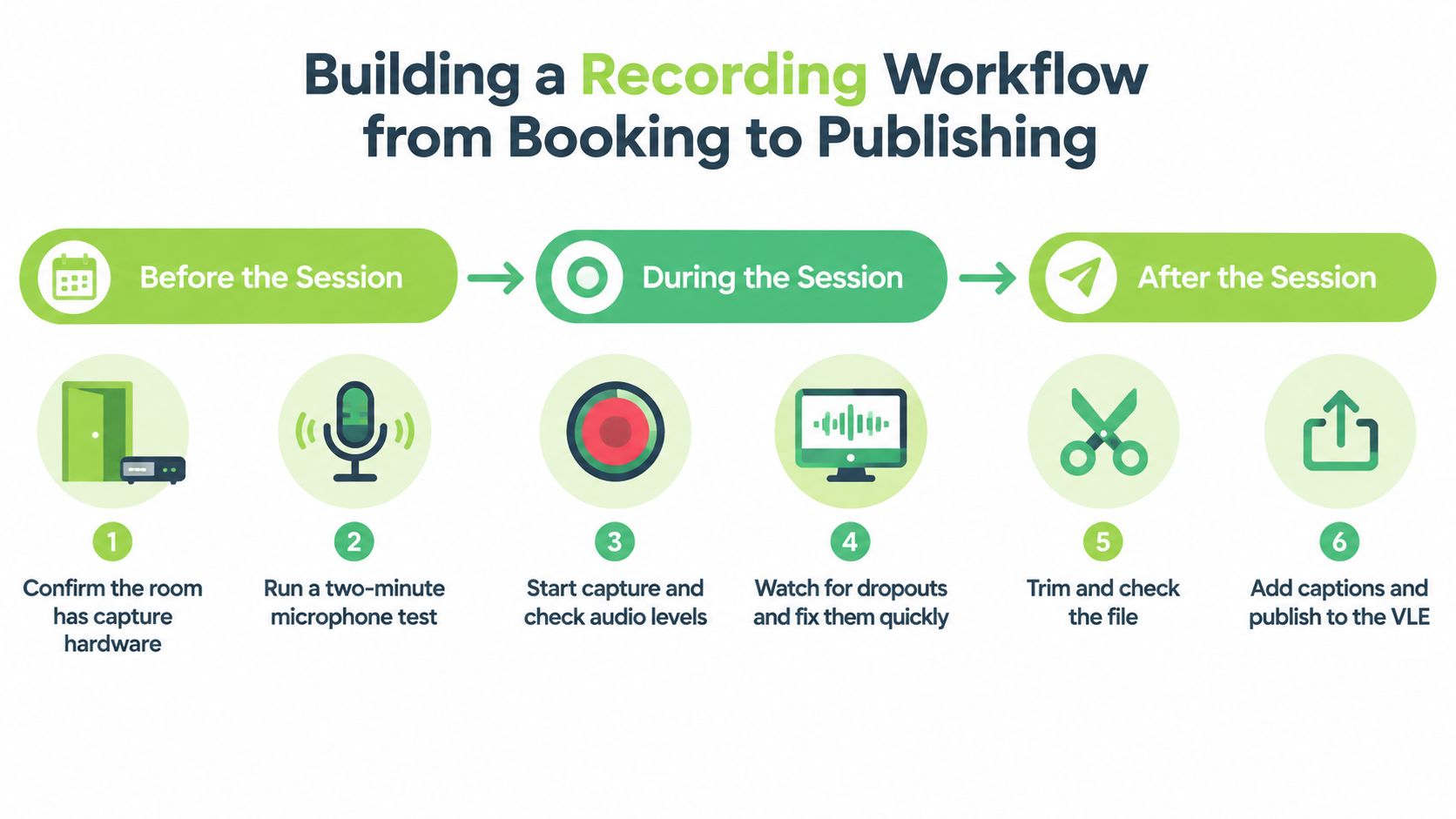
Before the session
Confirm that the room's setup matches the teaching plan. If you need to show slides and a physical demonstration, check both are visible in the test recording. Put the recording notice where students will see it before they enter, and make sure you know the correct LMS module rather than relying on a last-minute guess.
During the session
Start capture before teaching begins so the opening explanation isn't lost. Check the audio level, then pause recording if the conversation turns sensitive or a guest contributor hasn't agreed to be recorded. If a useful idea starts midway through a slide, make a note of the time so you can find the moment quickly during review.
After the session
Trim unnecessary opening and closing material, check the recording plays, and review the captions for obvious errors. Attach slides or supporting notes, then publish the file to the intended module. Agree a consistent publishing window with your teaching team so students know when to look for it.
For example, a lecturer records a 50-minute seminar, spends 15 minutes checking the file, trimming the start and end, reviewing captions and attaching the slides, then shares one link in the module. The value isn't a complicated edit. It's a predictable routine that leaves students with one clear place to find the recording and related materials.
Making Recordings Accessible with Captions and Transcripts
A recording isn't automatically accessible just because students can open it. Captions can help learners follow speech, search for a term and revisit an explanation without replaying the whole lecture. Transcripts and summary notes provide other ways to review the content, but they don't replace the need to consider diagrams, equations and other visual information.
A preregistered randomised study at a UK Russell Group university involved 144 undergraduate psychology students watching 12 lecture recordings with uncorrected automatic captions, human-corrected captions or no captions. Quiz differences were trivial, with a mean eta-squared effect size of 0.01, while students reported that captions supported comprehension, focus and study efficiency (study of automatic and corrected captions).
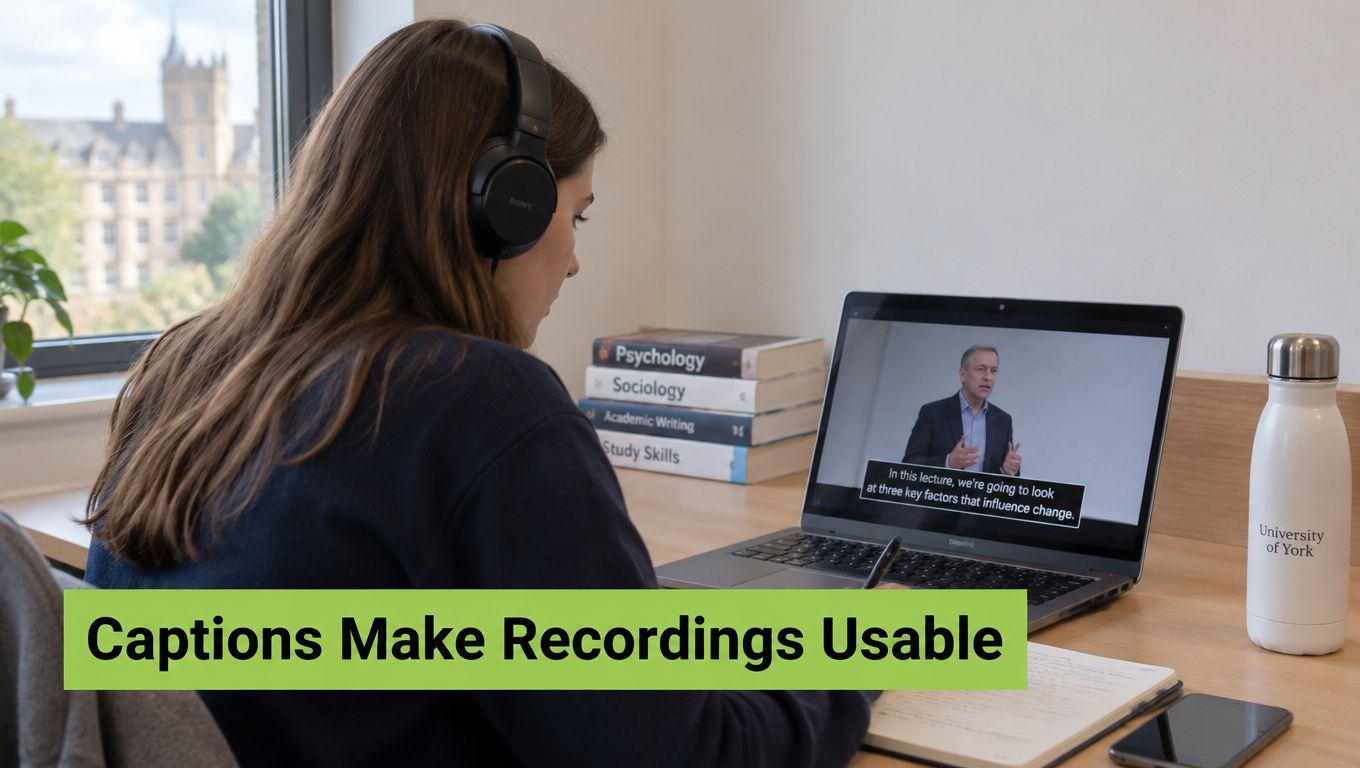
That result doesn't mean every automatic caption is accurate enough for every student or subject. Speech recognition can confuse specialist terms, accents and words obscured by poor audio. It also can't explain a diagram or describe the steps in a visual demonstration unless someone adds that information.
Captions are useful support, not a guarantee that every part of a lecture is accessible.
A practical approach is to generate captions, then spend review time where errors would matter most. Check specialist vocabulary, recordings with weak audio or unfamiliar accents, and material used for an accessibility-critical purpose. Add a transcript or summary notes where they help students find and review content. For a diagram or equation, include an explanation in the spoken lecture, slide notes or accompanying material rather than expecting captions to carry information they can't represent.
If your team is evaluating automated transcription services, check how staff can correct errors and provide alternative formats. Decide who owns that check, too. A caption file that no one reviews can look like a finished accessibility step when it still contains errors that change the meaning.
Protecting Attendance, Privacy and Copyright
A lecturer starts recording before a guest speaker arrives, then discovers the replay includes the guest's face and students' questions. Avoiding that problem means deciding in advance what to record, who can watch, and how the material may be reused. Attendance, privacy and copyright all affect those choices.
A mixed-methods study of undergraduate law students at Cambridge and Chelmsford examined attendance and VLE records across two academic years. It found no strong direct correlation between providing recordings and a significant decline in attendance (study of lecture recordings and attendance). That finding does not guarantee the same outcome on every course. Compare room attendance with recording use, such as unique viewers, repeat views and viewing times. These patterns can help you distinguish revision from students relying on recordings instead of attending.
The University of Edinburgh describes recordings as supplementary, rather than a general substitute for lectures or contact hours. It allows replacement access in exceptional circumstances, including when specified as a reasonable adjustment for a disabled student (University of Edinburgh lecture-recording policy). Set out attendance, participation and practical requirements separately, so students know that having a recording does not automatically replace them.
Privacy decisions belong in the recording workflow too. Jisc advises institutions to explain that recording is taking place, why it is being made and who will have access (Jisc guidance on recording lectures). Identifiable voices, images and chat involve personal data. Give students notice before they enter, consider a recording-free zone where appropriate, and keep webcams and chat out of the recording by default.
Decide before class: Record the teaching, not every contribution that happens to be in the room.
Copyright sets limits on what can be shared. Keele's guidance gives a benchmark of up to 5% of a work for illustration and instruction, and says the material should support teaching rather than serve as decoration (Keele copyright guidance). For example, a lecturer could include a two-minute film extract to analyse editing in a password-protected module recording, with the title and creator acknowledged. Before making the recording public, remove the extract unless the relevant rights allow wider publication.
Storing and Distributing Recordings Through Your LMS
A student opens a module page to find a lecture recording. The video may be stored in a separate institutional system, even though it appears beside the slides and transcript in Moodle or Canvas. Storage is where the institution holds and manages the file. Distribution is how students access it. Keeping these roles clear helps staff manage permissions and retention.
Older sector research found that many universities kept recordings available across the academic year, while institutional retention policies may set a longer period. For example, the University of Bath normally retains teaching recordings for two years and allows staff to pause recording for privacy, ethical or teaching reasons. Check your institution's policy rather than treating the module calendar as the file's automatic expiry date.
A recording can be added to its Moodle or Canvas module so students find it with the other course materials. The LMS works like a labelled course folder, while the storage system manages the video file behind it. Set access for the intended audience, and make sure the official copy remains in the system your institution has approved.
Before publishing, check four things:
Correct module: The recording is in the intended course space.
Correct access setting: Only the intended audience can view it.
Retention label: The file has the right institutional retention information.
Removal date: Staff know when to review access or remove the recording.
These checks connect publication to the wider recording workflow: a file should be findable for students, but its access and lifespan should follow institutional rules. A video storage solution should support those rules, not set them. Decide who can publish recordings, change permissions and review their lifecycle. That way, students have a clear route to the material, and staff know where the official copy lives.
Comparing Recording Setups and Where MEDIAL Fits
Institutions often combine recording approaches rather than choosing a single method for every teaching room. A fixed room system can suit scheduled lectures, while a lecturer-led desktop recording may be more practical for an online explanation or demonstration. A managed platform connected to the LMS can bring capture, editing and publishing into a shared workflow.
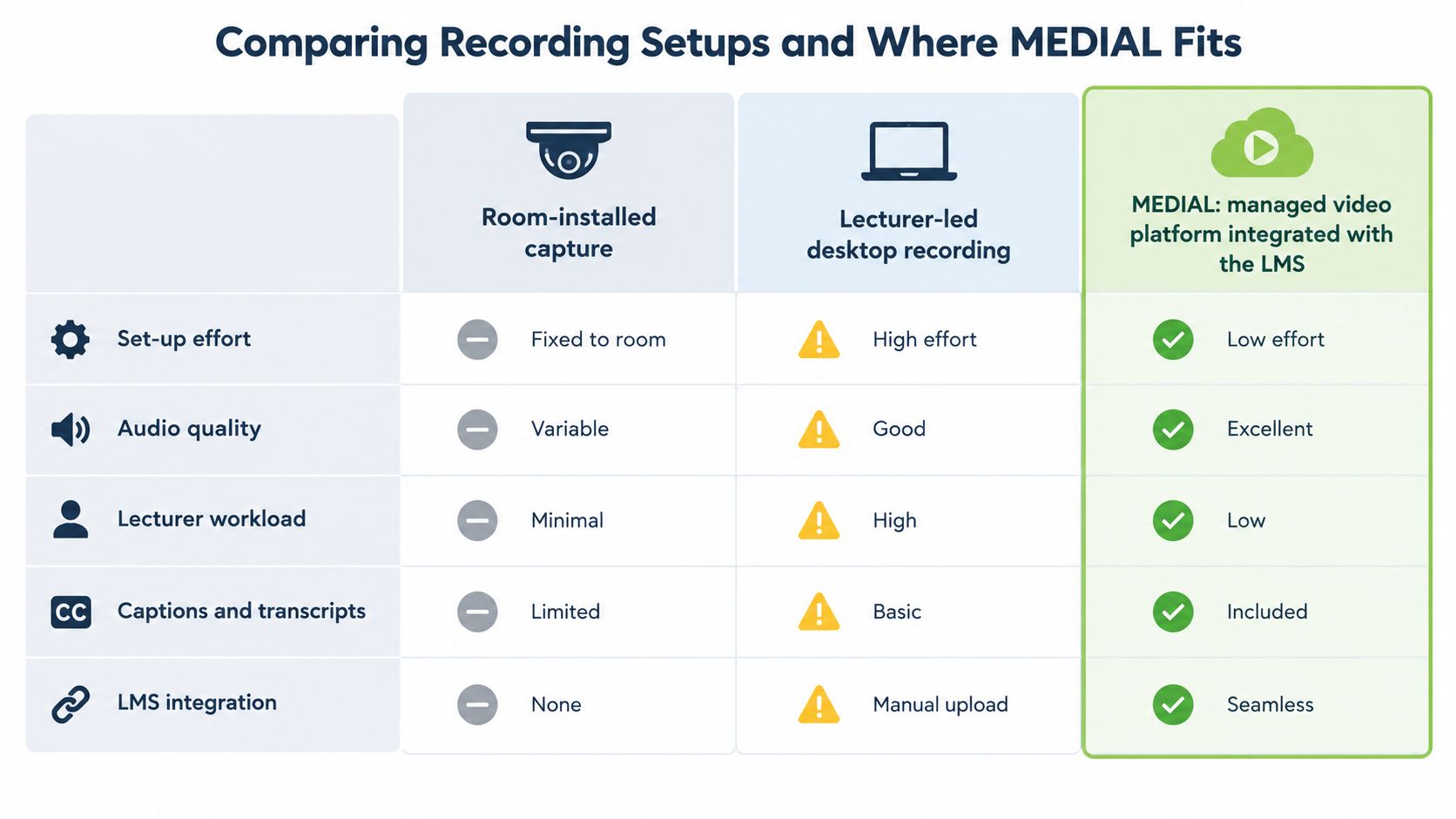
Setup | Best for | Main trade-off | Caption and editing support |
|---|---|---|---|
Room-installed capture | Regular teaching in equipped rooms | Consistent capture with little lecturer setup, but tied to specific rooms | Depends on the institution's system and support arrangements |
Lecturer-led desktop recording | Flexible screen-based teaching, demonstrations and short explanations | Can be recorded in many places, but relies on staff habits and checks | Depends on the chosen recording and editing tools |
Managed platform integrated with the LMS | Institutions seeking a shared route from recording to course publication | Requires setup and governance decisions across the institution | May provide central caption and editing tools, depending on the platform |
MEDIAL is one managed option. It provides a secure portal for managing and editing video and audio in a browser, including trimming and exporting. It also supports AI-assisted closed captions, live streaming with scheduling and recording, and integrations with Moodle, Canvas, Blackboard, D2L Brightspace, Zoom and Microsoft Teams. Institutions can deploy it on-premises or in the cloud.
Those capabilities don't settle whether a course should be recorded or who may view the result. They can support a workflow once the institution has decided what to capture, how to check accessibility, and how long to retain each file. A room-installed system may suit an institution with established lecture theatres; desktop recording may suit staff who need flexibility; a managed platform may help where teams want recording and publishing to follow a shared process.
Compare each option against the same local requirements: room coverage, staff effort, privacy controls, caption support and the way students find recordings in the LMS. The right setup depends on your rooms, your teaching and your governance arrangements.
Your Next Step for Better Lecture Recordings
Start with one module and run a one-term pilot. Write a single-page recording policy that answers four questions: what is captured, who can see it, how long it is kept and who checks captions before publication.
Track room attendance alongside recording analytics in that module. Look at whether students return to particular recordings, when they view them and whether the material supports catch-up or revision. Those observations will help your team decide whether to adjust the recording approach, attendance guidance or publishing workflow.
This week, choose the pilot module and ask the course lead and learning-technology team to agree the policy before the next session is recorded. Then test the workflow with one lecture, from the notice in the room through caption checking and LMS publication. If your institution is considering MEDIAL, a free trial can help test LMS integration and in-browser caption editing on the pilot module, while a personalised demo can walk your IT team through deployment options.
MEDIAL provides a secure portal for managing and editing video and audio, with LMS integrations and AI-assisted caption tools that can support a governed lecture-recording workflow. Visit MEDIAL to explore a free trial or arrange a personalised demo for your institution.
Comments