
Mastering Links in Video: A Practical Guide for Educators

Adding links in video does more than just share information; it turns a one-way broadcast into an active learning experience. Instead of simply watching, your students can suddenly click on hotspots or timeline chapters to dig into related resources, tackle a quick quiz, or jump into a discussion. It’s a simple change that makes video an incredibly powerful educational tool.
From Passive Viewing to Active Learning
Let’s be honest, standard video has its limits. It’s great for delivering information, but it often positions learners as passive spectators. By embedding interactive links in video, you can completely flip that dynamic. You’re creating a two-way street for engagement and exploration.
This small addition turns a lecture into a dialogue, inviting students to get hands-on with the material.
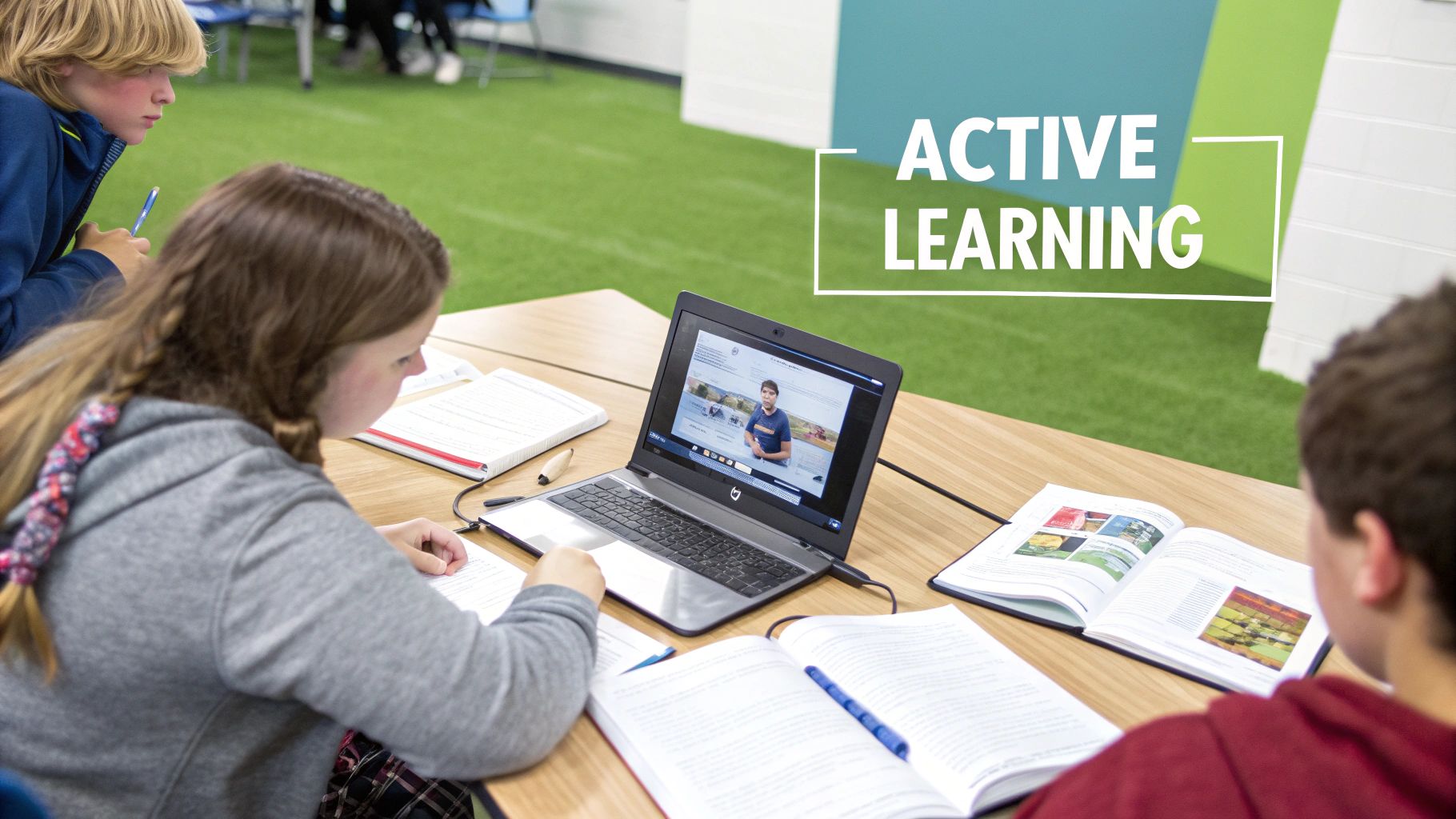
We’re moving way beyond just delivering content here. This approach gives students control over their own learning path, which is a cornerstone of modern teaching. Research consistently shows that when students actively participate, they retain knowledge far better than when they just passively watch. For example, the physical act of clicking a link to explore a 3D model of a human heart after it's mentioned in a biology lecture helps solidify the information in their memory.
Real-World Impact in the Classroom
Imagine a history lecturer showing a documentary clip about a key historical event. Without interactive elements, it’s just a video. But with a few embedded links, it becomes a dynamic learning hub.
Deeper Exploration: A link could pop up on-screen as a historian mentions a key document, sending students to a digitised archive of primary sources. Now they can examine original letters or photos related to the event for themselves.
Immediate Assessment: After a segment explaining a complex theory, a link might trigger a quick, single-question quiz directly within your LMS, whether that’s Moodle, Canvas, or Blackboard. This lets you check their understanding in the moment.
Collaborative Learning: A third link could take them to a specific thread in the class discussion forum, prompting them to answer a question like, "Based on what you just saw, what do you think was the primary motive?"
This approach creates a rich, multi-layered learning environment where your video acts as the central point for a whole range of educational activities.
By integrating links, you're no longer just showing students the information; you're giving them the tools to interact with it, question it, and connect it to broader concepts. This is where real learning happens.
A Flexible Tool for Any Teaching Style
The power of interactive video isn't just for one type of teaching, either. It’s an incredibly flexible tool that works just as well for live classes as it does for self-paced courses.
In a live, synchronous session, you can pause the video and say, "Okay everyone, click the link that just appeared on your screen to vote in our poll." For asynchronous, on-demand learning, these links provide a guided yet flexible pathway. For example, a link could lead to an optional "extra help" video explaining a difficult concept, making sure students get support even when you’re not there. This adaptability makes links in video an essential part of any modern educational toolkit.
How to Create Clickable Hotspots in Your Videos
Adding clickable overlays, often called hotspots, is one of the best ways to turn a standard educational video into a genuinely interactive experience. Think of them as intelligent signposts embedded right into your content, guiding viewers to deeper learning opportunities.
Instead of just mentioning a resource like a case study and hoping your students find it later, you can place a direct link to it right at the relevant moment. It’s a simple action, but it massively reduces the friction for the learner.
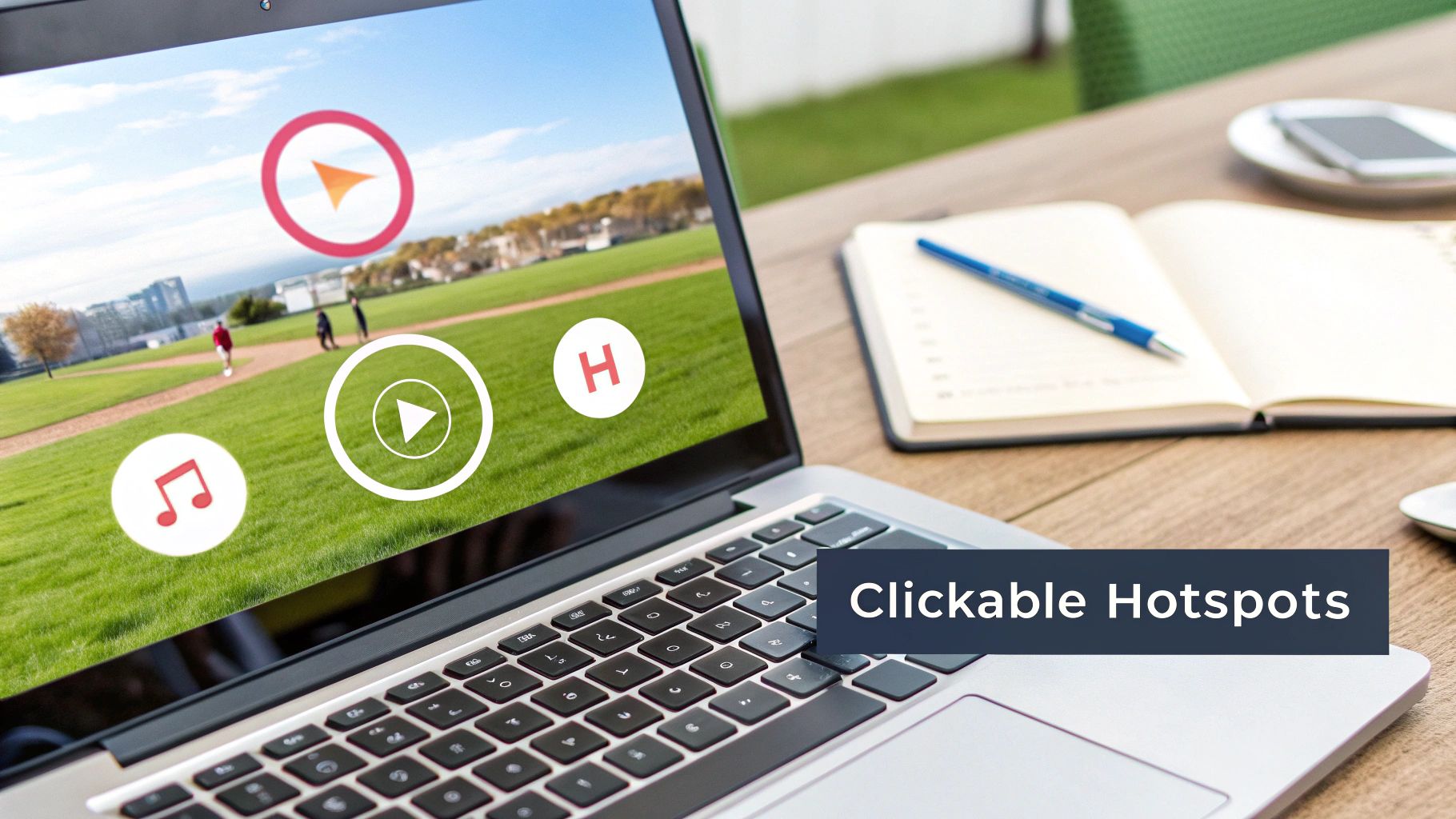
For a practical example, a corporate trainer delivering a safety video could add a hotspot that links directly to a detailed PDF of the emergency evacuation plan. A moment later, another hotspot could lead to a mandatory acknowledgement form that employees must complete. Suddenly, the video isn't just a teaching tool; it's a complete, actionable task.
Designing Effective Hotspots
The goal here is to make these interactive elements genuinely helpful, not just distracting digital clutter. A poorly designed hotspot can easily disrupt the viewing experience and frustrate the learner. To avoid this, it's a good idea to incorporate established user experience design best practices to keep things intuitive.
First, think about placement. Actionable insight: Place hotspots in the top-right or bottom-left corners of the screen, where they are visible but won’t block crucial visual information, like a presenter's face or on-screen text.
Timing is everything, too. A hotspot should pop up precisely when the relevant topic is being discussed. Actionable insight: If you mention a downloadable worksheet, make the link appear at that exact moment and have it remain on-screen for 10-15 seconds, giving people ample time to react without feeling rushed.
Crafting a Clear Call to Action
The text you put on your hotspot is critical. It needs to be a clear, concise call to action (CTA) that tells the viewer exactly what will happen when they click. Vague text like "Click Here" is lazy and much less effective than descriptive, action-oriented language.
Here are a few practical examples that work well:
Explore the Data: Perfect for linking to a spreadsheet, a research report, or an interactive data visualisation.
Download the Worksheet: Use this for linking to a PDF or document that goes with the lesson.
Take the Quiz: This directs students straight to a formative assessment in your LMS to check their understanding.
Read the Case Study: A great way to provide supplementary reading that adds context to your video.
This kind of clarity sets expectations and encourages people to click because they feel confident about where the link will take them.
A great hotspot doesn't just provide a link; it provides a clear promise. It tells the viewer, "Clicking this will give you this specific, valuable resource," which builds trust and boosts engagement.
Ensuring Mobile-Friendly Design
With so many students now accessing content on phones and tablets, mobile compatibility isn't optional—it's essential. Hotspots have to be designed for touch.
This means making the clickable area large enough to be easily tapped with a finger, without accidentally hitting something else. Actionable insight: Aim for a target size of at least 44x44 pixels, which is the standard recommendation for touch targets.
Also, try to avoid placing hotspots right at the very edge of the screen, as this can be a difficult spot for mobile users to interact with. I always recommend testing your interactive video on a smartphone and a tablet before you publish. It’s the only way to guarantee a smooth experience for every learner, no matter what device they're using. Platforms like MEDIAL use responsive players that adjust automatically, but a quick real-world check is always a smart move.
Using Chapters to Navigate Long-Form Content
Let's be honest, staring down a 90-minute recorded lecture is intimidating for any learner. Without any clear signposts, it just feels like an overwhelming wall of information. This is exactly where creating chapters with timeline links in your videos becomes an absolute game-changer for the student experience.
Instead of forcing students to scrub aimlessly back and forth, chapters essentially create an interactive table of contents. They break down what might feel like a single, monolithic video into smaller, digestible chunks that learners can jump to instantly. It's a simple organisational trick that puts students back in control of their own revision and study process.
Structuring Content for Clarity
Picture a detailed biology lecture. By manually adding chapter markers, you can segment the entire recording into logical, approachable sections.
For example, a lecture on cellular division could be structured like this:
Introduction to the Cell Cycle (0:00)
Deep Dive into Mitosis (12:35)
Explaining the Anaphase Stage (28:10)
Key Genetic Differences in Meiosis (45:50)
Review and Key Takeaways (1:18:20)
Suddenly, the video isn't just something to be passively watched; it's a searchable, practical resource. A student who's struggling specifically with Anaphase can jump straight to that segment for focused revision, saving a huge amount of time and frustration. If you're looking to really nail this, it's worth mastering techniques for optimizing videos for platforms like YouTube, as many of the principles apply here too.
The Psychology of Learner Control
Giving students this level of control isn't just a nice-to-have feature; it’s a powerful motivator. When learners can easily find exactly what they need, their frustration plummets and their engagement naturally goes up. They’re far more likely to revisit the content because they know it’s been organised with their needs in mind.
Actionable insight: Don't forget about the names of your chapters. Clear, descriptive titles are crucial. Vague labels like "Part 1" or "Next Section" don't help anyone. Instead, use action-oriented or topic-specific names like "Calculating Project ROI" or "Analysing the Sonnets" to provide immediate value. You can even explore tools like MEDIAL's in-video search and auto-chaptering to help speed up this process.
By breaking down long-form content with chapters, you're doing more than just organising a video. You're designing a more respectful and effective learning journey that acknowledges and supports the student's need for focused, self-directed study.
While chapters are perfect for longer content, it’s worth noting the broader trend in education is shifting. Short-form videos are having a huge impact, delivering much higher engagement. In 2025, videos under one minute are projected to hit an average 66% retention rate. For UK teachers using Blackboard or D2L Brightspace, this might mean creating quick 30-60 second video tasks with MEDIAL's in-browser editor—imagine short hooks on historical events sparking a big jump in student responses.
Integrating Interactive Videos With Your LMS
True integration of links in video is about so much more than just dropping a player onto a page in your Learning Management System (LMS). When done right, you can create a powerful, self-contained learning module where the video itself becomes the central hub for activity, not just another passive resource.
Think about it from a student's perspective. A business student is watching a case study video. Halfway through, they click an in-video link to analyse a live dataset in a new tab. A few minutes later, another link prompts them to submit their findings directly as a Canvas assignment—all without ever leaving the core learning environment. That seamless workflow is exactly what we should be aiming for.
Bridging the Gap Between Video and Assignments
The secret lies in using a video platform that speaks the same language as your LMS. Platforms like MEDIAL are built specifically for this, using industry standards like LTI (Learning Tools Interoperability) to forge a deep, meaningful connection between the two systems.
This connection allows interactive elements inside the video to communicate directly with your LMS gradebook or assignment submission tools. Suddenly, a simple video view transforms into a trackable, assessable learning activity.
For instance, within Moodle, you could use MEDIAL to create a video assignment where students must click on specific links or answer embedded questions to get their completion grade. The video player essentially becomes the assignment interface, making the whole experience far more intuitive and engaging.
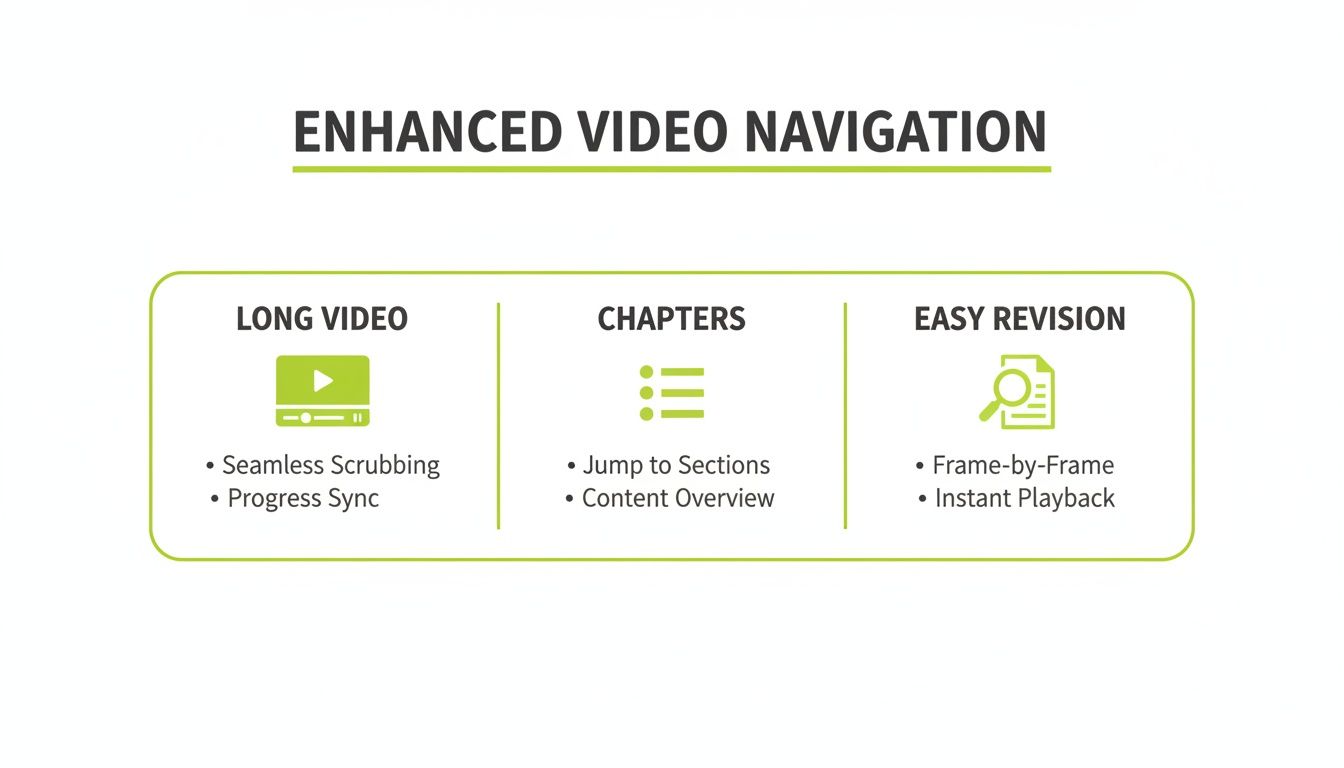
As you can see, features like chapters are brilliant for breaking down long-form content. They empower the viewer, turning a lecture from a passive viewing experience into a user-controlled revision tool they can easily navigate.
Tailoring Workflows For Different Platforms
Every LMS has its own quirks and architecture, so the workflow for integrating interactive video will naturally vary a bit. What works perfectly in Blackboard might need a slightly different approach in D2L Brightspace.
To make this clearer, let's look at practical examples for implementing these features across the major platforms when using a dedicated video tool.
Comparing LMS Video Linking Features
Feature | Moodle Integration | Canvas Integration | Blackboard Integration | D2L Brightspace Integration |
|---|---|---|---|---|
Direct Assignment Submission | Use MEDIAL's LTI tool to create video assignments that report completion or scores directly to the Moodle Gradebook. | Embed interactive videos within a Canvas Assignment page. Links can point to other module items, creating a guided path. | Leverage the Content Editor to insert a video with hotspots. Link clicks can be used to fulfil assignment criteria. | Create a video-based quiz where links within the video act as prompts for questions that report to the D2L gradebook. |
Linking to Course Content | Link from a video hotspot to a specific Moodle forum, wiki, or resource page to encourage deeper discussion. | Canvas modules are key. Link from video to specific quizzes, discussions, or pages within the same module. | Add links that open supplementary PDFs or library resources directly from the Blackboard Content Collection. | Connect video chapters to specific units or topics in D2L's Content tool, guiding students through the course structure. |
External Resource Linking | Easily add links to external websites, research articles, or simulations that open in a new browser tab. | Embed external web content or tools (like Padlet or Google Docs) that can be linked to directly from the video overlay. | Use hotspots to link to publisher content or external web tools, keeping students within the Blackboard environment. | Link to external learning objects or web resources, providing context and supplementary materials at the exact moment they're needed. |
Ultimately, what works best will depend on your specific course design and teaching style. The key is that the underlying technology supports these kinds of rich, integrated experiences.
The most effective integrations make the technology invisible. Students don't feel like they're juggling two separate systems; they just feel like they're completing an engaging, interactive assignment.
Achieving this level of cohesion requires a bit of planning. For a deeper dive into the technical and strategic side of things, our guide on mastering Learning Management System integration is a great resource. It provides a playbook for making sure your interactive videos become a core part of your teaching strategy, not just something that sits on a page.
Measuring Engagement and Ensuring Accessibility
So, you’ve created an interactive video and packed it with useful links. That’s a fantastic start, but the real magic happens when you understand its impact. Once your video is out there, how can you be sure those links are actually getting clicked and making a difference? This is where analytics become your best friend.
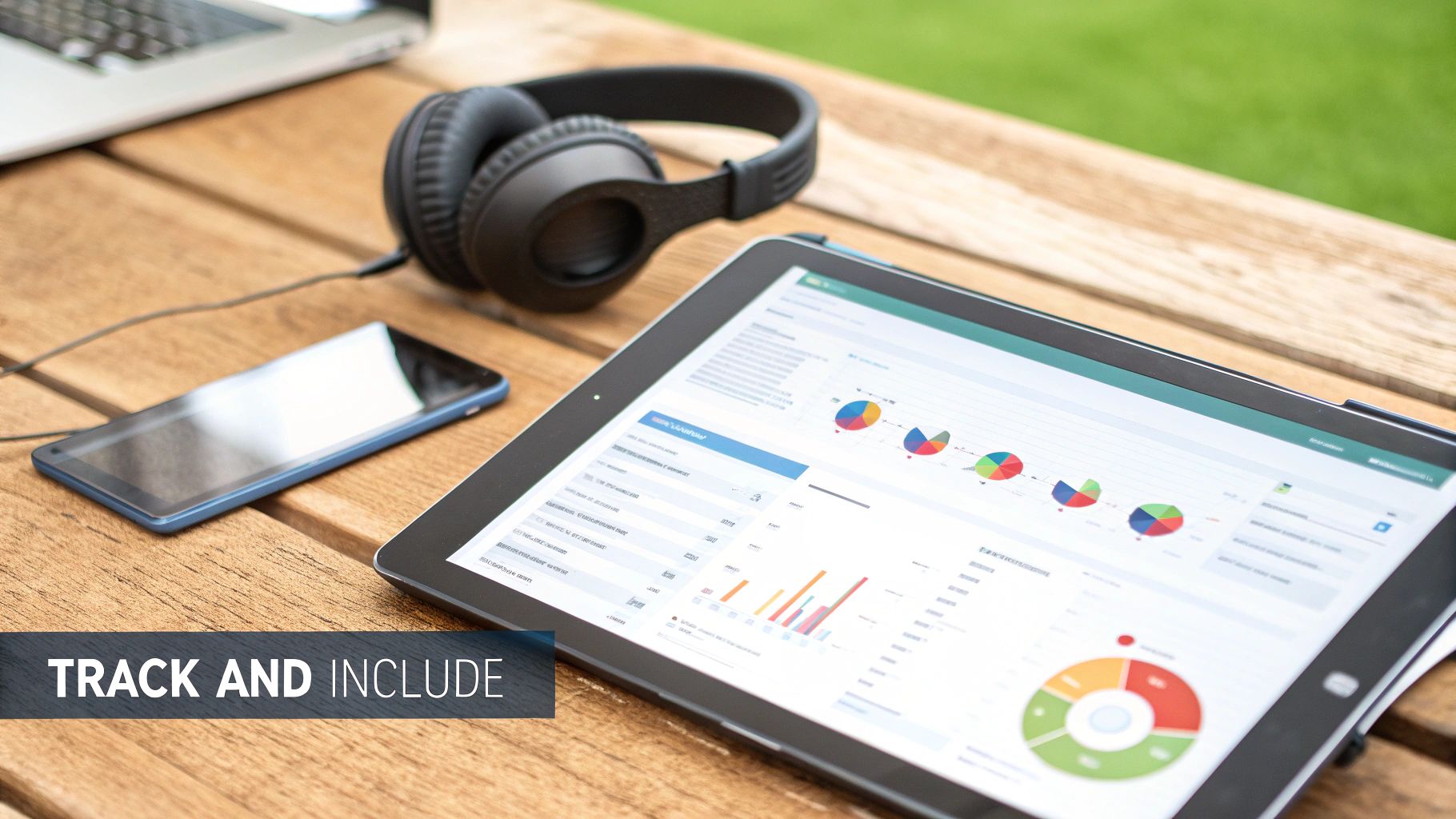
Simply tracking views just doesn't cut it anymore. You need to dig deeper. Which links are people clicking on? Where are they dropping off? Actionable insight: If you see that a link to a supplementary PDF in your lecture is getting almost no clicks, it could be a sign your call-to-action is too subtle or the resource isn’t seen as essential. Your next step could be to rephrase the link text from "More info" to "Download Key Formulas PDF." This kind of data is gold for refining your content.
The goal of video analytics isn't just to gather numbers; it's to gather intelligence. Each click, pause, and replay tells a story about what your learners find engaging and where they might be struggling.
Let's face it, platforms like YouTube are massive in the UK, with a user base of 54.8 million people—that’s 79% of the population. But while its reach is huge, educational platforms demand far more granular data. You can discover more insights about UK social media usage on sproutsocial.com.
An Essential Accessibility Checklist
Engagement is only half the picture, though. To create a truly inclusive learning environment, your interactive videos have to work for every student, including those who rely on assistive technologies. Following the Web Content Accessibility Guidelines (WCAG) isn’t just a nice-to-have; it's a must.
Here’s a practical checklist to keep your interactive elements compliant:
Provide Text Alternatives: Every single clickable hotspot or link needs a descriptive text alternative that screen readers can announce. Instead of a vague "click here," the alt text should clearly explain the destination, like "Download the Chapter 3 Worksheet."
Ensure Keyboard Navigation: Can someone navigate to, activate, and exit every interactive element using only their keyboard? Actionable insight: Before publishing, try navigating your video yourself using only the Tab, Shift+Tab, and Enter keys. If you can’t click a link, neither can some of your students.
Use High-Contrast Design: Your links and hotspots need to stand out. Make sure they have enough colour contrast against the video background so they’re easily visible for users with low vision. Use a free online contrast checker to verify your colour choices.
Generate Accurate Captions: Use AI-powered tools, like those built into MEDIAL, to generate accurate, time-synchronised captions. This is a game-changer not just for deaf and hard-of-hearing students, but also for non-native speakers or anyone learning in a noisy environment.
By keeping these key areas in mind, you’re not just building effective content—you’re building equitable content. To get a better sense of the specific data you should be tracking, have a look at our guide on MEDIAL analytics and student engagement statistics.
Got Questions About In-Video Links? We’ve Got Answers.
When you start exploring interactive video, a few questions always pop up. It’s natural. Getting these sorted out is key to making sure the learning experience you create for your students is smooth and effective.
One of the first things people ask is whether you can link to a specific moment in a different video. The answer is a big yes. Most video platforms you’re already using, like YouTube, and specialised educational tools like MEDIAL, have this feature built-in. It’s incredibly useful when you want to direct a student to a precise clip in a long documentary or a key segment of another lecture without making them scrub through the whole thing.
For instance, on YouTube, you just add a timestamp parameter like to the end of the URL. That tells the browser to start playback at exactly the 2-minute, 15-second mark. It's a tiny tweak that creates a much more focused and efficient learning path.
What About the Mobile Experience?
This is a big one. With so many students learning on phones and tablets, you absolutely have to make sure your interactive links work flawlessly on mobile. It's non-negotiable. The secret is to design for touch from the get-go.
When you create clickable hotspots, always make the target area big enough to be easily tapped with a finger. A minimum of 44x44 pixels is a great rule of thumb. It's also smart to avoid placing links too close to the edge of the screen where they might be hard to tap.
Actionable insight: Before you publish anything, always test your video on both a smartphone and a tablet. A responsive player will do a lot of the heavy lifting, but a quick real-world check guarantees you’re not creating a frustrating experience for your learners.
Finally, people often wonder how to let students know a video is interactive in the first place. You have to set their expectations. Actionable insight: A simple heads-up in your LMS right before the video, something like, "Look out for clickable resources and quizzes inside this video," works wonders. You can also use a brief, consistent icon or text overlay at the very beginning of the video. This helps train students to look for interactive moments and really boosts engagement over time.
Ready to turn your passive videos into active learning experiences? With MEDIAL, you can seamlessly integrate interactive hotspots, chapters, and assignments directly into your LMS. Schedule your personalised demo today to see how it works.
Comments