
How to Download Videos Embedded in Websites and LMS Platforms

It feels like you can’t get through a day of learning or training without running into an embedded video. And for good reason – they’re a fantastic way to deliver rich content. But what happens when you need that video offline? Whether you're archiving important material or just trying to study on a commute with dodgy internet, sometimes you just need to download videos embedded on a website.
While a simple "download" button is the dream, it's often not that straightforward. Many platforms require a few extra steps to save a video file locally, and it's all about doing it for the right reasons.
Why Bother Downloading Embedded Videos Anyway?
Let’s be honest, relying on a live internet connection for essential learning or professional development isn't always practical. Being able to download videos from a Learning Management System (LMS) or a webpage can be a real lifesaver, ensuring you have uninterrupted access when you need it most.
Imagine you're an educator trying to review a student's video project while on a train with patchy Wi-Fi. Or picture a corporate trainer who has to archive a critical compliance video to meet regulatory requirements, regardless of whether the original hosting platform is still around in five years. For students, it's even simpler: downloading lecture recordings means they can study anywhere, anytime, without worrying about their data plan or finding a solid connection.
To put this into context, here are a few common scenarios where downloading a video isn't just a convenience, but a necessity.
Legitimate Reasons to Download Educational Videos
This table gives a quick summary of valid scenarios where saving embedded video content is necessary for teaching, learning, and administration.
User Role | Primary Reason for Download | Practical Example |
|---|---|---|
Student | Offline Study & Revision | Downloading a lecture to watch on a flight or in an area with poor internet connectivity. |
Educator | Assessment & Feedback | Saving a student's video submission to review and provide detailed feedback without streaming. |
Administrator | Archiving & Compliance | Exporting training videos for long-term record-keeping to meet institutional or legal standards. |
Content Creator | Backup & Portability | Creating a local copy of a video hosted in an LMS to ensure it's not lost if the platform changes. |
These examples show that the goal is usually about making learning more flexible and reliable, not about sidestepping rules.
Keeping Up with How We Watch
The demand for offline access is just a natural extension of how we consume media today. Watching digital videos has become a daily habit in the UK, making embedded content a non-negotiable part of modern education. Back in 2021, around 50 million internet users in the UK were already watching online videos every single month, and that figure is only climbing. This trend, highlighted in data from sources like Statista, shows exactly why having flexible access to educational content has moved from a "nice-to-have" to a "must-have."

Key Takeaway: The primary driver for downloading embedded videos isn't circumvention but necessity. It’s about ensuring content accessibility for education, compliance, and personal review, especially when online access is unreliable or impossible.
This reality creates a balancing act for institutions. They need to provide users with the accessibility they need while also protecting the intellectual property of content creators. It’s why some platforms offer secure, built-in export options, while others lock downloads down completely. Understanding these legitimate use cases is the first step toward finding responsible, effective ways to save video content when you truly need it.
Using Built-In LMS and Platform Features First
Before you even think about complex workarounds or third-party tools, your first port of call should always be the platform itself. Most reputable Learning Management Systems (LMS) and video platforms provide a direct, simple way to download videos embedded within a course—but only if the content owner allows it.
Going this route is by far your safest and most reliable option. Platforms like Moodle, Canvas, and Blackboard are designed with educational needs in mind, and they often integrate with dedicated media solutions where the real control lies.
Locating Official Download Options
Finding the download button is usually pretty straightforward. Just have a look for icons or text labels near the video player itself.
Export or Download Buttons: Check directly below or in the corner of the video player for a button explicitly labelled "Download," "Save," or sometimes an icon of a downward-pointing arrow. For example, in a Panopto-integrated video player, you might see a down-arrow icon in the top-right corner of the player.
Video Settings Menu: Some players tuck this option away within a settings menu, often represented by a gear or cog icon. Give it a click to see if a download option appears.
Accompanying File Links: In some course designs, instructors might place a direct link to the video file in the resources section of a page, right below the embedded player. Look for text like "Download lecture slides and video (.mp4)" in the materials list.
If you find one of these, you're in luck. It means the instructor or administrator has intentionally made the video available for you to use offline. This approach respects the permissions and policies set by the institution right from the start.
The Power of Granular Controls in Media Platforms
This is where purpose-built systems like MEDIAL really shine. Rather than a simple on-or-off switch for downloads, these platforms give content creators incredibly granular control. A university professor, for example, can enable the download feature for a specific lecture video, making it accessible only to students enrolled in that particular module.
Key Insight: The absence of a download button isn't usually an oversight; it's a deliberate choice. Media platforms empower creators to protect their intellectual property by disabling downloads, ensuring content is only viewed through the secure, embedded player.
This level of control is crucial in today's educational environment. The explosion of user-generated content has highlighted the need for robust security, especially on platforms popular in the UK. Just look at the sheer volume of video creation on TikTok—with UK users projected to create 4.7 billion videos by 2025 and 42.7 million downloads already completed. This trend, detailed in this analysis of UK TikTok user statistics, underscores the demand for embedded media but also raises significant intellectual property concerns for educators.
Platforms like MEDIAL address this challenge head-on by providing in-browser tools for editing, AI-powered captioning, and controlled streaming. This ensures that when an instructor embeds a video for an assignment, it remains secure and compliant with institutional policies. For educators dealing with large video files, understanding how to manage them within your LMS is also essential. Check out our guide on submitting and storing large files in Canvas to learn more. By prioritising these official, purpose-built features, you ensure a secure and compliant experience for everyone involved.
A Technical Guide to Browser Developer Tools
When the easy download button is nowhere to be found, your web browser actually has a powerful set of tools hiding in plain sight. Known as Developer Tools, this built-in feature gives you a more technical—but often direct—way to download videos embedded on a webpage. This isn't just for developers; with a little guidance, you can find exactly what you're looking for.
Getting to these tools is simple. In most browsers like Chrome or Firefox, just right-click anywhere on the page and select "Inspect." A new panel will pop up, filled with what looks like a lot of intimidating code. Don't worry, you only need to focus on one specific area.
Finding the Video File in the Network Tab
Once the Developer Tools panel is open, look for a tab labelled "Network." This tab is a live log of every single file your browser requests from the server to build the page you see—every image, script, and most importantly, every media file.
Here's a step-by-step, actionable process:
Open the webpage with the video.
Right-click on the page and choose "Inspect" to open Developer Tools.
Click on the "Network" tab.
Refresh the page (F5 or Cmd+R) so the Network tab can "listen" from the very beginning.
Press Play on the video. You’ll see a list of files populate in the Network panel.
Look for a filter option. Click "Media" to show only video/audio files.
If a "Media" filter isn't there, use the search bar and type common extensions like or .
Sort the results by Size (largest first) – the video file will almost always be the biggest file.
Once you find it, right-click on its name in the list and select "Open in new tab."
The video will now play by itself. Right-click the video again and choose "Save video as..." to download it.
The screenshot below shows what you're looking for in Chrome's Developer Tools, with the Network tab active.
See how the tool gives you a timeline and filtering options? That’s what makes it possible to isolate one media file from the dozens of other things loading on the page.
Why This Method Can Fail
While this is a great trick to have up your sleeve, it's becoming less reliable. Many modern websites and learning platforms have moved beyond using simple, single video files.
Key Takeaway: If you can't find a single .mp4 file, the video is likely protected by a modern streaming protocol. This is a deliberate security measure, not a bug.
Instead, they use advanced streaming protocols like HLS (HTTP Live Streaming) or MPEG-DASH. These technologies work by breaking the video into hundreds of tiny, encrypted segments. When you look in the Network tab, you won't see one clean video file. You'll see a flood of small files with extensions like ".ts" or ".m4s".
This is done intentionally to improve streaming quality and protect the content from being easily downloaded. Grabbing one of those tiny segments won't give you the whole video, which means this developer tool method simply won't work in those cases.
How to Safely Evaluate Third-Party Download Tools
When the official methods and browser tricks just aren't cutting it, the temptation to grab a third-party tool to download videos embedded on a page can be pretty strong. While countless apps promise a simple one-click solution, this path is often paved with security potholes.
Installing unvetted software, especially on a university or school device, is a fast track to violating IT policies and can easily introduce malware, adware, or spyware onto your network.
Instead of just listing a bunch of tools (which could be outdated tomorrow), this guide will give you a practical framework to tell the good from the bad. Knowing what to look for is your best defence. Before you even think about clicking 'install', you need to do a bit of detective work.
A Checklist for Vetting Third-Party Video Downloaders
Think of this as your quick security audit before committing to any new software. A trustworthy tool will tick all the green flag boxes, whereas even one or two red flags should make you pause and reconsider. This checklist will help you assess the risks and make a smarter choice.
Safety Feature | What to Look For (Green Flag) | What to Avoid (Red Flag) |
|---|---|---|
Clear Privacy Policy | A transparent, easy-to-find policy explaining what data they collect and why. | No policy in sight, or one that’s deliberately confusing and buried in legal jargon. |
Independent User Reviews | Genuine reviews on independent tech sites or forums like Reddit. Look for balanced feedback. | Only glowing testimonials on the tool’s own website. Consistent complaints about ads or malware elsewhere are a big no. |
No Bundled "Extras" | A clean installation process. If it offers a "custom" install, it's to manage features, not to hide unwanted software. | The installer tries to sneak in browser toolbars, search engine changers, or other "bonus" programs. |
Well-Vetted Open-Source | Popular projects on platforms like GitHub with an active community and recent updates. Transparency is key. | Obscure, closed-source freeware with no developer information or community feedback. |
Actionable Insight: Search for to find uncensored user experiences. Reddit communities are often quick to expose software that bundles adware or has privacy issues. For example, a search for might reveal user complaints about bundled browser extensions that you wouldn't see on the official site.
Crucial Reminder: Your institution’s IT department has policies for a reason. Installing unapproved software can compromise not just your own device but the security of the entire network. Always check your organisation's guidelines before even considering a third-party tool.
Understanding the Risks and the Demand
It’s no surprise these tools are so popular, given our appetite for online video. Back in 2021, the average person in the UK was already watching 100 minutes of online video daily, and that figure has only climbed. With six out of 10 people now preferring online video to traditional TV, the desire for offline access for studying or convenience is huge.
This demand creates a marketplace flooded with tools of wildly varying quality and safety. Getting a handle on how these downloaders work—essentially converting a video's URL into a usable file—is a massive help. To dig deeper into the technical side, check out this a complete guide to downloading and converting videos from a URL to MP4.
By carefully evaluating your options and fully understanding the risks involved, you can make a decision that is both informed and secure.
Screen Recording as a Universal Last Resort
When every other attempt to download videos embedded in a webpage has failed, there’s one final fallback that almost always works: screen recording.
This isn't a true download in the technical sense; you're not grabbing the original file. Instead, you're creating a brand-new video by capturing what’s playing on your screen. Think of it as pointing a camera at your monitor, but far more precise.
It's the universal solution because if you can see and hear the video, you can record it. While it’s a reliable method, it comes with some pretty significant trade-offs that make it a last resort for a reason.
Preparing for a High-Quality Capture
The quality of your final video file is entirely dependent on your setup during the recording. Smooth playback on your end leads to a smooth recording. Before you hit record, take a few moments to prepare your digital environment to avoid common frustrations like distracting pop-ups or choppy video.
A few key steps can make a massive difference:
Close Background Applications: Shut down your email client, messaging apps, and any other software that might throw a notification your way. For example, on Windows, enable "Focus Assist" to automatically silence notifications.
Ensure a Stable Connection: Since you're recording a live stream, any buffering or dips in your internet quality will be permanently captured in your video. If possible, connect via an Ethernet cable instead of Wi-Fi for maximum stability.
Select the Right Audio Source: You want to record the system audio (what comes out of your speakers), not the input from your microphone. Otherwise, you'll capture every cough, keyboard tap, and dog bark in the background. Most screen recorders have a clear toggle for "System Audio" vs. "Microphone".
Pro Tip: Before recording a long video, do a short 30-second test run. Check the final file to confirm the audio is clear, the video is smooth, and there are no unwanted elements like your mouse cursor captured on screen.
Using Built-in Recording Tools
You don't need to buy fancy software to get this done. Both Windows and macOS have excellent, free screen recording utilities built right into the operating system, making it easy to capture embedded video content.
For Windows users, the Xbox Game Bar is the go-to tool. Although it was designed for gaming, it works perfectly for this task. Just press Win + G to open it, and you'll find the capture controls ready to go. Actionable Step: Once the Game Bar is open, click the record button (the circle) to start capturing your active window.
On a Mac, the Screenshot utility (press Cmd + Shift + 5) provides robust recording options. A key advantage here is the ability to select a specific portion of the screen to record. This is incredibly useful for capturing just the video player and excluding your browser tabs and taskbar from the final file. Actionable Step: After pressing the keys, choose the "Record Selected Portion" icon (a dotted rectangle with a circle inside) and drag the box to fit perfectly around the video player before hitting "Record".
For educators looking to capture specific content from various devices, understanding screen recording on tablets is also a big help. You can explore our advice on how to film your iPad screen for more specialised tips.
The biggest drawback of screen recording is that it all happens in real-time. A 45-minute lecture will take exactly 45 minutes to record, and you can expect the resulting file sizes to be very large.
Navigating Permissions, Compliance, and Common Issues
Finding the video file is only half the battle. When you set out to download videos embedded on a website, it’s crucial to act ethically and legally, especially within educational or corporate environments where the rules are often quite strict. This isn’t just about avoiding trouble; it’s about respecting the hard work of content creators.
First things first, you have to consider copyright law. Here in the UK, the principle of "fair dealing" allows for some exceptions for educational uses, like private study or non-commercial research. However, this isn't a free pass to download anything and everything. It's a complex area of law, and trying to get around any technical protection measures could still land you in hot water for copyright infringement.
Key Insight: Always check your institution's Acceptable Use Policy (AUP) or IT guidelines before you do anything. These documents spell out exactly what you can and can't do on the network with institutional devices, and they almost always take precedence over broader legal exceptions. Practical Step: Search your university's intranet for "Acceptable Use Policy" or "IT Policy" to find the specific rules.
It’s also worth knowing that many professional video platforms use Digital Rights Management (DRM). This is a tough layer of encryption specifically designed to stop people from making unauthorised copies or downloads. If a video is locked down with DRM, none of the technical tricks we’ve discussed will work because the video stream itself is securely encrypted.
Troubleshooting Common Download Problems
Even when a video isn't protected by DRM, you can still hit some frustrating roadblocks. If you've tried to download a video and come up empty-handed, the problem usually comes down to how the content is being delivered.
Here are a couple of common stumbling blocks and what they actually mean:
Why can’t I find the video in the Network tab? This almost always means the video is being streamed using a modern protocol like HLS or DASH. Instead of a single file, the video is chopped up into hundreds of tiny, encrypted segments. Practical Example: You'll see a long list of files ending in that are only a few seconds long each. That's a clear sign of HLS streaming.
Why is my downloaded file only a few kilobytes? You've likely snagged a manifest file (something like an file) instead of the actual video. This is just a playlist that tells the video player which order to load all the little video segments in. It contains zero video data itself.
When direct downloads fail, this flowchart offers a simple way to decide your next move, often pointing towards screen recording as the final, reliable option.
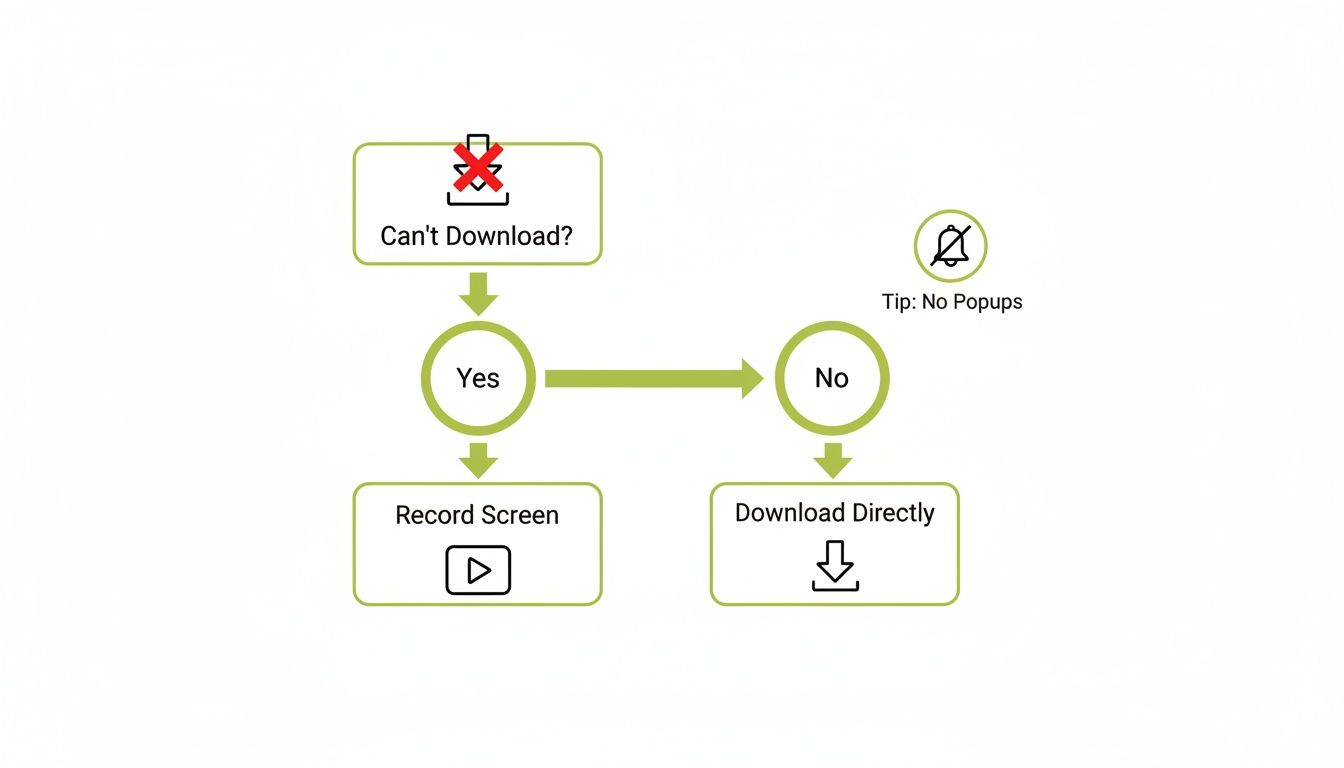
As the chart shows, if a direct download just isn't on the cards, screen recording becomes the most practical alternative—but it's something you need to prepare for carefully to get a good result.
Getting through these technical and legal hurdles demands a bit of care and know-how. If you're using technical methods to get embedded content, it's essential to understand web scraping best practices to stay on the right side of ethical and legal lines.
And for those managing content within an LMS, keeping your video assets safe is a massive priority. It's well worth learning more about https://www.medial.com/post/securing-video-content-in-moodle-addressing-your-organizational-concerns-with-medial to better protect your institution's intellectual property.
Got Questions? We've Got Answers
When it comes to downloading videos embedded on websites, it’s natural for a few questions to pop up, especially around the technical bits and the legal side of things. Let's clear up some of the most common queries we hear.
Is It Actually Legal to Download Embedded Videos from a Uni Website?
This is a big one, and the answer really depends on your institution's specific rules and the video's copyright. In the UK, there's a "fair dealing" exception for educational use, like private study or non-commercial research, but it’s not a free-for-all.
Honestly, the safest and most ethical path is to only use an official download option if one is provided. Trying to get around technical protections can easily be seen as copyright infringement. Your best bet is always to check your university's content and IT usage policies before you do anything.
Why Does the Browser Developer Tool Method Fail So Often?
If you’ve ever tried the "Inspect Element" trick and come up empty-handed, you're not alone. This technical approach often hits a wall because modern learning platforms use sophisticated streaming protocols like HLS (HTTP Live Streaming) or MPEG-DASH. These aren't just for show; they're designed to protect content and make sure your video streams smoothly.
Instead of one simple .mp4 file you can just grab, these protocols slice the video into lots of tiny, often encrypted chunks. When you open your browser's Network tab, all you see are these little segments loading one by one. It makes it impossible to download the whole film in one go without some pretty specialised tools.
Can I Download a Video from a MEDIAL-Powered Course?
That all comes down to the permissions set by the instructor or administrator who uploaded the video. MEDIAL is built to give content creators total control over their work.
They can switch the download function on or off for each video, or even for specific users. If the instructor has allowed it, you’ll see a clear, easy-to-find download button right in the video player. If that button isn’t there, it means the feature has been deliberately turned off to protect the content.
Empower your institution with a secure, integrated video platform designed for modern education. With MEDIAL, you can manage, stream, and secure your video content seamlessly within your existing LMS. Schedule a demo today to learn more.
Comments