
How to Collect Video Submissions in Any LMS

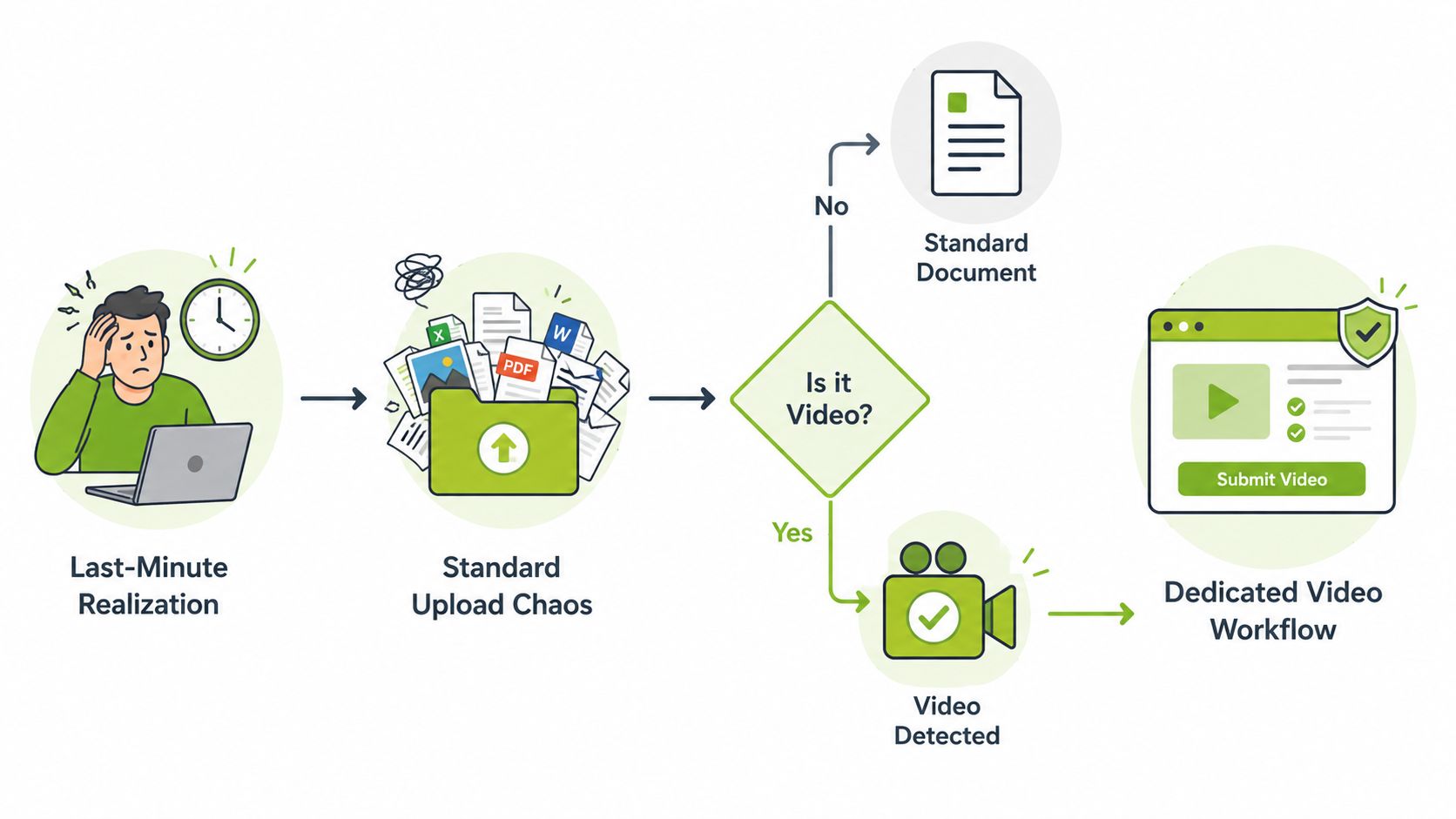
The deadline is tomorrow, and a module leader has just realised that the whole cohort may try to upload phone-recorded presentations through a standard file-upload assignment. Some files will be too large, some will use incompatible codecs, and others will appear to submit without ever becoming playable. The marking team will then spend its time chasing broken uploads instead of assessing learning.
How to collect video submissions reliably is therefore an assessment-design problem, not a button-selection exercise. The process needs to connect recording, delivery, access, consent, assessment, accessibility, and feedback before students press Record.
Choosing a Video Submission Workflow
Start by deciding what the video is meant to demonstrate. A formative reflection, a summative presentation, and a practical skills demonstration may all use video, but they don't require the same collection route. A short reflective response might work through an LMS-native recorder. A longer presentation may need managed media storage and streaming. A clinical demonstration may require controlled access, a clear naming convention, and a marker-friendly playback experience.
I use four decision points before creating the assignment:
Capture method: Will students record on a phone, upload an existing file, or record inside the LMS?
Delivery channel: Will the file enter the LMS, pass through an integrated media service, or arrive as a controlled link?
Assessment structure: Will markers assess one video per student, several clips, a group performance, or a video plus supporting evidence?
Feedback loop: Will comments be written, audio-based, time-stamped, or attached to rubric criteria?
These choices affect one another. Asking students to submit an unlisted YouTube link may simplify playback, but it creates extra work around consent, channel ownership, link permissions, and future access. A streaming integration may handle longer media more effectively, but the team needs its rubric, moderation process, and access rules ready before submissions arrive. A file upload can look inexpensive because it uses an existing assignment tool, yet it may create more support work when students submit oversized or unsupported files.
Match the method to the learning activity
For a formative reflection, the priority may be speed and low friction. Students could record directly in the LMS, submit a short file, and receive a brief response. For a summative presentation, playback reliability and moderation matter more, so a media integration or carefully controlled upload route is usually more appropriate. For a skills demonstration, the brief must explain what must remain visible and audible, how students should frame the activity, and whether multiple clips are allowed.
The UK higher-education sector already operates through formal, recurring digital returns. The Office for Students' HESES collection guidance and training materials describe structured processes for setting up a collection, downloading a workbook, uploading a submission, and completing sign-off through the Provider Portal. The wider lesson is useful: treat video collection as a repeatable, auditable process with defined stages, not as an informal exchange of large files.
A creative team may also use a specialist workflow during pre-production or communication. For example, ShortGenius AI UGC ad platform can be relevant when learners or staff are developing short-form video concepts, but an educational submission still needs institutional controls for marking, privacy, retention, and accessibility. A tool that helps generate or organise media isn't automatically a suitable assessment repository.
Practical rule: Choose the delivery route before you publish the assignment brief. Students can adapt to a clear workflow, but they can't repair an unsuitable one at the deadline.
LMS, MEDIAL, and Direct Upload Options
The three common delivery routes behave very differently once a cohort starts submitting. An LMS assignment upload is familiar and easy to explain, but the platform's file limits and processing behaviour can make it fragile for longer recordings. A MEDIAL-style integration separates media handling from the gradebook, while direct upload to a third-party service can reduce immediate friction at the cost of more complicated access management.
Dimension | LMS assignment upload | MEDIAL / media integration | Direct upload, Drive, YouTube, and similar |
|---|---|---|---|
Setup effort | Low if the assignment already exists | Moderate, because the integration and staff workflow need configuration | Low to moderate, depending on permissions and institutional agreements |
Storage limits | Controlled by LMS quotas and assignment settings | Uses dedicated media storage and processing | Depends on the external service and account |
Playback | May require downloading or waiting for processing | Usually supports in-browser streaming and an LMS-linked viewing route | Often convenient, but access may fail when permissions or links change |
Recording support | May include a basic native recorder | Can support upload and, where enabled, browser-based recording | Usually depends on the external platform |
Accessibility handling | Staff may need to manage captions and transcripts separately | Media processing can support caption workflows | Caption controls and ownership vary by service |
Common failure | Oversized files, timeouts, incompatible formats, incomplete submissions | Students misunderstand the upload wizard or staff configure access too late | Public links, expired permissions, link rot, or files stored outside the agreed environment |
For an LMS upload, keep the task short and test the complete student journey. A student may have a modern phone but still submit a file that exceeds the assignment quota or uses a codec the marker's browser can't play. Don't assume that a successful click means the file is available to assess.
A media integration is more suitable when the activity depends on streaming playback, longer recordings, browser recording, or media-specific feedback. The team should still decide whether students submit one item or several, whether drafts remain visible, and who can view the media. The MEDIAL Canvas student video submission workflow illustrates the kind of LMS-connected process staff should test before opening an assignment.
Direct upload to OneDrive, YouTube unlisted, or a shared drive can work for controlled projects, especially where students already understand the service. It becomes risky when the institution hasn't documented ownership, retention, viewer permissions, and what happens if a student deletes or changes the file. A link is not the same as a submission record.
Ofcom recorded a median average UK residential upload speed of 18.4 Mbit/s in March 2023, with the figure 73% higher year on year at that point, but home upload quality still varies across connections. Ofcom's home broadband performance data supports a practical conclusion: compress video, avoid unnecessary file sizes, and offer a fallback. QAA guidance favours a maximum file size of 80MB and Windows Media Player-compatible formats for secure submission workflows, which highlights why service limits and codec compatibility need to appear in the brief rather than in a late troubleshooting email.
Setting Up Recording and File Requirements
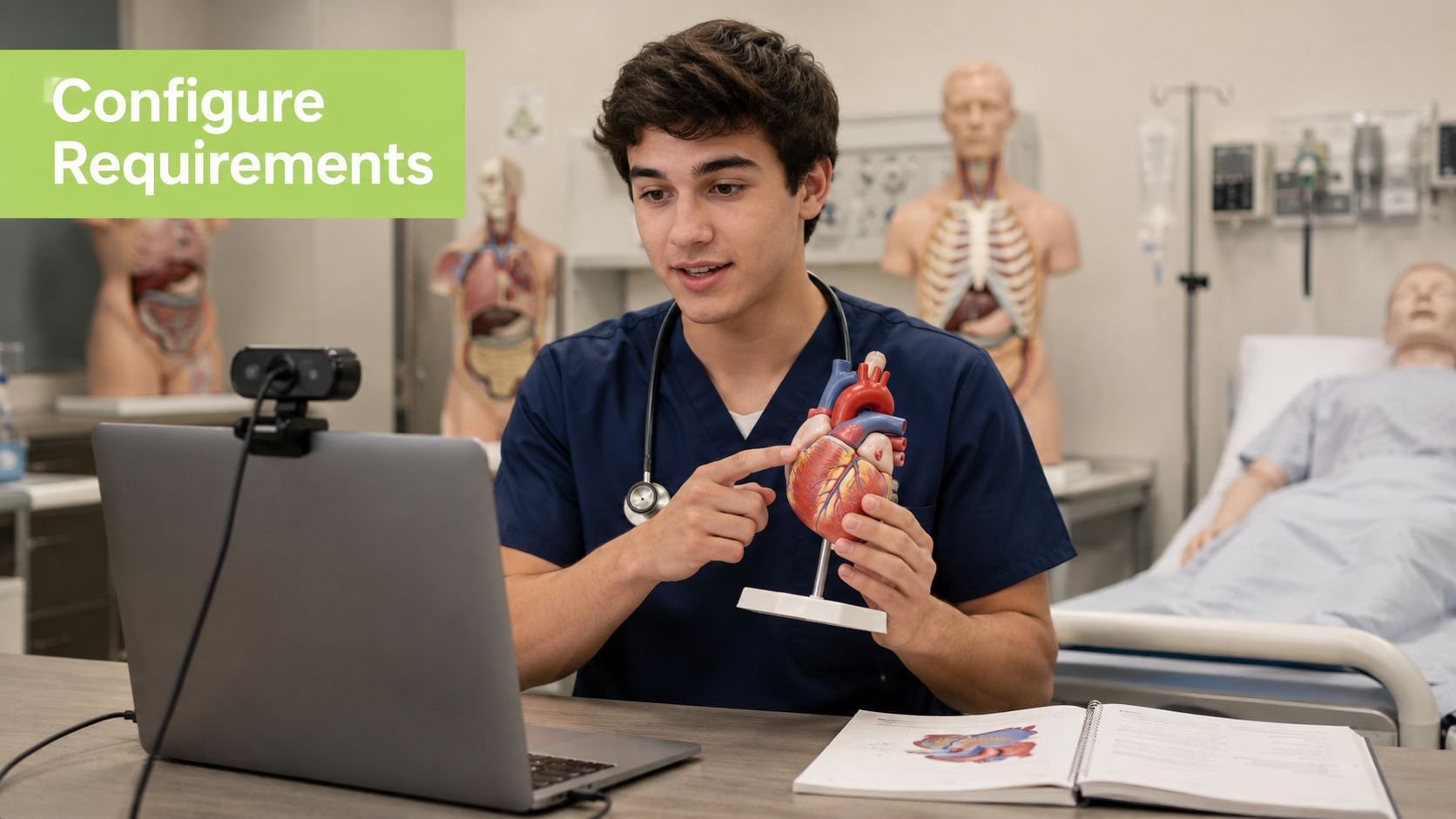
Take a Level 6 clinical skills presentation. Each trainee must submit a 5 to 7 minute self-recorded demonstration, showing the procedure clearly while explaining the decisions being made. The assignment should tell students exactly how to record, what the marker must see, and what will happen after they select Submit.
Write the brief students will actually follow
Avoid “submit a video file”. Use plain instructions such as:
Length: Record a demonstration lasting 5 to 7 minutes.
Orientation: Use a horizontal orientation unless the task requires a portrait view.
Framing: Keep the trainee, materials, and relevant actions visible.
Formats: Submit MP4 with H.264 video where possible. If the platform accepts them, list MOV and WebM explicitly rather than leaving students to guess.
Audio: Record in a quiet space and check that spoken instructions are understandable.
Naming: Use , with no spaces or special characters.
AQA's evidence guide for media submissions recommends converting files to MP4 to reduce compatibility problems, warns against QuickTime, and advises clearly named folders containing the student name, candidate number, and centre number. It also describes unlisted links through a dedicated centre channel as a controlled web-hosted option. Those practices translate well into LMS work, particularly when a moderation team needs to retrieve files quickly.
Set the file ceiling below the platform's actual allowance, not at the highest value a phone might produce. Students shouldn't discover the limit only after recording. If your environment offers an in-browser recorder, make it the fallback for trainees who can't install software or whose devices produce unsuitable files. Guidance about how to upload files in forms can also help teams explain the difference between selecting a file, transferring it, and completing the final submission step.
Make completion visible
Place the essential rules in the LMS assignment description, where students see them immediately. Put the longer recording guide, consent wording, caption instructions, and troubleshooting examples in a downloadable brief. The assignment page should also tell students where to check processing status, confirm that the media is playable, and verify that the final submission is marked as submitted.
Don't accept “I clicked Submit” as proof. Ask students to check the confirmation state, open the submitted media where the LMS allows it, and retain the confirmation screen until marking begins. For format decisions, the MEDIAL guide to video file formats provides a useful reference point when teams are deciding which formats to list and which to exclude.
Assessing, Grading, and Returning Feedback
A video assignment becomes difficult to moderate when the rubric is written after the first files arrive. Build the rubric from the learning outcomes and make every criterion visible in the brief. A practical matrix for the clinical demonstration might include content accuracy, structure, delivery, evidence of practice, and technical quality, with performance descriptors that explain what each level looks like.
“Good presentation” isn't a usable descriptor. A stronger criterion might say that the trainee explains the relevant rationale accurately, performs the sequence in an appropriate order, and makes key safety decisions visible to the viewer. Technical quality should address whether the marker can hear and see the evidence, not whether the student owns professional equipment.
Use a repeatable viewing routine
I recommend assessing each submission in two passes:
First pass: Watch for content and learning outcomes, applying the rubric without drafting a running commentary.
Second pass: Revisit important moments, record timestamps, and capture precise evidence for the mark and feedback.
This reduces the risk that a polished delivery style distracts from inaccurate content, or that a technical problem hides otherwise strong practice. Keep the rubric open during both passes and distinguish an assessment issue from a production issue. A poor camera angle may prevent a criterion from being judged, while a quiet room may make feedback harder to hear.
Use time-stamped comments where the LMS or media tool supports them. “At 02:14, explain why this step follows the preparation stage” gives the trainee a clear revision target. Add a short written summary with three parts: a strength demonstrated, the most important improvement, and the next action before resubmission or the next practical session. Guidance on video feedback for students is useful when a team is standardising how markers comment on media.
Preserve the version used for marking
Version confusion causes avoidable disputes. Keep drafts and final submissions in a clearly named LMS or media-folder structure, and retain the exact final file used for the grade. If a student replaces a file, record the time and the version that was assessed. Where resubmission is permitted, state whether the student must submit a new file, a response to feedback, or both.
Return the rubric, timestamps, summary, and resubmission policy together. Students should be able to identify not only what mark they received, but also which moments in the video led to that judgement and what they can do differently next time.
Privacy, Consent, and Accessibility
A submission isn't just a video file. Photos and videos of identifiable people are personal data under UK data-protection law, so the workflow needs to account for faces, voices, student names, course context, and metadata from the moment collection begins. GOV.UK guidance on taking and using photos and videos in schools recommends documenting personal-data groups and then listing the specific items beneath them. That approach works well for an assessment register.
Publish a short privacy notice in the assignment description. It should state why the recording is collected, where it will be stored, who can view it, how long it will be retained, and whether it may be reused. Require students to confirm the statement before the upload link becomes active. If another person appears in the recording, collect that contributor's permission before submission, not after a marker asks to share the work.
A release form used by Royal Holloway for student-created academic media covers appearance in video, audio, photography, and other digital media, along with retention and further reasonable, not-for-profit uses such as recruitment, institutional promotion, teaching and research promotion, and participating students' early career development. The Royal Holloway performer and contributor release form demonstrates why a consent process should name both the media captured and possible future uses.
Treat accessibility as part of submission design
Require captions or a transcript for spoken video, and explain who checks them. UCL states that subtitles are essential for students with some disabilities, while University of Manchester guidance says spoken video needs subtitles, important visual information may require audio description, and automatic captions must be reviewed and corrected before publication. Students shouldn't be expected to solve every captioning task alone, especially where the assessment doesn't test caption production.
For UK teaching content, pre-recorded videos made available from 23 September 2020 must meet accessibility standards under the Public Sector Bodies Accessibility Regulations, and captions may be added within 14 days after publication, according to Jisc's video captioning guidance. Build that review into the post-upload workflow rather than treating machine-generated captions as finished output.
Offer an alternative route for students who can't record video for documented reasons. A transcript, live demonstration, audio submission, or supervised alternative may preserve the learning outcome, provided the adjustment is agreed through the appropriate process. Accessibility should change the route to evidence, not lower the academic standard.
Troubleshooting and a Practical Implementation Checklist
Most failures fit four categories: unsupported formats, oversized uploads, missing consent, and inaccessible content. Prevent them in the assignment itself, not in a support document students may never open.
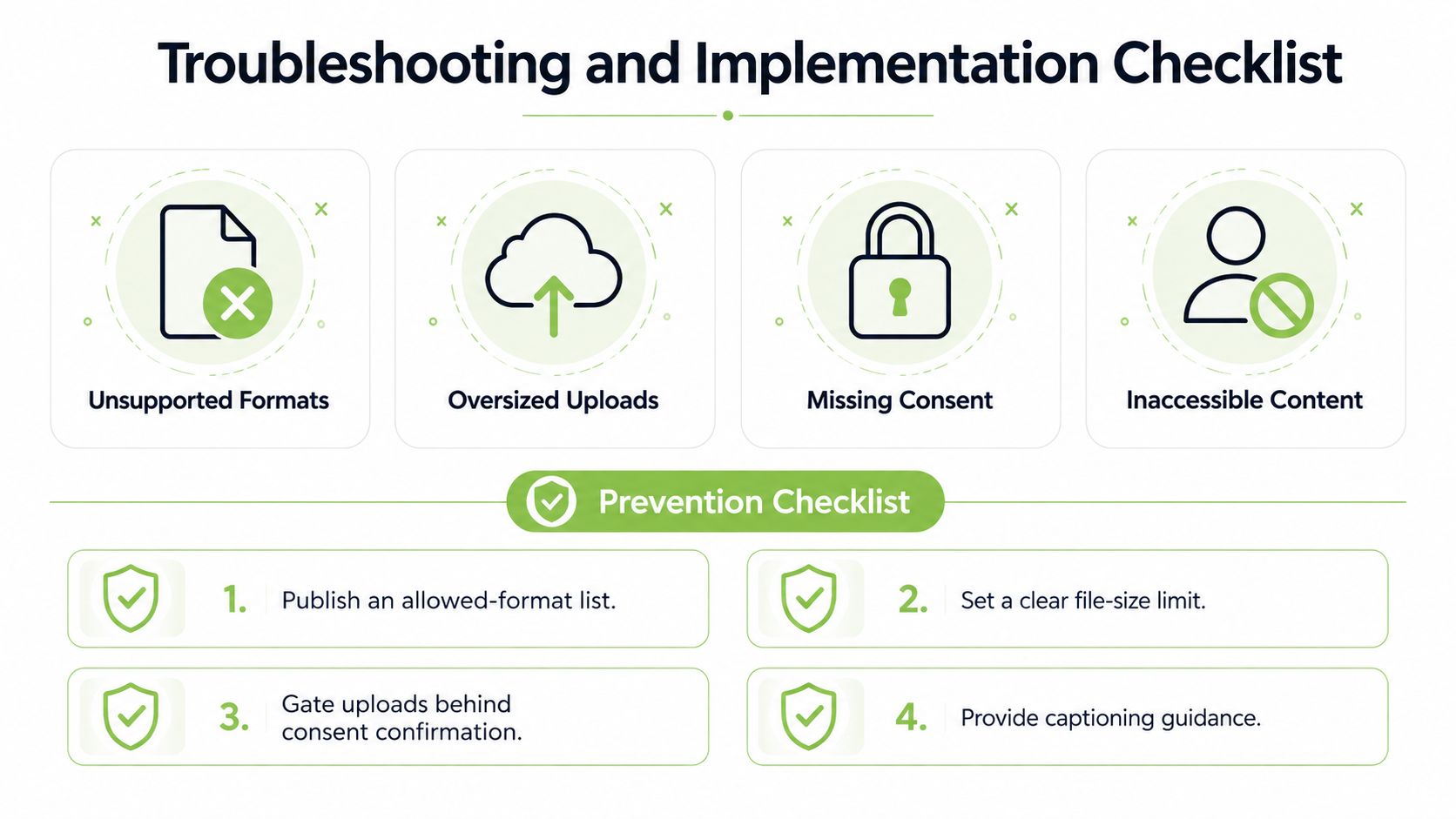
Use this implementation sequence:
Define the evidence: Identify the learning outcome and what the camera must capture.
Write the brief: State length, orientation, framing, allowed formats, naming, captions, and deadline.
Configure the assignment: Set file rules, viewer permissions, consent confirmation, and submission-status checks.
Publish recording support: Include an LMS-native recorder or an approved fallback for students who can't use their usual device.
Test as a student: Upload a representative file, submit it, open it as a marker, and test the feedback route.
Pilot the process: Ask a small group to complete the full workflow, then fix confusing instructions before opening it to the cohort.
Mark consistently: Use the rubric, preserve the assessed version, and return timestamped feedback with next steps.
Keep the final checklist visible to students and markers. If a file is unsupported, request a conversion rather than marking it as missing. If consent is incomplete, restrict access until the record is resolved. If captions are absent, follow the agreed remediation route before releasing the video beyond the original assessment team.
MEDIAL offers LMS-connected video assignment workflows for platforms including Moodle, Canvas, Blackboard, and D2L Brightspace, with options for uploading or recording media, browser-based management, streaming, and AI-assisted caption generation. If you want to test a structured approach to collecting, assessing, and returning video work, visit MEDIAL and review how it could fit your institution's existing assessment process.
Comments