
How to Host a Webinar from Plan to Follow-Up

Live sign-ups are a queue, not a result.
The Chartered Institute of Personnel and Development (CIPD) ran a furlough webinar in 2020 that drew a large registration list, and its recording went on to reach a substantial audience on YouTube.
A live hour works like a premiere. The file is the copy people borrow later. Captions, chapters and a short task under the recording carry staff on shift, students on placement, and anyone whose connection died at minute twelve.
Hosting a webinar well is a design problem before it is a technical one. On the afternoon you pick the date, write the recording notice, book a caption check, and name the task you will set about four weeks later. The notice says who is captured, where the file will sit, and how to ask for a transcript. Live headcount shows who was free. Watch-backs, captions and that task show whether the hour became a learning asset.
A Webinar Calendar You Can Run This Month
A live room that empties on the hour still has a second sitting in the file. The follow-up furlough session's replay views (1,908) nearly matched its registrations (1,871), and the health and wellbeing session's replay views (2,095) outran its registrations (1,268), so the recording often reaches more people than the live room (CIPD). A view is a play of that file, not a person in a chair. Three sessions on race and inclusion in the same run also drew a large combined registration list. Headcount on the day is the premiere. Watch-backs, captions and a later task are what prove the asset.
Practical rule: if a session can't be repeated next term with fresh examples and the same skeleton, it isn't a learning asset yet. It's a meeting that happened to be recorded.
A calendar makes the repeat possible. Copy this one. Each row is small enough to finish in an afternoon.
Phase | When | Lock this | Done when |
|---|---|---|---|
Audience and outcomes | 3 weeks before | One audience and 3 to 7 outcomes | Brief signed off |
Registration and notice | 10 days before | Name, email, optional access needs, recording notice | Form live |
Rehearsal | 2 days before | Two devices, caption test, mute by default | Green light recorded |
Live hour | Session day | Timed blocks, two checks, questions | Recording saved |
Publish | Within 24 hours | Trim, captions, transcript, link | Email sent |
Follow-up task | 2 to 4 weeks | One task tied to an outcome | Completion logged |
The row people skip is rehearsal. Two days out, join from a laptop and a phone, share the deck, play a slide with a long module code, and read the auto-caption back. If it renders "FHEQ" as something unrecognisable, you have found the problem with time to fix it rather than during a live session with 80 markers waiting.
The registration row is the access check on the same calendar. Ten days out you lock a name, an email, optional access needs, and a recording notice, so the file you publish is usable by people who were on shift or who need captions, not only by whoever stayed to the end.
The second row people skip is the follow-up task. Without it, the webinar ends when the questions do, and you have no way of knowing whether anything changed on Monday morning. Set one task against one outcome, two to four weeks later, and log completions. That log is the proof the watch-backs were used.
If you already run a tutorial or clinic timetable, the same discipline that helps you schedule tutoring sessions efficiently applies here: one named owner for the calendar, a fixed slot, and a buffer between sessions so the debrief doesn't run into the next commitment.
Plan Outcomes Registration and the Recording Notice
Two briefs land in the same week. A module lead has 50 minutes to brief 80 markers on a changed assessment rule before the next submission window opens. An L&D manager has to get every shift supervisor performing a new safety step, across four sites and three shift patterns. Different rooms, same failure mode: both get booked as "an update session" with a deck and no defined end state.
The two tracks below show how the same four decisions run side by side.
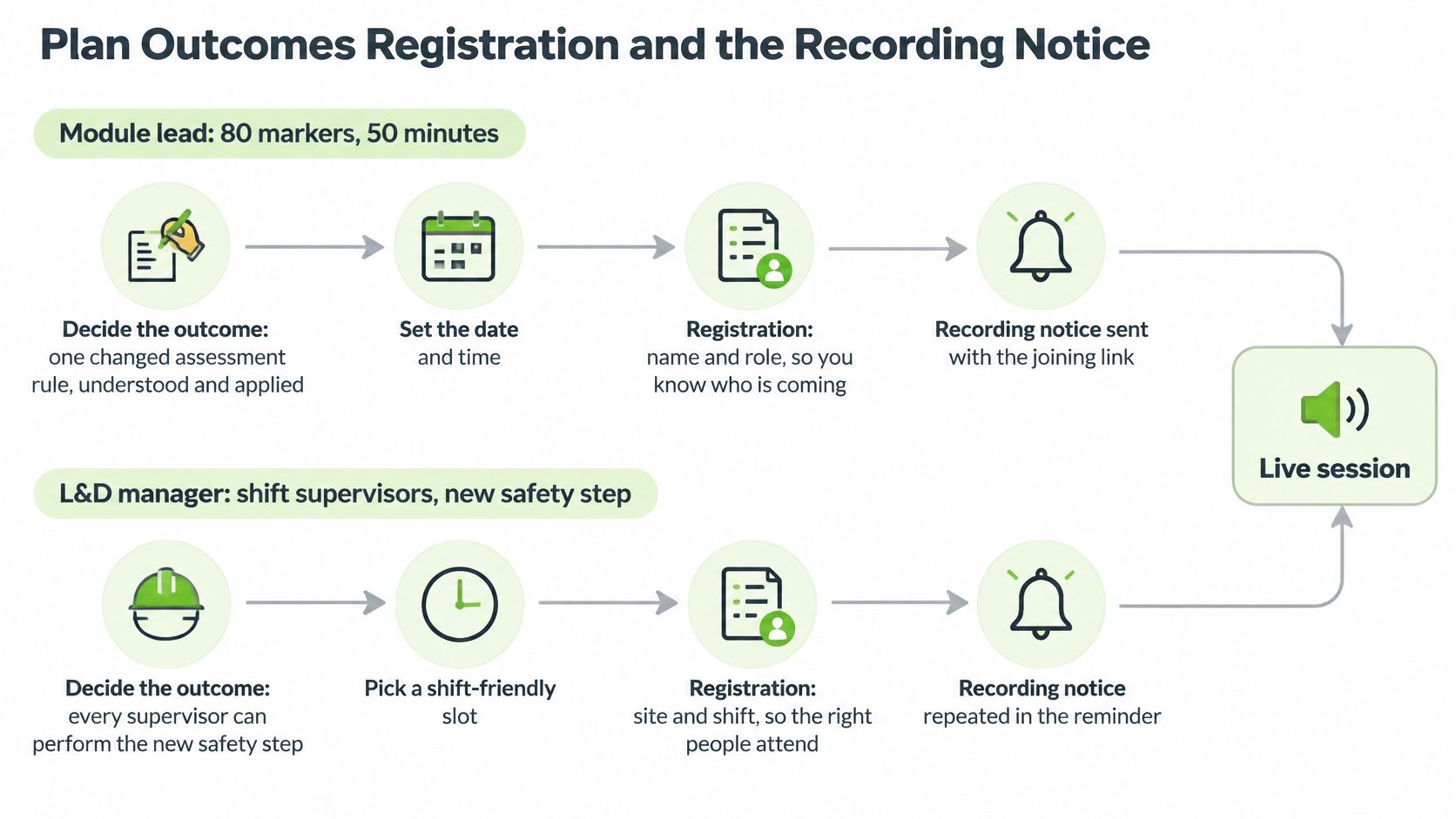
Write the end state before the slides
Name the learner and the one job they do afterwards. For the module lead it's "apply the new band to a sample script". For the L&D manager it's "perform the new safety step correctly on the next shift". Not "understand the changes".
Turn that into three to seven observable outcomes. Observable means someone else could watch it happen. If an outcome can't be seen or marked, it's a topic label and it belongs in the slide title, not the objectives.
Send a five to seven item diagnostic with the joining link. Keep it to two minutes. Repeat equivalent items afterwards so you can compare, and route anyone who scores badly to a short prerequisite clip before the session. That single step does more for a mixed-ability room than any amount of live explanation.
Fix the length. Forty-five minutes for one skill, sixty for a panel. Avoid Monday at 09:00 and Friday after 15:00; a UK weekday late morning or early afternoon suits most university and office diaries. For shift supervisors, build the slot around handover instead, and record it for the shifts that can't attend.
Collect less at registration
Ask for name and email, and nothing else by default. Accessibility needs go in a separate optional question. The ICO notes that information about access requirements can be special-category personal data and may need explicit consent under Article 9(2)(a) of the UK GDPR, with a clear route to withdraw it (ICO). Restrict who sees those answers to the staff arranging support, and say on the form why you're asking.
Get the notice wording right, in advance. The ICO's own notice states that presenters' image and audio are recorded, that attendees' image and audio may be captured if they choose to share a camera or microphone, and that a recording may be published only after attendees are told beforehand (ICO). Put that on the form, repeat it as people join, keep cameras and microphones off by default, and offer text questions so nobody has to be on mic to take part.
Your registration page is also your recruitment page. The sequencing that fills the room, the reminder cadence and the follow-up email, is set out in this guide to marketing a webinar.
Set retention by data type
One deletion date for everything is the lazy version and it fails in both directions: you keep access-needs answers longer than you should, and you delete attendance evidence you still need for a professional body review.
Ofqual's privacy notice for online events gives a workable split. Registration data, attendance records and poll or survey responses are held for six years in its example; accessibility and reasonable-adjustment information is held for three months (Ofqual). The ICO's example retention period for webinar registration email addresses and event recordings is 12 months.
Put all three dates on a one-page brief and have the presenter sign it. That page, not a policy document nobody opens, is what stops a recording sitting in a personal downloads folder for three years.
Make Captions and Access Part of the Setup
AbilityNet's 2025 survey found that only 35% of organisations provided general digital-accessibility training to all staff, and that 60% of respondents attend free webinars and networking events (AbilityNet). Accessible delivery has to be planned into the session from the start. A large share of a registration list may depend on how you run the hour, and a team that has not been trained in digital accessibility will not invent a workable setup in the ten minutes before you go live.
Access is how people get in. Captions work like a second copy of the lesson: the live room hears it once, and the course page can still assign it later. Watch-backs, a caption file someone can switch on, and a task set from the recording are what prove the session was worth running. Live headcount on its own does not.
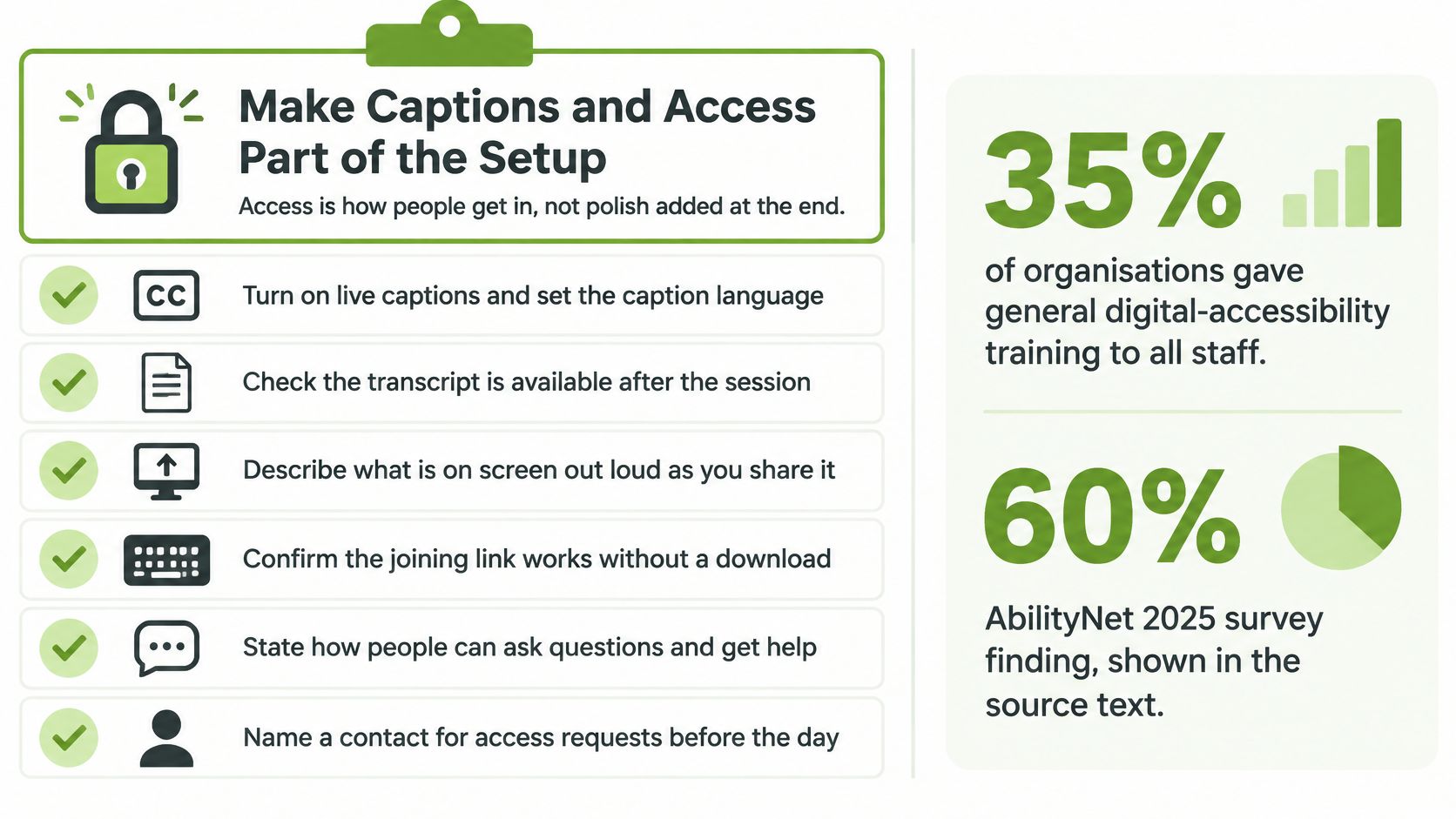
Five setup checks
Test the automated captions a day ahead, on the words that will break them. Speaker names, module codes, acronyms, drug names, anything with a hyphen. Keep a prepared caption file or a human editor as the fallback when the automation mangles a term, and decide now which one you will use rather than apologising live.
Describe what is on screen, out loud, every time it changes. Say "this chart shows first-year withdrawal falling from 11% to 7% between 2022 and 2024, with the steepest drop after the January checkpoint", not "as you can see here". A blind attendee should be able to follow the argument without the slide. That same description is what makes the recording usable when someone watches it back with the sound off.
Open two question routes before the session starts. Chat for people who can type quickly, plus a form linked in the joining email for anyone who cannot use live chat or a microphone. Read the form aloud in the first five minutes so people know it exists.
Check contrast and plain English on the slides themselves. Thin grey text on white fails on a phone in a bright room, and half your shift audience will be on a phone.
Publish the recording with captions people can switch on or off, plus a separate downloadable transcript. Government digital guidance identifies closed captions, alt text, plain English and colour-contrast checks as core practice, noting that public-sector websites and apps must meet the Public Sector Bodies (Websites and Mobile Applications) Accessibility Regulations 2018, in force since 23 September 2018, alongside existing Equality Act 2010 duties (Communications and Information Directorate).
If the recording is going into a course page rather than onto a public site, the accessibility standards for video are a better checklist than the platform's defaults, because they cover the on-demand file as well as the live stream.
A session with flawless audio and an unusable question route has still excluded the people it was built for.
The six point green light
Give a co-host the authority to hold the session until all six are true: the recording notice has been repeated on entry, attendee microphones are muted, captions have been tested on the awkward words, charts and demonstrations are scripted for description, at least one non-audio question route is open, and everyone knows where the recording will be published.
That last point matters more than it sounds. If nobody in the room can say which course page or library the file lands on, it will land nowhere, and there will be nothing to caption, nothing to watch back, and no later task to set.
Run the Live Hour Without Losing the Room
The hour has a shape, and the shape is why people stay. Here it is as a 60-minute run of show, with the 45-minute cut noted where it differs.
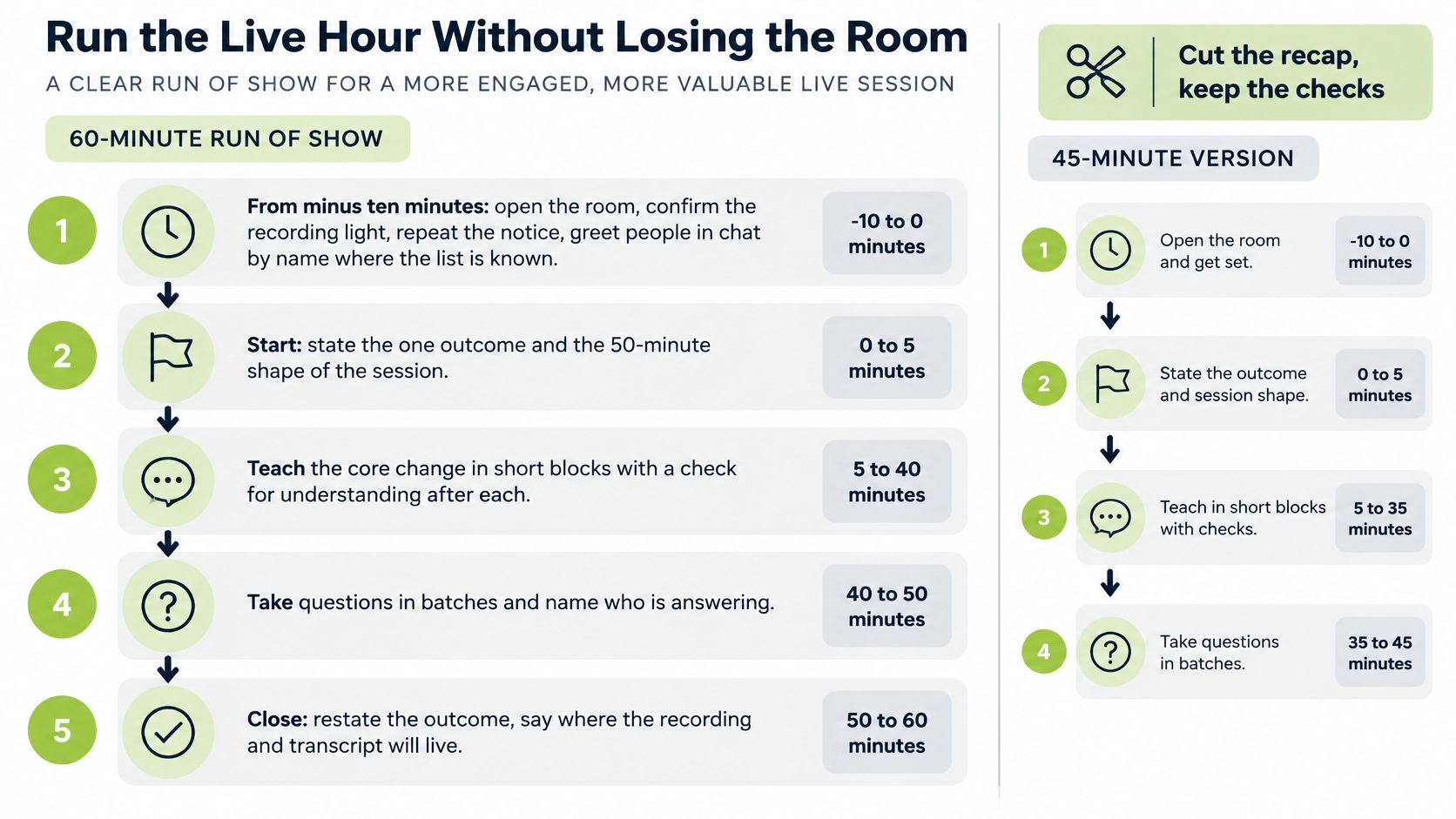
A 60 minute run of show
Minus ten minutes. Open the room early. Confirm the recording indicator is on, repeat the notice, and greet people by name in chat while the list is still small enough to do it. This is when you find out that a panellist's audio is going through a laptop speaker.
0 to 5 minutes. State the one outcome, the shape of the hour, and how questions will be taken. Don't apologise for housekeeping; it's the reason people know what to do at minute forty.
5 to 17 minutes. First teaching block. For the marking brief, you show one sample script, ask which band it sits in, run the poll, then reveal the answer and talk through the boundary case that split the room. The disagreement is the teaching, not an interruption to it.
17 to 29 minutes. Second block, then a single knowledge check. Keep the checks short: one question, four options, thirty seconds.
29 to 41 minutes. Third block. For the safety brief, this is the demonstration, and here you slow down.
41 to 50 minutes. Worked example or demo. Keep two still images of the finished result in the deck. If the live demo breaks, switch to the stills and keep teaching. Never debug on air while 60 people watch a cursor.
50 to 60 minutes. Questions that change a decision, not the ones that change nothing. Then restate the one action people will take next, and say exactly when and where the recording and transcript will appear.
Stop the recording before the debrief. Whatever the panel says once the red light goes off should not be in the file that gets published to a course page.
Practical rule: a co-host sorts chat into three piles. Answer now, answer in the last ten minutes, answer in the follow-up email. Say which pile you're taking, so nobody thinks they were ignored.
Two edge cases worth planning for
A panel needs a visible timekeeper with permission to cut in, or the last speaker loses their slot and the session overruns into the questions.
A shift audience joining on phones needs larger type, fewer words per slide, and no reliance on a small chat box in a corner. Test the deck on a phone at the rehearsal, not on the day.
The 45-minute cut: drop the recap, merge blocks two and three, keep both checks, and hold questions to eight minutes. What you never cut is the checks, because they're the only live evidence you'll get that the room followed you.
Here's the session rhythm in practice, including how to handle a demo that fails mid-broadcast:
Close the hour by naming the file and the person who publishes it. That handover is the next job, and it's often overlooked.
Measure Watch-Backs Not Just Attendance
In AbilityNet and BT's UK digital-inclusion programme, 3,916 webinar places sat alongside 3,436 watch-backs, so replay came close to the volume of live attendance. Among participants, 90% said they became more knowledgeable about the topic and 86% said they were more confident (AbilityNet).
Judged on the live hour alone, that programme looks like a modest event. Judged on total consumption, it reached nearly twice the room.
Treat the recording as a release, not a leftover
Publish within 24 hours, while the confirmation email is still in people's minds. Cut the file into the same eight to twelve minute blocks you taught in, and trim the waiting room and the off-topic close. Keep the reviewed captions and add a transcript so the content is searchable inside a course. Chapter the long version rather than asking anyone to scrub through 60 minutes to find the marking example.
One caution: don't publish identifiable chat or poll comments unless your notice covered them. The safest default is to summarise themes yourself and quote nobody by name.
Read five measures, not a smile sheet
Measure | When to read it | What good looks like |
|---|---|---|
Registration to attendance | Session day | Drop-off is known, not only the headcount |
Live participation | During the hour | Most people complete at least one poll or check |
Replay volume | 14 days after the session | Watch-backs can approach live places |
Knowledge check | Within 48 hours | Same concepts as the diagnostic, with the completion rate shown |
Workplace or assignment task | 2 to 4 weeks | The outcome happened, not only a high rating |
A pass looks like a supervisor performing the new safety step on their next shift, or a marker applying the new band to a sample script without asking a colleague. A high satisfaction score tells you people liked the hour. It doesn't tell you the hour changed anything.
If replay is strong and task completion is weak, the recording is popular and the outcome was never practised. Add a five-minute exercise under the video rather than repeating the live session.
Counting arrivals matters here in the same way it does when you track door counts and ticket sales for a physical event: the useful number is how many of the people who said they'd come walked through the door.
Report the completion rate with the gain
Keep knowledge checks honest by pairing them with a response rate. A UK Health Security Agency webinar evaluation found 50.3% of respondents answered all seven pre-webinar knowledge questions correctly, rising to 71.6% after the webinar, a 21.3 percentage point improvement. Only 67 of 159 pre-webinar participants completed the post-test (UK Health Security Agency).
Report both numbers together, and don't claim the gain applies to everyone who registered. Put the five measures on one page rather than five, because a shared analytics dashboard is what makes one cohort comparable with the next.
Put the Recording into the Next Lesson
Decide the home of the file before the next cohort asks for the link.
If your audience already works in Moodle, Blackboard, Canvas or Brightspace, put the captioned chapters on the course page next to the follow-up task. Attendance and replay then sit beside the assignment instead of in a separate inbox.
If Teams or Zoom produced the recording, move it onto the course page during the 24-hour publish step, not in a later tidy-up. A file nobody can find teaches nobody.
If the session needs branding, scheduling or a live stream, use a live workflow built for that and keep the same library for the on-demand cut. MEDIALive schedules, records and brands live video workflows, so the replay lands where the live stream was managed.
If your current tool can't caption, chapter and embed without exporting the file three times, change tools before the next session rather than after.
The action this week is small. Take the last session you hosted, cut it into the blocks you already taught, add the transcript, set the deletion date you chose at registration, and place one practice task under the video. That is a webinar finished.
MEDIAL was built for exactly this handover. Our platform connects in minutes to Moodle, Blackboard, Canvas or D2L Brightspace, so a scheduled live session, its recording and the captioned replay all live on the course page your learners already open, with the practice task beside them. You can start on a free trial or schedule a demo and run the workflow on one of your own modules before committing. Take a look at MEDIAL and see what your next session could leave behind.
Comments