
How to Cut Part of a Video Out in MEDIAL

You've got the recording open, the upload deadline is close, and one awkward bit is now impossible to ignore. Maybe the lecture starts with two minutes of mic testing. Maybe a colleague walks into frame and starts chatting. Maybe a useful demonstration sits in the middle of a longer seminar, surrounded by admin talk you don't want in Moodle or Canvas. That's usually the moment people search for how to cut part of a video out, and most guides stop at the scissors icon.
That's not enough for teaching video. In an LMS, a clean cut isn't just about removing a mistake. It affects whether learners keep watching, whether the clip is lawful to share, whether captions still make sense, and whether the file you upload is playable. If you're using an in-browser editor for the first time, the good news is that the core editing move is simple once the screen stops feeling busy. The important part is knowing what to click, where to pause, and what to check before you publish.
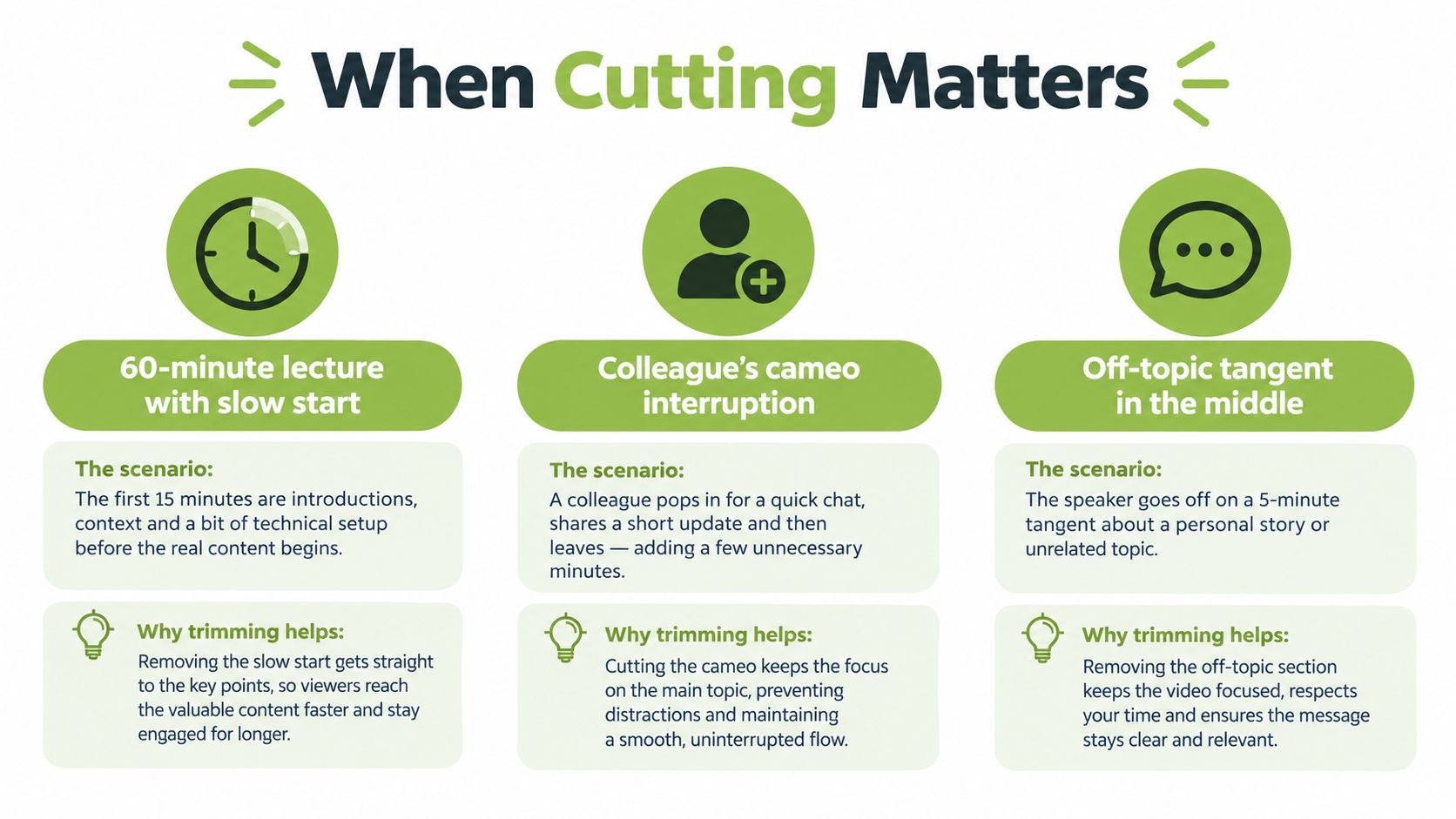
When Cutting Out a Video Segment Actually Matters
A lot of video editing starts with a small moment of regret. You finish a recorded class, hit stop, and then realise the first minute is just you asking, “Can everyone hear me?” Or you rewatch a training video and notice a fire alarm interruption in the middle. Or a student appears on camera in a section you don't want to share more widely.
Those aren't rare edge cases. They're normal teaching problems, and they're exactly why trimming has become a baseline skill for anyone publishing video for learning.
Why tighter video matters now
People are watching more video, and they're watching it in more places. In the UK, people aged four and over watched an average of 4 hours and 31 minutes of video content at home each day in 2023, up 6 minutes, or 2%, on the previous year, according to Ofcom's Media Nations 2024 report. The same report shows YouTube viewing rose from 31 minutes per person per day at the beginning of 2022 to 38 minutes by December 2023, an increase of about 20%, and viewing YouTube on television sets rose from 9 minutes to 15 minutes per day, roughly 70%. Among 16 to 34-year-olds, television-based YouTube viewing rose by 93%, from 9 minutes to 17 minutes per day, in the same period.
For educators, that supports a very practical editing habit. If a section adds no teaching value, cut it. Removing dead air, false starts, repeated explanations, or unrelated discussion often makes the lesson easier to follow without changing the actual content.
Practical rule: If learners would skip it in the room, they'll skip it faster online.
Three everyday teaching examples
A slow lecture opening. You recorded the whole session, but the first few minutes are room setup and late arrivals. Trimming the start gives students the content immediately.
An off-topic section in the middle. The main explanation is solid, but there's a digression that breaks the flow. Splitting the clip and deleting that segment keeps the lesson focused.
A recording you need to repurpose. One long session can become a shorter mobile-friendly clip, a focused demonstration, or a cleaner LMS resource when you remove the irrelevant parts.
The rest of the workflow matters just as much as the cut itself. You need the right edit type, a legal basis for sharing, and a final export that still has readable captions, clear audio, and the right file format for your LMS.
Setting Up the MEDIAL Editor for a Clean Cut
Before you cut anything, get comfortable with the screen. Most first-time editing errors happen because people start dragging clip edges before they know what the controls do. If you're signed into the portal and opening an uploaded recording in the browser, pause for a few seconds and name what you're looking at in plain English.

What each part of the editor is for
The preview pane is the video window. That's where you watch the current frame and check whether your cut looks natural.
The timeline is the long strip that represents the whole recording from start to finish. If your recording includes speech, the audio waveform often appears there too. That waveform matters more than people think, because it helps you spot where speech starts, stops, or spikes.
The playhead is the vertical marker showing your exact position in the clip. Wherever the playhead sits, that's the frame you're about to preview, split, or trim. If you only remember one thing, remember this. A cut happens where the playhead is, not where your eye thinks it is.
Getting the right file into the editor
A lecture captured in Zoom or Microsoft Teams, a classroom screen recording, or a short interview can all be edited in-browser if they're uploaded correctly. Choose the source recording you want learners to watch, not the rough duplicate or local backup with the unclear filename. That sounds obvious, but it catches people out constantly.
If you want a quick overview of browser-based editing before you begin, MEDIAL has a short guide on video editing in browser. If you're comparing interfaces more broadly, this roundup of compare beginner-friendly video editors is useful because it shows how common controls like trim, split, and timeline zoom tend to appear across different tools.
The first clean cut usually comes from slowing down, not speeding up.
Small setup habits that save time later
Play a few seconds first so you know the audio is present and the file has uploaded properly.
Make the timeline larger or zoom in before you cut speech. Broad views are fine for rough positioning, but poor for precise joins.
Use headphones if you can. Tiny clicks, clipped consonants, or abrupt room-noise changes are easier to hear that way.
Once the file is loaded and the timeline makes sense, you're ready for the part people mean when they ask how to cut part of a video out.
Selecting and Removing the Section You Don't Need
Here's the key distinction that clears up most confusion. Trimming removes frames from the beginning or end of a clip. Splitting cuts the clip into separate pieces so you can remove something from the middle. If your unwanted material sits halfway through the recording, trimming won't help. You need to split, isolate, and delete.
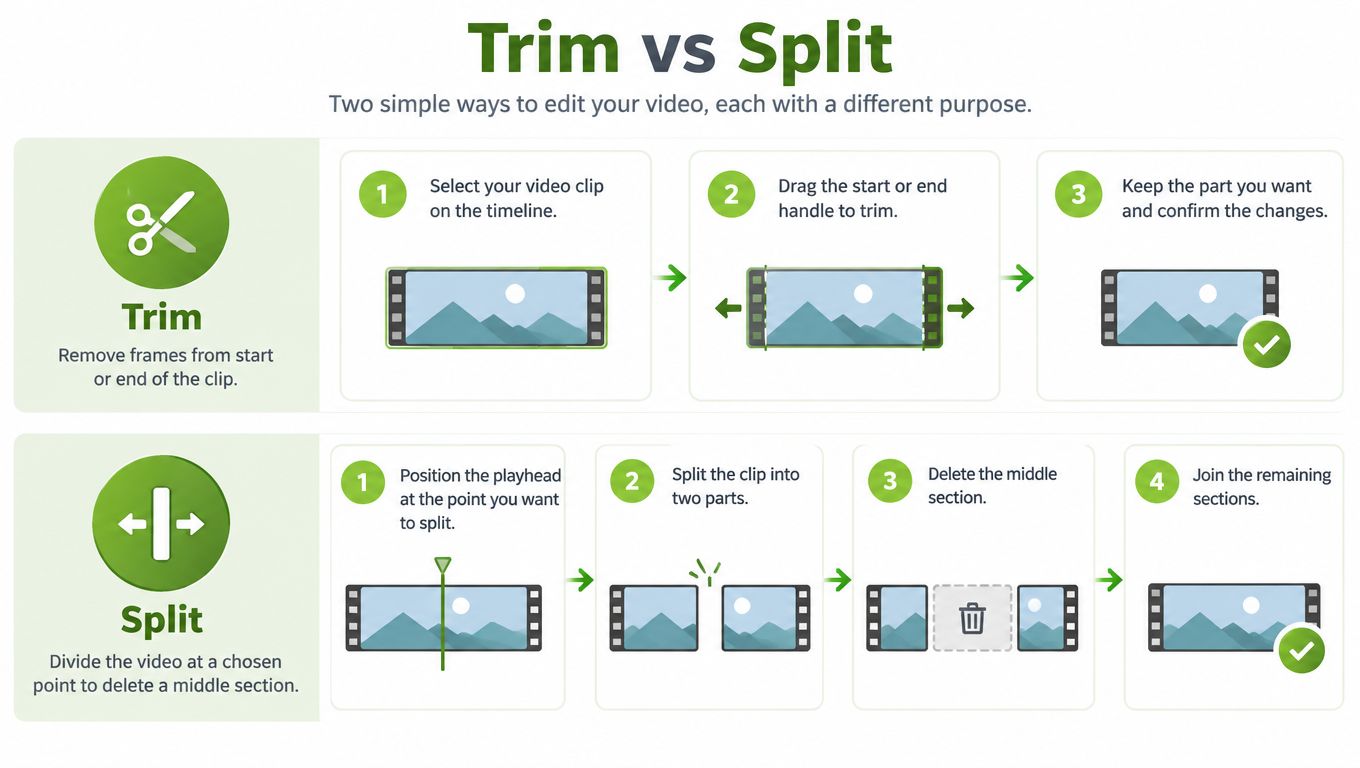
A practical example makes this easier. Say you've got a 45-minute lecture and, around the middle, there's a two-minute digression about room booking that doesn't belong in the uploaded version. The cleanest workflow is the same one recommended in university editing guidance. Pause on the first frame of the unwanted material, place the playhead exactly there, and split. Then move to the final frame of the unwanted material, split again, select the isolated middle segment, delete it, and review the join, as outlined in the University of York's video editing guidance. The same source notes the difference between trimming at the ends and splitting for a middle deletion, and recommends zooming the timeline, using waveform peaks to find speech boundaries, leaving a touch of natural room tone, checking sync, and reviewing the cut before export.
How the click pattern works in practice
In plain English, it looks like this:
Play until you reach the start of the unwanted section, then pause.
Move the playhead carefully to the first frame you want gone.
Use the split or scissors control.
Move forward to the last frame you want removed.
Split again.
Click the middle section so it's highlighted, then delete it.
Play across the join and listen for anything that sounds chopped.
If the unwanted content is right at the beginning or the end, use Trim instead. That's for shortening the outer edges of the clip. If the unwanted content is in the middle, use Chop or split-and-delete behaviour. In tools that support non-destructive editing, including MEDIAL's browser editor, that means you can remove the visible section without permanently altering your original source file.
Here's a short visual walkthrough if you want to see the idea in motion after reading it.
The tiny mistakes that make cuts look amateur
People usually miss one of four things:
They cut through a word. Use waveform peaks to find the clean boundary just before speech starts or just after it ends.
They stay too zoomed out. A wide timeline makes it easy to remove roughly the right section and surprisingly easy to miss by a fraction of a second.
They remove all room tone. Leaving a tiny sliver of natural background sound often makes the join feel less abrupt.
They don't review at the join. Always watch once at normal speed, then replay around the cut itself. If it looks jumpy or the audio snaps, adjust before moving on.
Leave yourself a reversible path. Keep the original recording untouched, and treat the edited version as a new output.
The Rights and Privacy Reality of Cutting a Clip
Cutting a section out of a video feels mechanical. Legally, it often isn't. In UK education, the question isn't only “Can I remove this part?” It's also “Can I share the result, with these learners, in this way?”

Trimming doesn't remove copyright
If the video is your own lecture recording, your editing decision is mostly about teaching quality, privacy, and accessibility. If the material comes from a third party, the situation changes. UK government guidance says copyright exceptions can allow limited extracts for non-commercial research or private study where the use qualifies as fair dealing, and that fair dealing can also apply for criticism, review, or quotation, but the use must be fair and normally include sufficient acknowledgement, and it should not substitute for buying or commercially exploiting the original work, as explained in GOV.UK's copyright exceptions guidance.
That means trimming a copyrighted broadcast, interview, lecture, or online video doesn't make it free to distribute. Shorter doesn't automatically mean lawful.
What educational use does and doesn't cover
There is a specific UK exception for fair dealing when material is used solely to illustrate instruction. Under section 32 of the Copyright, Designs and Patents Act 1988, the use must be non-commercial, connected to giving or receiving instruction or preparing for it, and normally include sufficient acknowledgement, according to the legislation on educational exceptions.
University guidance adds an important caution. The University of Derby's copyright guidance for teaching materials notes that educational exceptions may allow showing legally obtained films, broadcasts, and sound recordings for instruction, but broadcast recordings generally can't be edited or adapted into new works for redistribution. That's why the lower-risk option is sometimes not to export a trimmed copy at all. Embedding or linking within the original authorised platform can be safer than downloading, editing, and uploading a new file.
If the source is third-party, ask whether you need a new edited file at all. Often, you don't.
Privacy matters too
Recognisable people in video can be personal data. The Information Commissioner's Office says that if a person can be recognised in a photograph, it's usually personal data, and its advice also applies to video recordings. Organisations need a lawful basis, should explain in advance how recordings will be used, and should provide relevant privacy information and opt-out arrangements where appropriate, as set out in the ICO's advice on photographs and data protection for schools.
In practice, that means cutting out a student appearance from a seminar recording can reduce exposure, but it doesn't replace proper notice, consent processes where needed, or institutional policy.
Exporting and Checking Captions and Audio
Saving your edit and exporting your video are not the same thing. This trips up new editors all the time. A project file keeps your timeline decisions. A video export creates the playable file your learners can open.
Choose a format your LMS will accept
For most teaching uploads, a safe default is MP4 with H.264 video and AAC audio. University guidance supports that choice. The Newcastle University video editing guidance recommends H.264 video with AAC audio for most online content, and notes that exporting is a separate step from saving the editing project.
Use that as your routine. Save the editable version first. Export the finished clip second. Then play the exported file from start to finish before it goes anywhere near the LMS.
Export settings that work for most LMS platforms
Setting | Recommended value | Why it matters | Watch out for |
|---|---|---|---|
File format | MP4 | Broad compatibility across common LMS platforms | Uploading a project file instead of a video file |
Video codec | H.264 | Reliable web playback and common browser support | Choosing an obscure codec that won't stream cleanly |
Audio codec | AAC | Good compatibility for speech-led teaching content | Missing audio after export because the wrong preset was used |
Captions | Closed captions where possible | Viewers can control display and accessibility is easier to maintain | Hard-burning captions before the edit, then needing to re-render everything |
Final check | Watch the exported file fully | Confirms the cut, sync, and playback are correct | Assuming the timeline preview equals the final output |
Recheck accessibility after every cut
Once you remove part of a video, your caption timing may no longer match the speech. UK public-sector accessibility guidance says prerecorded video with important audio needs captions, including meaningful sounds, and recorded livestreams shared later also need captions. The same guidance recommends checking synchronisation, readability, line breaks, and making sure the meaning still comes across with sound muted. It also notes subtitle timing should suit an average reading speed of about 200 to 250 words per minute, and recommends at least a 20 dB difference between voice-over and background audio, according to Nottinghamshire guidance on captions for video.
If you're refreshing captions after editing, an AI caption generator for videos can speed up the process, but don't trust the first pass blindly. Check every caption that spans the cut point.
A fast post-export check looks like this:
Replay with sound muted and confirm the message still lands through visuals and captions.
Inspect the join where you removed the segment, especially if a caption begins before the cut and ends after it.
Listen for balance issues so speech remains clear over any music or room noise.
Fixing the Most Common Cut Gone Wrong
Most bad edits fail in familiar ways. You usually don't need to restart. You need to identify the symptom, trace the cause, and fix the specific problem.
Five problems you can diagnose quickly
The audio drifts out of sync after the cut. Cause, only one track was edited or something shifted around the join. Fix, undo the cut, remove the section again with linked audio and video intact, then recheck sync before export.
Captions still show words from the deleted section. Cause, the caption track wasn't regenerated or retimed after editing. Fix, refresh or retime captions and inspect every caption near the cut point.
The join looks abrupt or jumpy. Cause, the cut starts or ends on a visually awkward frame. Fix, move one boundary slightly earlier or later and review the transition again.
You exported something that won't play in the LMS. Cause, you saved the project instead of exporting a finished video file. Fix, export a playable MP4 with H.264 video and AAC audio, then test the file locally first.
You can't reverse a bad cut. Cause, the original was overwritten or discarded. Fix, keep the untouched source recording and save editable versions separately every time.
A strange export is usually a workflow problem, not a mystery. Check the file type, then the captions, then the cut point.
If something still feels wrong, don't keep making random adjustments. Rewatch the original, locate the exact frame where the issue begins, and correct only that boundary.
Putting Your Edited Clip to Work in the LMS
The value of learning how to cut part of a video out shows up after the editing window closes. A cleaner clip is easier to reuse, easier to follow, and easier to place where students will encounter it.
Three ways the cut becomes useful
A trimmed lecture works well when the recording is sound but the opening is messy. Upload the tighter version to Moodle so students land on the teaching point, not the setup.
A focused demonstration is better when the important material sits inside a longer session. Extract that section and place it directly inside a Canvas assignment so learners see the task-relevant moment without hunting through the full recording.
A short announcement clip helps when you want attention on one key message. A concise excerpt embedded into Blackboard can be more usable than sending students to a long recording that includes unrelated discussion.
Keep the workflow connected
The cut isn't the end product. It's one part of a wider publishing routine that includes saving the project, exporting the video, checking captions, and deciding whether to upload, embed, or link back to the source. If you want a broader view of that process, this guide to a video editing workflow is a useful reference point.
For teaching teams, the strongest habit is consistency:
Keep the original recording in case you need to reverse an edit.
Save the editable project before exporting.
Upload only the tested export to the LMS.
Use access controls sensibly when rights or privacy limit who should view the clip.
When that workflow becomes routine, the payoff is simple. Students get shorter, clearer, more accessible media. You spend less time apologising for avoidable clutter in recordings, and more time using video where it actually improves learning.
If you want to turn rough recordings into classroom-ready video without leaving the browser, MEDIAL offers in-browser editing, LMS integration, and AI-assisted closed captions in one workflow. It's a practical option when you need to cut a section cleanly, check accessibility, and publish to teaching platforms without juggling separate tools.
Comments