
Broadcast Event Live

You've just been told you'll broadcast an event live next week. It might be a guest lecture for students who can't get to the hall, or an induction session for new starters in three offices. You don't need a television studio, and you don't need to panic buy equipment. You need a clear plan, kit that matches the room, and a workflow that treats accessibility, privacy and the recording as part of the event itself.
Live broadcasts reward that preparation because people value being present at the same moment. That shared experience works just as well for a cohort in Moodle or Canvas as it does for a national ceremony, provided the host has made the key decisions before anyone presses go.
Before You Go Live, Lock In the Plan
Most chaotic broadcasts were chaotic on paper first. A lecturer and an L&D manager can receive the same request, "can we stream this?", and build very different events because their audiences, risks and outcomes differ. Work through four decisions before you touch a camera.
The Four Decisions That Shape Everything
Goal: Write one sentence you can test afterwards. "Second year students will be able to explain the new assessment criteria and ask questions" is usable. "Run a session on assessment" isn't.
Real audience: Name who must attend live, who will watch the replay, and who shouldn't have access. Enrolled students, all staff, or registered guests each lead to different access settings.
Date and time: Check academic calendars, shift patterns and time zones. A perfect slot for head office may fall in a teaching block or after hours for remote staff.
Running order: Draft a short timed plan with a welcome, each speaker, slides or demonstrations, questions, and a definite finish. Include who introduces, who advances slides, and who watches chat.
A university lecturer planning a guest talk might prioritise student questions and a recording for revision. A corporate L&D manager planning a quarterly update will care more about consistent messaging across sites and proof that required staff could access it. The running order exposes that difference early.
Practical rule: If you can't describe the first two minutes and the last two minutes, you're not ready to schedule anything.
Decide What Live Adds
Ask why this needs to be live at all. Live delivery earns its complexity when timing matters, when learners benefit from asking questions in the moment, or when a shared announcement needs everyone to hear it together. If none of those apply, a well edited recording may serve people better and let them pause, replay and learn at their own pace.
That question also forces honesty about interactivity. Chat and Q&A can deepen learning, but only if someone moderates them and quieter participants get another route in, such as submitted questions or a follow up activity in the LMS. Plan that now, not while you're talking.
Finish by assigning roles. One person hosts on camera, one person produces behind the scenes where possible, and speakers know when they'll be visible. Even a solo host benefits from writing those jobs down, because the list becomes the rehearsal checklist later.
Choosing the Right Equipment for Your Format
Good audio beats fancy video every time. Viewers forgive a slightly soft picture, but they'll leave a session they can't hear clearly, so match your kit to the room and audience size rather than buying the most impressive camera you can find.
The comparison below shows the starting points for most first time hosts.
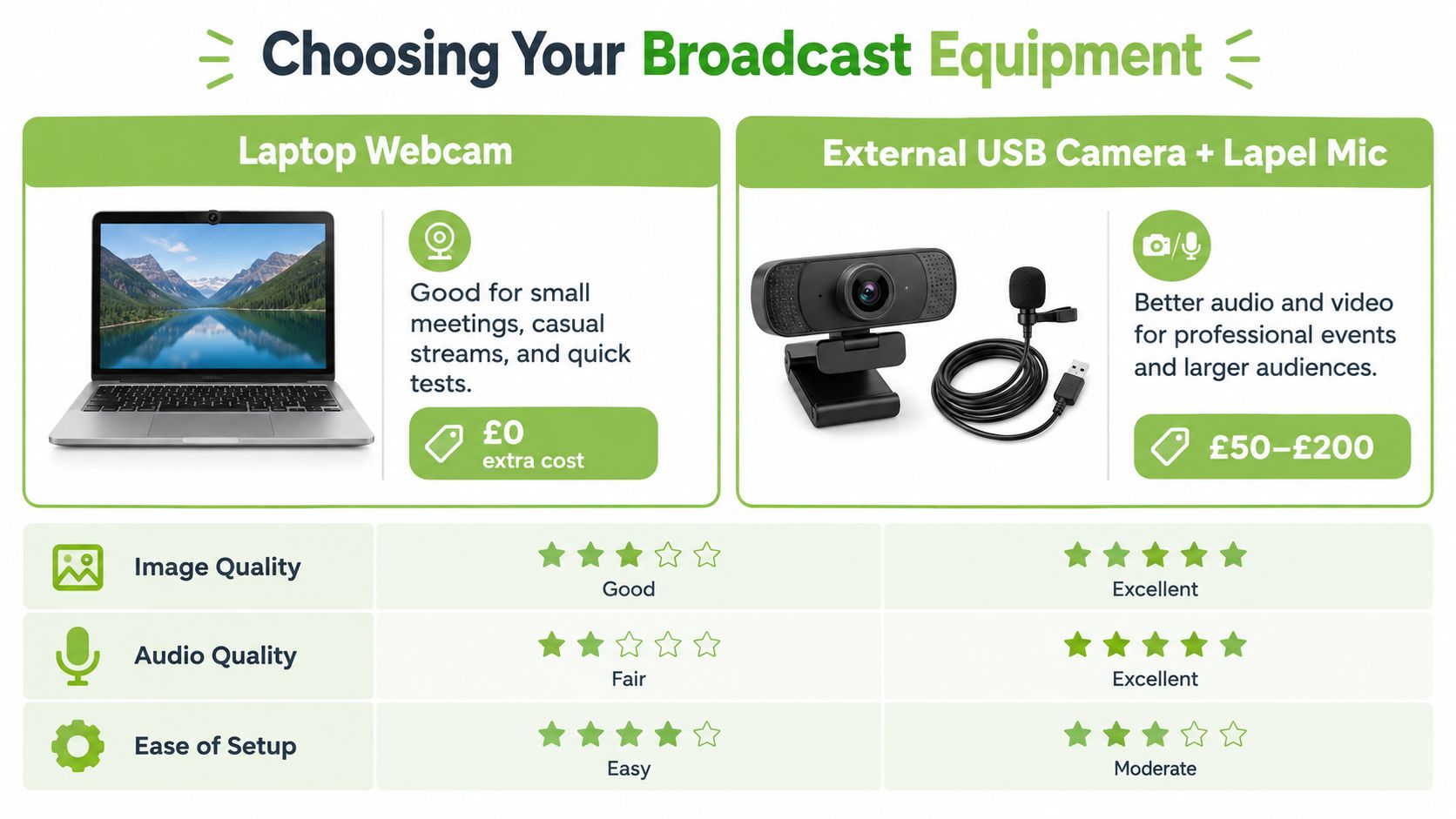
A laptop webcam is enough for a small class check in or a quick internal briefing from a quiet home office. Sit facing a window or lamp, raise the laptop so the lens is at eye level, and use wired earbuds with a microphone rather than the laptop's built in mic across the desk.
When to Step Up
An external USB camera with a lapel microphone, the small mic that clips to clothing, lifts a training webinar noticeably. The speaker can move, turn to a whiteboard, and still sound close and clear. This suits most guest lectures and staff training where credibility matters but the room is controlled. For a fuller breakdown of options at each level, work through this guide to live streaming equipment choices before you spend anything.
A multi camera setup with an encoder becomes worthwhile for a larger hybrid event, such as a panel in a lecture theatre with an in room audience. An encoder is the software or hardware that converts your camera and audio feeds into a stream your platform can send out. You'll also need someone to switch cameras and monitor sound, so budget for a person, not just devices.
Format | Cameras | Audio | Encoder | Network |
|---|---|---|---|---|
Small class broadcast | Laptop webcam | Wired earbuds or USB mic | Platform built in | Stable home or campus Wi-Fi, wired if possible |
Mid sized training webinar | External USB camera | Lapel mic for presenter | Software encoder on host laptop | Wired ethernet preferred |
Larger hybrid event | Two or more cameras | Lapel plus room mics via mixer | Hardware or dedicated software encoder | Wired, tested under load, backup connection |
Whatever you choose, test in the actual room. Lecture halls echo, home offices pick up household noise, and a bright window behind you turns your face into a silhouette. Record a short rehearsal, watch it on a phone with the sound up, and fix what you notice before the audience has to.
Scheduling, Branding and Audience Access
A polished broadcast that nobody finds is wasted work. Scheduling, branding and access are one connected job, because the link you create, the page it opens, and the people allowed through it all shape whether attendees arrive calm and on time.
Scheduling the session in your platform is the first practical step, and it's worth seeing how that workspace looks in practice.
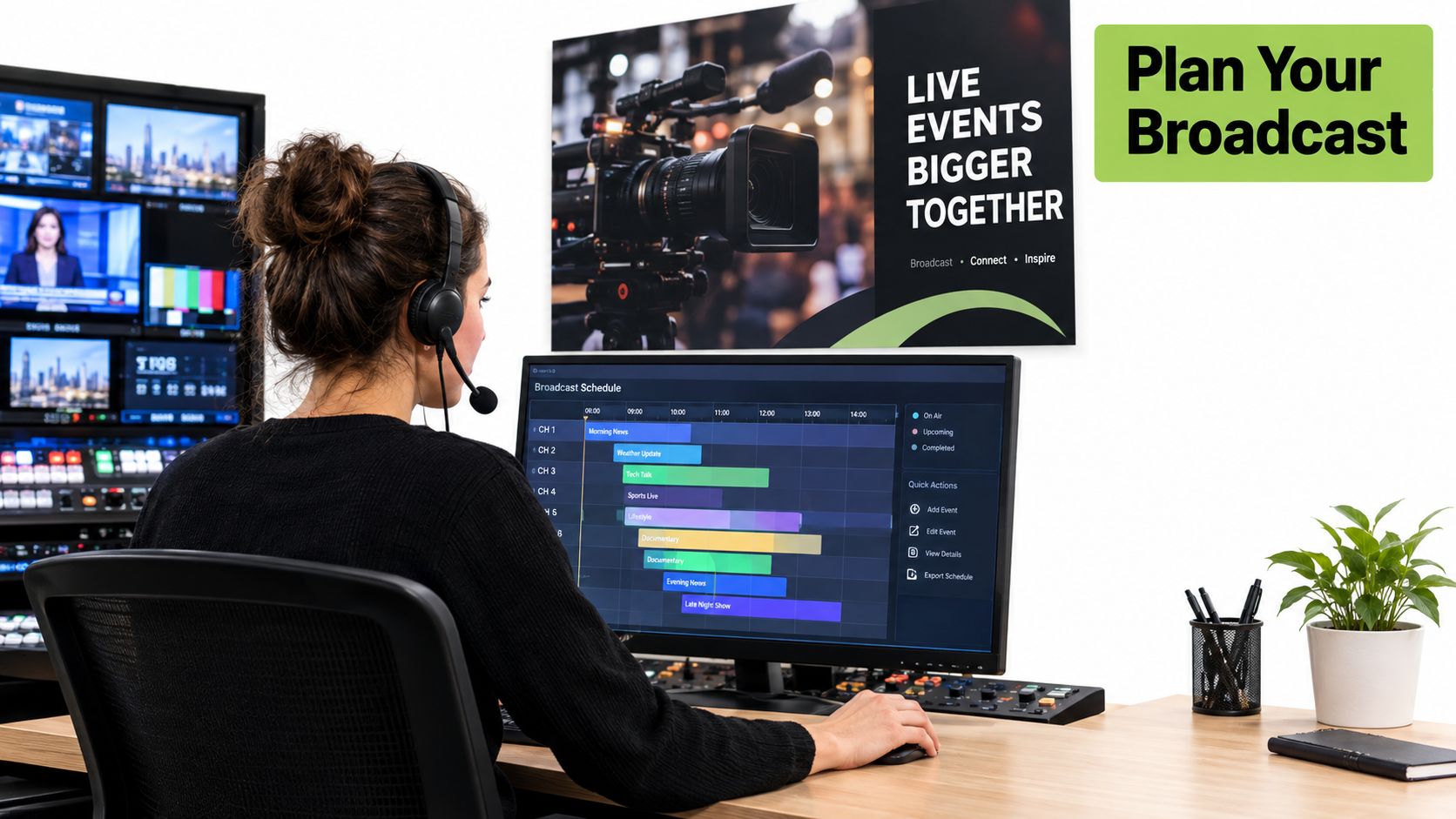
Create the event where your audience already works. For a Moodle cohort, schedule inside the course so enrolled students click through from a familiar page. For a corporate induction, use the LMS or intranet event that new starters already check. Platforms such as MEDIAL can schedule a live session, accept a stream from an encoder, and publish it to a configurable page embedded in your LMS or portal, which keeps the audience in one authenticated place.
Make Joining Foolproof
Calendar invite: Send it when you announce the event, with the join link, start time with time zone, and a short note on whether cameras or questions are expected.
Reminders: Send a brief reminder the day before and another shortly before you start. Repeat the same link every time so people don't hunt through old messages.
Access check: Test the link as a student or new starter would, not as an admin. Confirm that the right cohort gets in and an unauthenticated visitor doesn't.
For a public open day, use registration instead of an open link. You'll know who's coming, you can send reminders, and you can follow up afterwards without exposing an unrestricted stream.
Branding doesn't require a design team. A holding slide with the event title, a consistent background in the waiting room, and lower thirds, the small name captions that appear at the bottom of the screen, make a modest setup look intentional. Prepare intro and closing slides in the same style so late joiners instantly know they're in the right place.
The walkthrough below shows how these scheduling and presentation pieces fit together before an audience arrives.
Open the waiting room early with that holding slide showing. Early arrivals get reassurance instead of a blank screen, and you get a buffer to fix a microphone before the official start.
Running the Broadcast and Handling Common Failures
On the day, your job is to follow the plan you rehearsed, not invent a new one. Arrive early, open every file you'll share, and run the same checks in the same order each time so nothing depends on memory.
The setup below is the calm, standard arrangement you're aiming for before you go live.
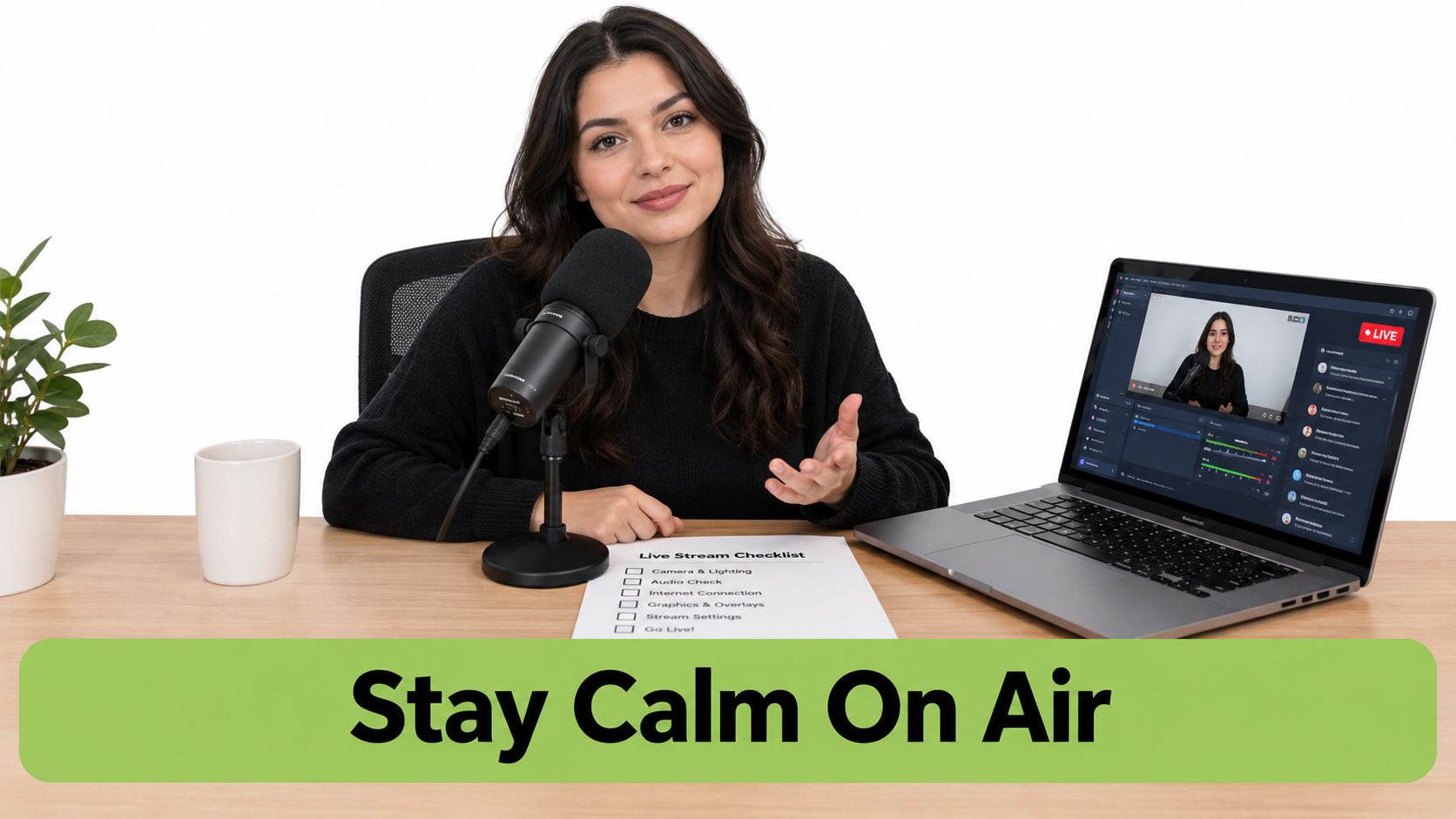
Your Pre Flight Sequence
Sound and picture: Record a short test, listen back on headphones, and check each speaker in turn.
Connection: Use a wired connection where you can, close other heavy applications, and confirm your upload is stable. This explanation of internet speed requirements for streaming helps you judge whether your connection is up to the job.
Show flow in reach: Print the running order with timings, speaker names, and the exact wording for your opening, recording notice and close.
Countdown: At five minutes, speakers are in place and muted until introduced. At one minute, stop making changes. At zero, pause, smile at the lens, and start.
On camera, look at the lens when you're addressing remote viewers, not at your own preview. Introduce each speaker by name, read selected chat questions aloud so replay viewers hear the context, and let your producer or co host monitor chat while you present. Trying to teach, read every comment and operate slides at once is where first broadcasts unravel.
Pause before you answer a chat question. That short silence gives the stream time to catch up and gives you time to choose a clear answer.
The Three Failures That Derail First Broadcasts
Distant or echoey audio usually means the wrong microphone is selected or two devices in one room are live. Mute everything except the speaker's mic, move the mic closer, and switch off loudspeakers that feed sound back into it.
Presenters who can't see or hear each other need a backchannel, such as a phone message thread, agreed in advance. Bring the speaker in by name, fill briefly with a summary slide, and only troubleshoot aloud if the audience needs to know.
A frozen stream or dropped connection calls for a holding slide and a written message in chat while you check the encoder and network. If viewers report stuttering at their end, this eliminate video buffering guide explains the common causes you can work through methodically instead of restarting everything in a panic. Keep the local recording running where possible, because that file may save the session even if the live feed fails.
Accessibility, Privacy and Compliance Built In
Accessibility and privacy aren't paperwork to finish after the event. They're production decisions, and they're much cheaper and calmer when you design them into the workflow from the first rehearsal.
The checklist below summarises the minimum you should confirm before any institutional broadcast.
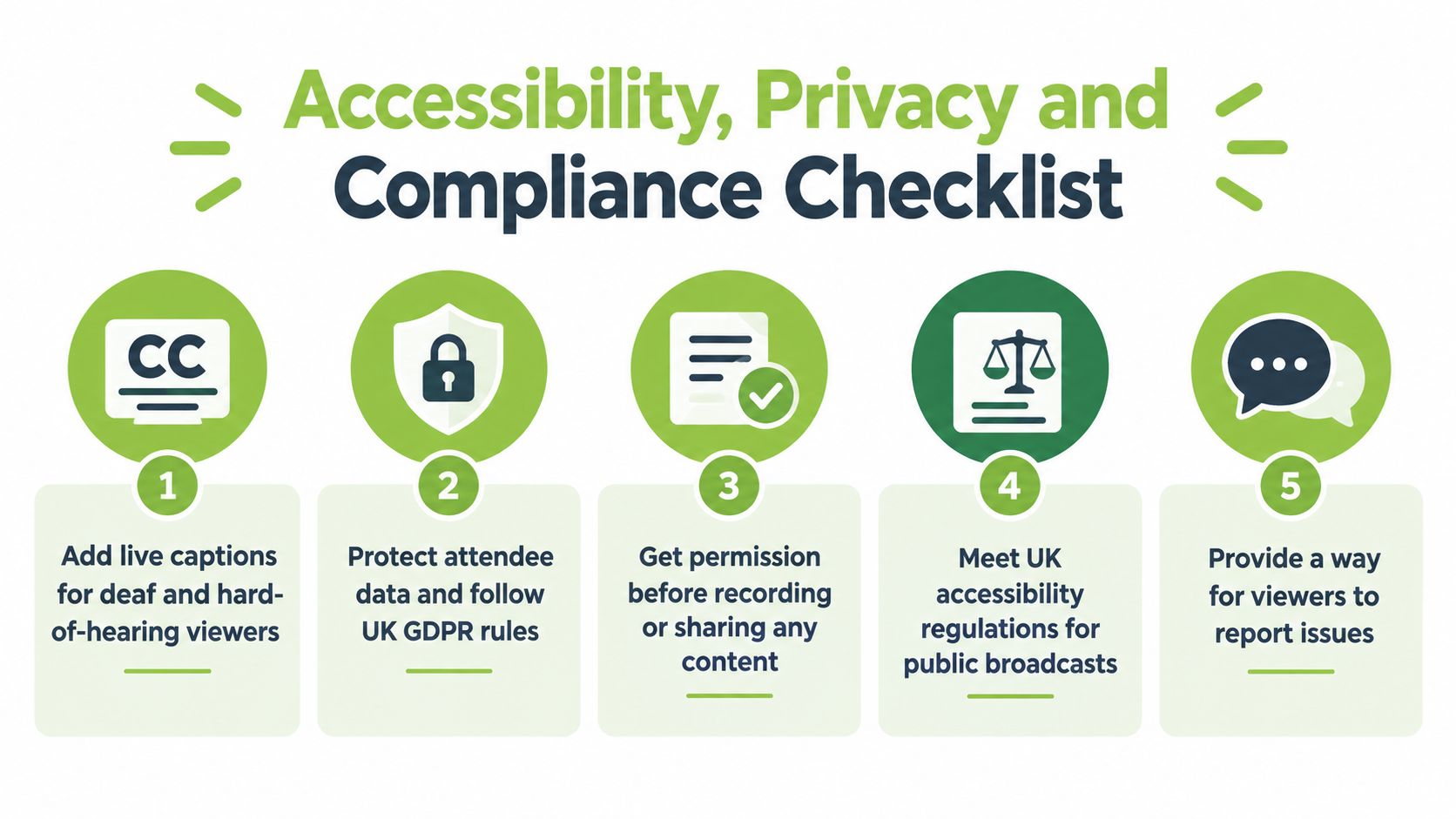
Start with captions. Ofcom reported that 94.7% of responding providers offered subtitles, while 34.2% offered audio description and 21.1% offered signing, in its Ofcom 2024 access services report on UK providers. Treat subtitles as a normal operational requirement, and recognise that live audio description or signing needs extra staffing and rehearsal.
A Workable Accessibility Workflow
Prepare a caption script from your running order, including speaker names and specialist terms your automated captions will probably mangle. Rehearse with the same encoder, caption feed and graphics you'll use live, then check that captions don't cover lower thirds and arrive close to the speech. After the event, correct the caption file and keep it with the recording so the replay is fully usable. This practical guide to making videos accessible covers the production details step by step.
Privacy needs equal care. The ICO explains that live streaming identifiable people involves processing personal data in real time, so UK GDPR and the Data Protection Act 2018 can apply even if you don't save a recording, in its ICO guidance on video surveillance and data protection principles.
Your Compliance Checklist
Purpose and lawful basis: Document both before the session, and state them in the registration or privacy notice.
Audience control: Put the stream behind authenticated LMS access or a strong password for enrolled students or staff, rather than publishing it openly.
Recording notice: Tell participants at the start whether you're recording, why, where it will appear, and how long you'll keep it. Offer a camera off option where appropriate.
Publication permission: Don't post a recording to an indefinite public audience unless the people in it have given express permission for that use.
Retention date: Set a defined deletion or review date in advance, and record it where colleagues can audit it later.
A lecturer streaming a seminar to the enrolled cohort, announcing the recording, and deleting it on a set date has an auditable process. A host who assumes joining equals consent to public posting does not.
Wrapping Up, Recording and Reusing the Event
The audience leaves, but the broadcast isn't finished until the recording is safe, correctly labelled and shared with the right people. A tidy shutdown takes minutes and prevents the most common loss, a great session trapped on one laptop or shared through an open link by mistake.
Close the Session Cleanly
Thank speakers and attendees on camera, state where and when the replay will appear, then end the stream before you start packing up or discussing the session. Stop the encoder, confirm the recording has saved and plays back with sound, and check that the caption file or transcript is stored alongside the video, not in a separate folder you'll forget.
Rename files while the details are fresh. Use the event title, date and version, and note anything that needs editing, such as a long pause at the start or a question that shouldn't be published. Trim only what's necessary, correct caption errors for names and technical vocabulary, and add chapter markers at each speaker or topic change so asynchronous learners can find the part they need.
Distribute the Replay Responsibly
Decide who can watch, where the recording lives, and how long it stays there, using the notice you gave participants. An authenticated LMS course page suits enrolled students. A staff training library suits employees who missed the live induction. If you need to send the file outside those spaces, use a method that lets you control access and expiry. Learning how to share recordings with a secure link is safer than circulating a public URL that anyone can forward.
Package the replay as a small learning asset, not a bare video file. Add the slides, a two or three sentence summary, the corrected transcript, and any follow up task or discussion prompt. People who couldn't attend live then get an equivalent route to the outcome you set in your plan.
Reuse test: If a learner opens the replay cold in six weeks, can they tell what it is, who it's for, and what to do after watching? If not, add that context now.
Finally, note what you'd change while you still remember it. Microphone placement, a reminder that went out too late, a caption term to pre load next time. Those notes turn a one off live broadcast into a repeatable workflow, and your next event starts from experience instead of anxiety.
If you're running live lectures, inductions or training through Moodle, Canvas, Blackboard or Brightspace, MEDIAL lets you schedule and brand live sessions, record them automatically, and manage the replay with captions inside your LMS. Book a personalised demo or start a free trial to run your next broadcast event live using the workflow above, without stitching separate tools together.
Comments